ScholaRiseShipped, not announcedLatest v2.21.0Changelog
Changelog
What’s new in ScholaRise.
Every production release, written for the people who run schools — not for engineers.
New features, fixes and improvements, with screenshots and short recordings where they
help.
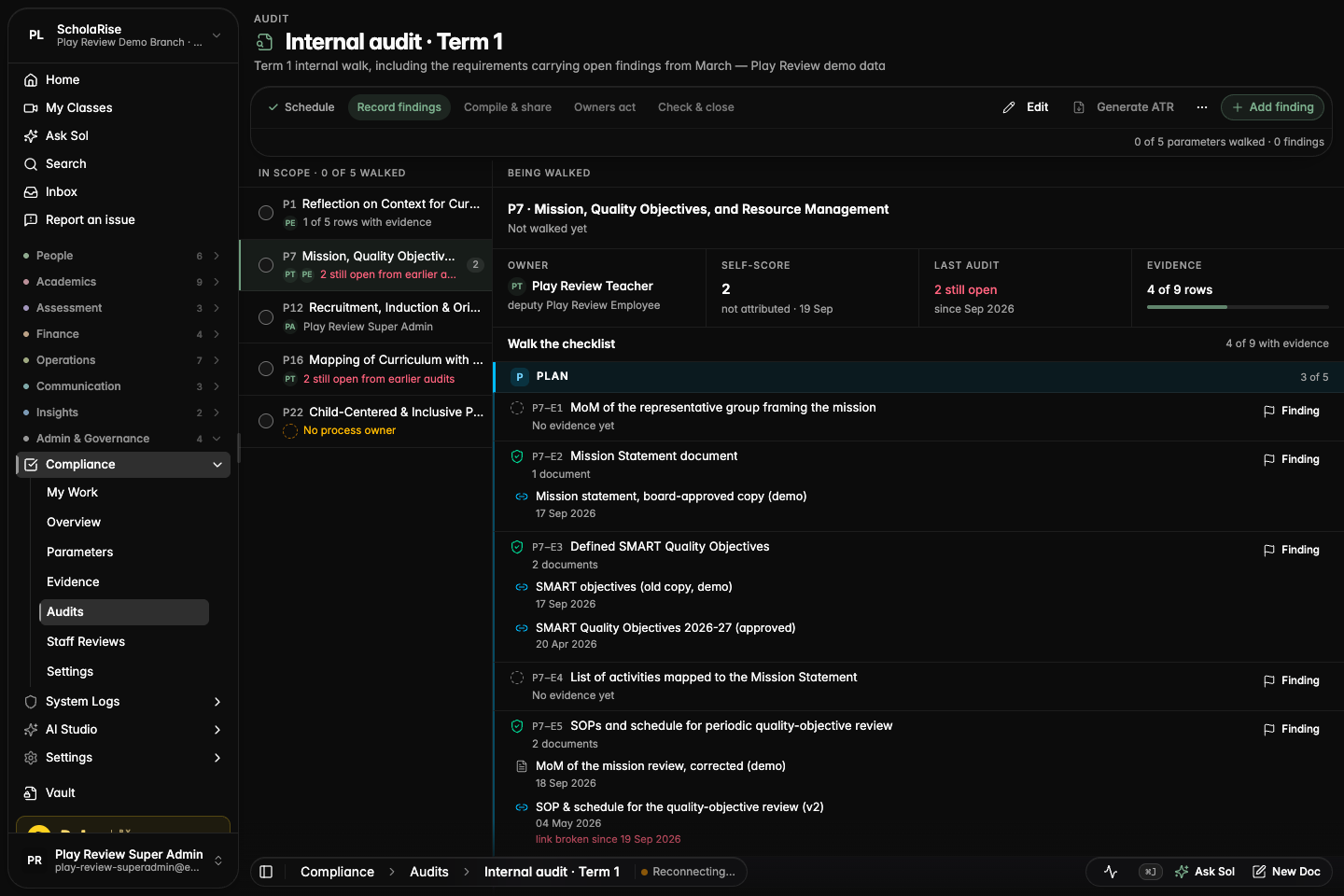
The audit walk, with the checklist and the owner's documents in one pane
Platform
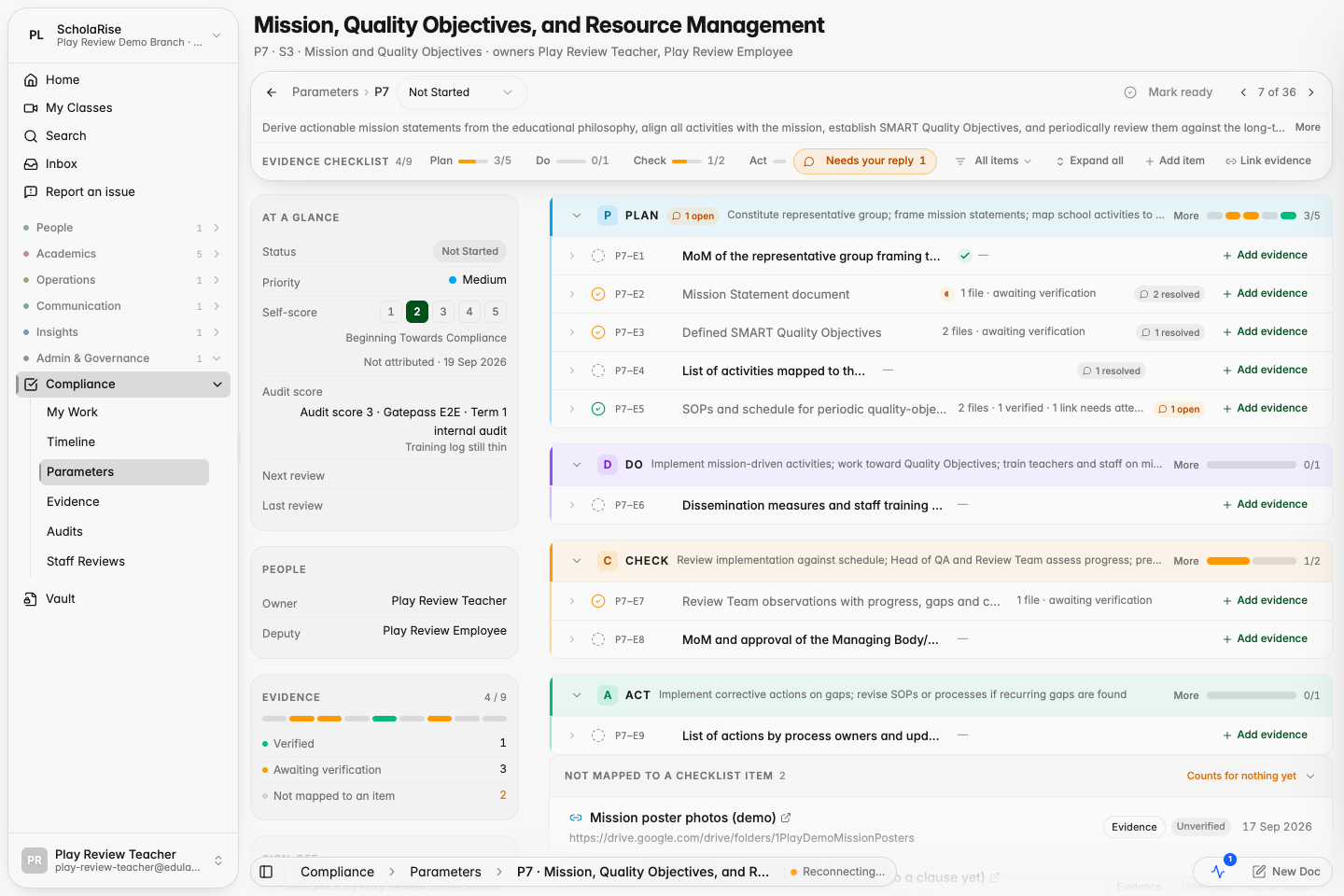
The audit walk puts the evidence in front of you
When you audit a parameter, its checklist and the process owner's documents now sit in front of you, grouped by phase, with the context you need in a strip above them. Picking the score is the last step instead of the first.
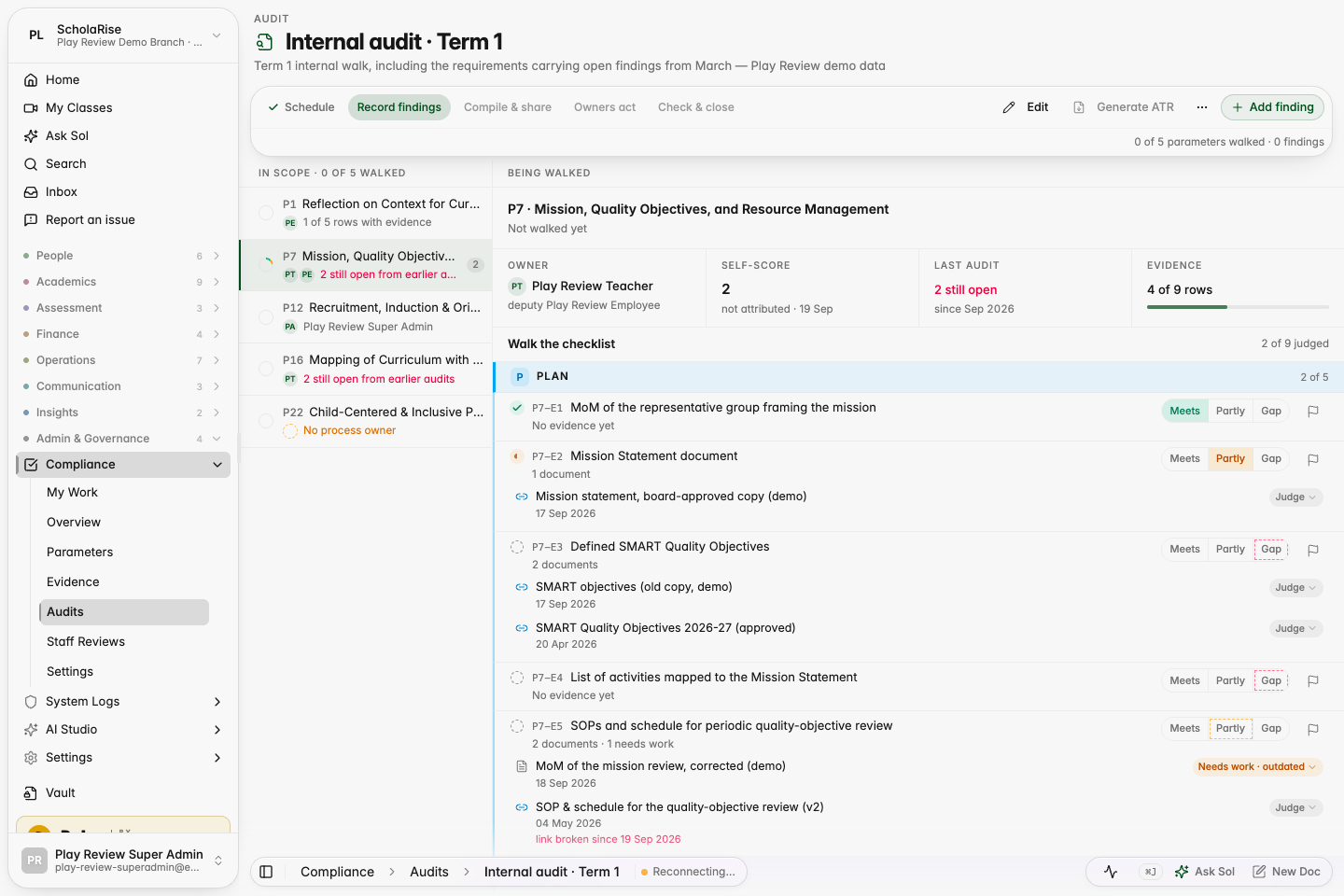
A verdict on every checklist item and document
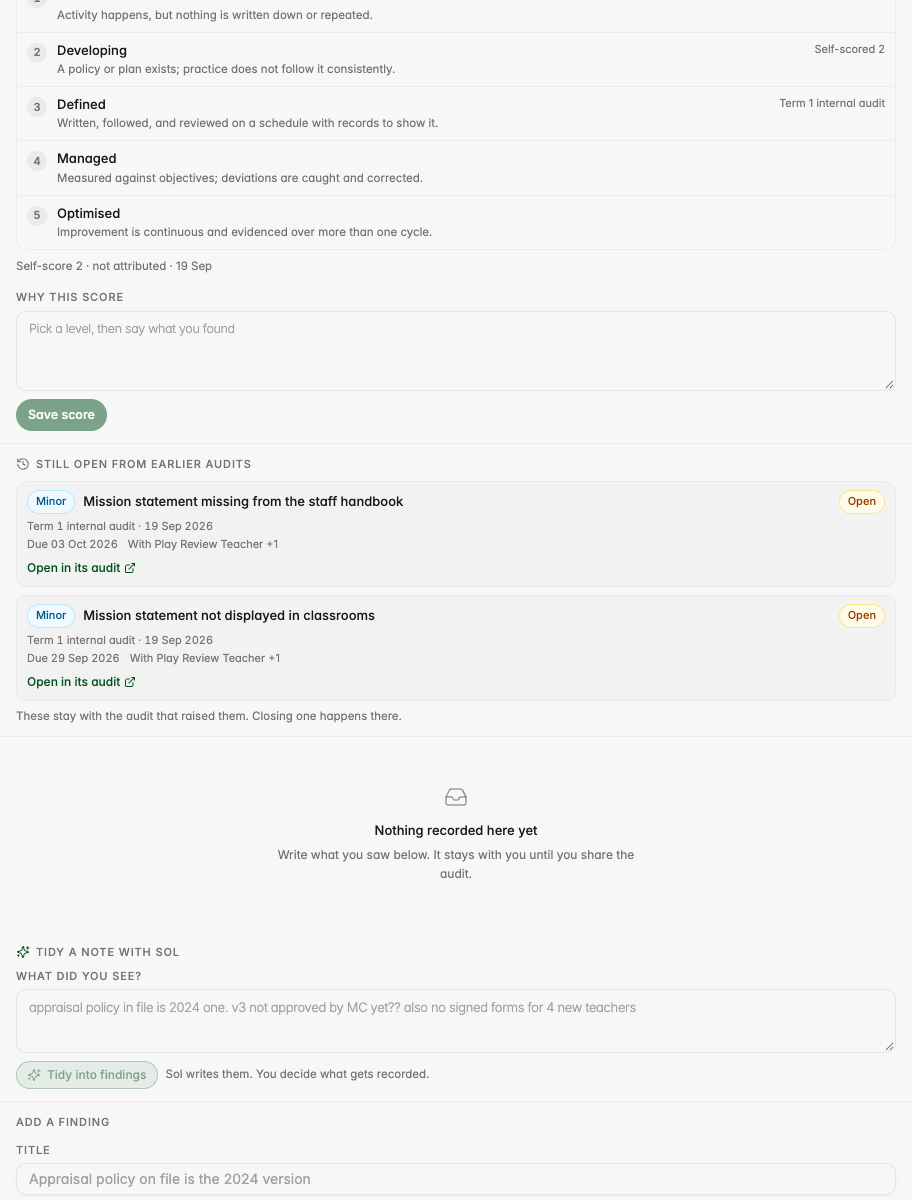
As you walk a parameter you can mark each checklist item as met, partly met or a gap, and accept or flag each document with a reason. Rows you have not judged yet offer themselves so nothing is missed. The maturity score is then picked against the rubric in plain words, with the owner's own score and the last audit marked beside it.
Verdicts on rows and documents during the walk; unjudged rows show a dashed offer.
The score step: rubric rungs with the self-score and last audit marked, and the reason box.
Ask the process owner a question while you audit
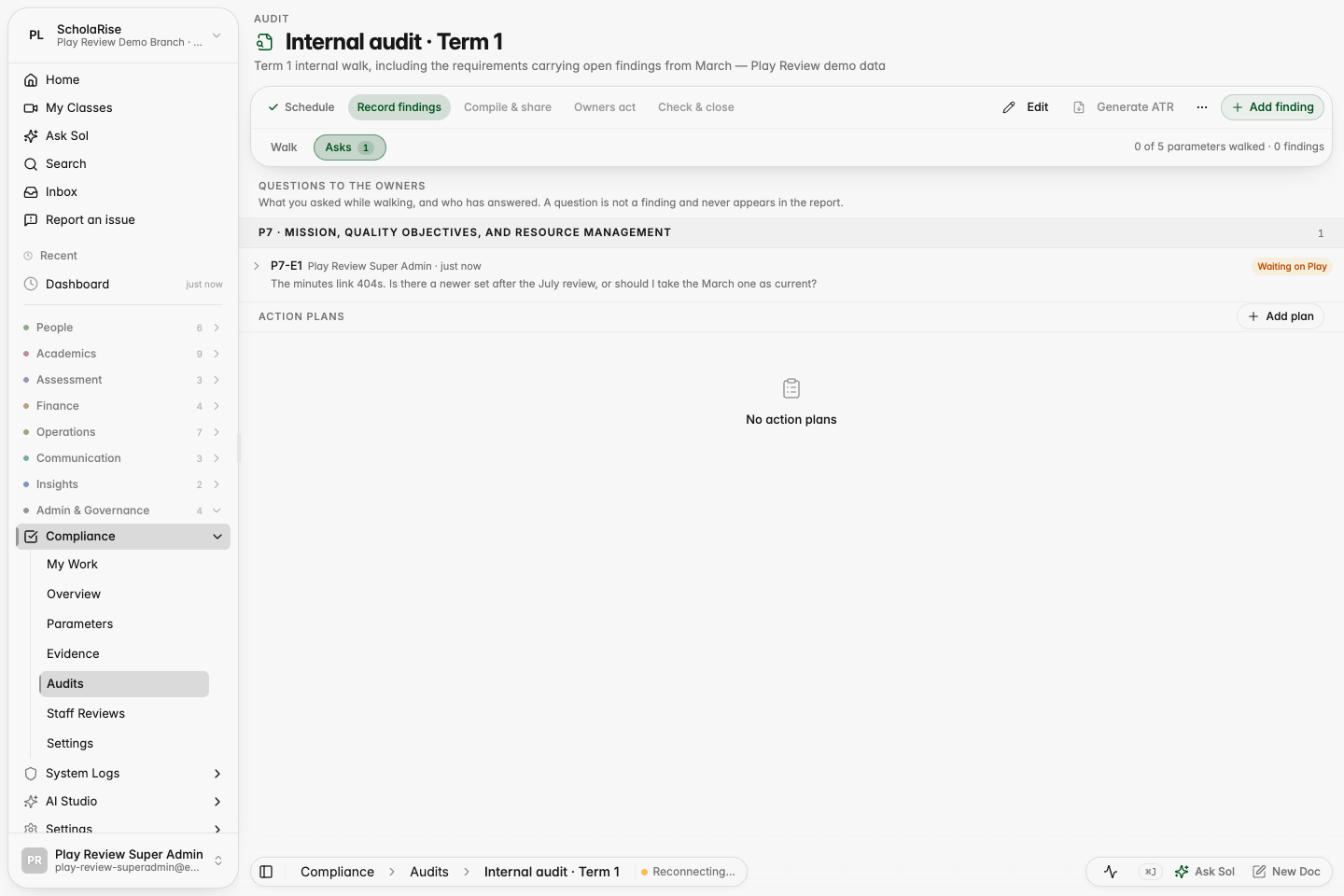
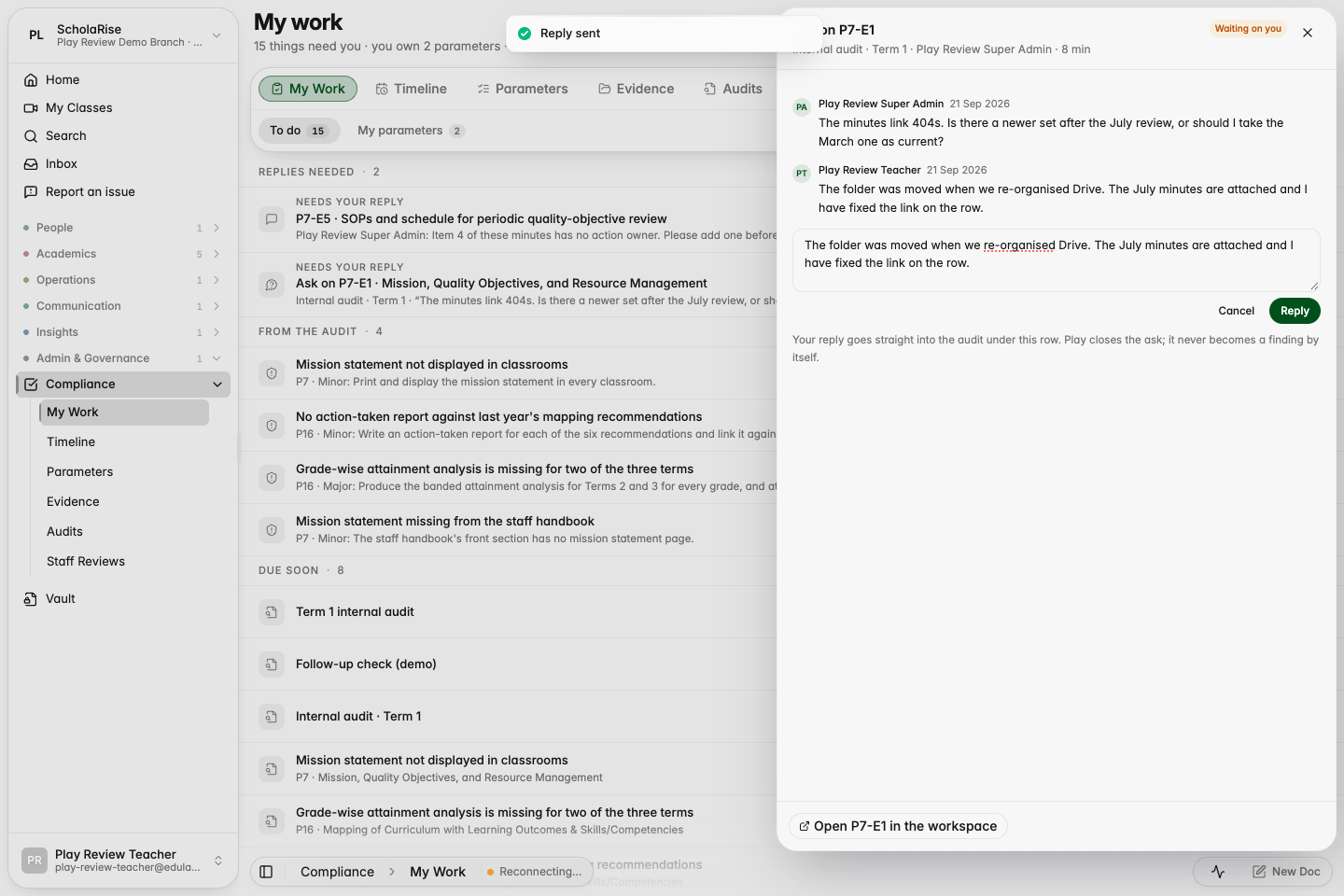
You can now ask the process owner a quick question about a checklist item or a document without breaking off the audit. The owner answers it from My Work rather than waiting for the report, and the reply lands under the row you asked about. An Asks tab shows every question on the audit, grouped by parameter, with who still owes a reply.
The Asks tab: every question on the audit, grouped by parameter, with who still owes a reply.
The owner answers from My Work; the reply lands under the row the auditor asked about.
The same question inside the owner's parameter workspace, marked as an audit ask.
One box for a question, a note or a finding
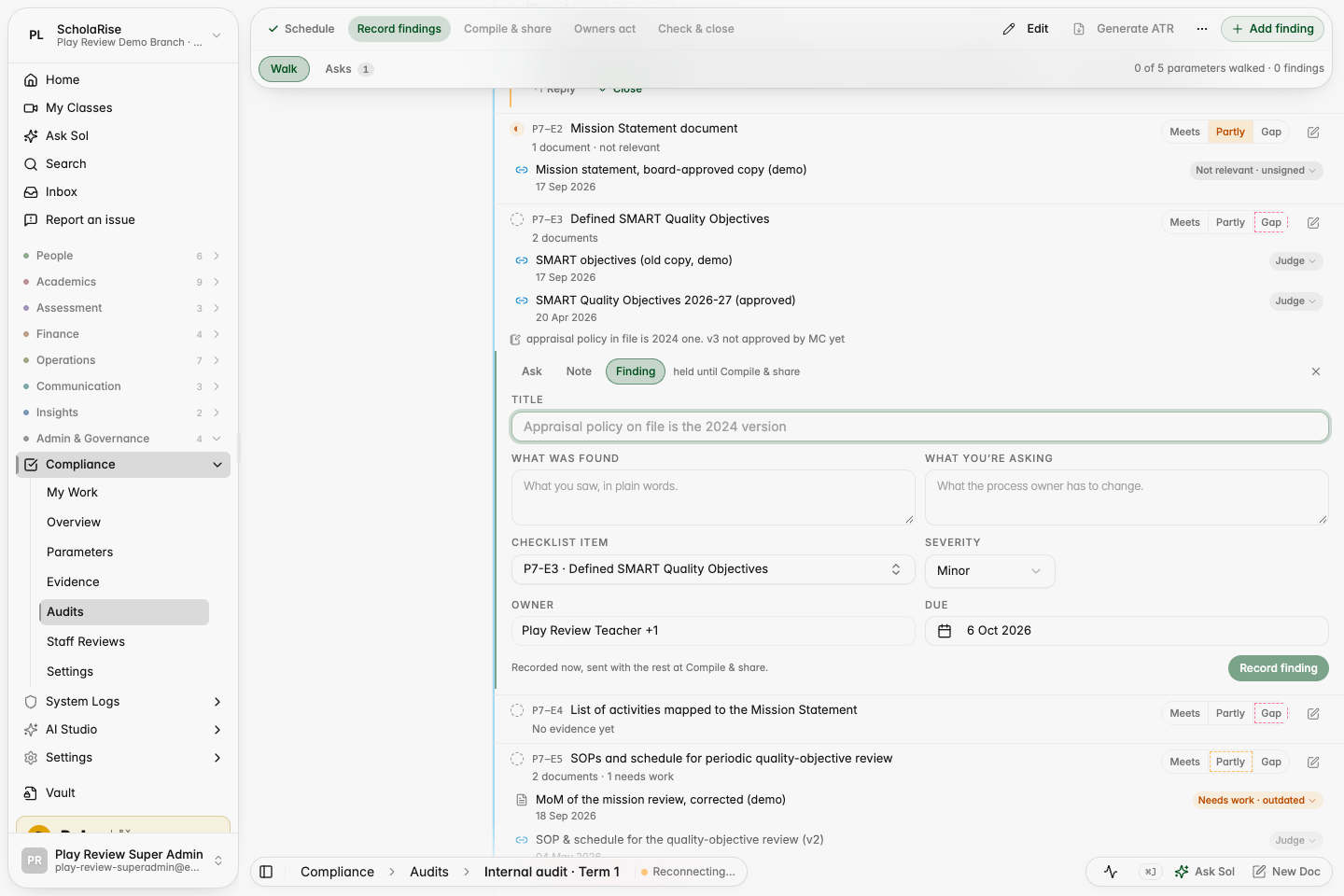
Every checklist item now has a single box with three lanes: ask the owner, keep a private note to yourself, or record a finding that points at that exact item, with the item, owner and due date already filled in. Sol can also turn your notes into findings placed on the right rows.
The composer's Finding lane on a checklist row, with the item, owner and due date already filled in.
See what each owner will receive before you share
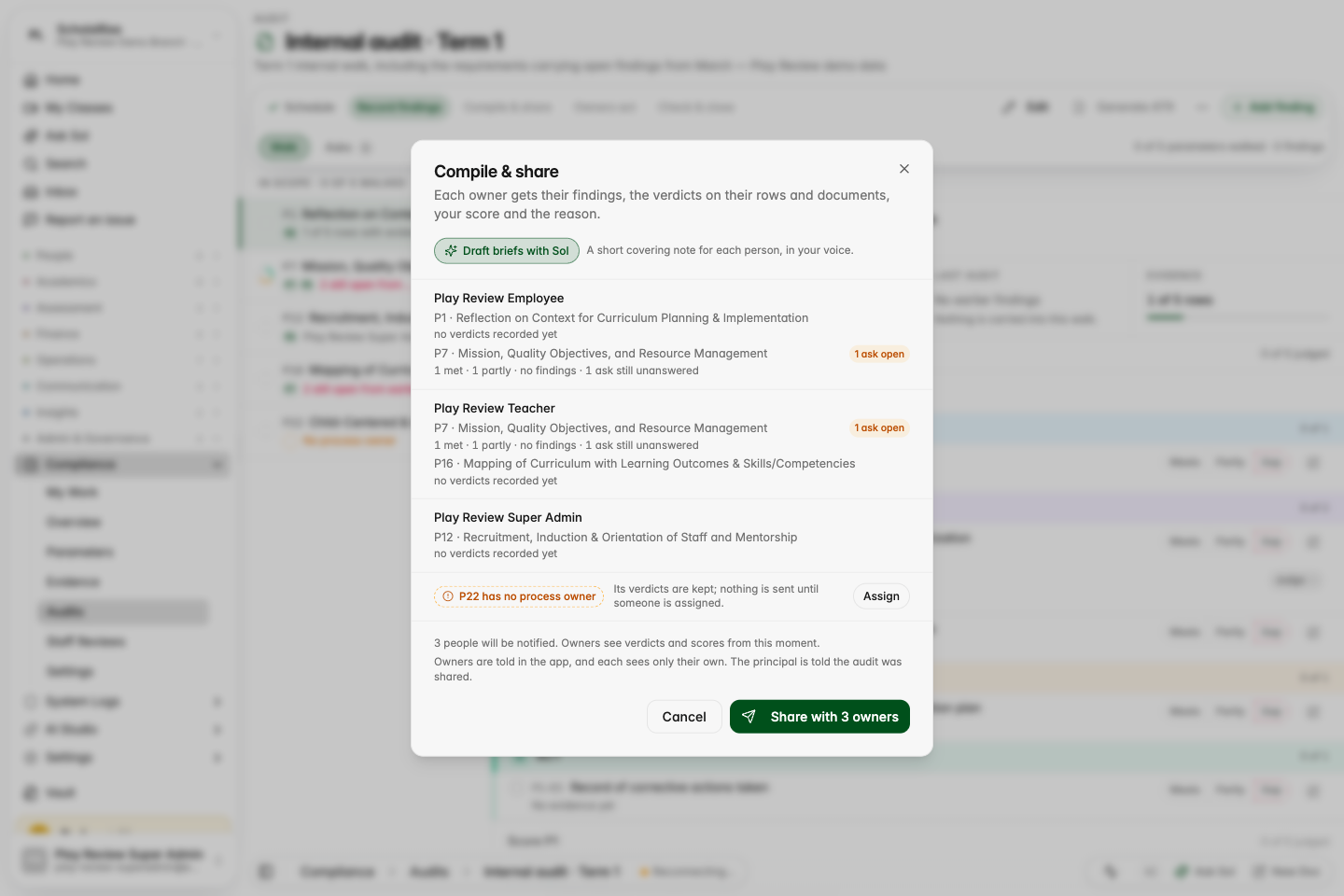
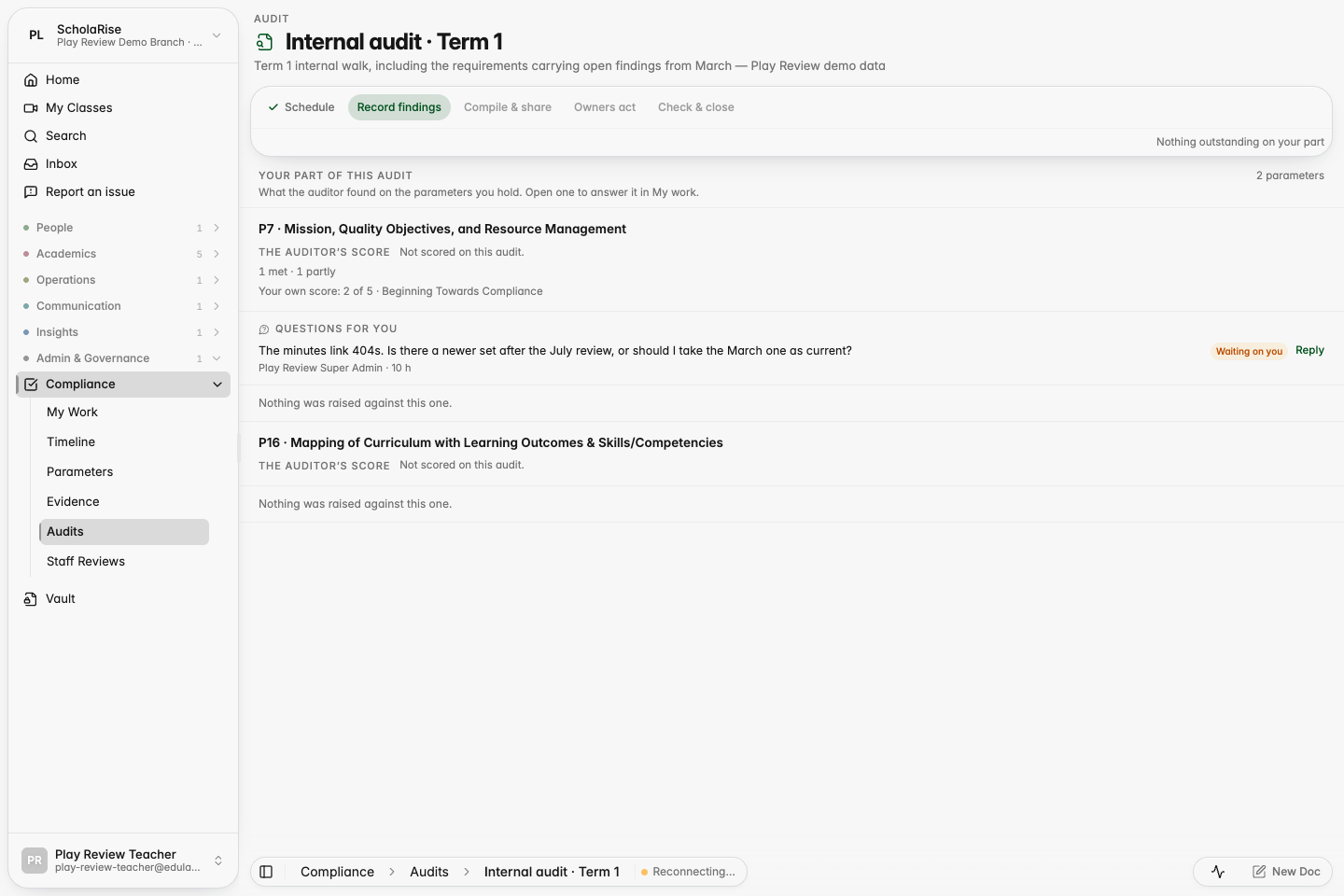
Compile and share now shows one line per process owner with exactly what they will receive, flags a question still waiting for an answer, and calls out a parameter that has no owner. Once you share, owners see the auditor's marks on every checklist item and document inside their own parameter page, beside their self-score, and the Action Taken Report prints them.
Compile & share: one line per owner with what they will receive, an open ask flagged, and an unowned parameter called out.
The owner's view of the shared audit: the auditor's tallies beside their own self-score, and the question waiting for them.
The owner's parameter page after the hand-over: the auditor's verdict marks on each checklist row.
Examination
No repeated term column on Class 1 and 2 report cards
Report cards for Classes 1 and 2 no longer show a duplicate, empty term column after you switch campus or academic year.
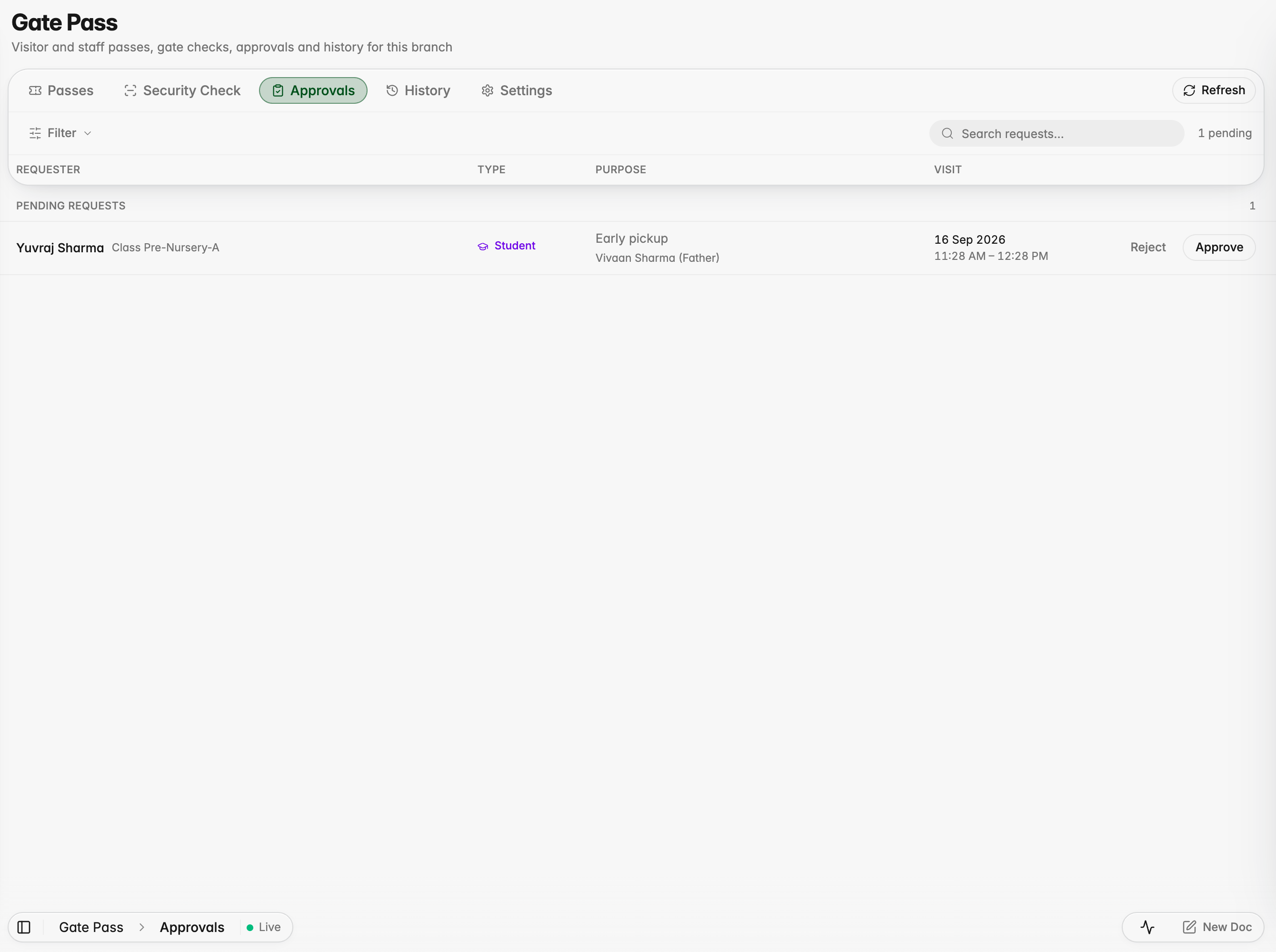
The class teacher approving a student's early pickup
Platform
Students can leave early or arrive late on a gate pass
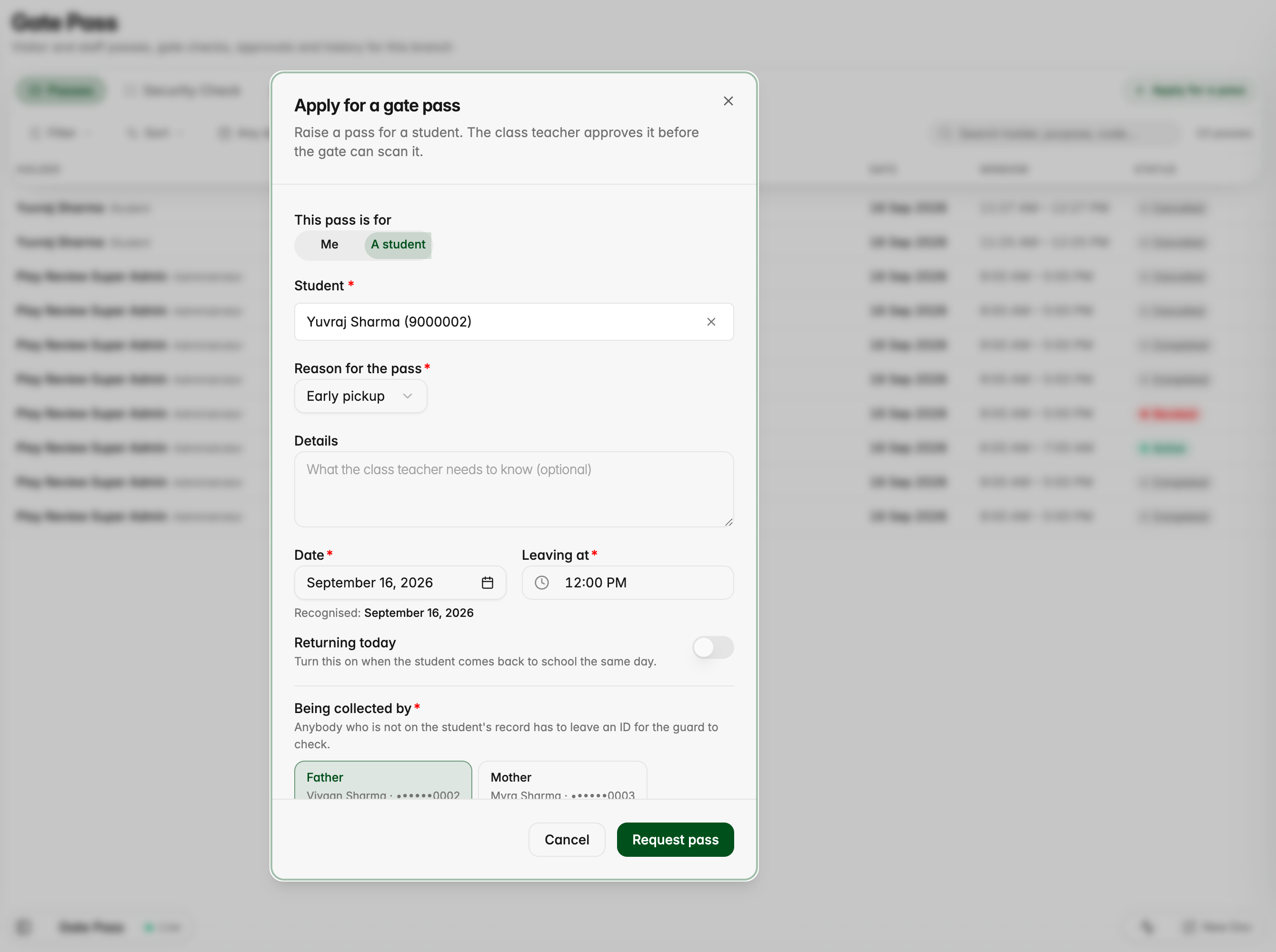
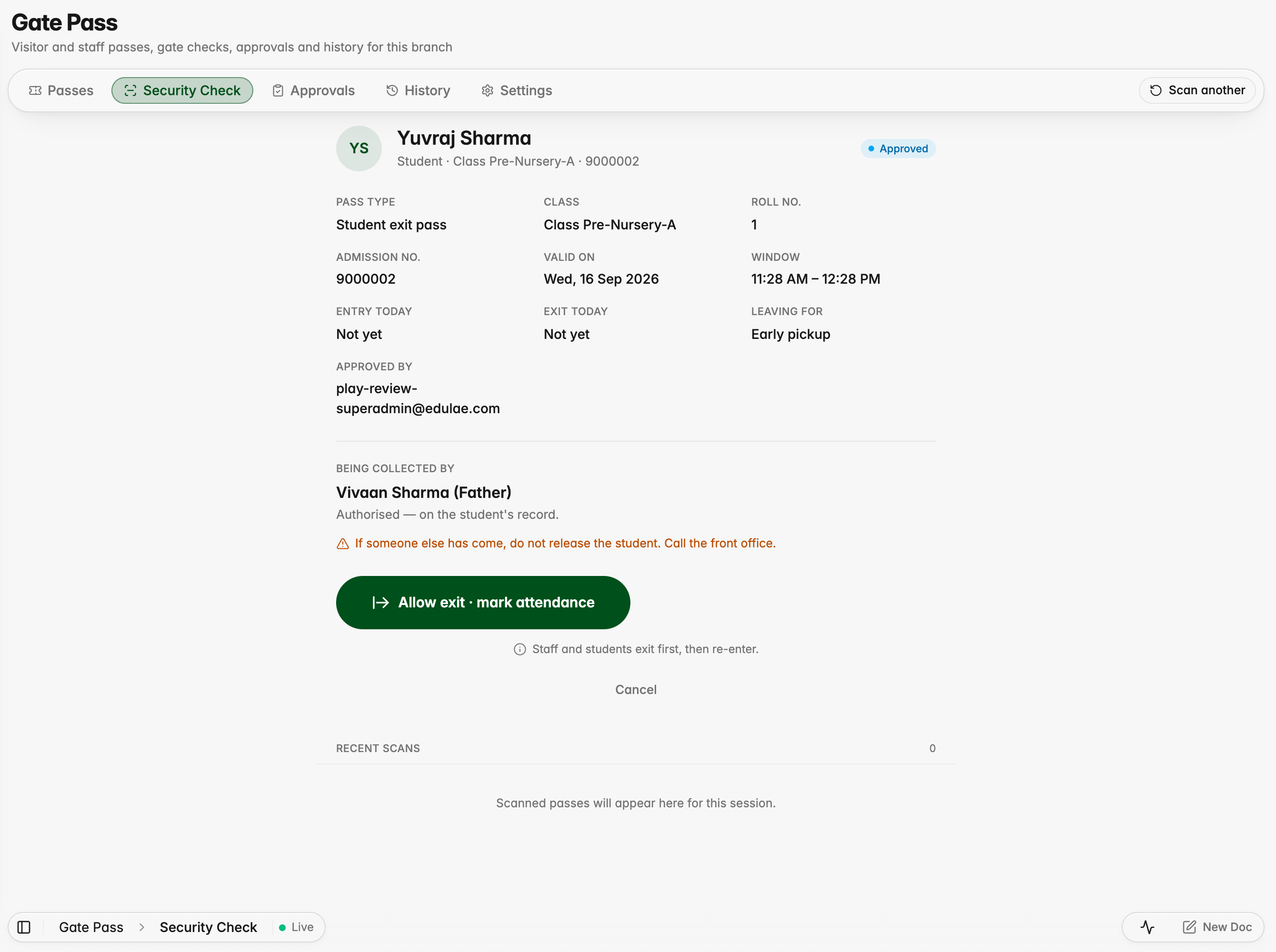
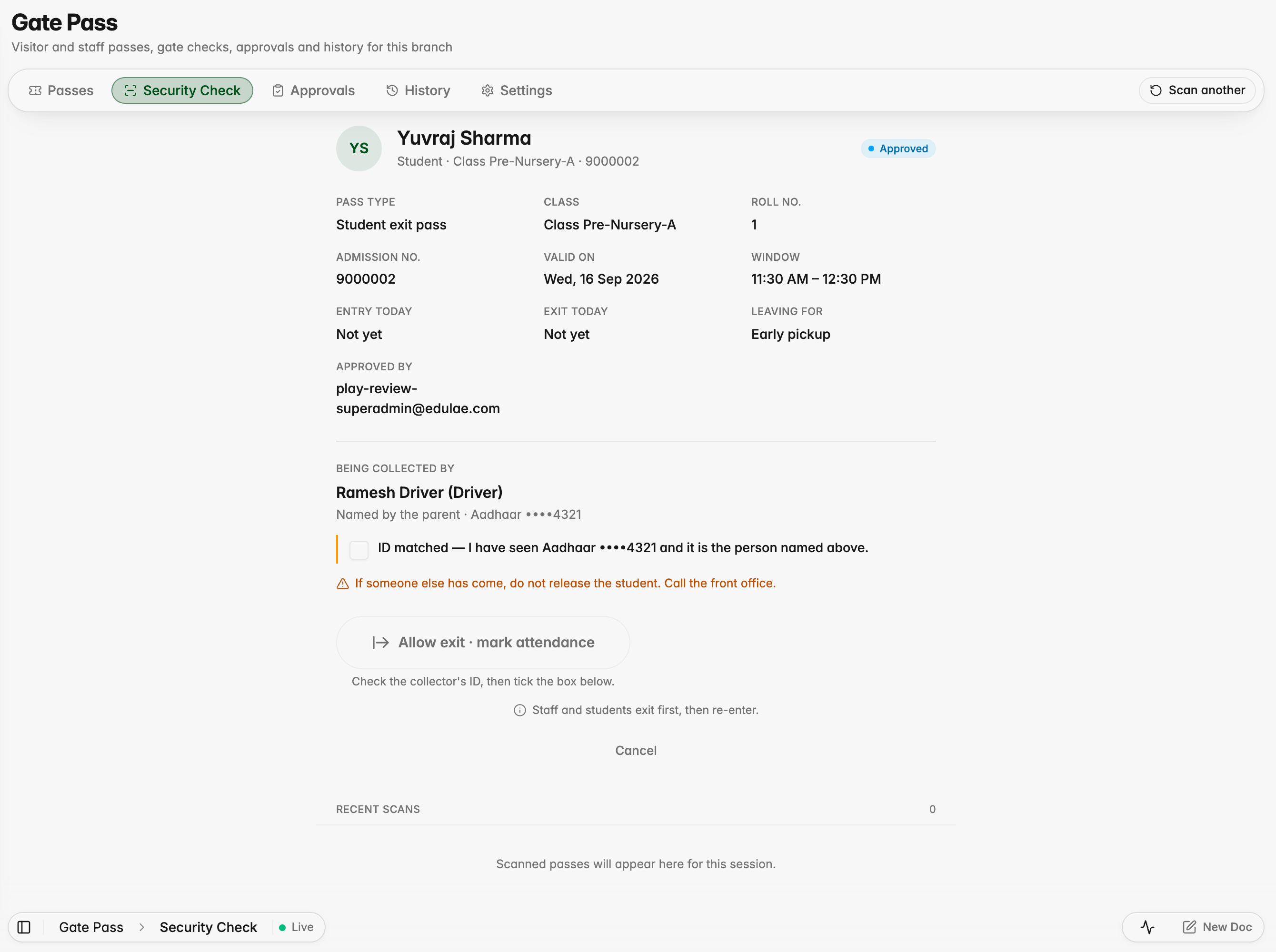
A parent or the front office can raise a pass for a student, the class teacher approves it, and the guard checks who is collecting the child before the exit is allowed. A parent on record is shown as authorised; anyone else must show ID. Attendance is updated on its own.
Raising a pass for a student, with the parents on record offered as pickup
At the gate, a parent on record is shown as authorised
Anyone else must show ID before the exit can be allowed
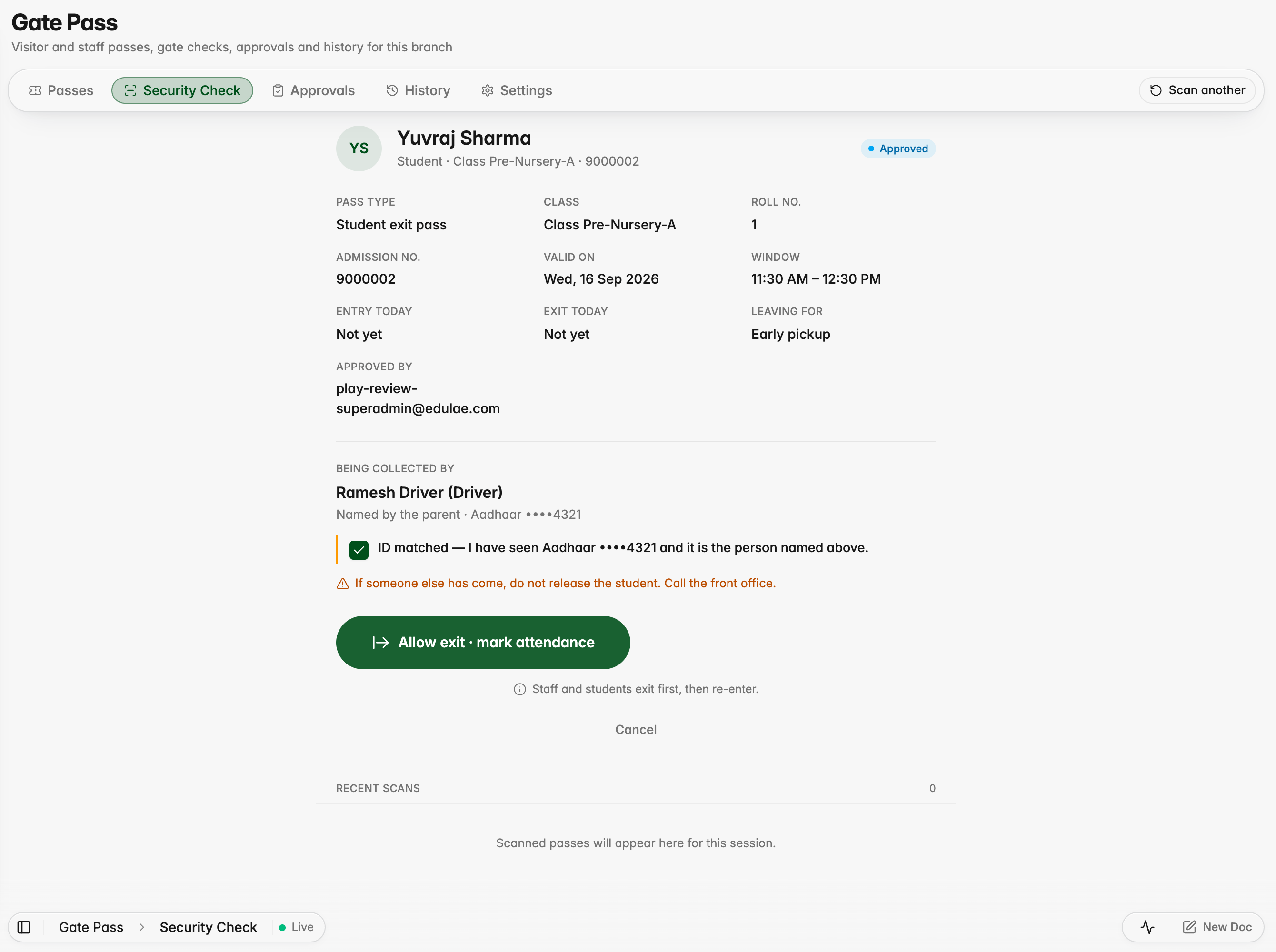
The guard confirms the ID and the exit unlocks
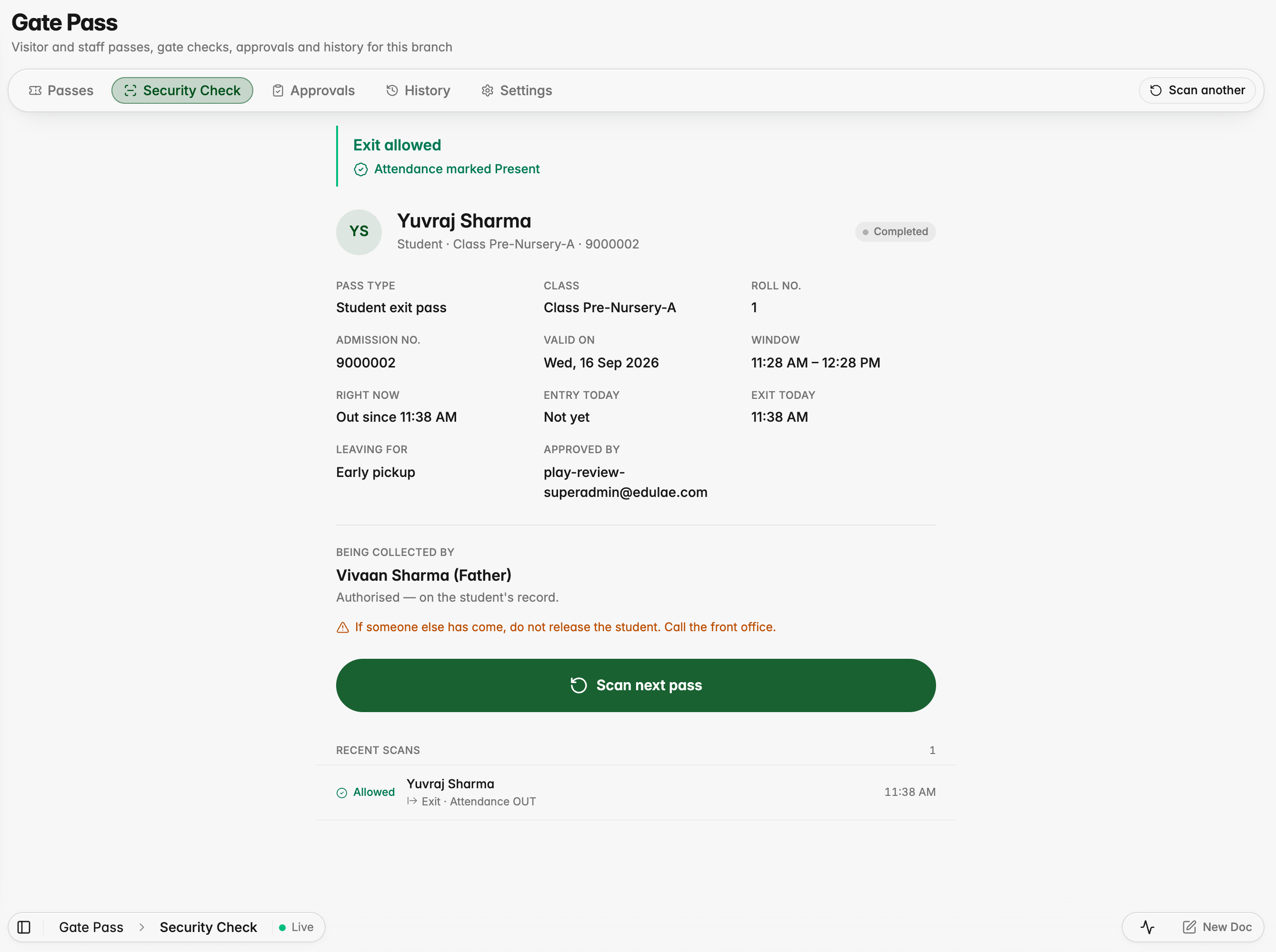
The exit is recorded and attendance is updated
The pass keeps the handover details
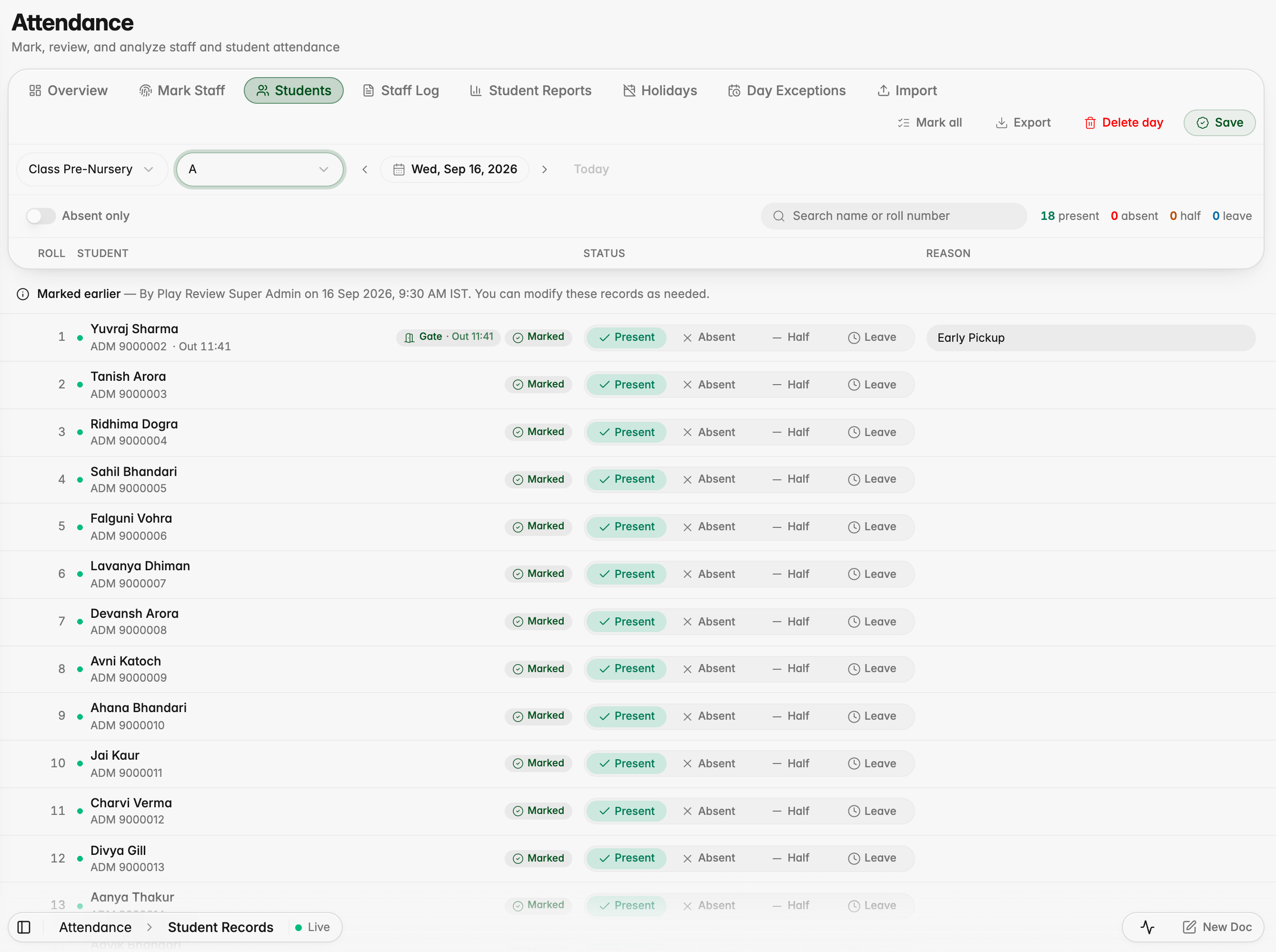
The register shows the gate exit and the time
Round trips, revoked passes and guard overrides
A pass can now allow more than one trip out and back in a day, and an approver can revoke a pass with a reason that the holder sees. When someone must be let through outside their window, the guard records an override with a reason and attendance is still marked.
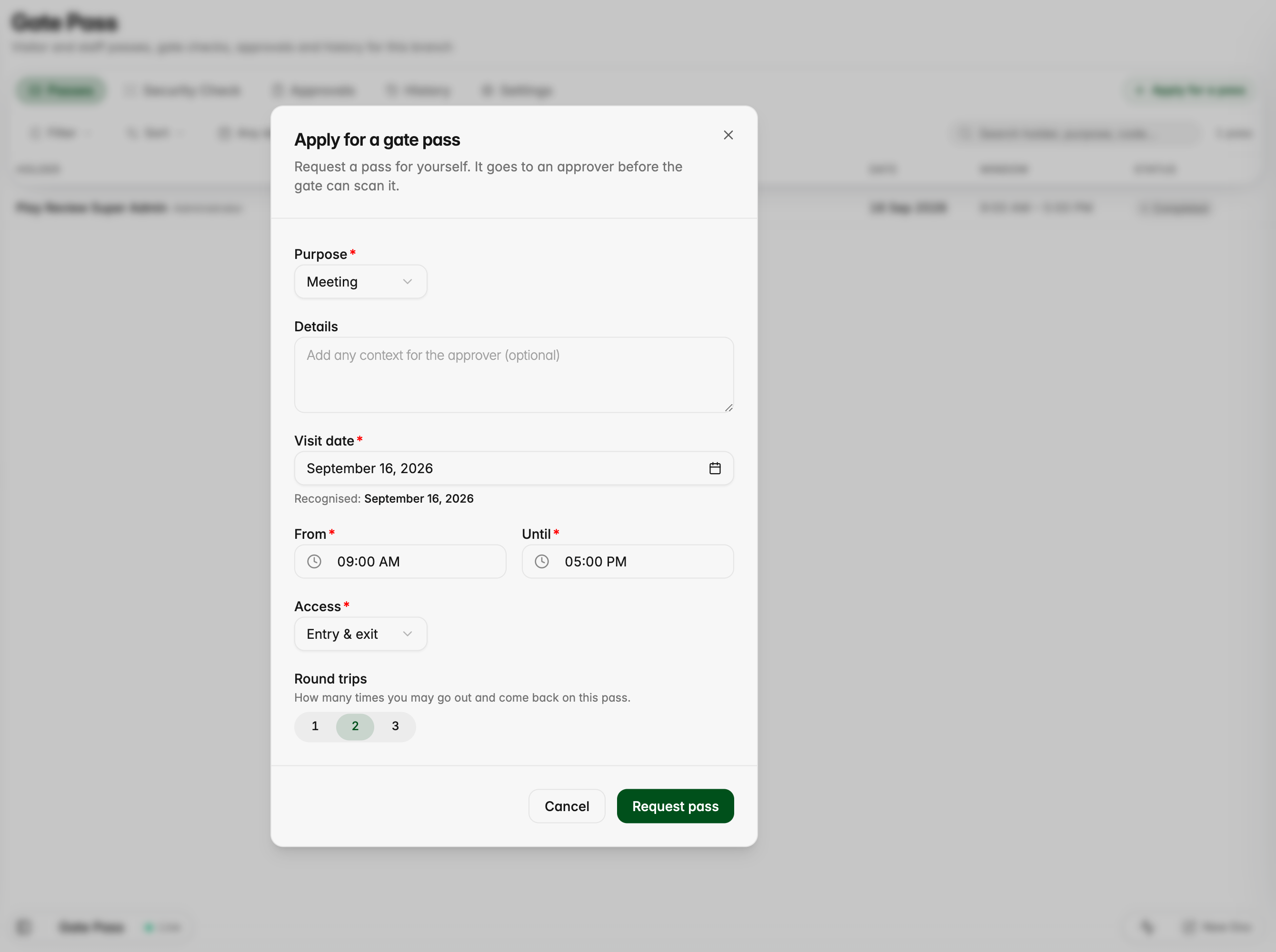
Applying for a pass now lets you choose how many round trips it allows
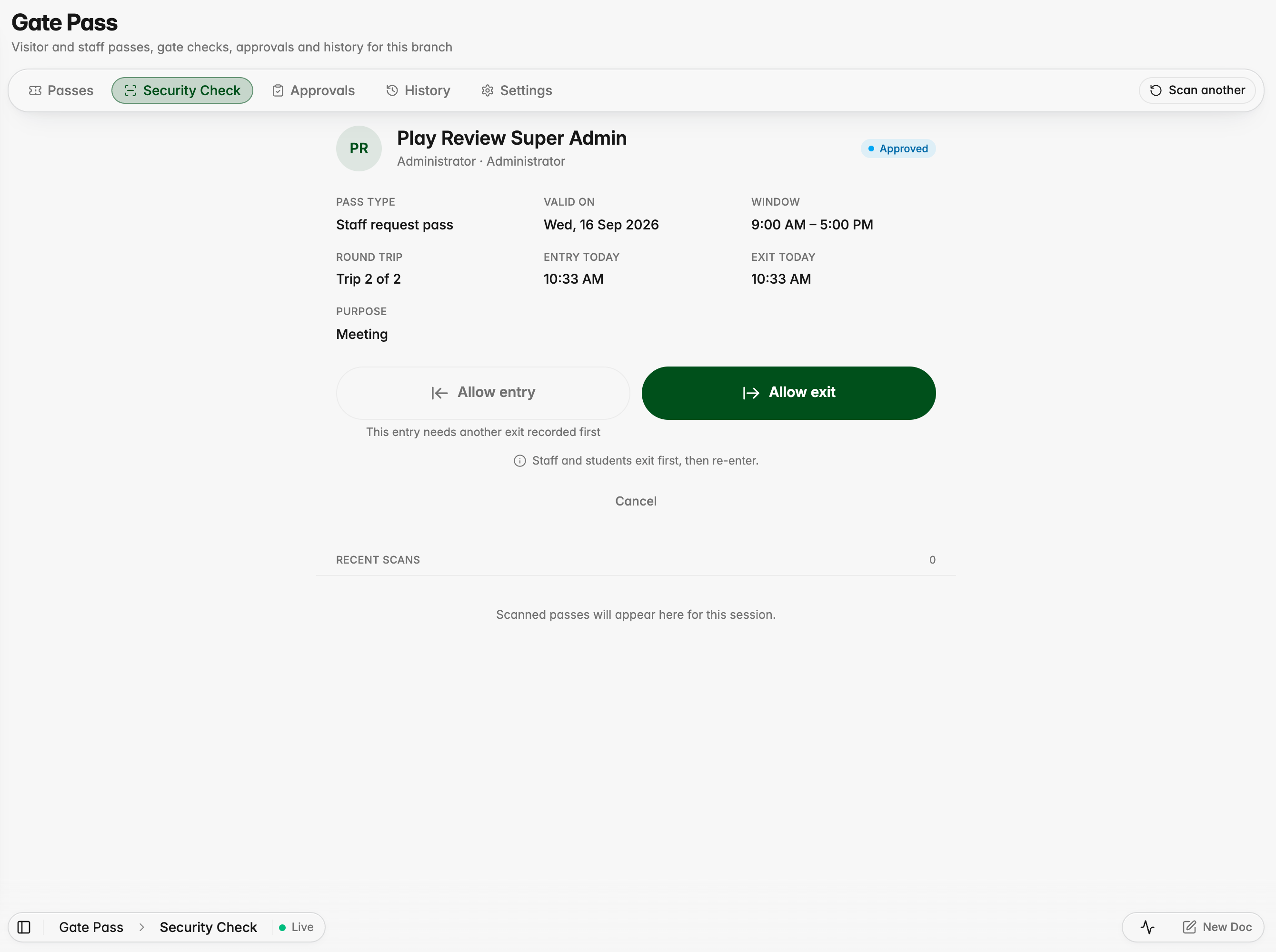
The guard sees which trip the person is on
Outside the window, the guard can override with a reason
The reason is required and stored on the movement
The override is recorded and attendance is still punched
An approver revokes a pass and the holder is told why
History shows revoked, active, completed and expired passes
Visitors choose their type and answer only what applies
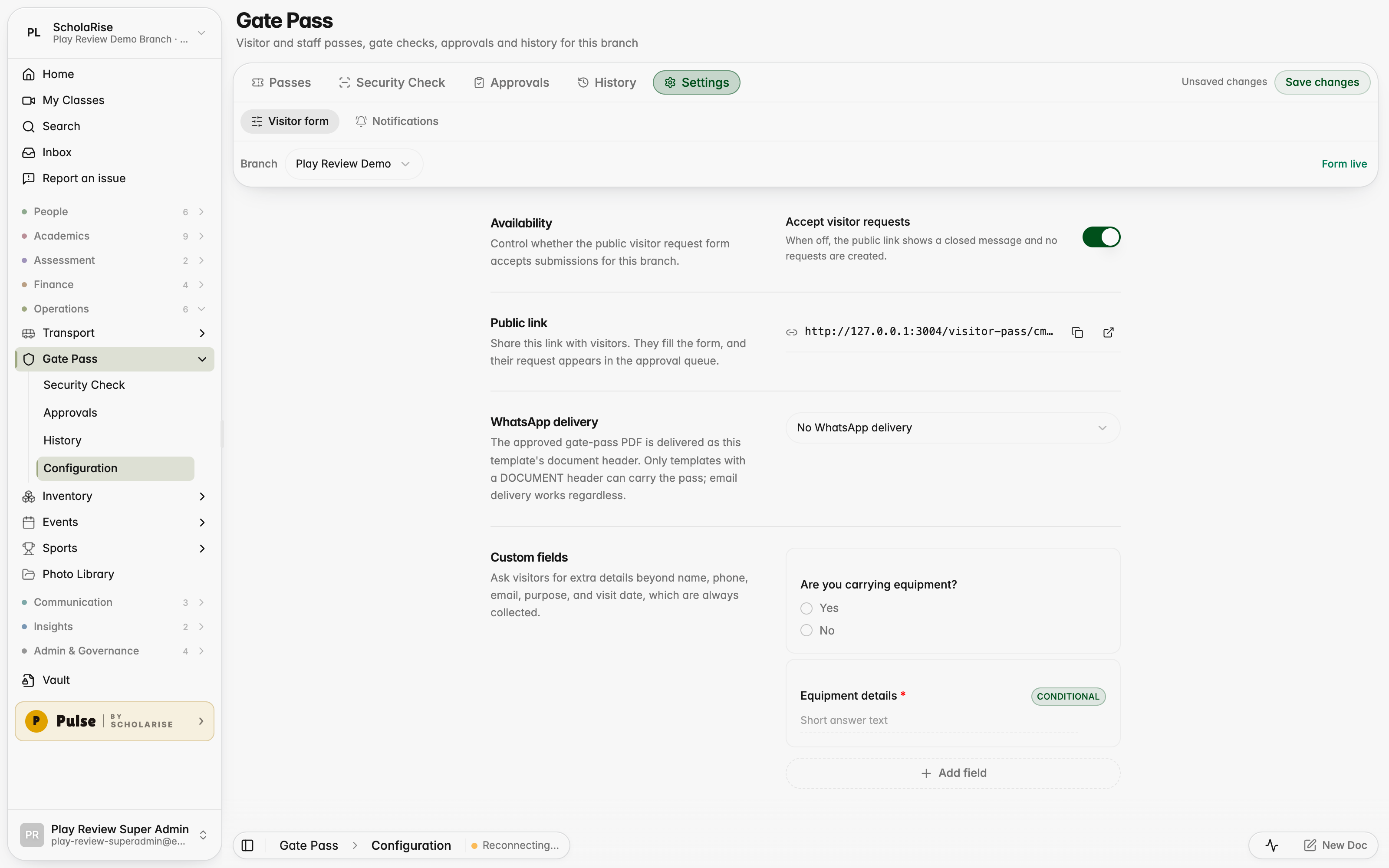
Visitors pick what kind of visitor they are and see just the questions for that type, and the person they came to see approves with one tap. The front desk gets a watchlist, walk-in registration and a simple gate log for deliveries and couriers. Forms can show a follow-up question only when an earlier answer calls for it.
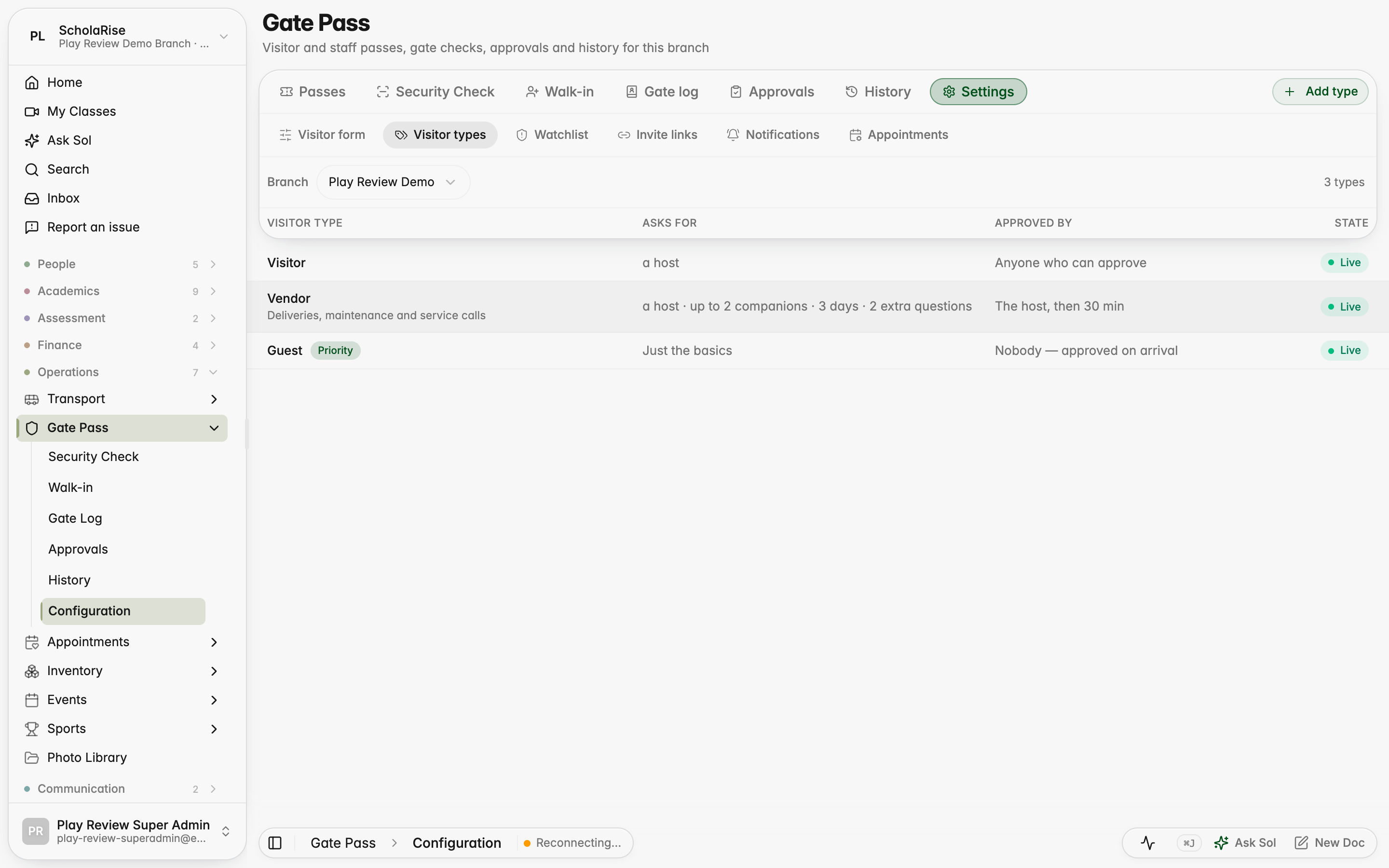
Visitor types, each with its own rules
Rules on the left, the questions for that visitor type on the right
People to flag or turn away, by phone, email, vehicle or name
The visitor form on a phone
Requests show who they are for and anything worth a second look
Registering a walk-in at the desk
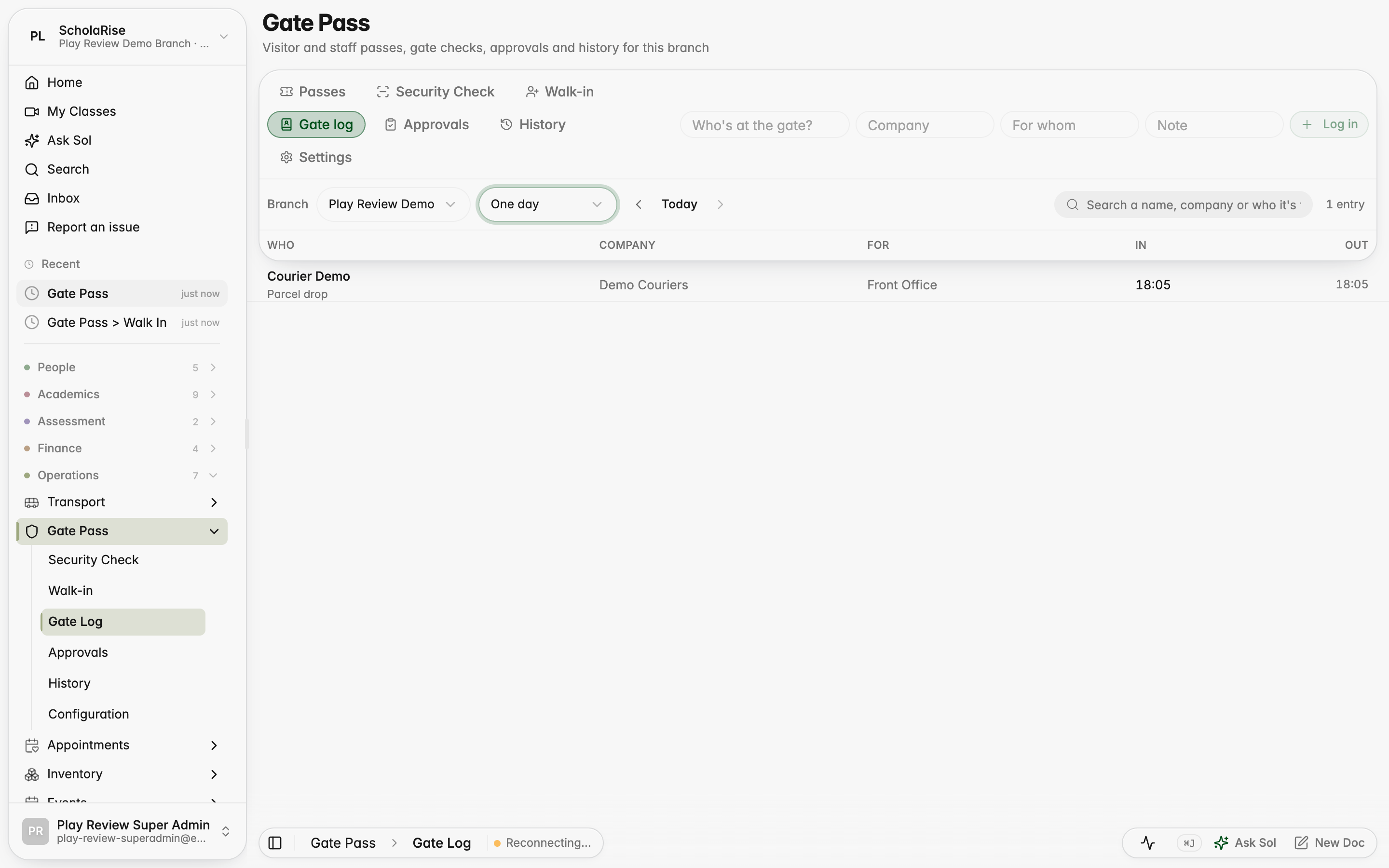
A simple log for deliveries and couriers
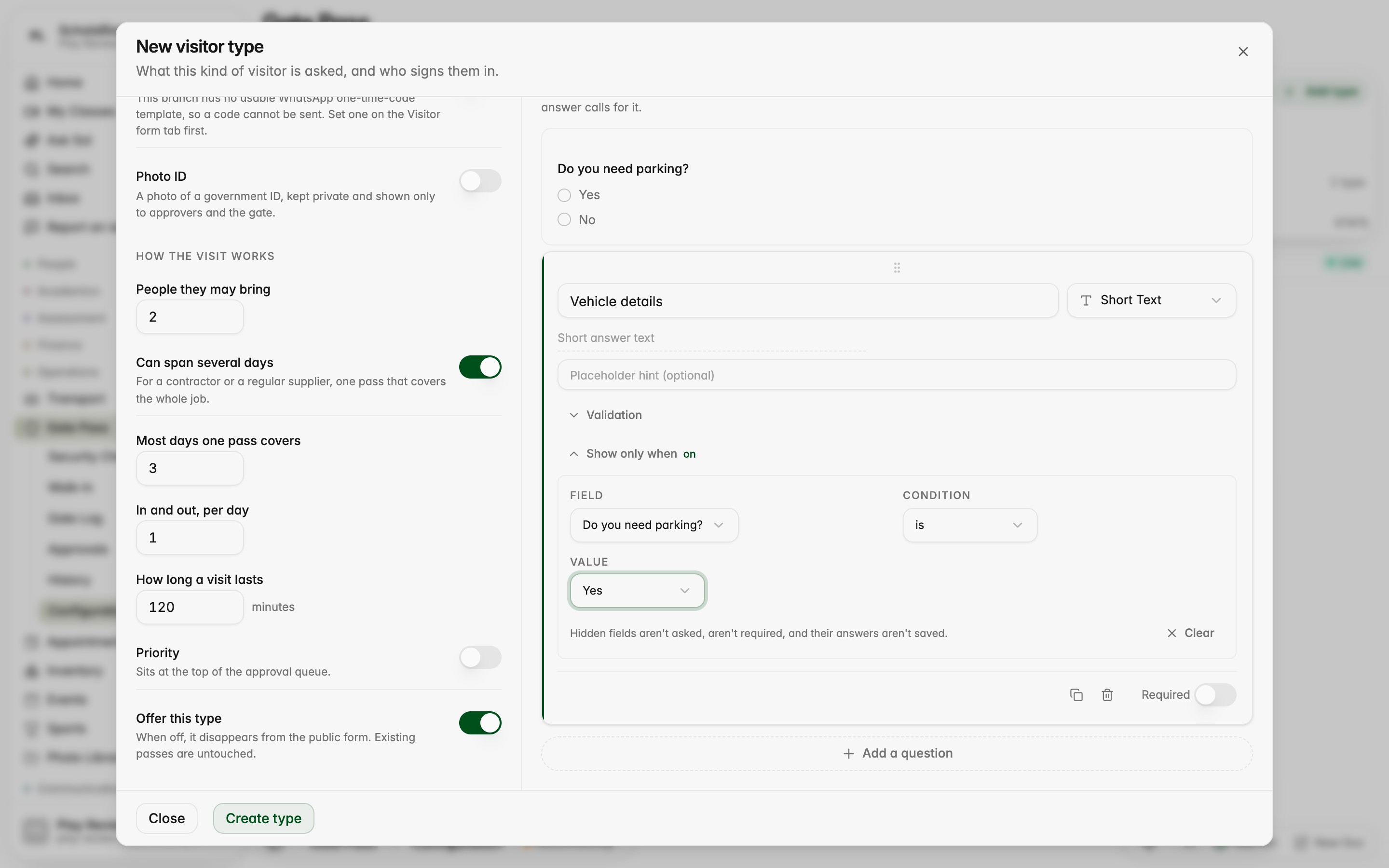
A follow-up question marked Conditional in the visitor form settings
The visitor form before answering, with the follow-up hidden
Answering Yes reveals the follow-up question
Personal invitation links
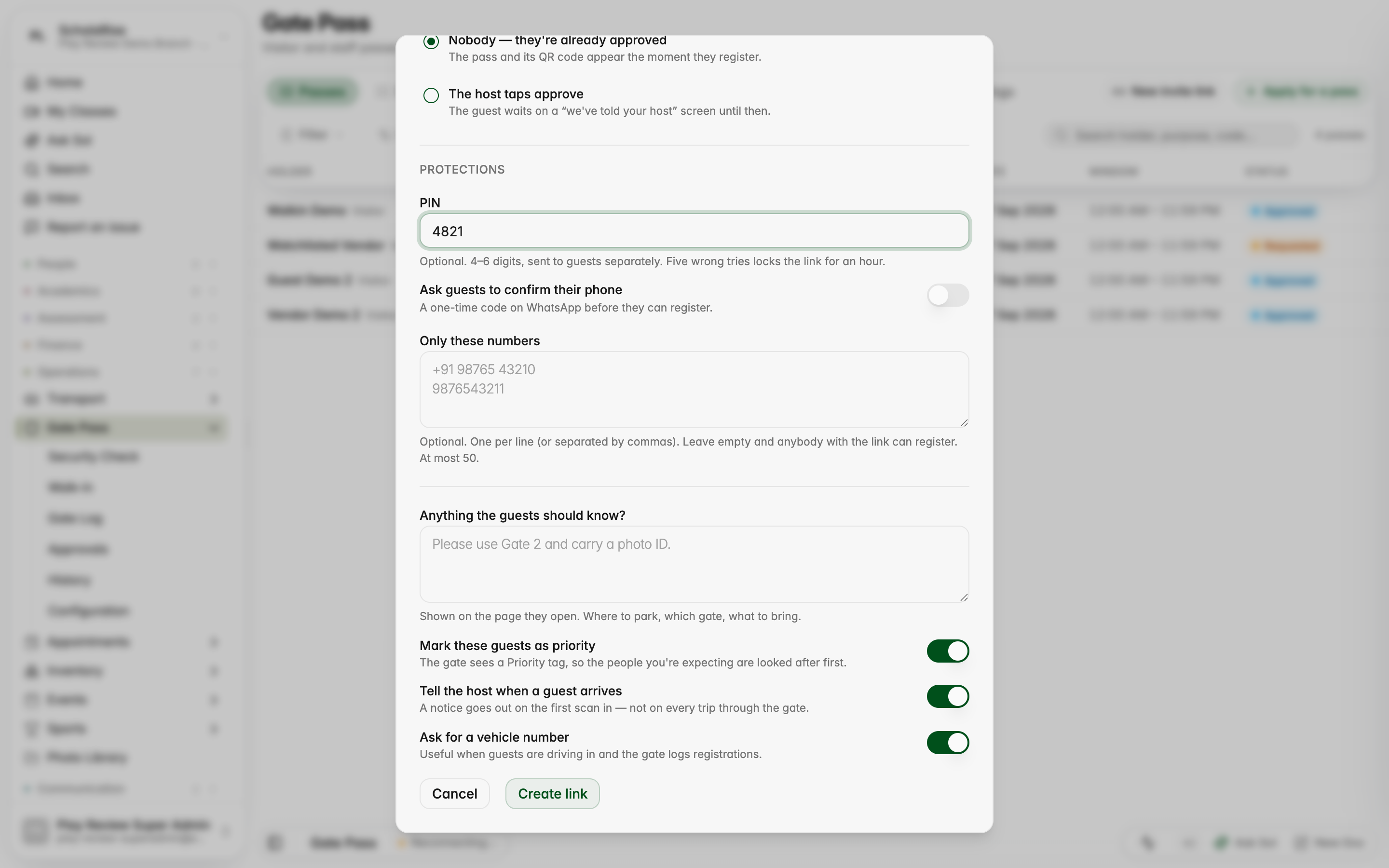
Staff can create an invitation link for an occasion and share it directly. Each guest signs in on their phone and receives a pass, with an optional PIN, a guest limit and approval by the host if you want it.
Creating an invitation link for an occasion
The link is shown once, ready to copy or share
What a guest sees when they open the link
The guest's pass, ready to show at the gate
Every link with how many guests have opened and registered
The guest list for one occasion, with the option to withdraw the link
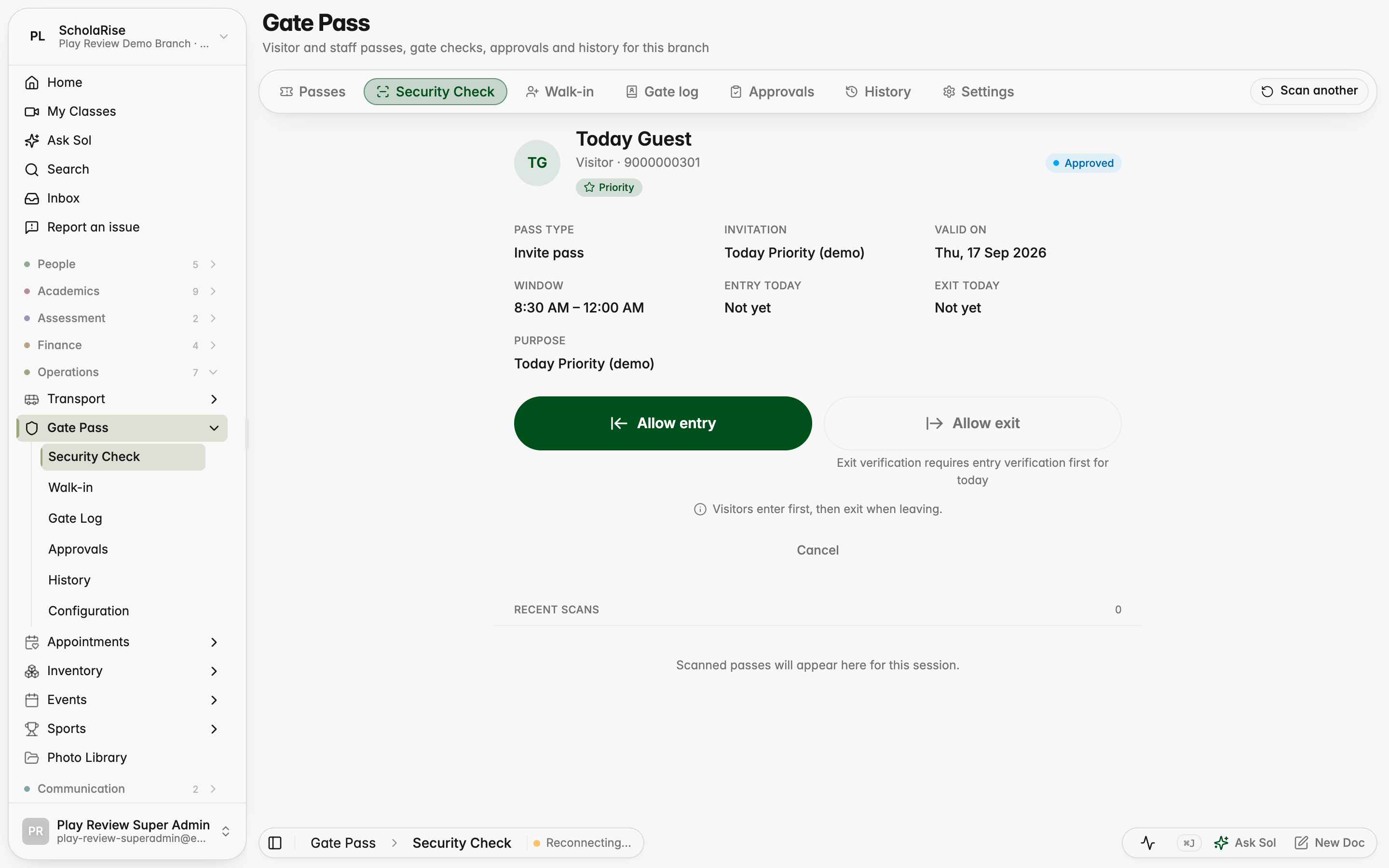
The guard sees the occasion and the priority tag
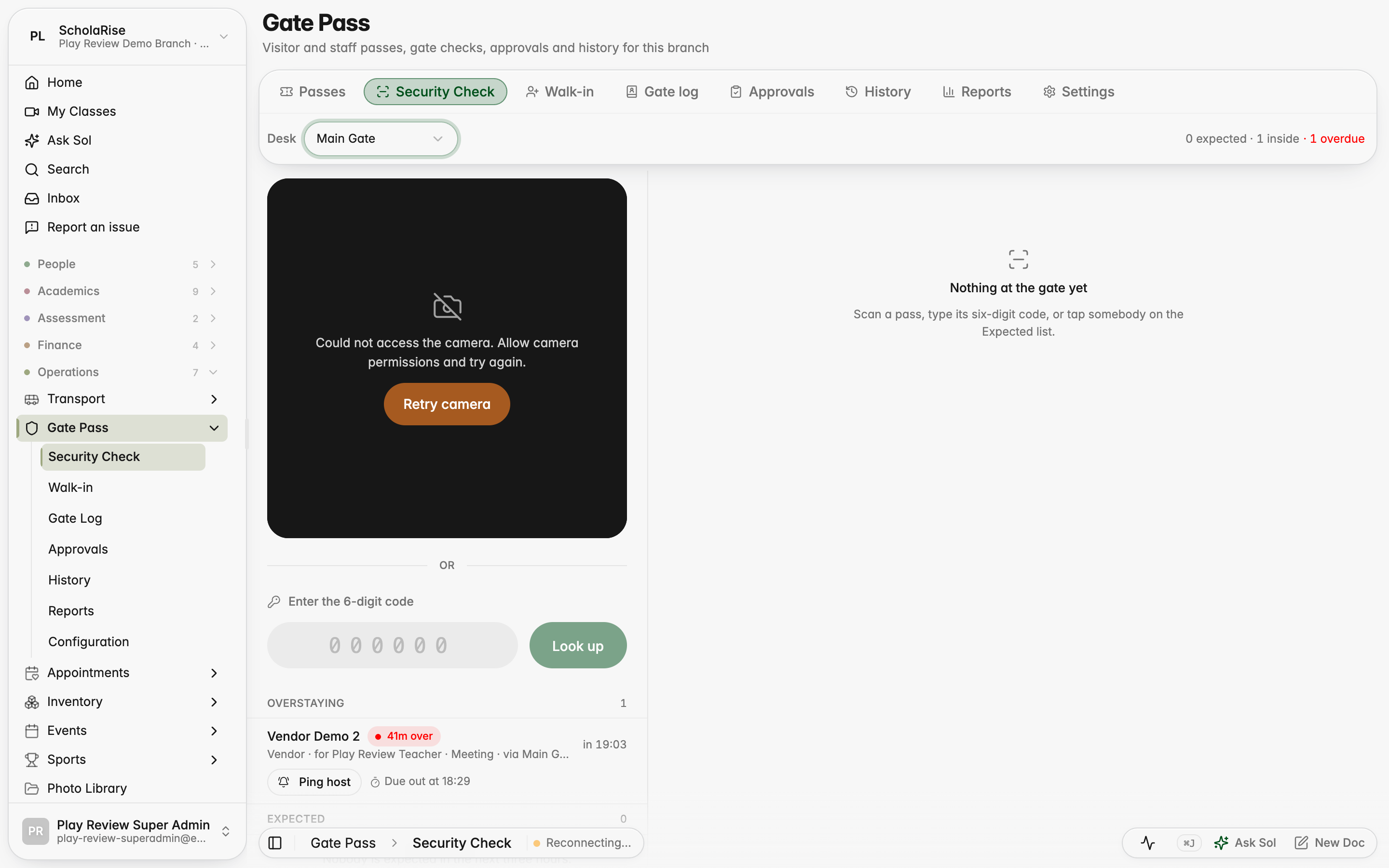
The security desk sees who is expected, inside and overstaying
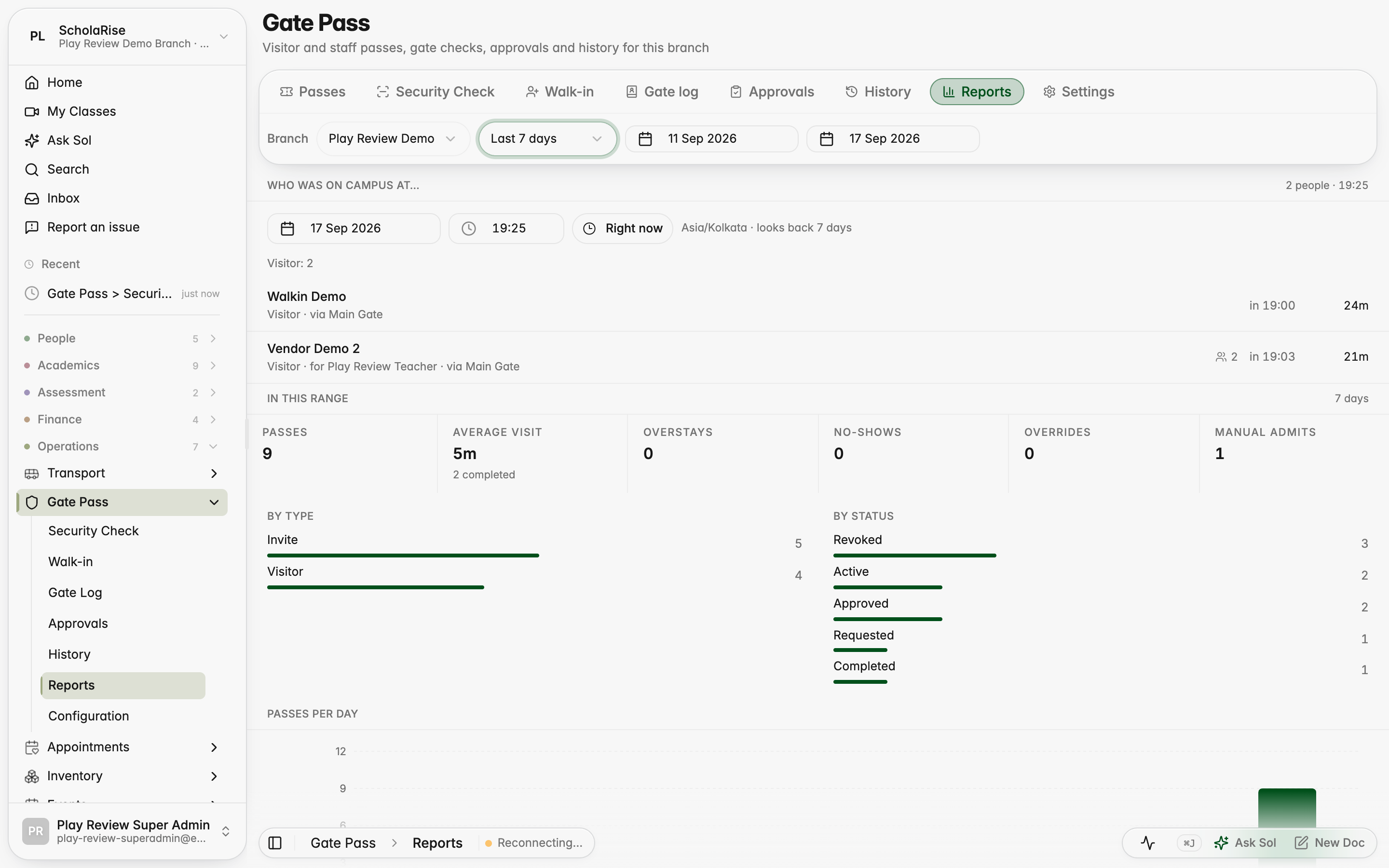
Guards can admit an expected visitor from the list, see companions and badges, and nudge the host of anyone who has overstayed. The office gets gate pass history, exports and reports on who was on campus at a given time.
Desks and gate rules for the branch
Admitting a visitor with companions and a badge
Admitting an expected visitor by confirming their phone
Visitors who have overstayed, with a nudge to their host
Searchable gate pass history with export
Who was on campus at a given time, and the week in numbers
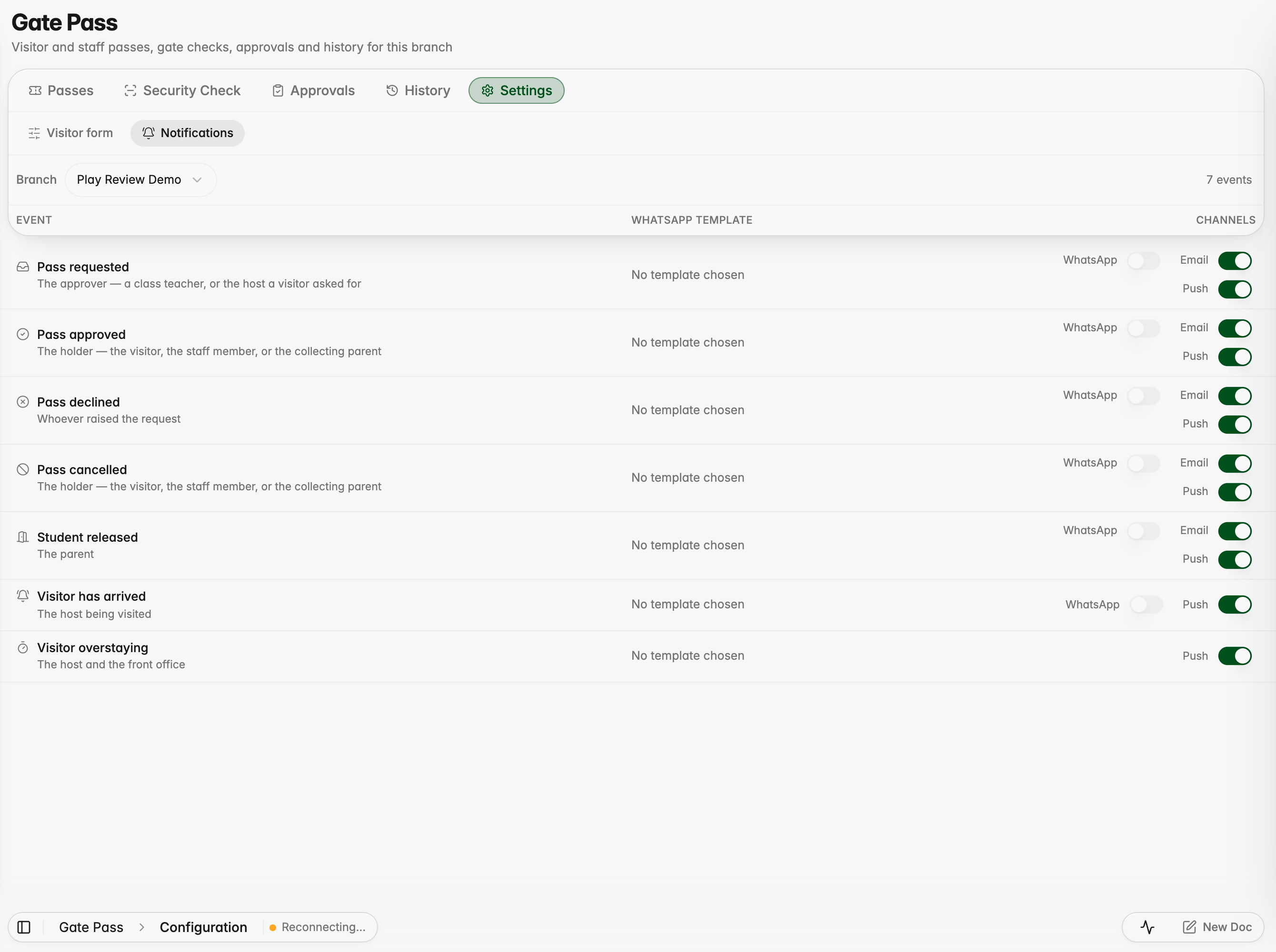
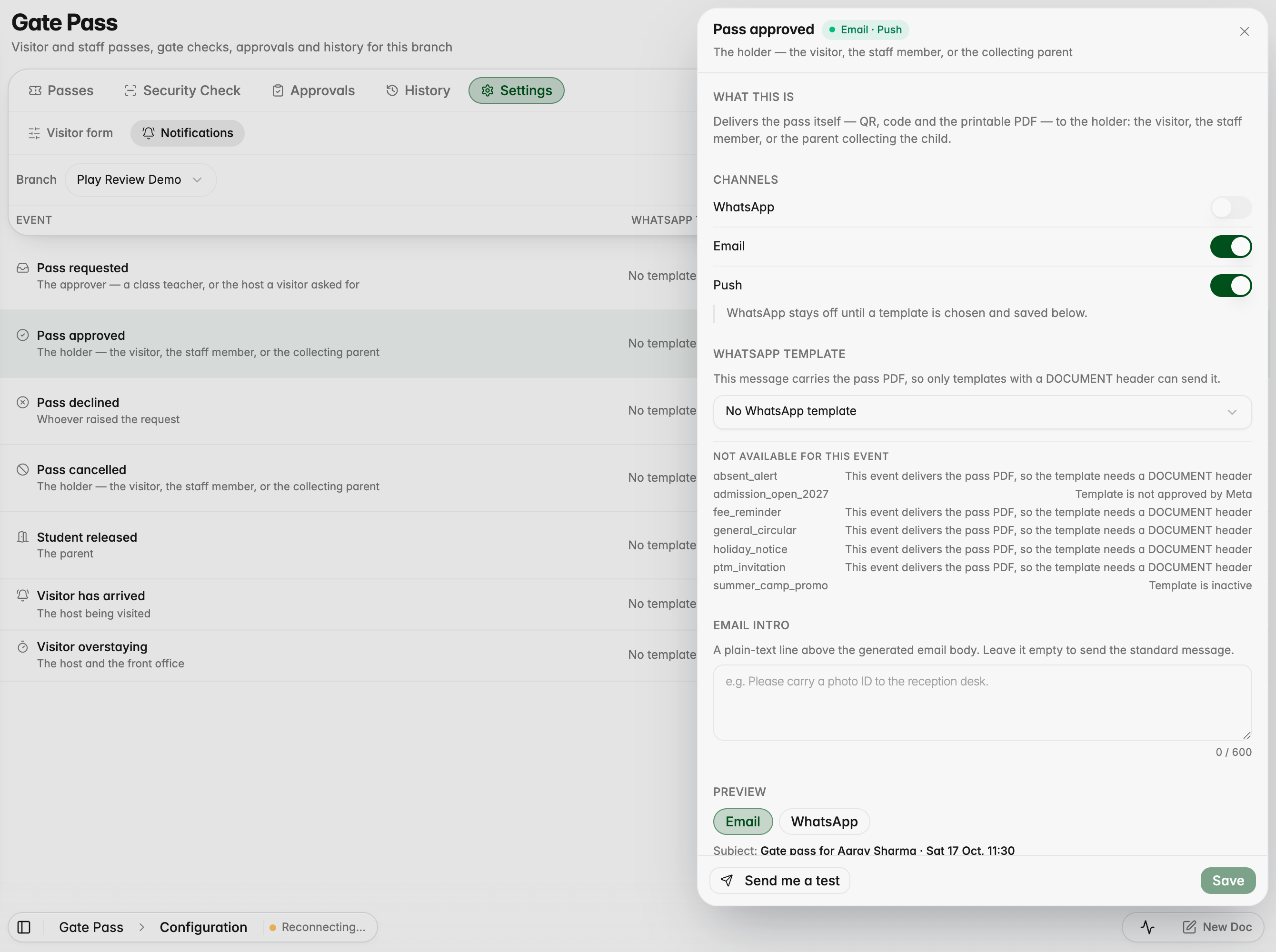
Choose how each gate pass event notifies people
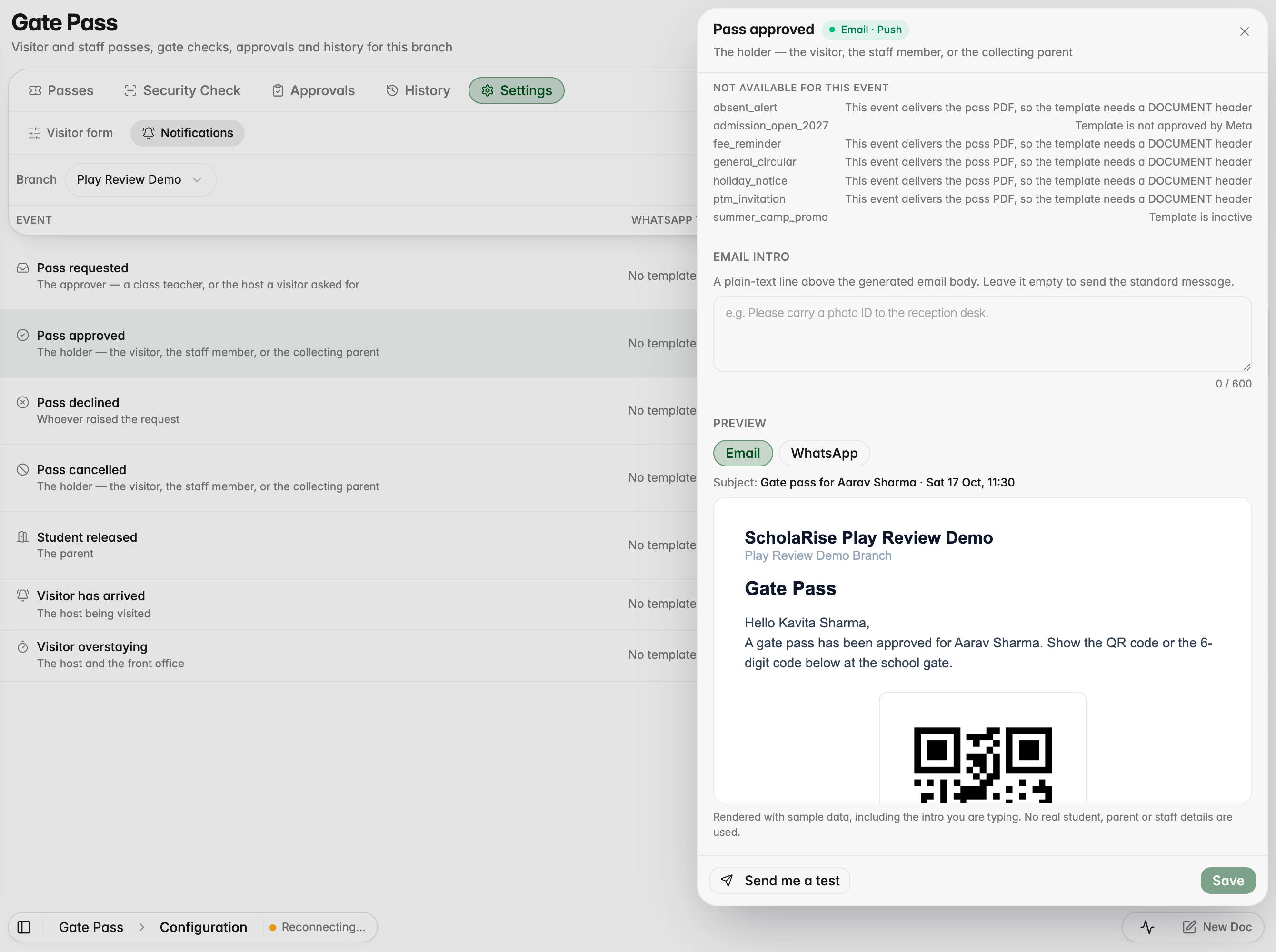
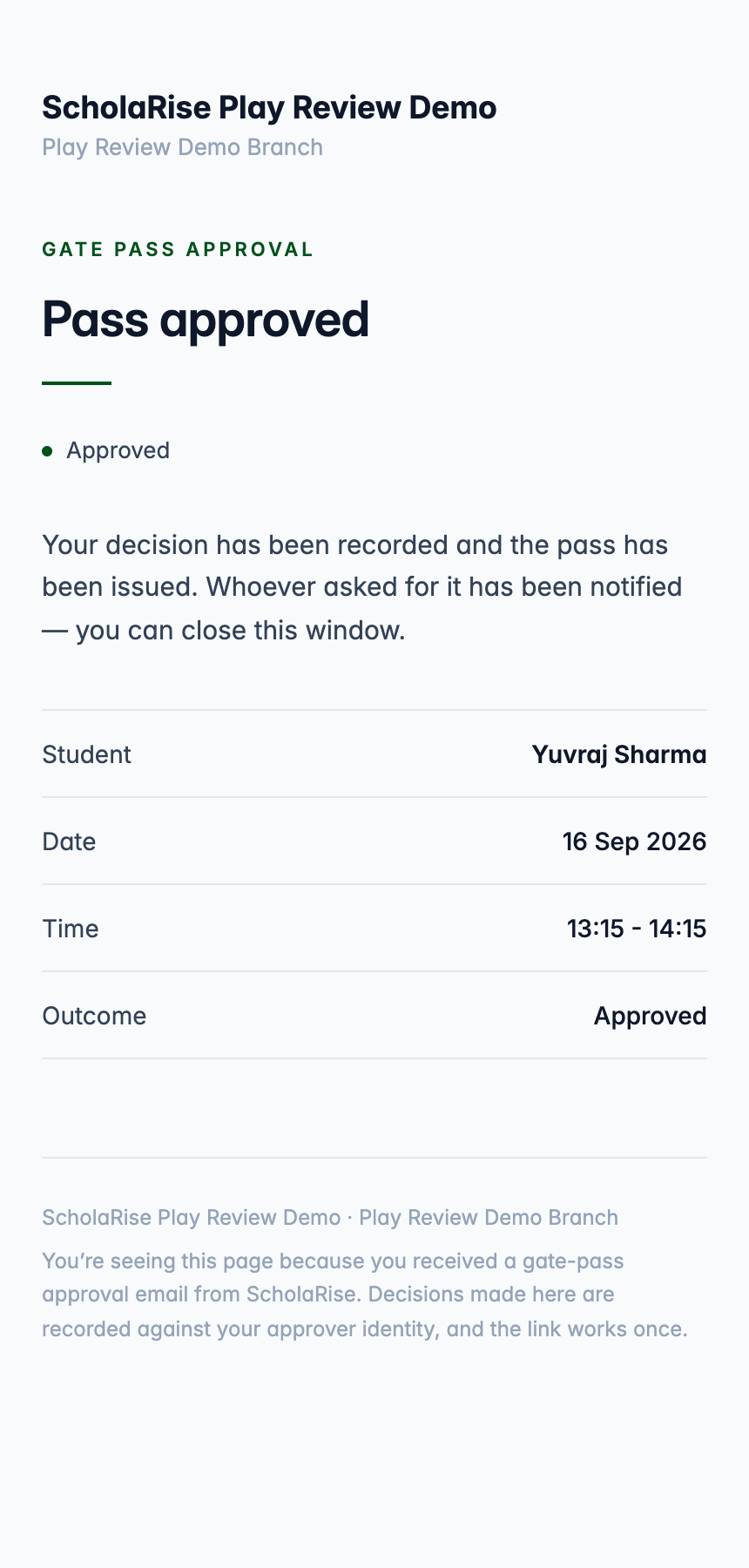
Gate pass notifications now have one place for every event: which channels are used, which WhatsApp template goes out and what the email says, with a live preview. Approvers can approve or decline straight from the email.
Every gate pass event with its channels in one place
Choosing the template, with the reason a template cannot be used
The email exactly as it will be sent
Approving a request straight from the email, on a phone
The decision is recorded and the link stops working
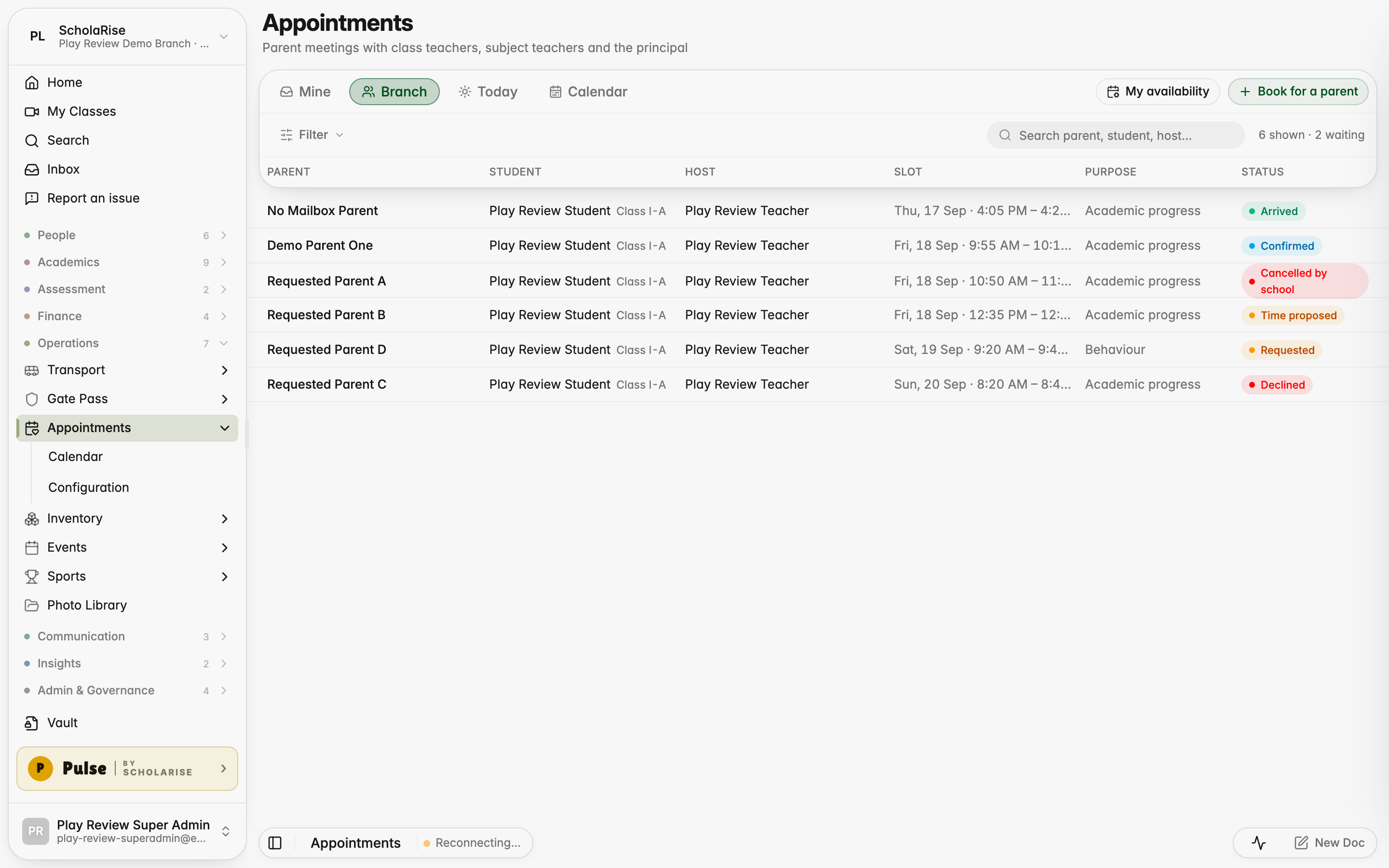
Parents can book a meeting and are expected at the gate
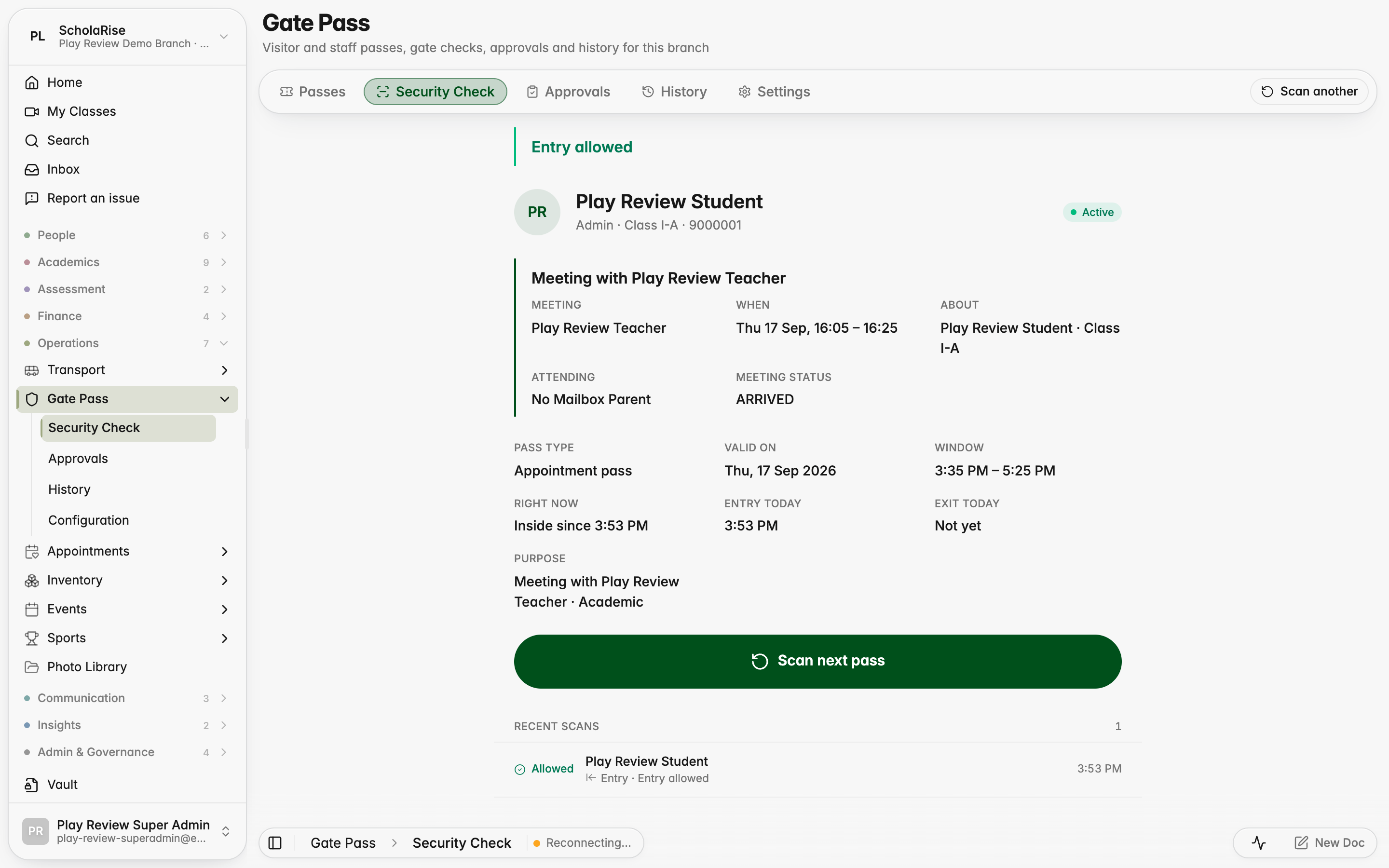
Parents can ask for a meeting with a class teacher, a subject teacher or the principal, choosing from free times taken from the teacher's timetable. Once the school confirms, a gate pass is sent automatically, and the guard sees who the parent is meeting when it is scanned.
Every meeting request for the branch in one place
Booking for a parent, with free times taken from the teacher's timetable
A confirmed meeting with its gate pass and history
The week's meetings on a calendar
The guard sees who the parent is meeting when the pass is scanned
The front office setting meeting hours on a teacher's behalf
Compliance opens to your role
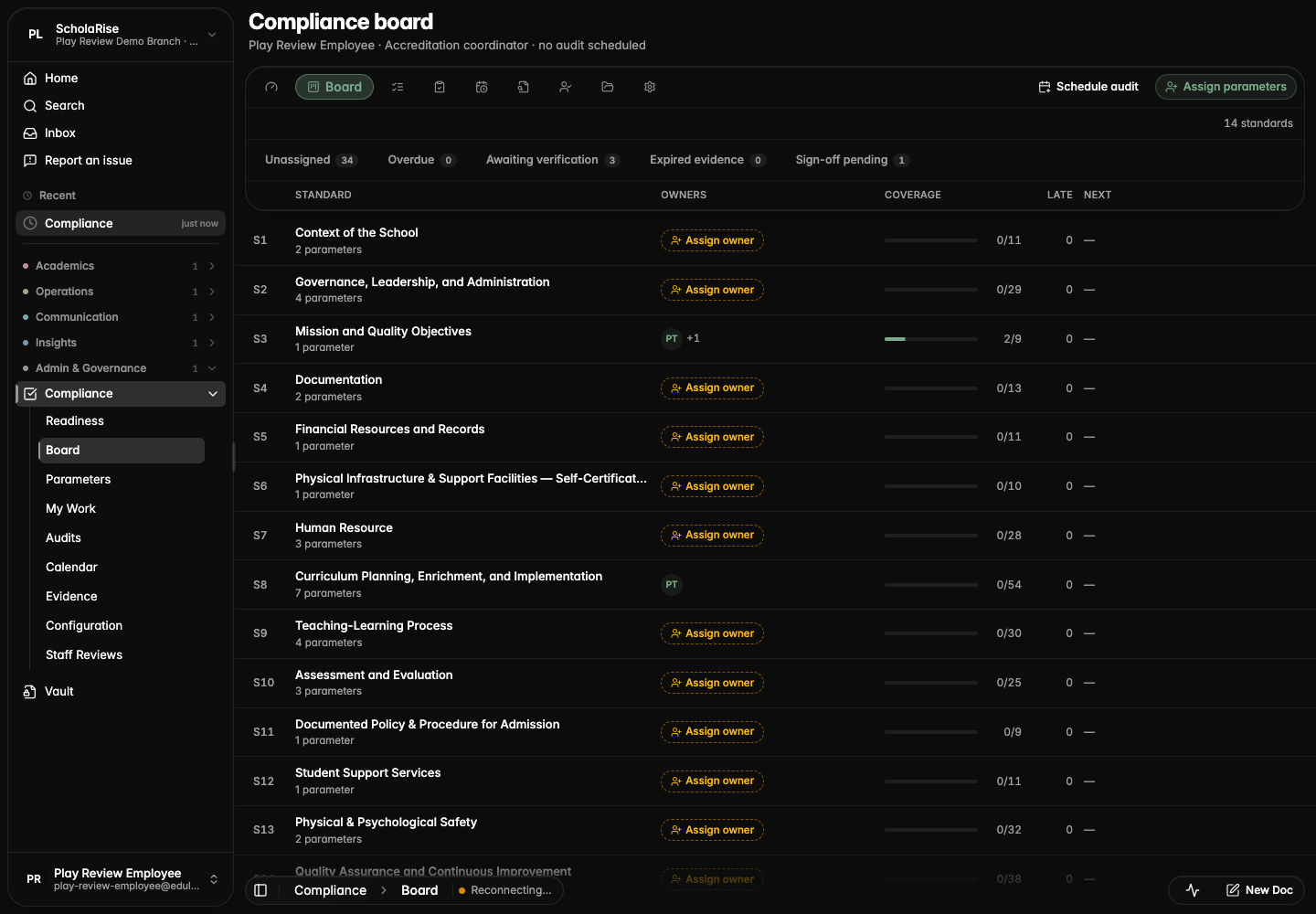
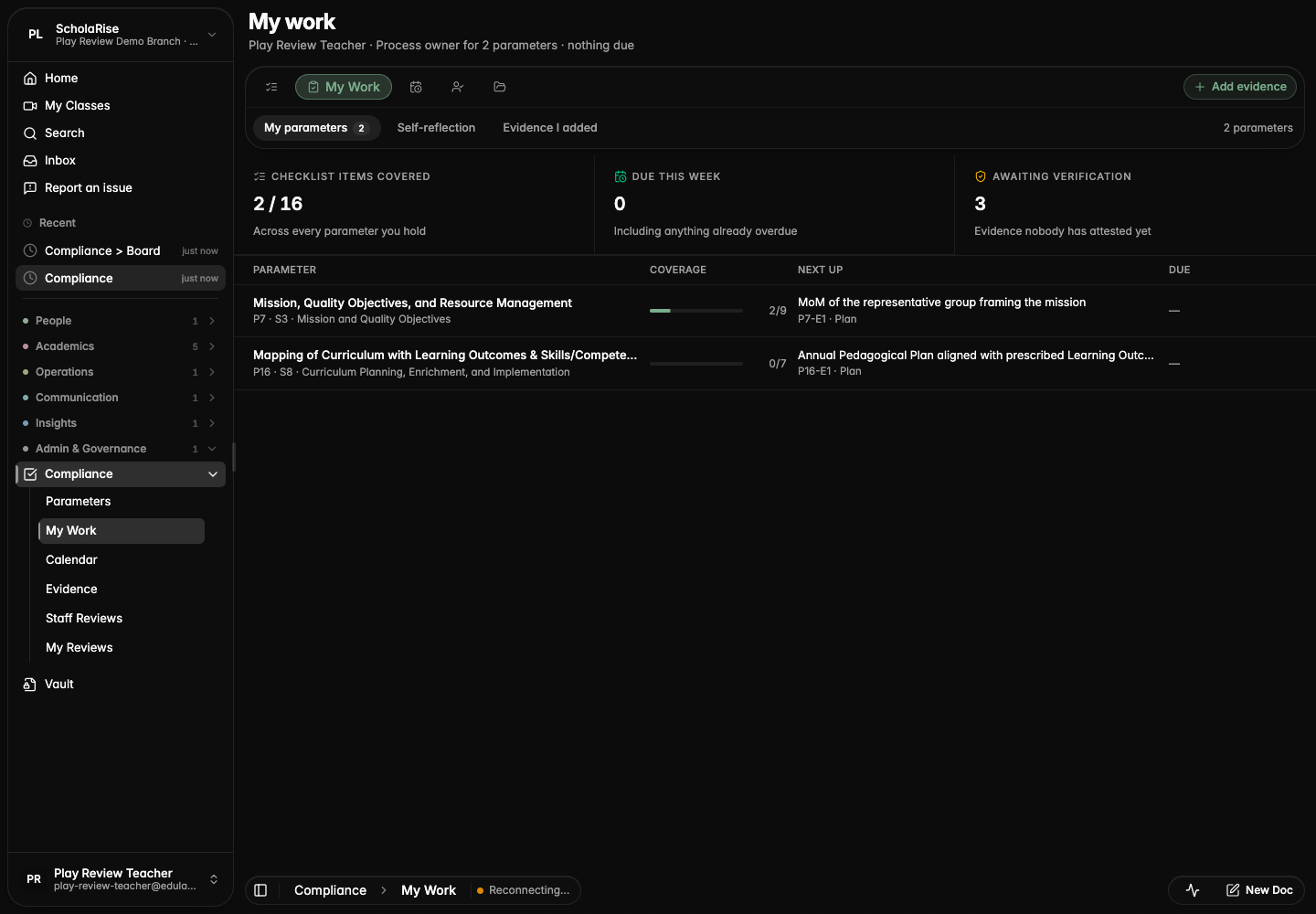
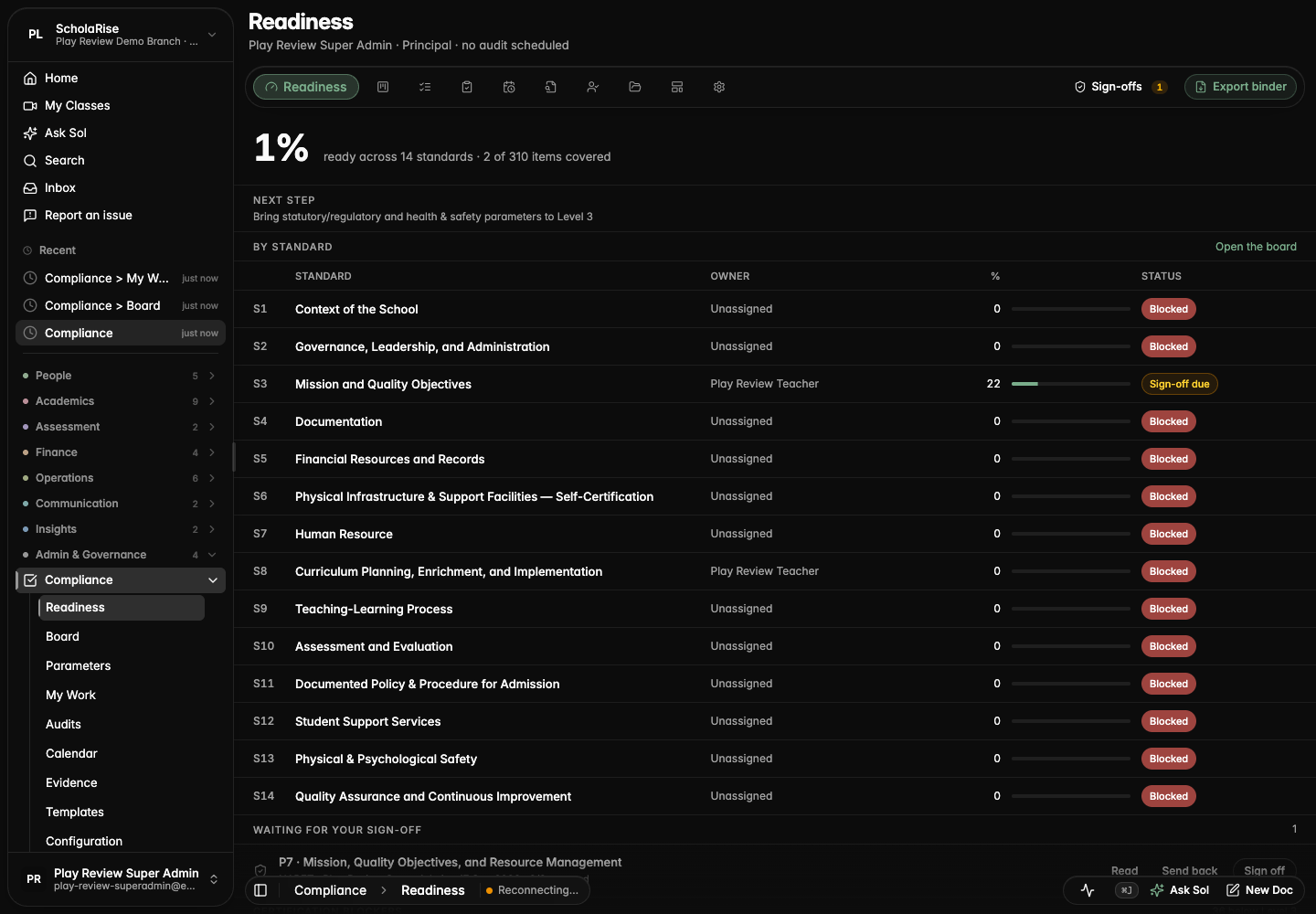
Compliance now opens to a home that fits your role: a board for the accreditation coordinator, a personal work list for process owners and deputies, and a readiness view with a sign-off queue for the principal. The principal can sign a parameter off or send it back from the parameter page, and each parameter shows the owner's self-reflection with a Fill in link.
The coordinator's board: every standard with its owners, coverage and what is late
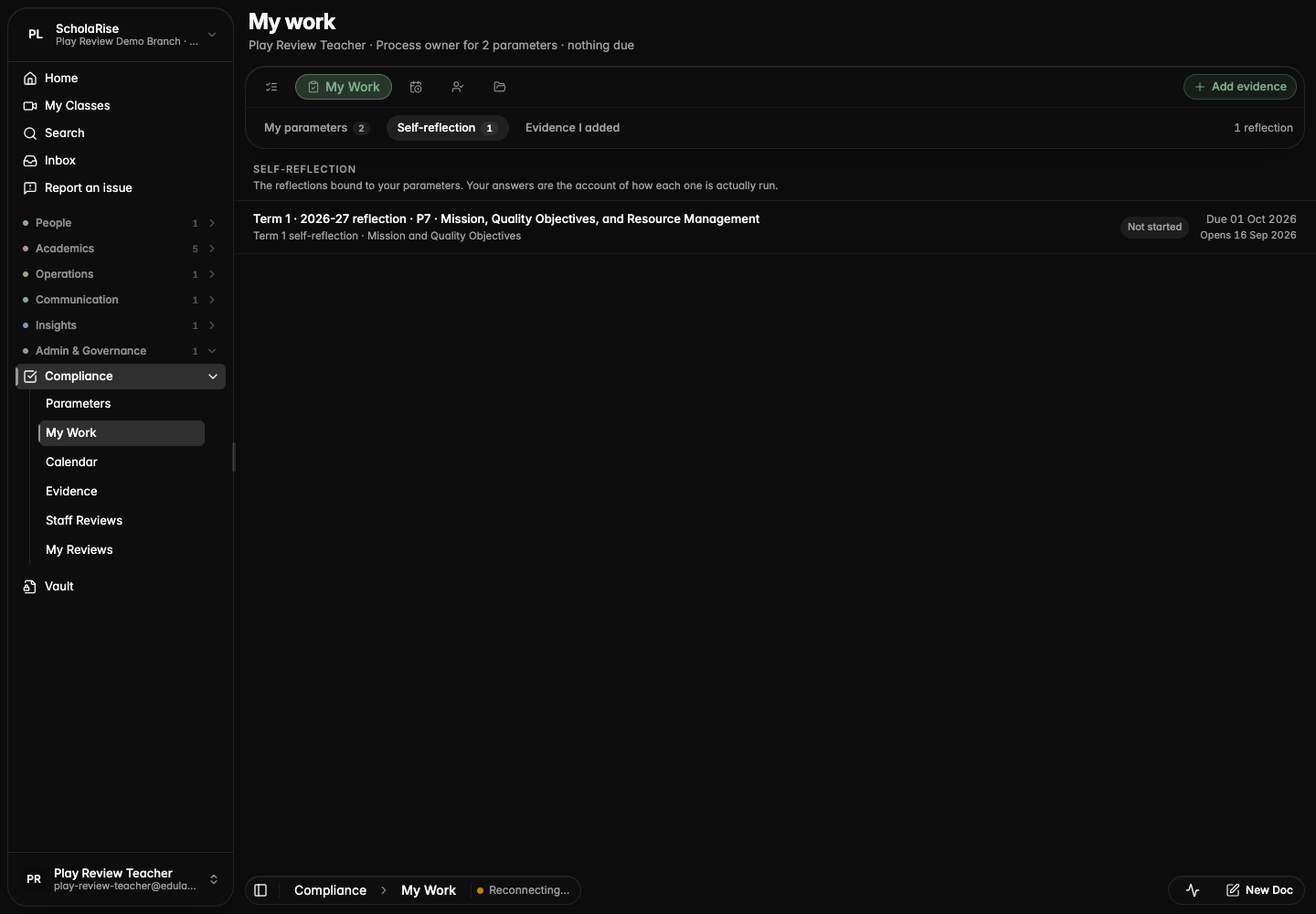
A process owner's My work: their parameters, what to do next and what is due
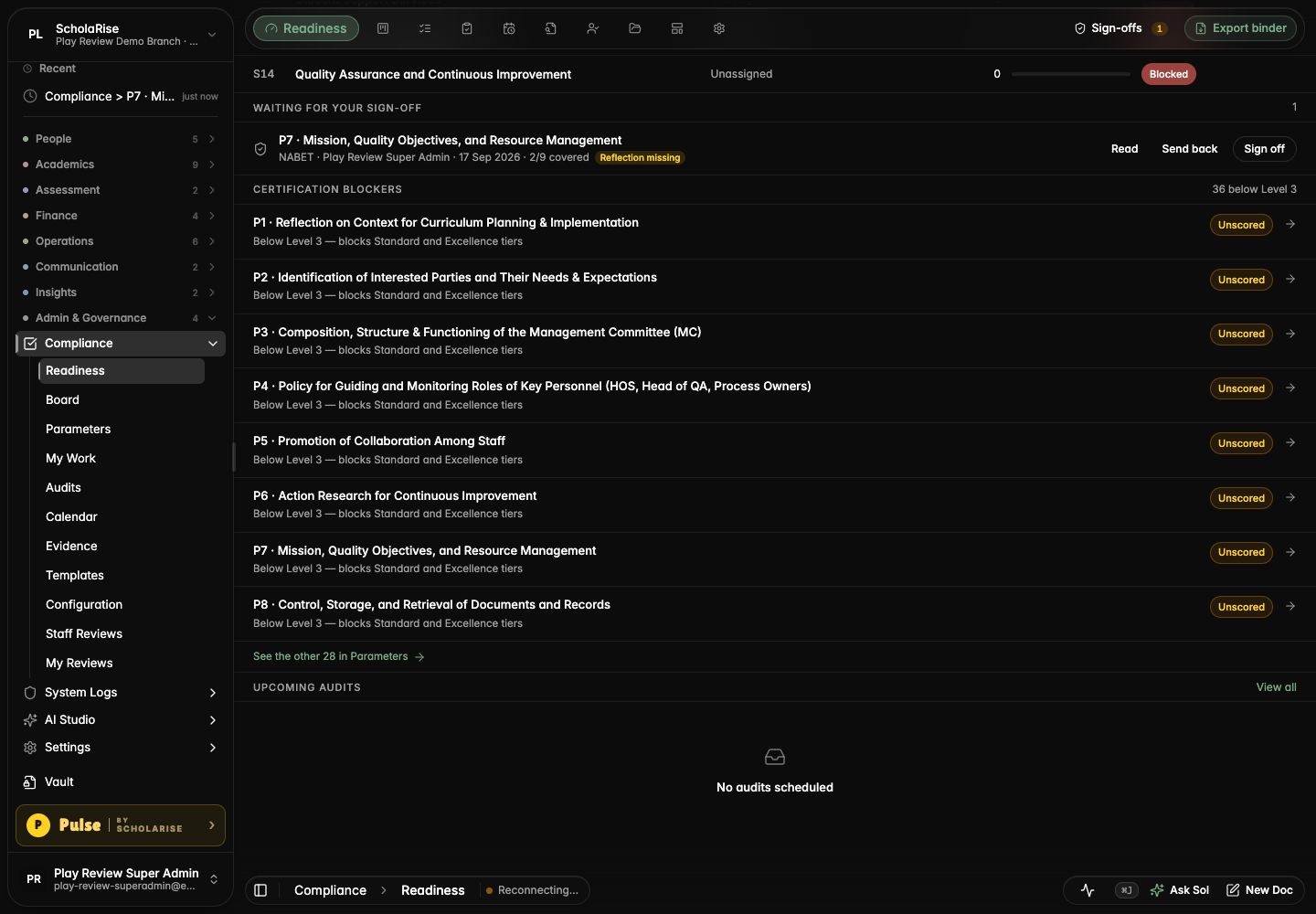
The principal's Readiness view with the sign-off queue
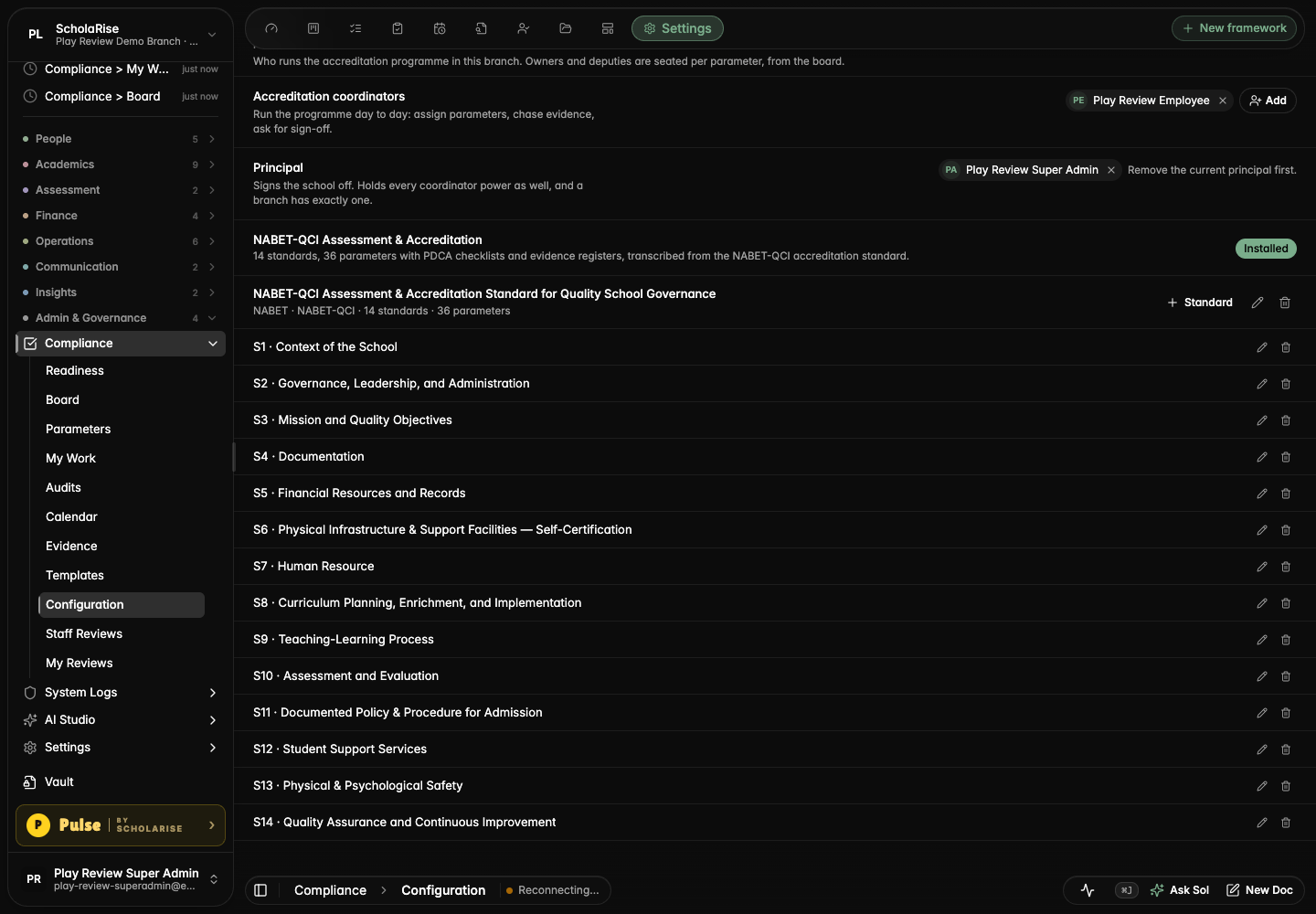
Seating coordinators and the principal in Settings
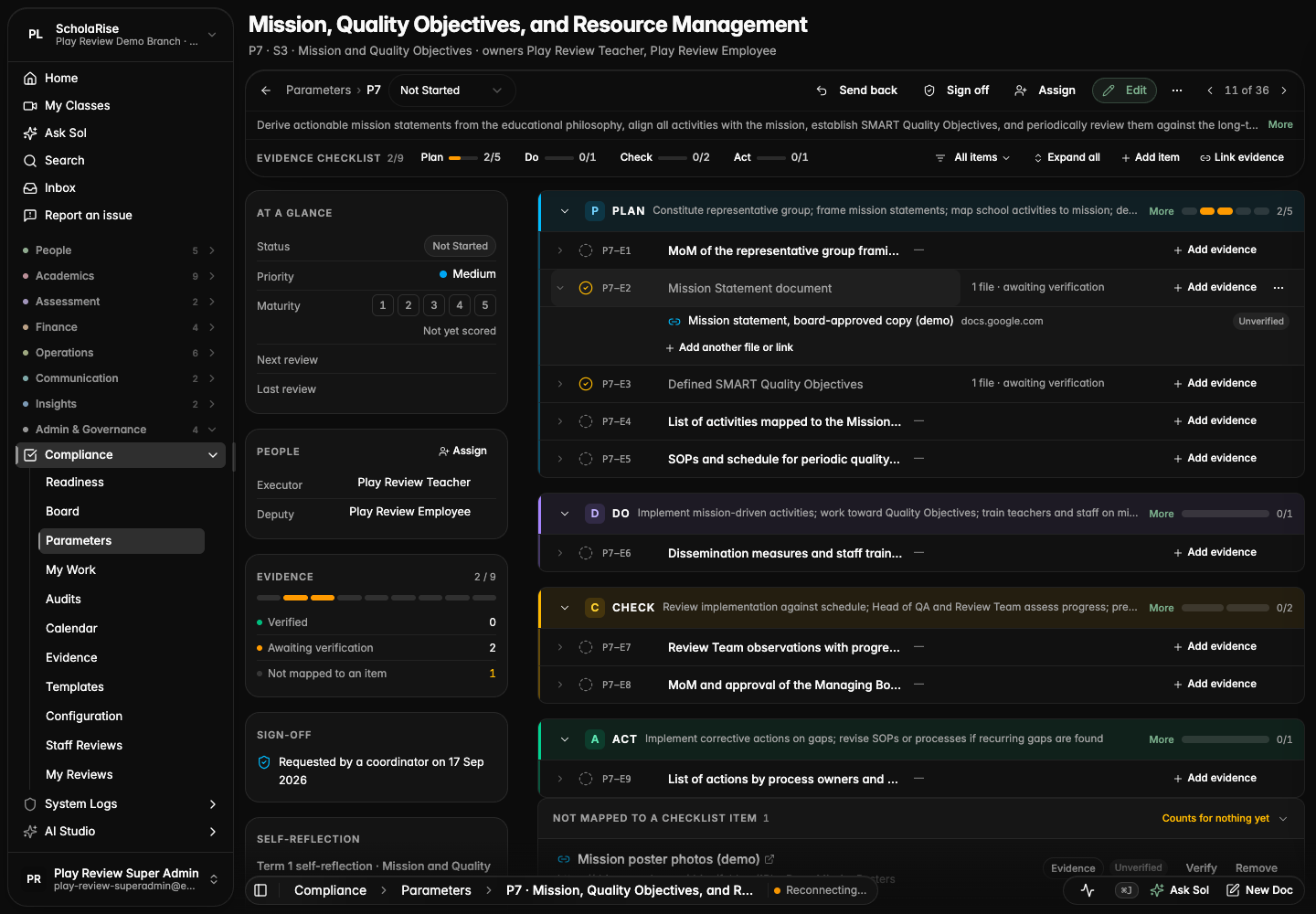
Sign off and Send back in the parameter page's action bar
The Sign-off and Self-reflection panels beside the checklist
An owner's reflections in My work
The sign-off queue showing whether the reflection is in
A parameter gets the whole page
Opening a compliance parameter now gives it the whole page, with its status, people, evidence coverage and documents beside the checklist. Previous and next move you through parameters without going back to the list, and Escape returns you to where you were.
A parameter opened as a full page, with the checklist beside its rail
Escape returns to the list exactly where you left it
The same page on a phone
Evidence lives on the checklist item it proves
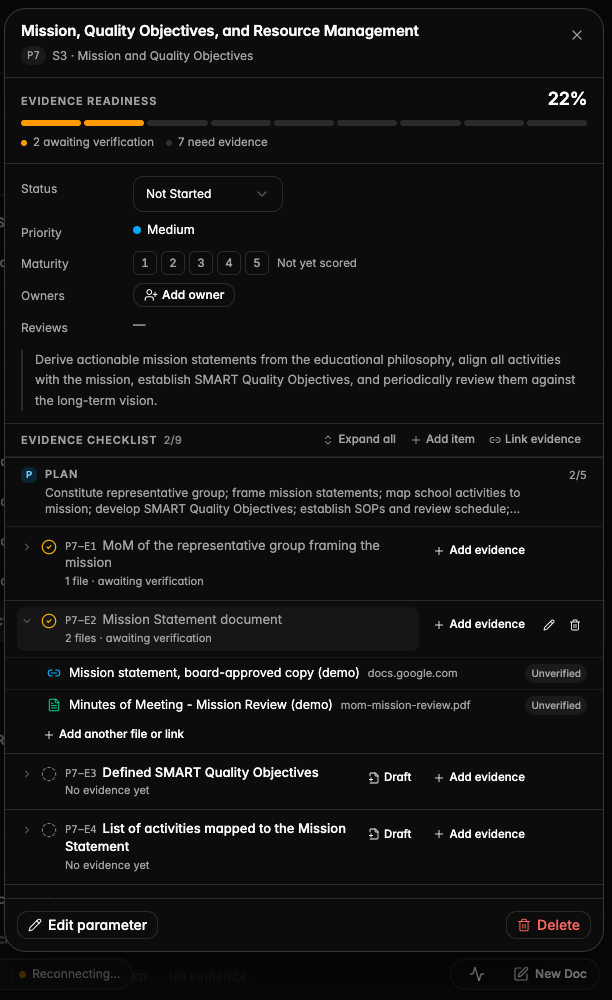
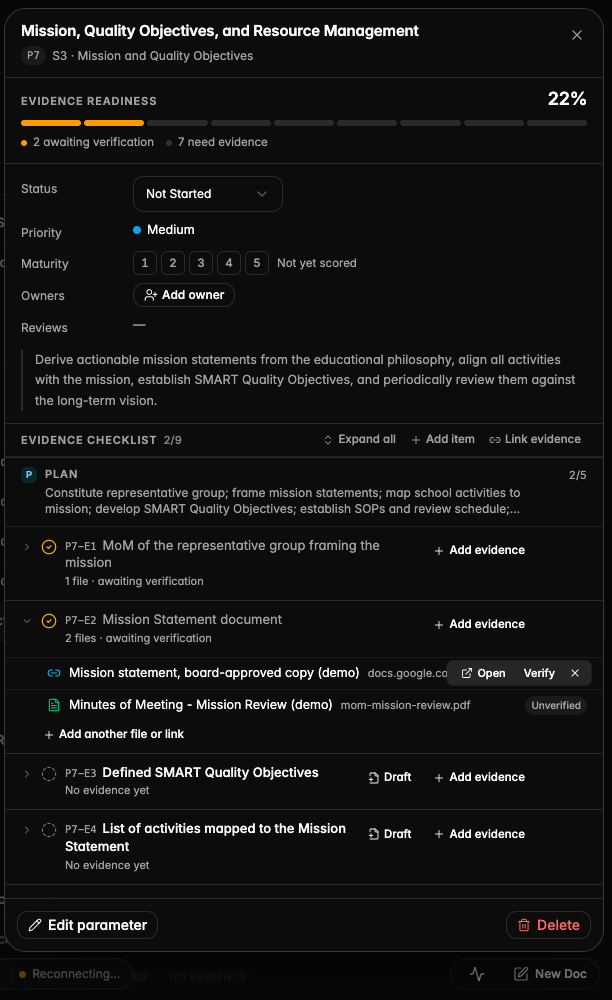
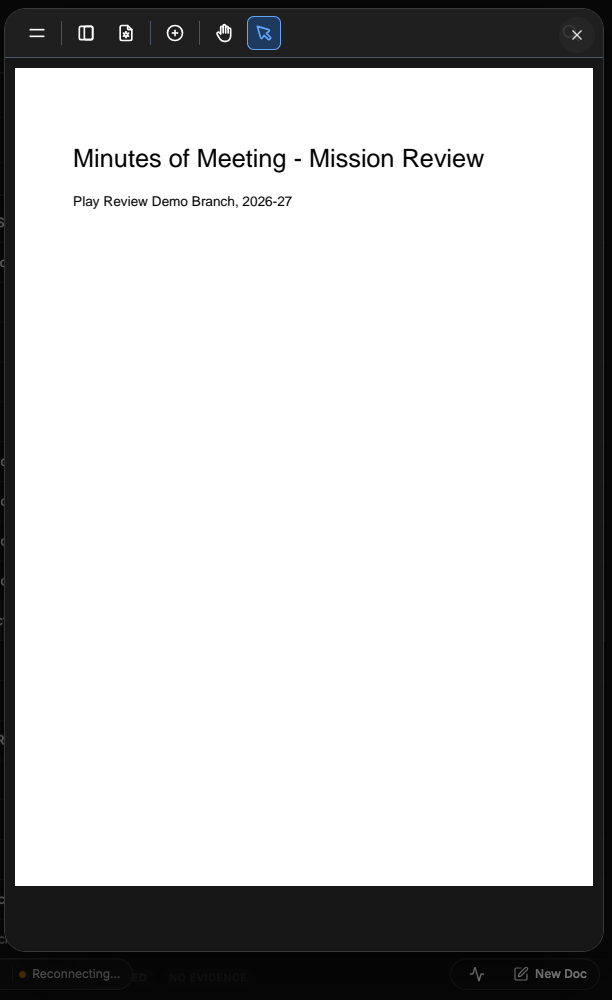
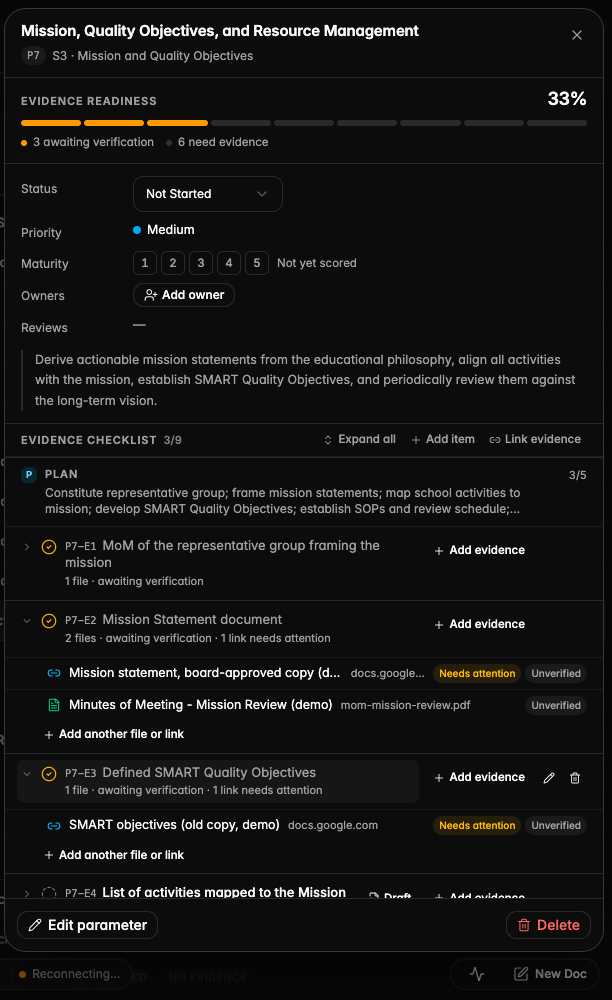
Each checklist item shows its own evidence files right under it, so you can open, verify or add a file without leaving the item. Adding evidence asks which item it is for and confirms before anything is removed, and linking a document as evidence works again after failing with a technical message.
A checklist item expanded to show the two files filed under it
Hovering a file shows Open, Verify and Remove right on the row
A Vault file opens in-app, above the parameter sheet
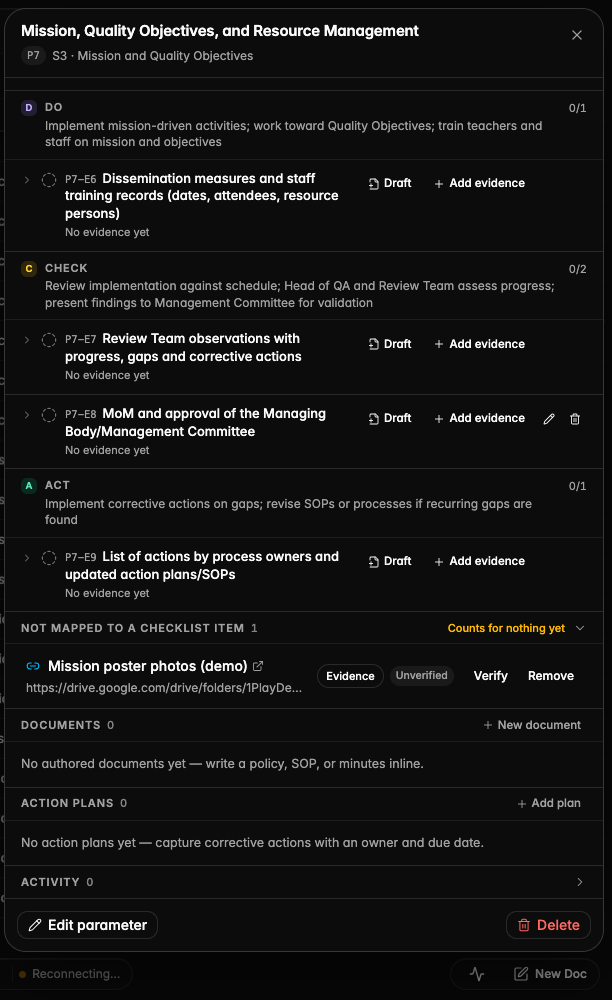
Files not mapped to any item are called out at the bottom until they are
Add evidence now asks which checklist item the document satisfies
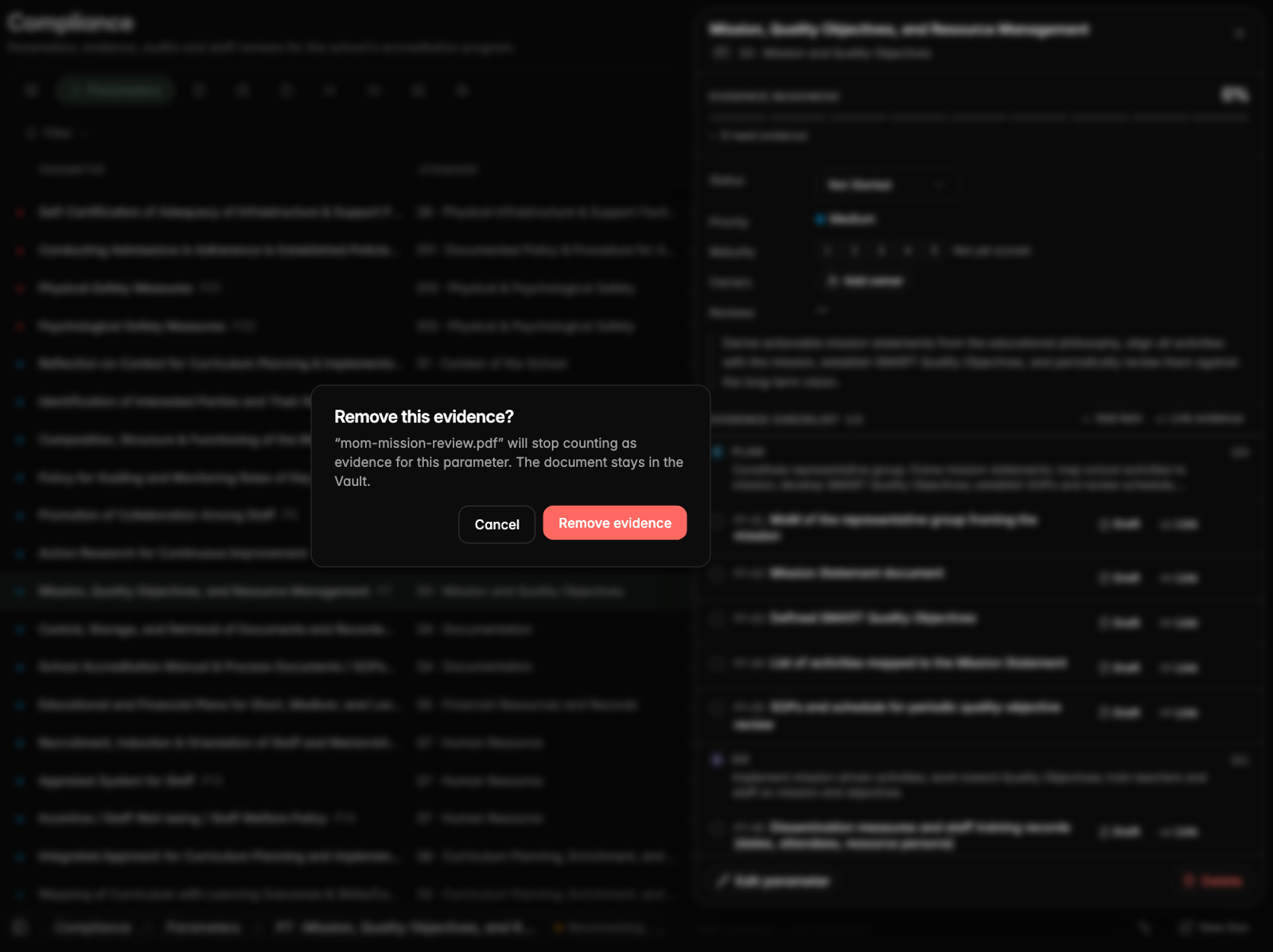
Removing evidence asks for confirmation first
A document linked as evidence from the Add evidence dialog
The parameter's checklist and readiness update as soon as evidence is linked
Broken evidence links are caught before an audit
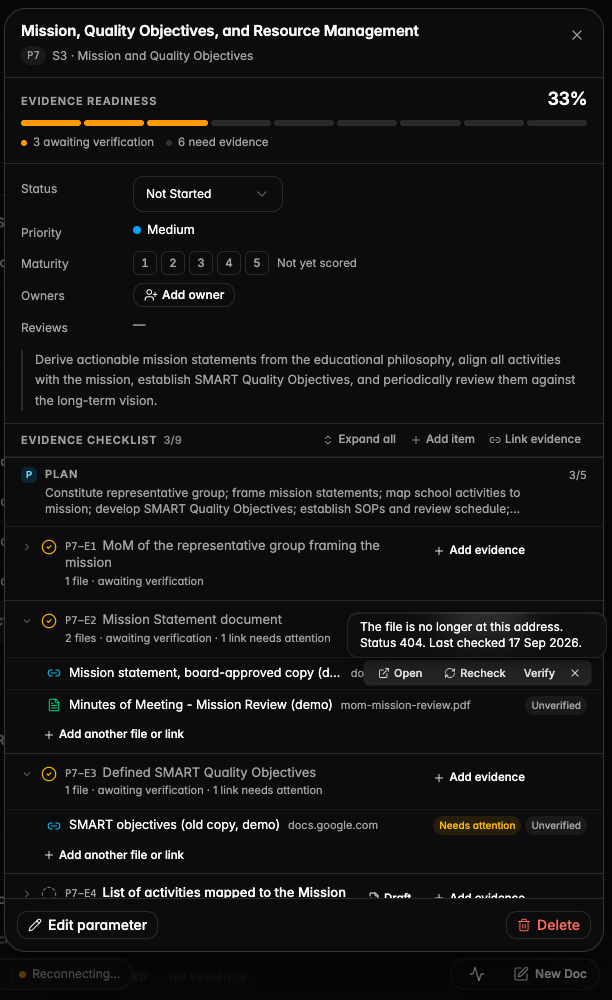
Compliance checks every external evidence link nightly and flags links that no longer open, on the item and on the file, with a Recheck action.
Checklist items whose external links no longer open are flagged on the item and on the file
Hovering the flag shows why the link failed and when it was last checked, with a Recheck action
Clearer errors and safer editing across Compliance
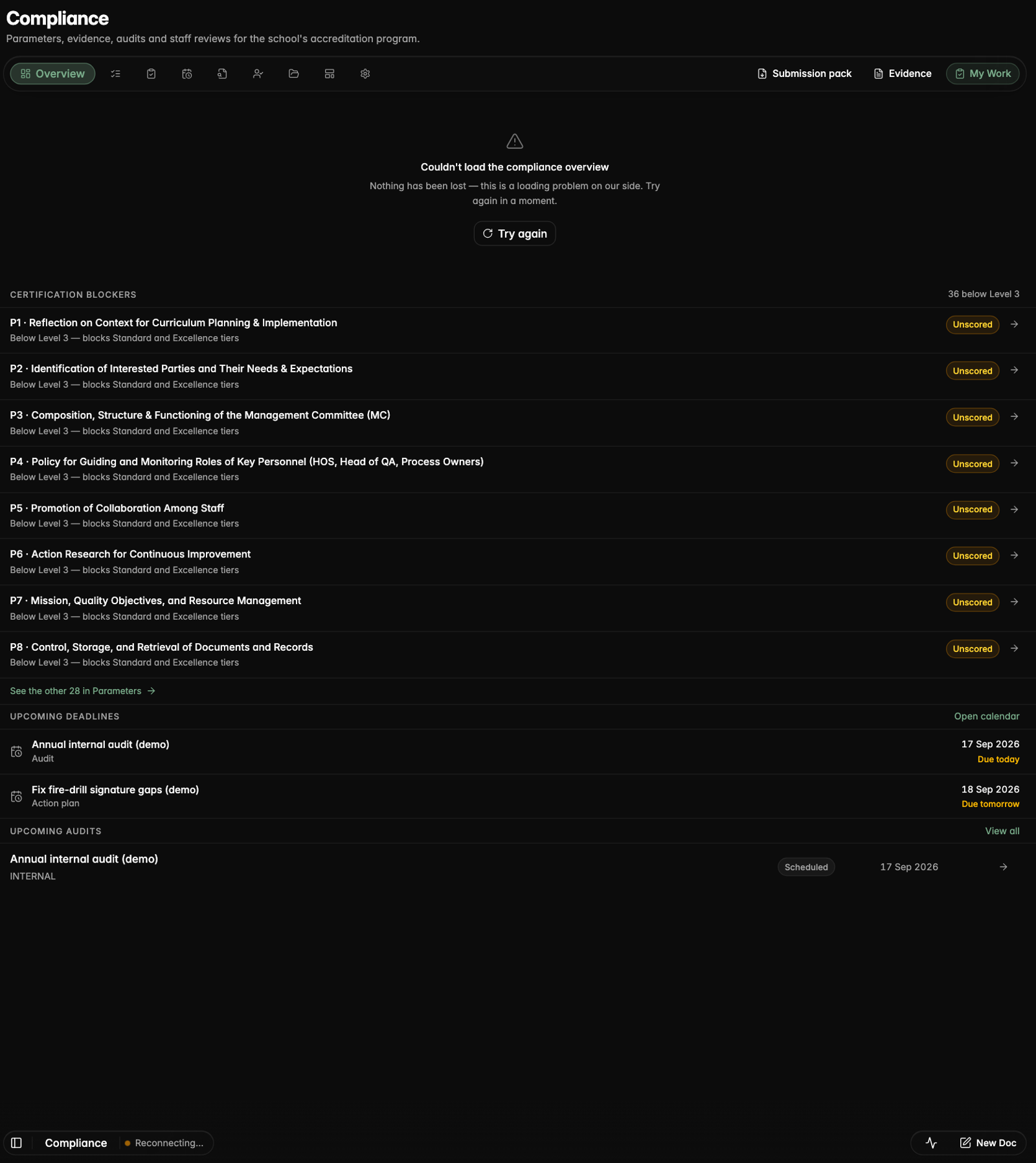
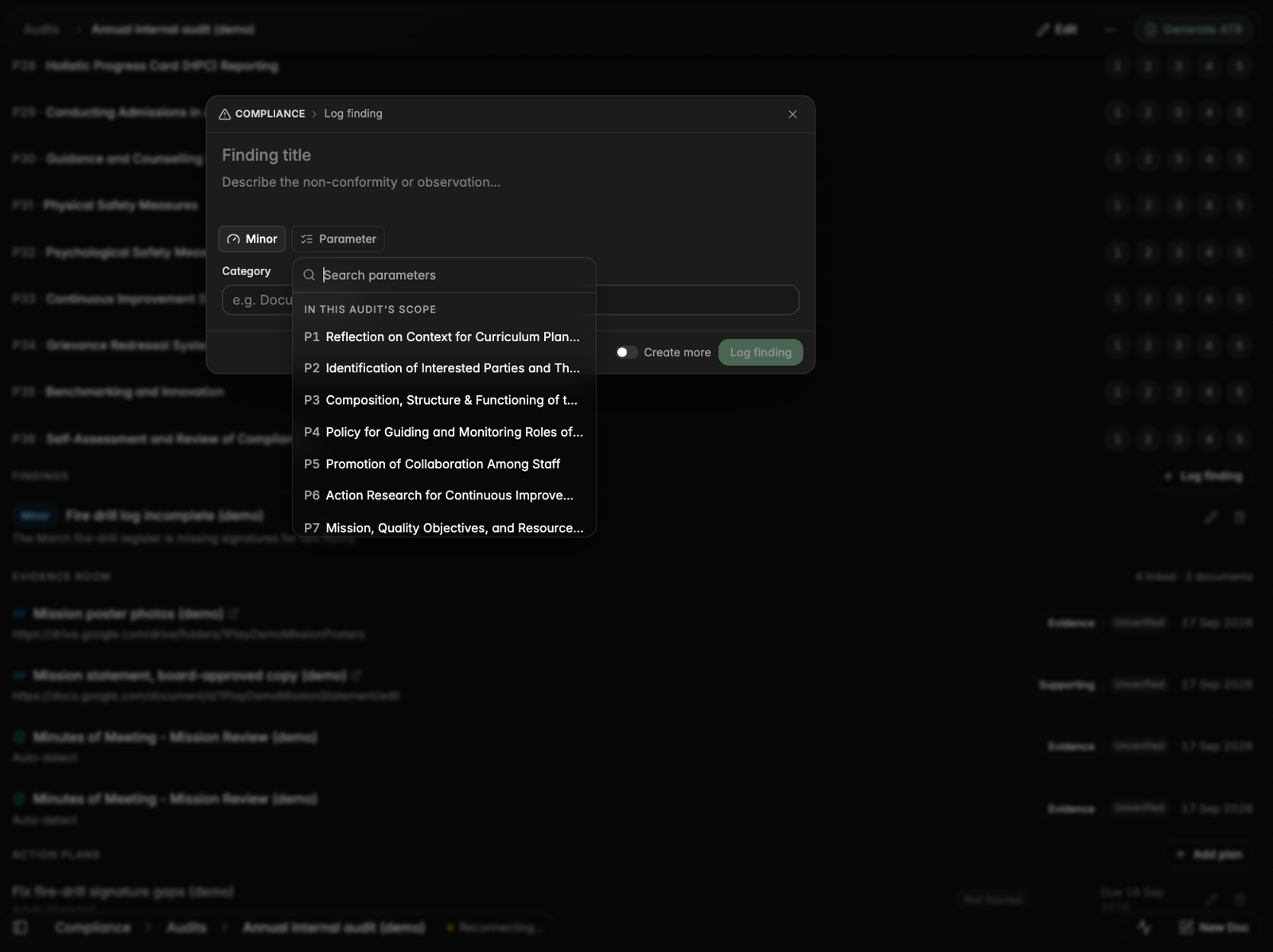
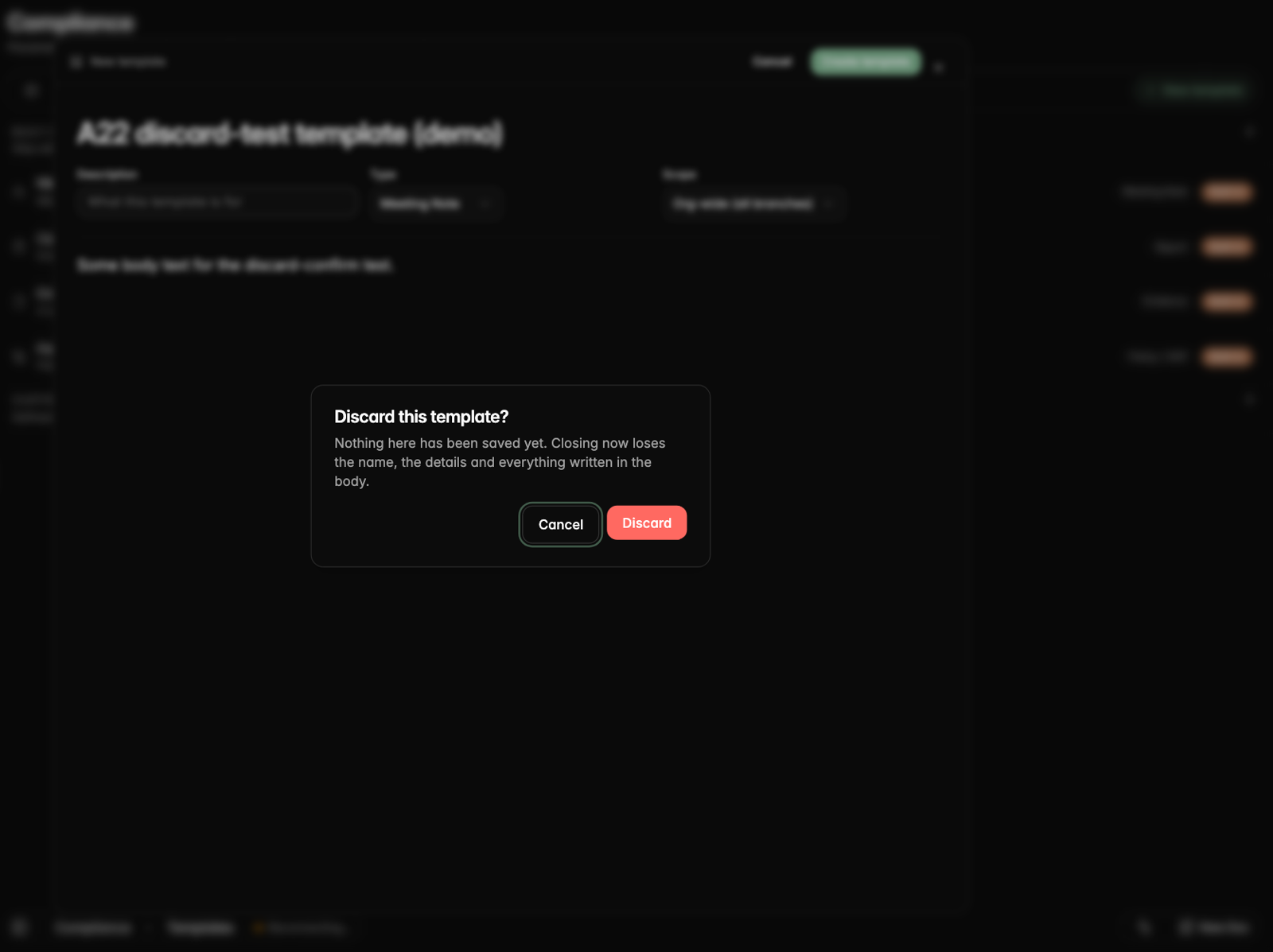
The overview and evidence list say plainly when something could not load, certification blockers open the parameter they refer to, unsaved templates and staff reviews ask before you leave, findings get a searchable parameter picker, and a review cannot be published until it is usable.
Certification blockers now open the parameter they refer to
A loading problem is shown as such, with a Try again button
Logging a finding now has a searchable parameter list, with the audit's own parameters first
Closing an unsaved template asks before discarding it
The review builder warns before you leave with unsaved changes
On a phone, the builder says what is still needed before publishing
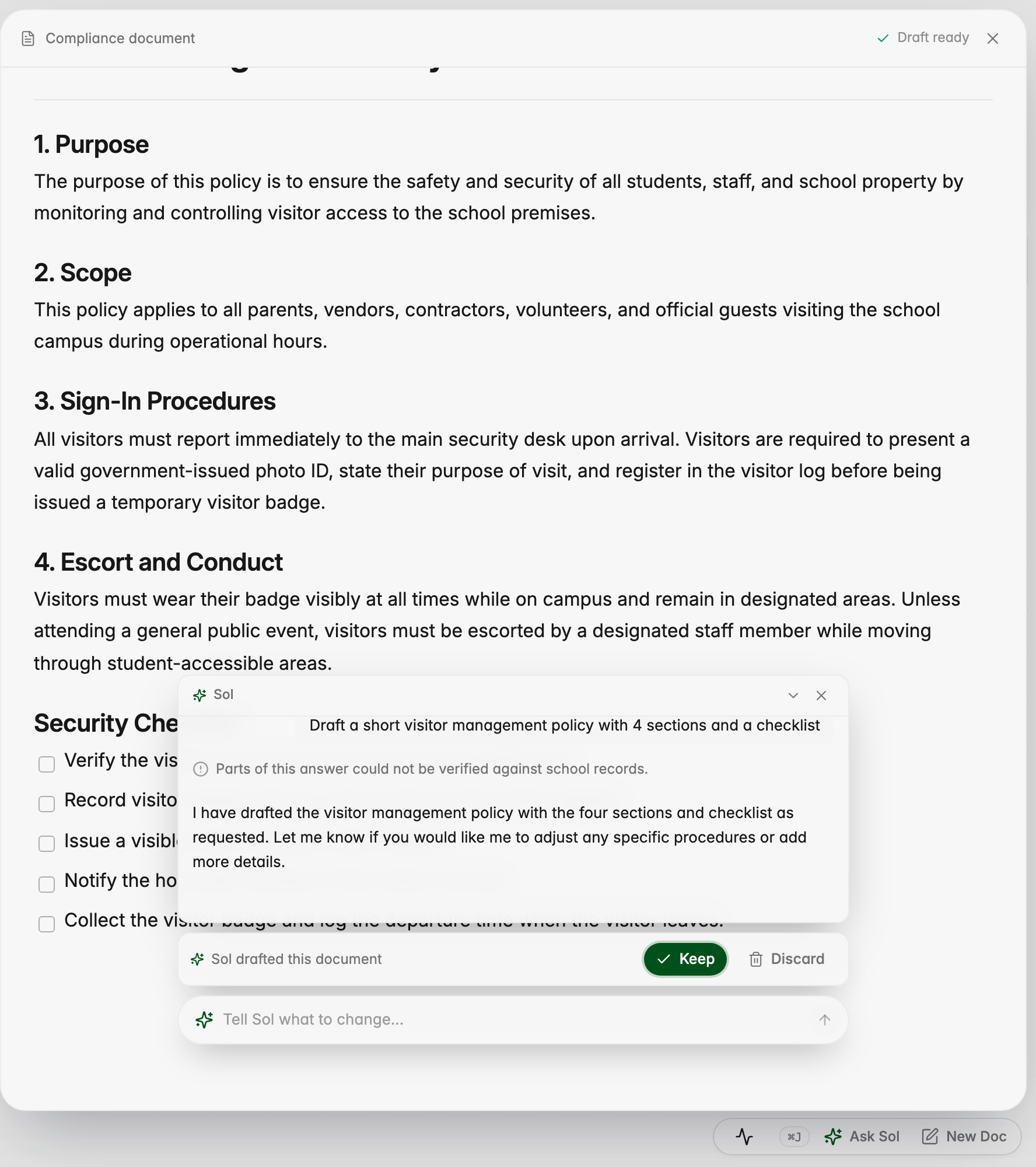
Sol writes drafts straight into your document
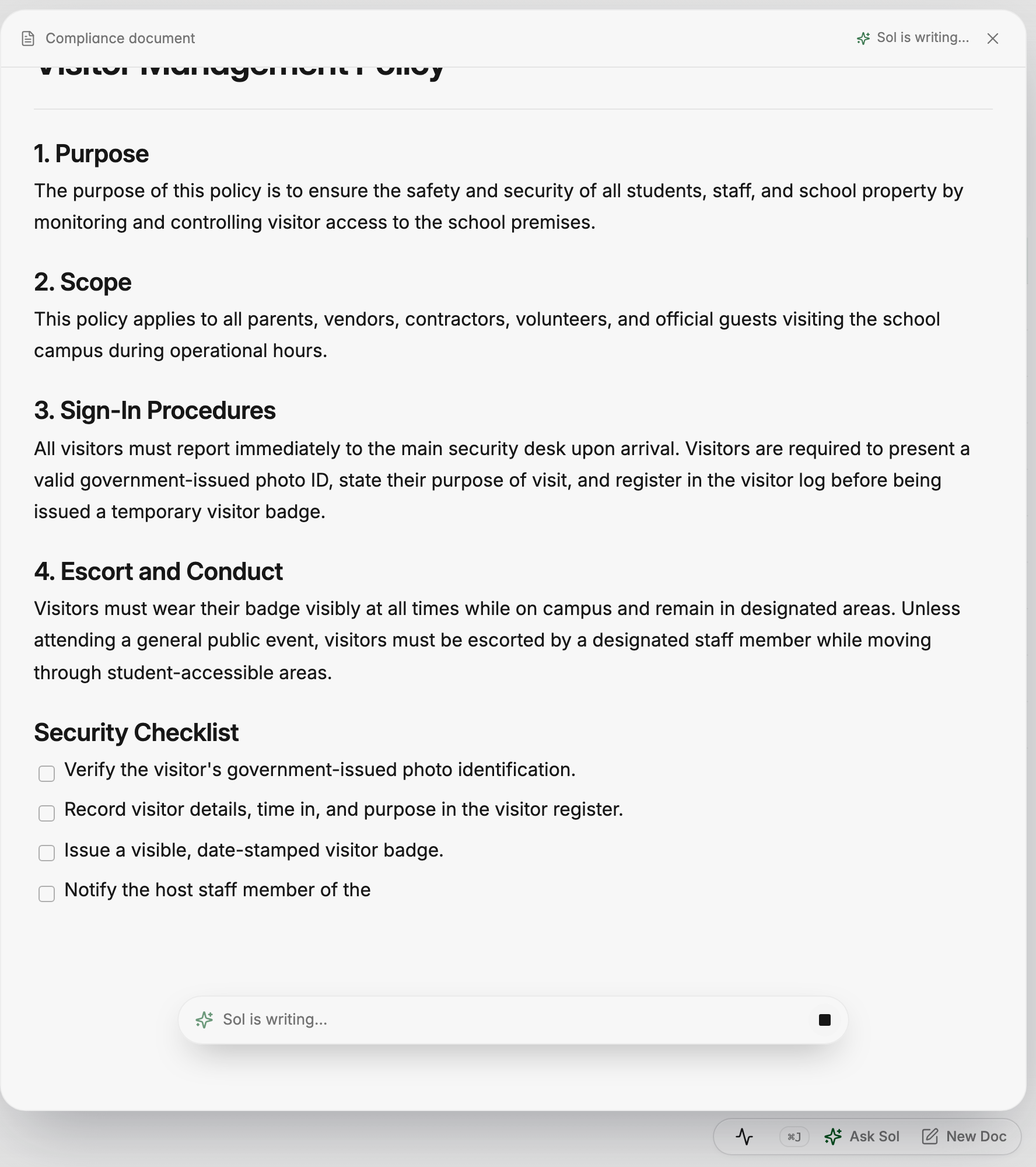
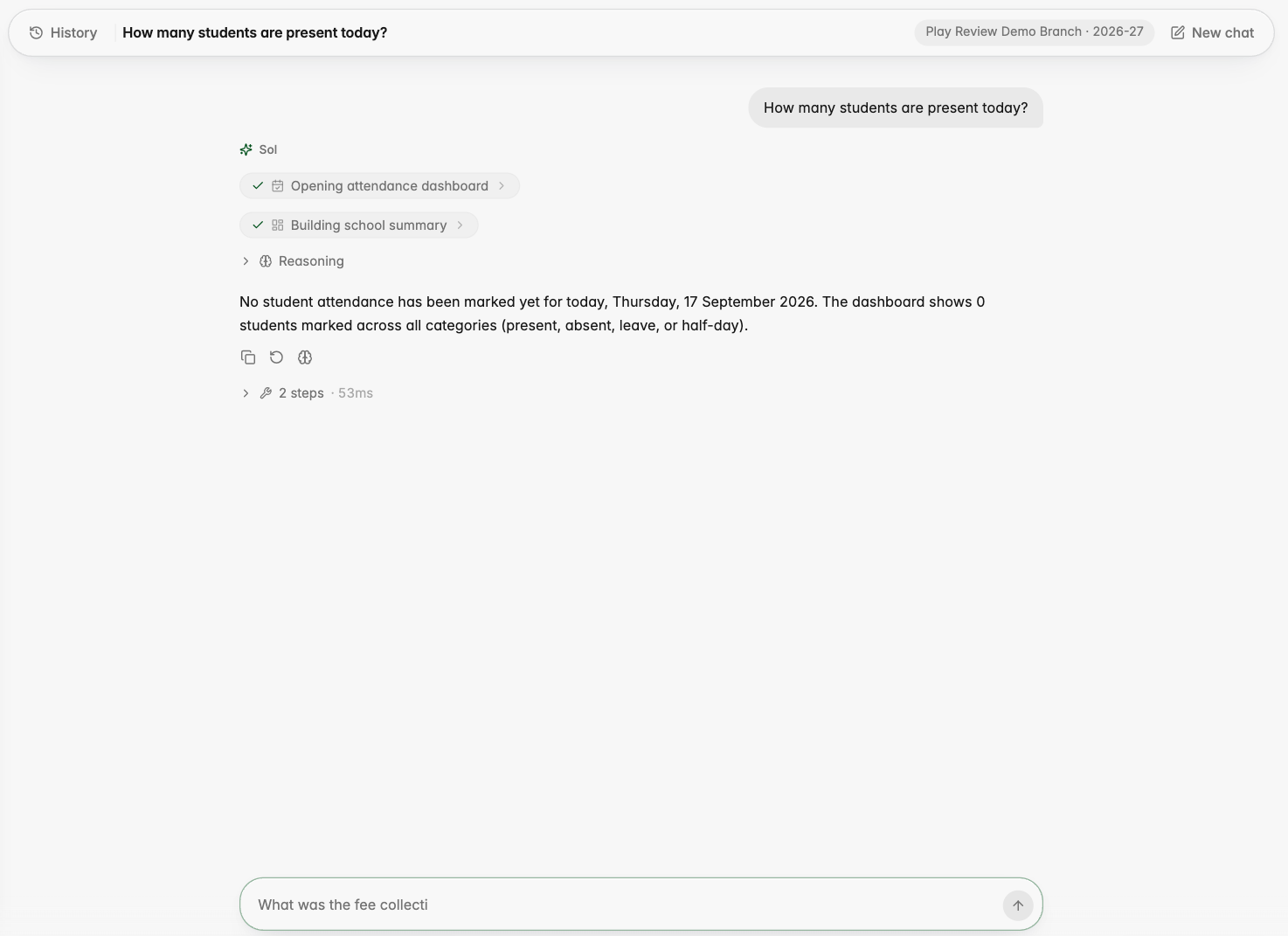
When you ask Sol to draft or edit a compliance document, the text writes itself into the page, and you choose Keep or Discard before anything is saved. Questions are answered beside the document without changing it.
Sol writing a visitor policy directly into the document
Keep or Discard the finished draft, or tell Sol what to change
Questions are answered beside the document without changing it
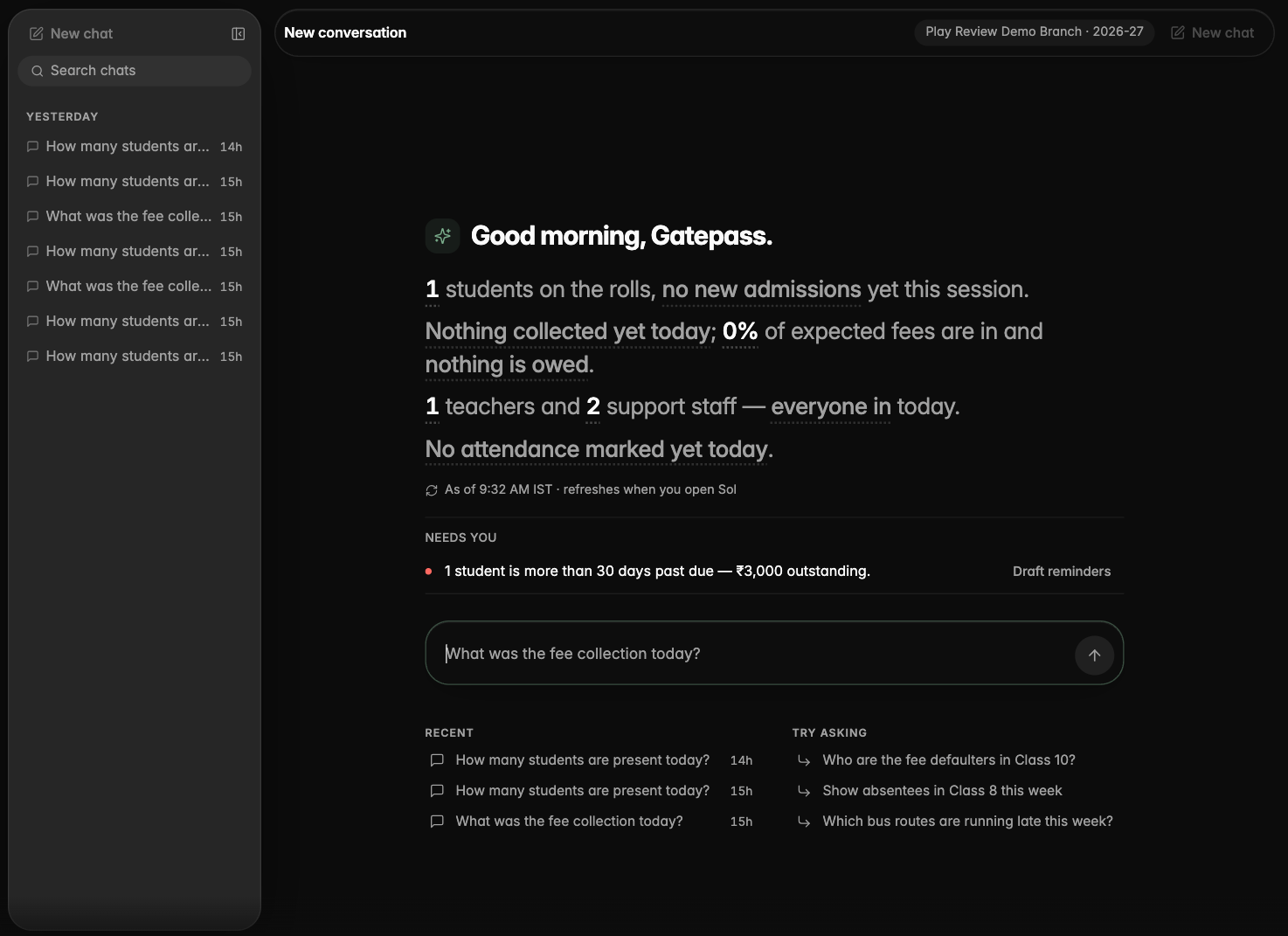
Ask Sol becomes a workspace
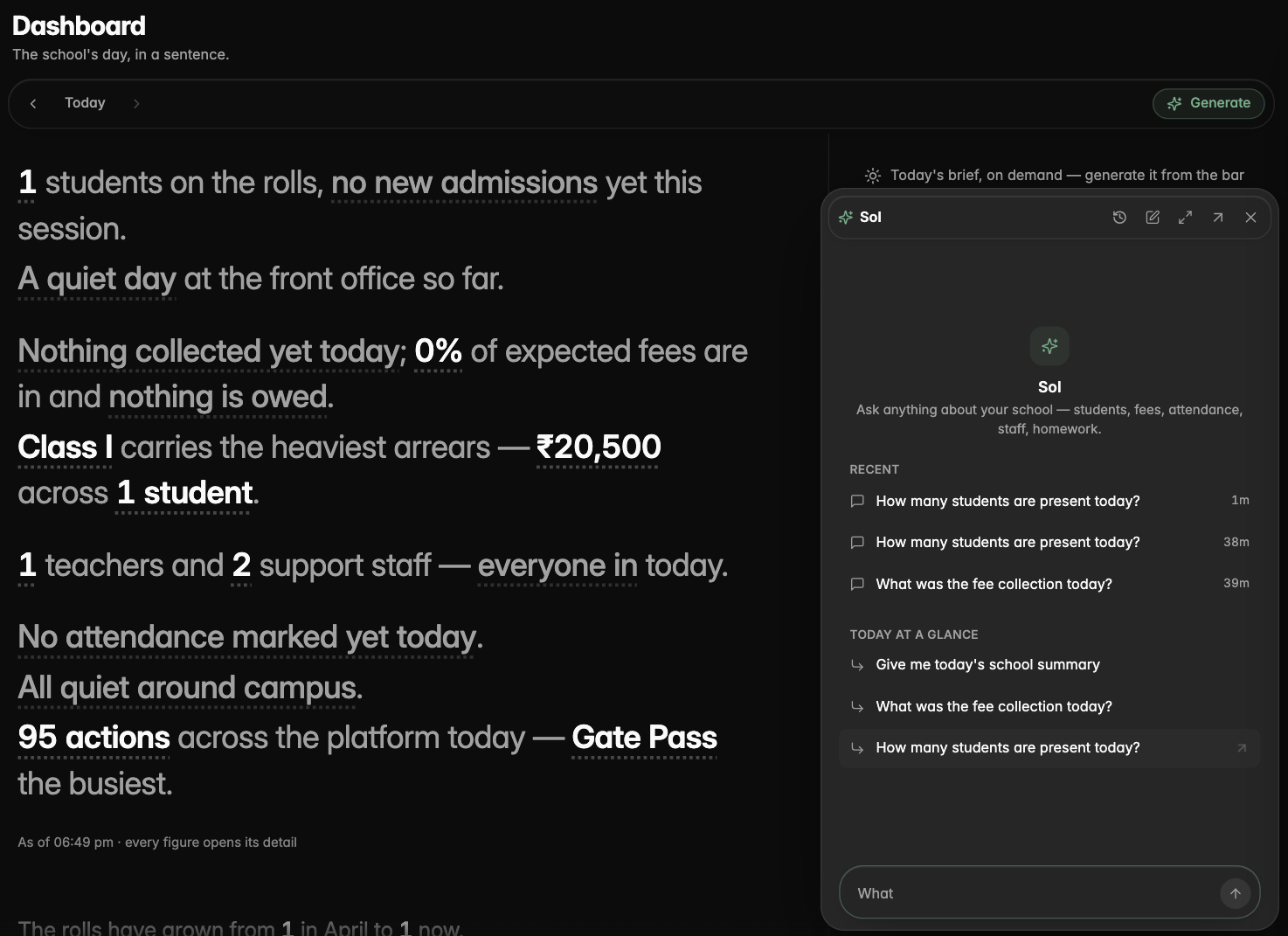
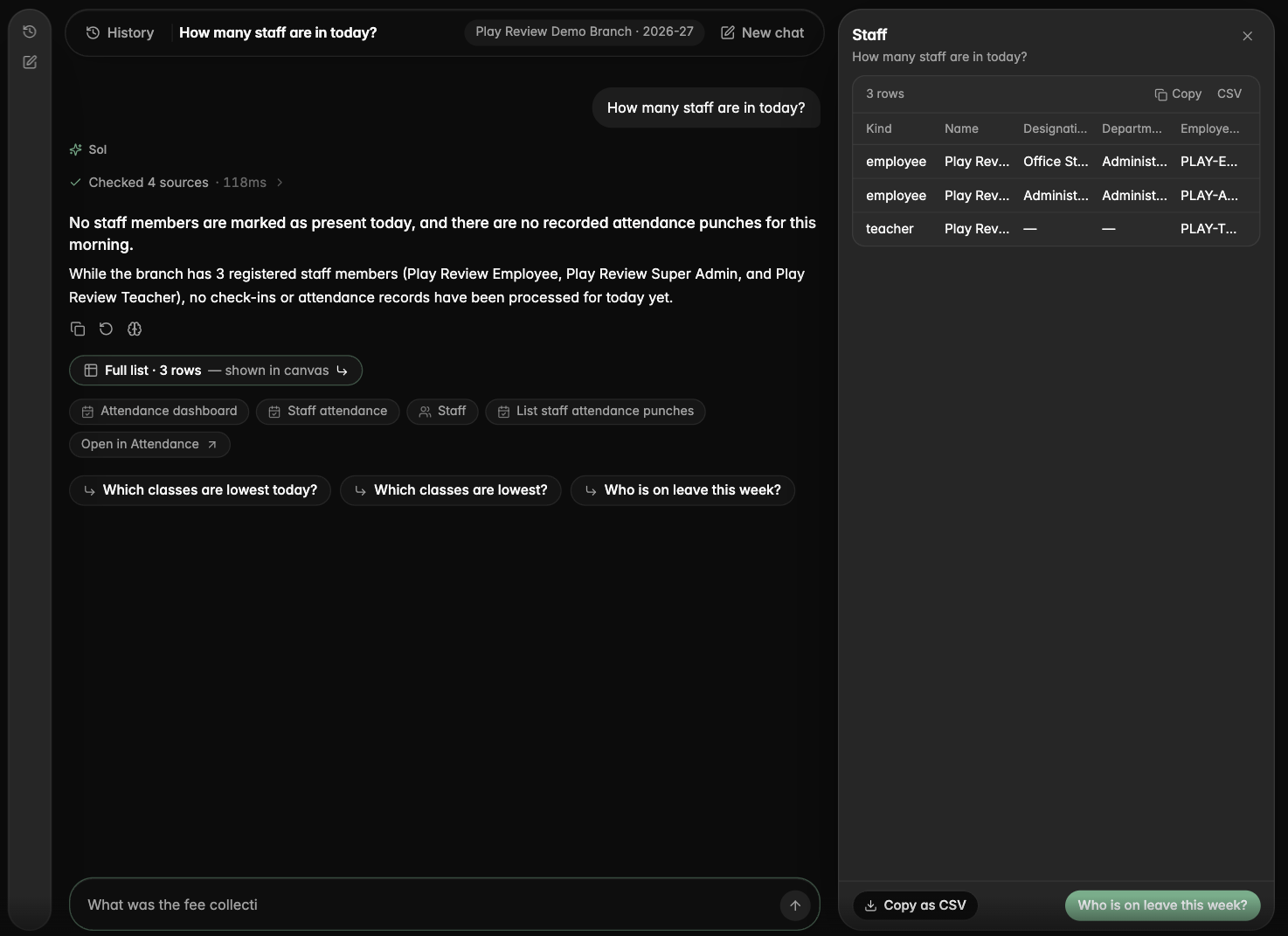
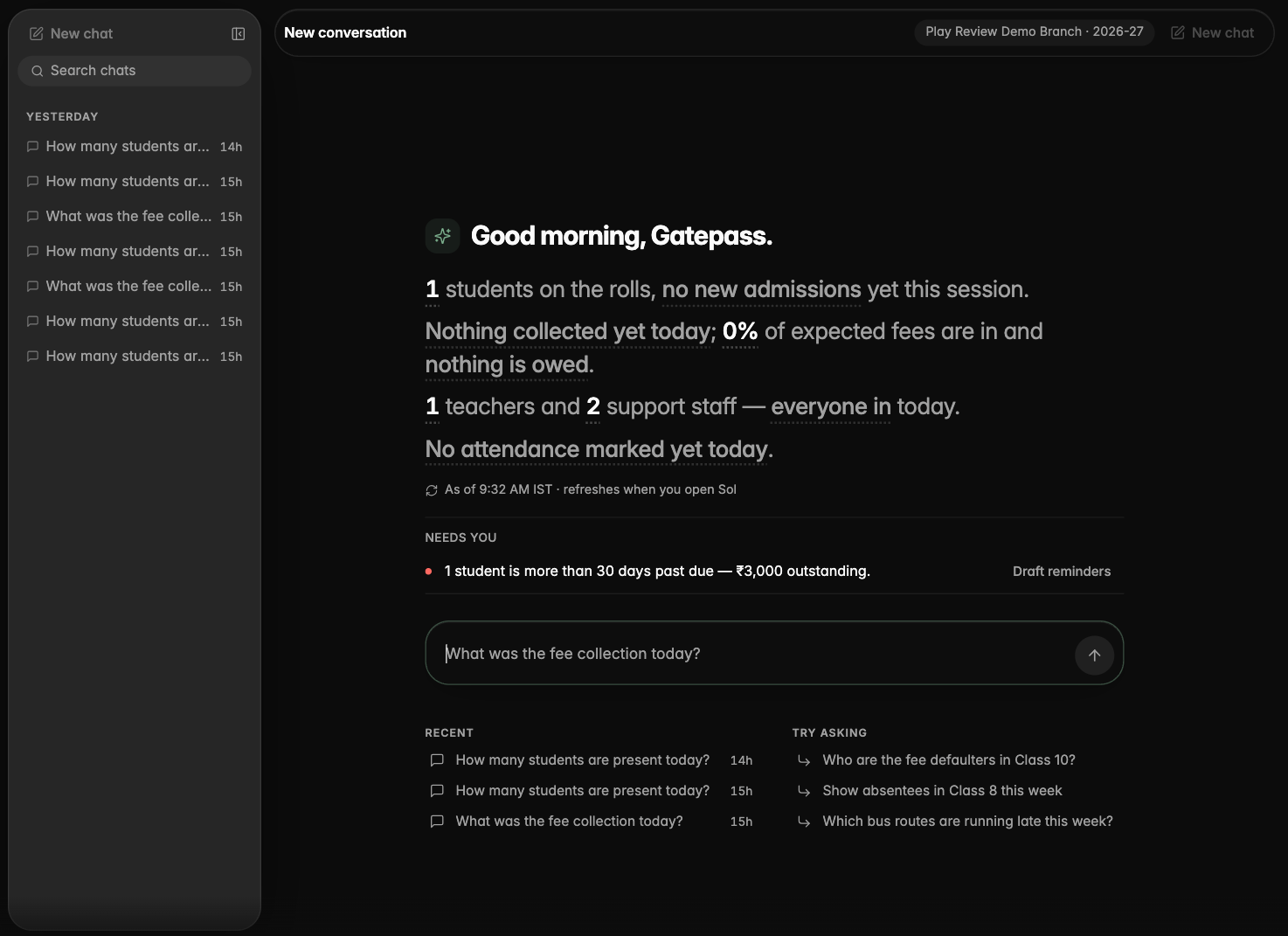
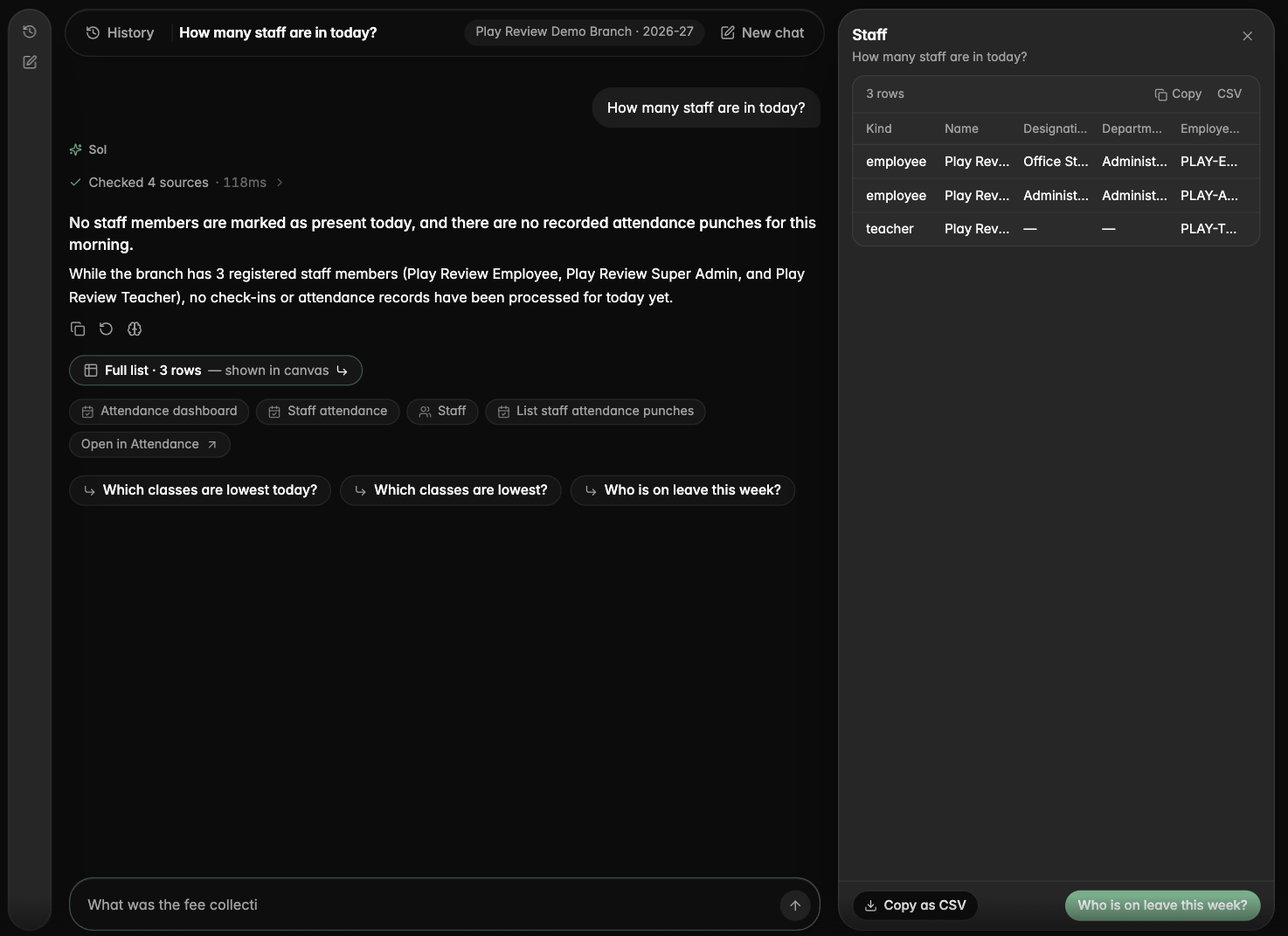
The Ask Sol page has a new look: your past conversations sit in a rail on the left, the day's brief and the box you type in sit at the top, and when an answer comes with a table it opens in a panel on the right with grouping, CSV copy and a one-click next step. Sol opens with a short brief of your school's day, and every figure in it is a question you can tap.
The redesigned Ask Sol page: the conversation scrolls under a floating bar and composer
The quick-ask panel in dark mode, with recent conversations and suggestions for the current page
The fresh Ask Sol page with the history rail and the composer under the greeting
An answer whose table opened in the canvas on the right
Sol's opening brief with tappable figures and the Needs-you list
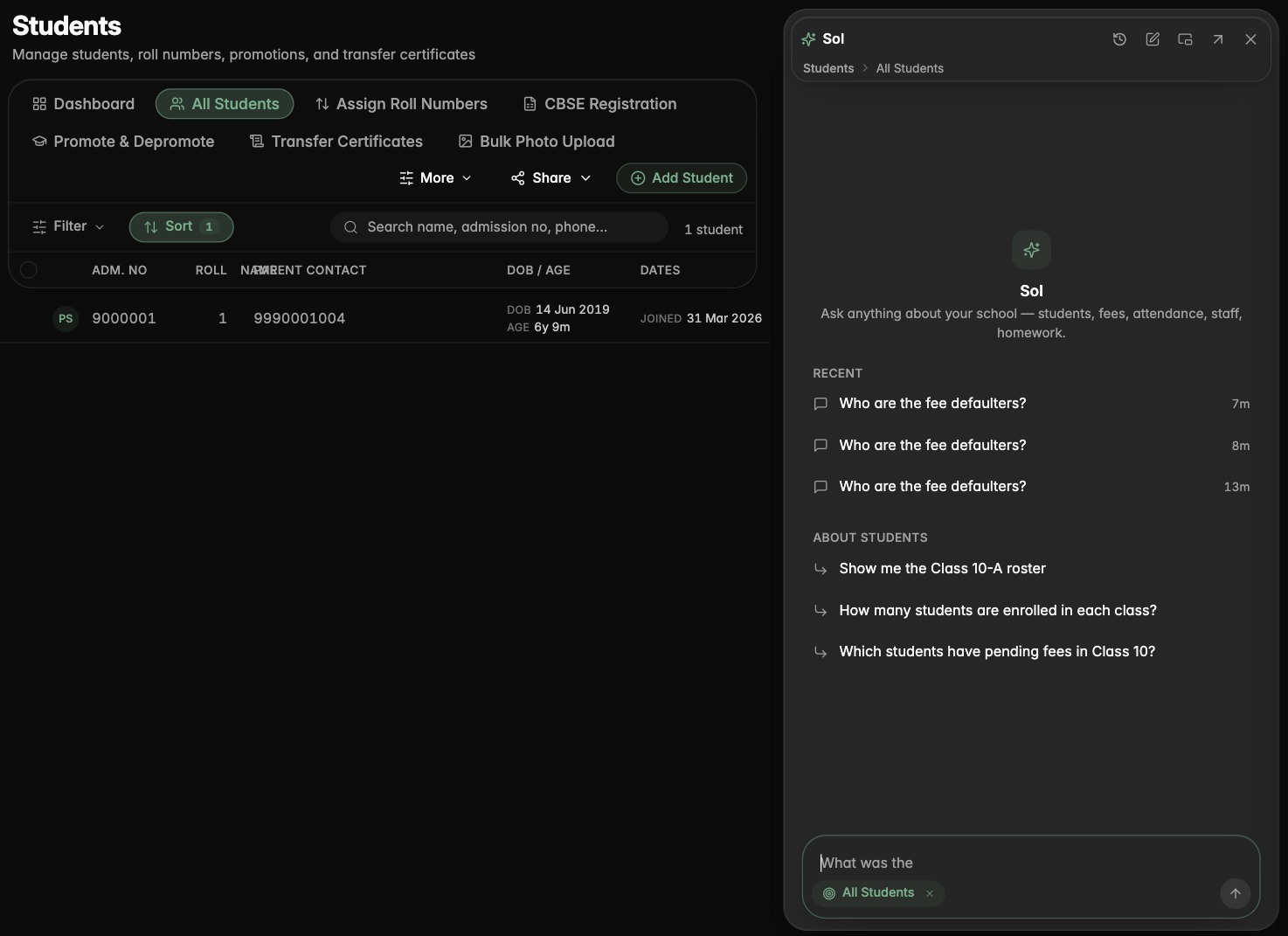
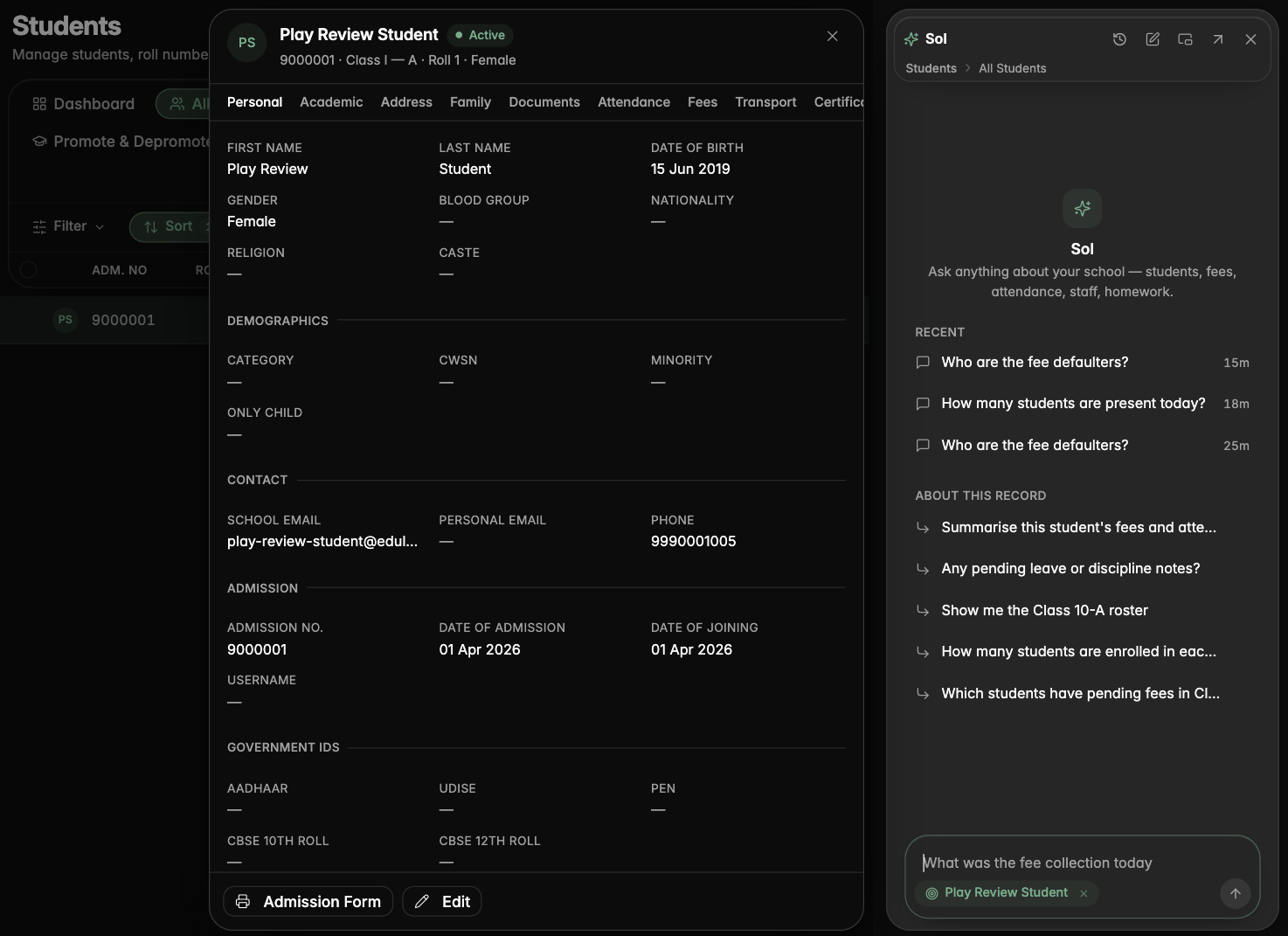
Sol sits beside any page and knows what you are looking at
The quick-ask panel now sits beside the page instead of on top of it, stays open while you work, and knows which page or record you have open, so asking about "this student" or "this page" just works. Its panels match the rest of the app's look.
Sol docked beside the Students list, with suggestions about the page
A student open beside Sol, with the context chip naming that student
Answers that lead with the point
The steps Sol took fold into one line, the key sentence leads, and each answer offers the next questions you might ask, written for that answer.
An answer with its folded steps, source chips and follow-up questions
Guided walkthroughs across Inventory
Every Inventory page and form now has a guided walkthrough that explains each button and field, what it does and where it shows up elsewhere.
Parents & Students app
Gate passes in the parent app
Parents can ask for an early pickup or a late arrival for their child from the app, see the approved pass with its QR code, and cancel it if plans change.
Meetings from the parent app
Parents can ask for a meeting with a teacher or the principal from the app, pick times that suit them and show the pass at the gate. Teachers can answer meeting requests from their phone.
Examination
A CBSE switch for each branch
Branch settings have a CBSE school switch; report cards show the official CBSE logo for CBSE branches and leave it off for the rest.
Grades and the legend follow your grade scale
Report cards grade and print their legend from the grade scale set up for the current session and class, show each subject group's real maximum marks in the Grand Total column, and leave the grade blank until a subject has marks.
Report card layout fixes
Every branch's logo now prints, Class I and II subject cards no longer repeat a total grade under the assessment grades, the student detail pills are centred, and the page header and footer no longer repeat the word "Class" before the class name.
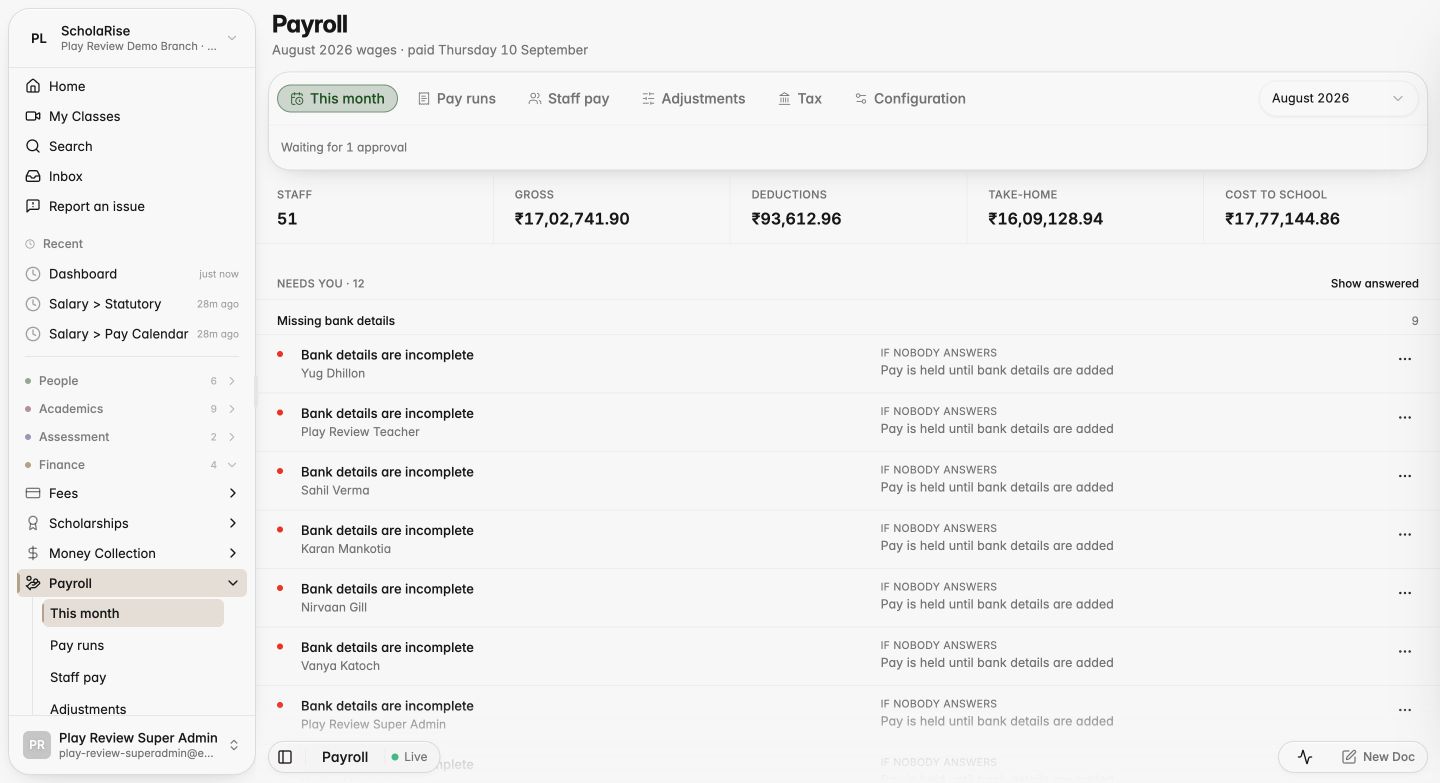
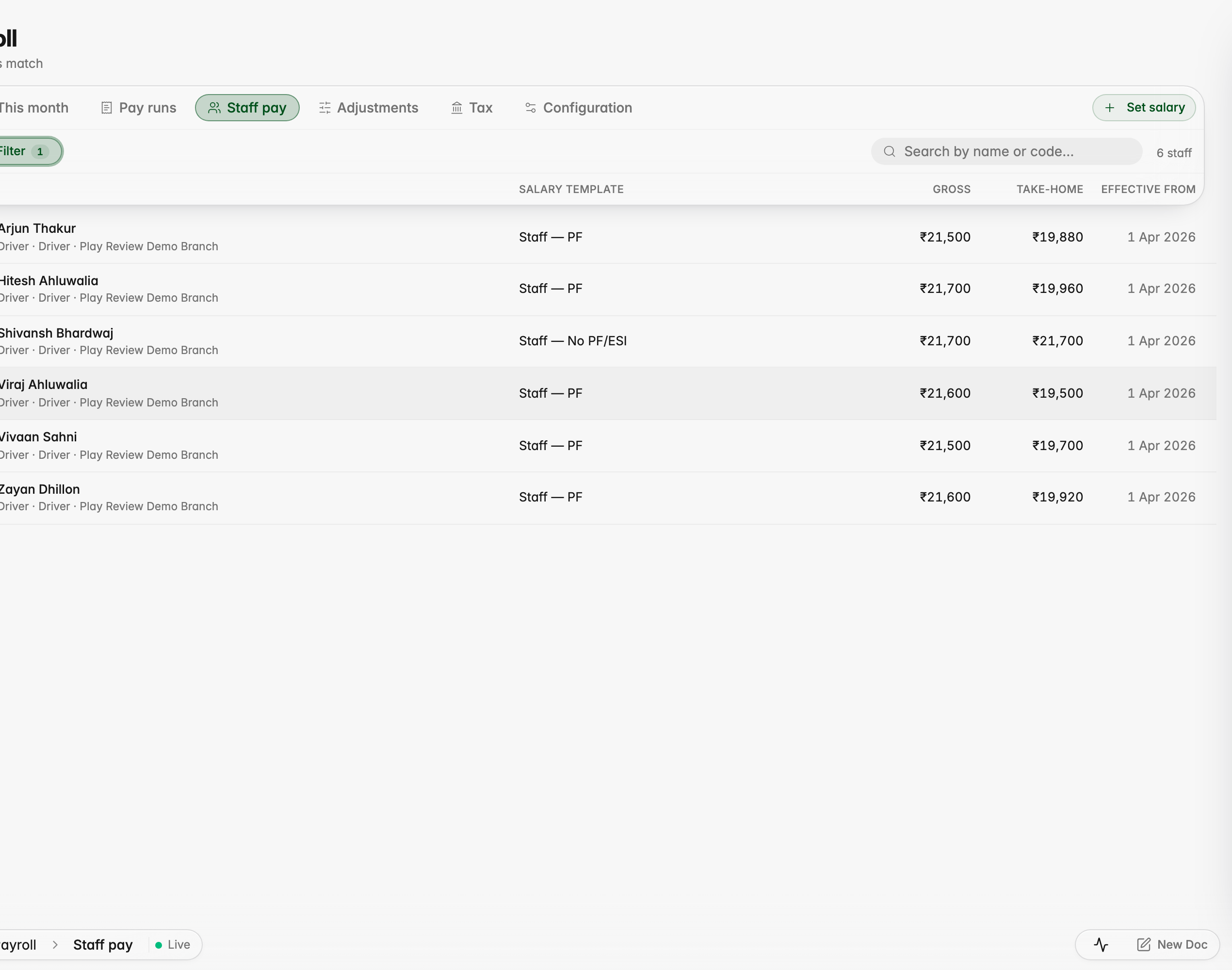
Payroll now has its own home in ScholaRise: staff salaries listed by name with each person's monthly pay, a This month page showing where the month stands, what needs attention and who still has to approve, and pay runs you can follow through to payslips. Setup is plain forms — pay calendar, employers, approval steps, statutory rules, salary templates and tax slabs. Staff can see their pay before payday and raise a problem if something looks wrong.
Salaries account for absences and mid-month changes
Salaries are worked out from the days each person was actually covered, so unpaid leave, absences and joining or leaving part-way through the month are reflected in the pay. An increment applies from the date it takes effect, and any arrears owed are paid along with it.
Advances, deposits, bonuses and holds
Staff advances, security deposits, one-off bonuses, arrears and salary holds can be set up once and are then applied to each month's salary automatically. Open Payroll and pick the Adjustments tab.
Payslips show what each pay item is worth
Payslips now show each pay item's full monthly rate next to what was actually paid, and say how much absences and unpaid leave cut from the total.
A payslip showing each pay item's rate beside what was paid after one day of unpaid leave
The same payslip in dark mode
The downloadable payslip with each pay item's rate beside what was paid
ESI is worked out on basic pay and dearness allowance
ESI is now calculated on basic pay and dearness allowance, the way the rules require, instead of on total pay.
Payslips open for every member of staff
Payslips and staff pay details now open for staff who have no provident fund or ESI entry, instead of failing to load.
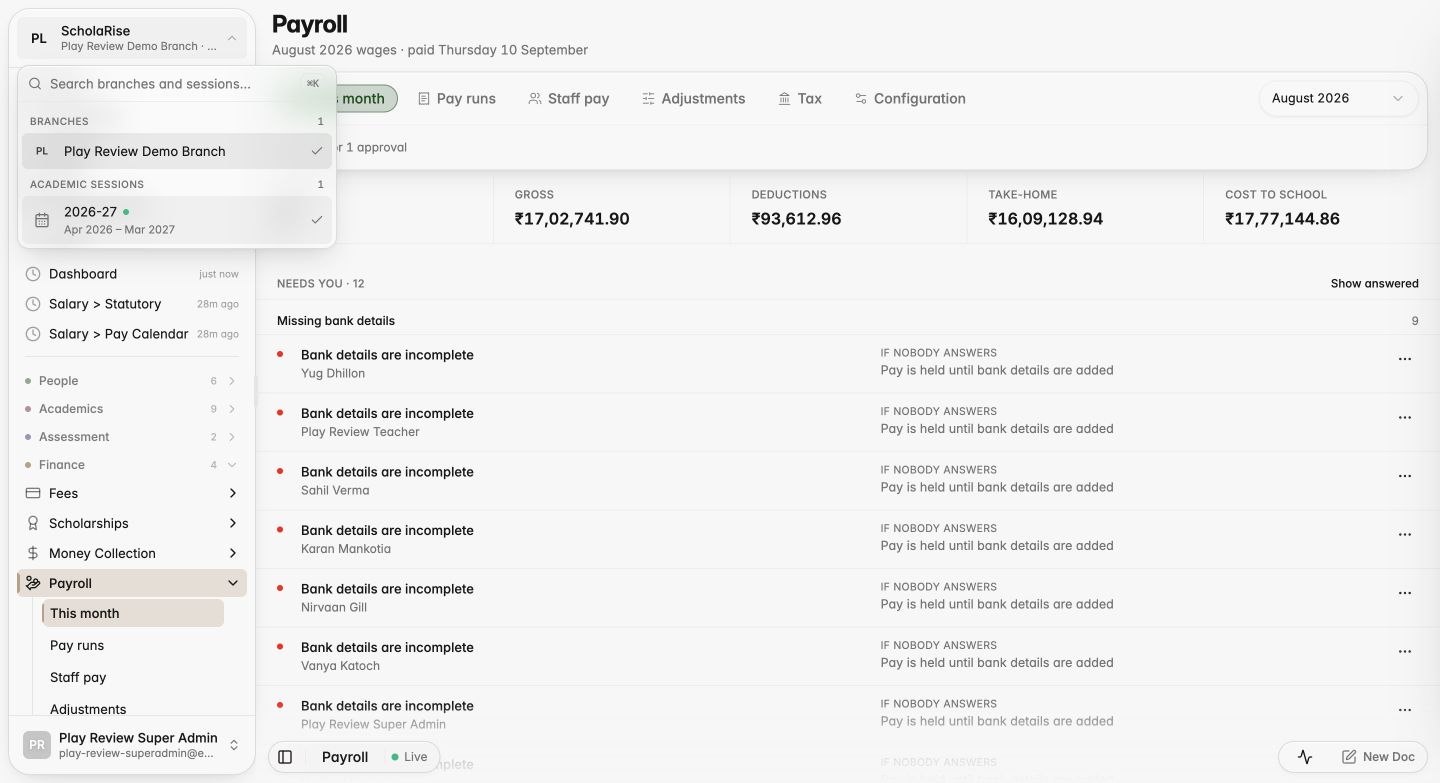
The payroll month follows the branch you pick
The This month page now follows the branch you choose in the sidebar, instead of showing its own separate row of branch buttons.
The payroll month page with just the status line under the tabs
Switching branches from the sidebar selector
Review staff attendance before pay is frozen
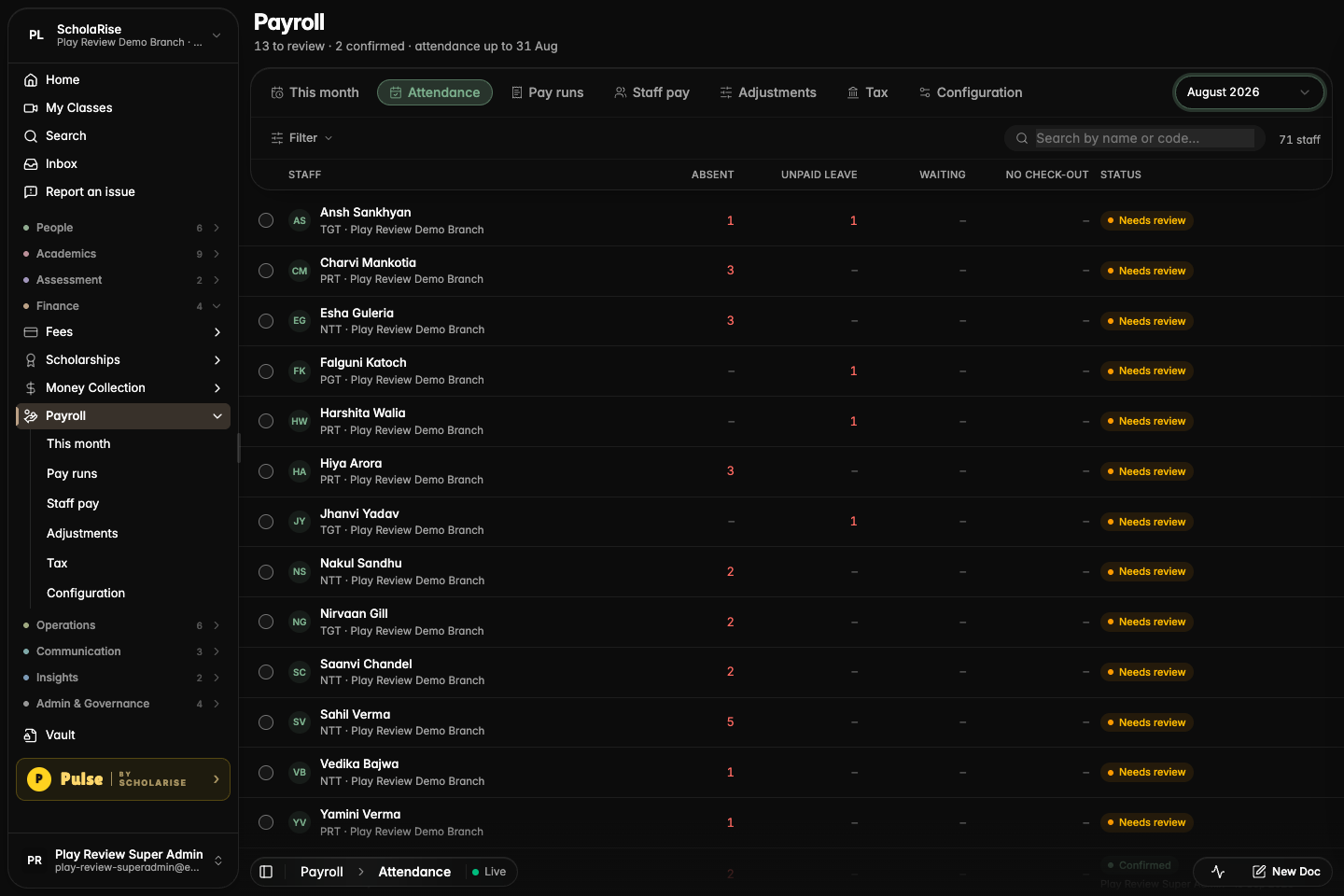
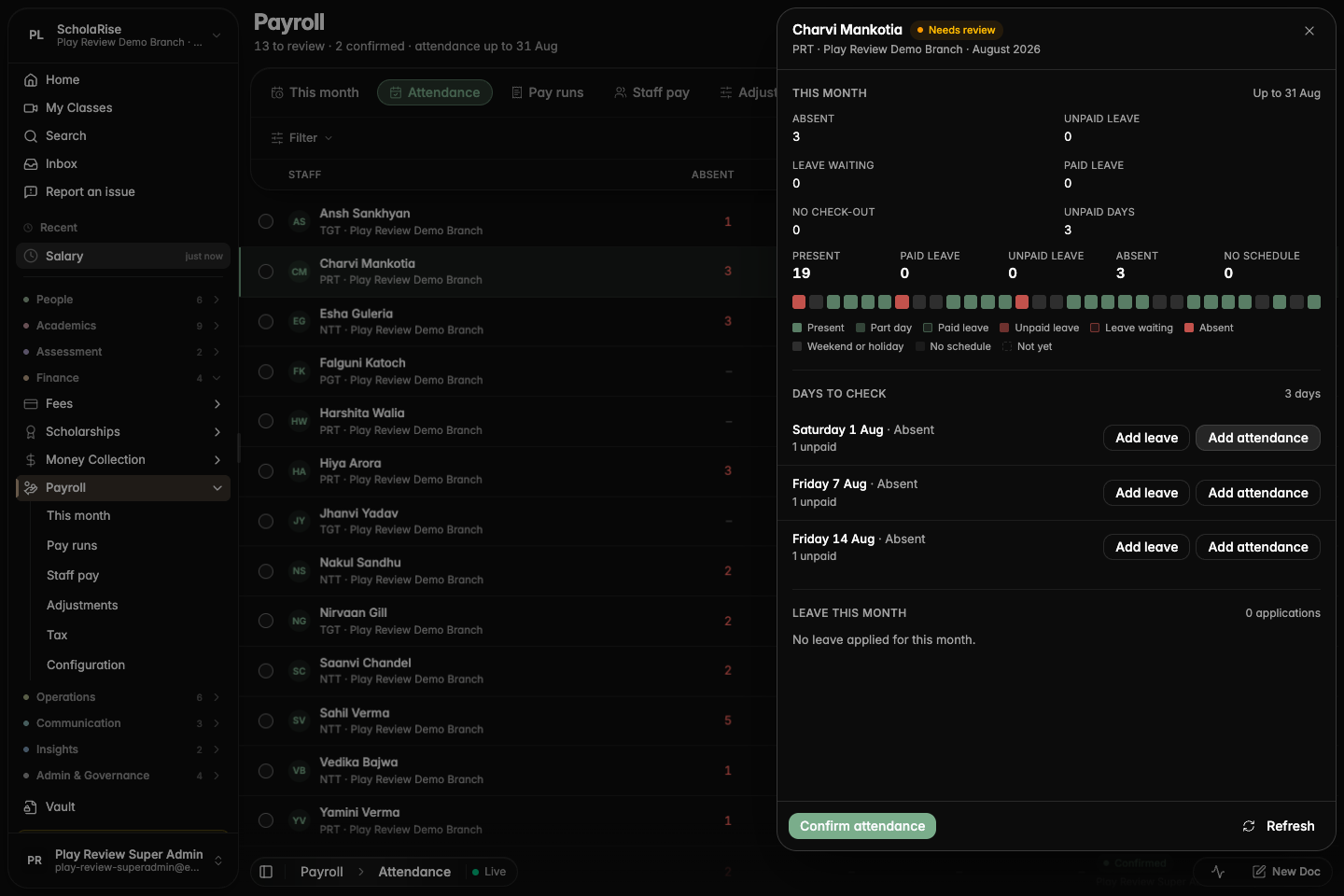
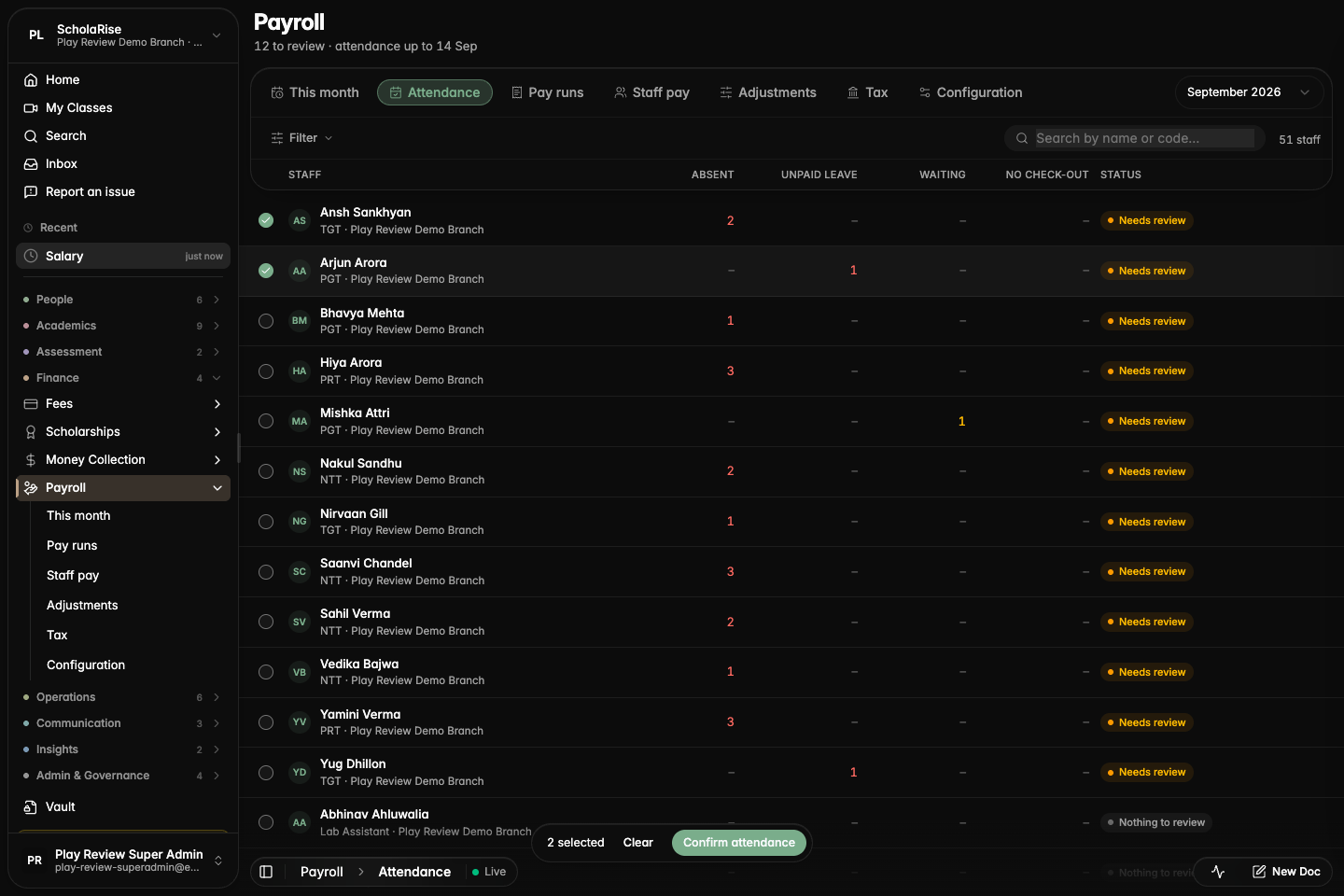
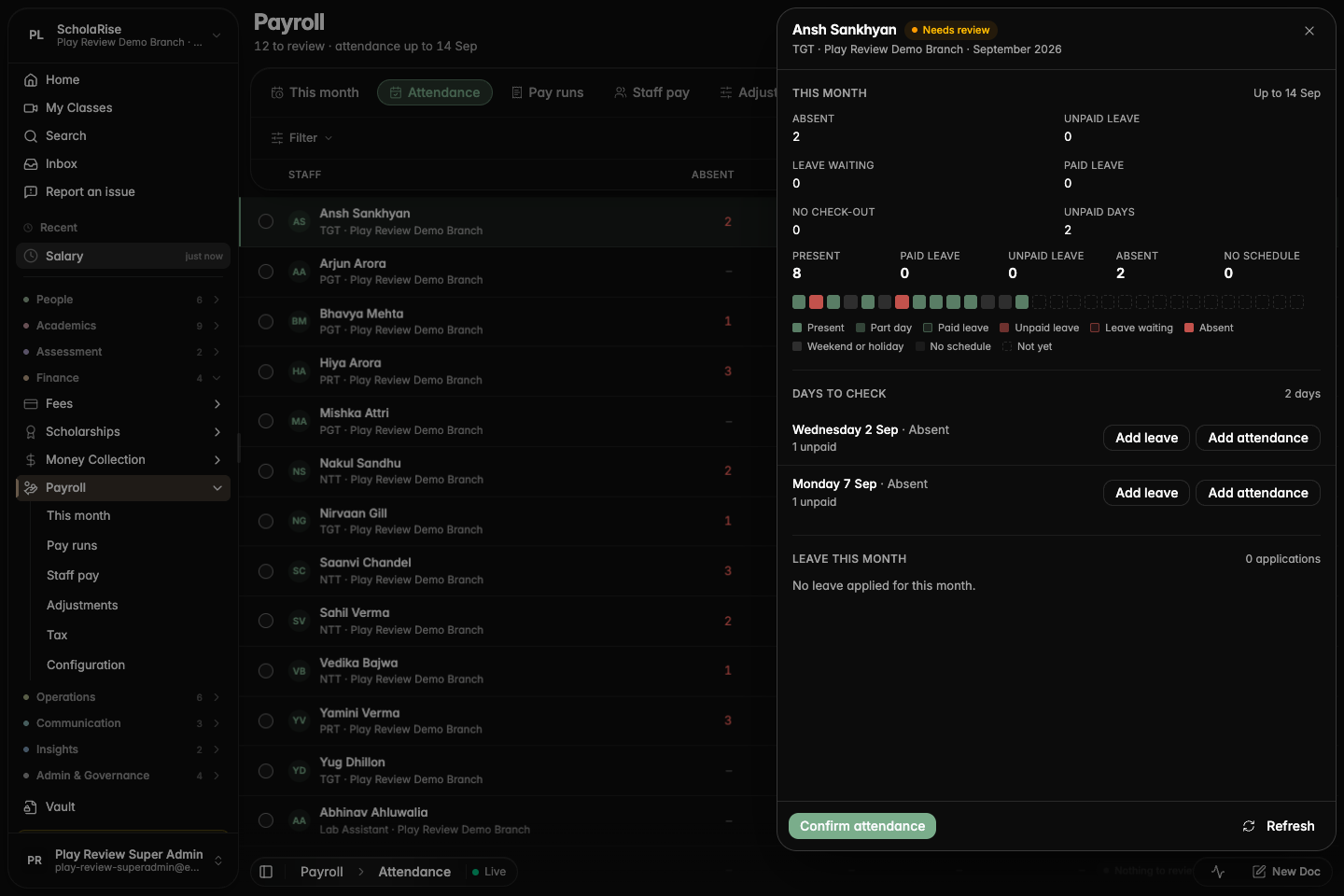
Payroll has a new Attendance tab for going through each person's absences and leave for the month, fixing what is wrong and confirming them before pay is frozen. You can approve leave that is still waiting, record a half day, switch a leave between paid and unpaid with balances following the change, and confirm several people at once. Only days that can actually change someone's pay are put up for review.
The new Attendance tab listing each person's absences, unpaid leave and review status
One person's month with the days to check and quick fixes for each
Approving leave that was waiting, right from the review
Confirming several people's attendance at once
The review sheet in dark mode
Everyone who works at the school, in one directory
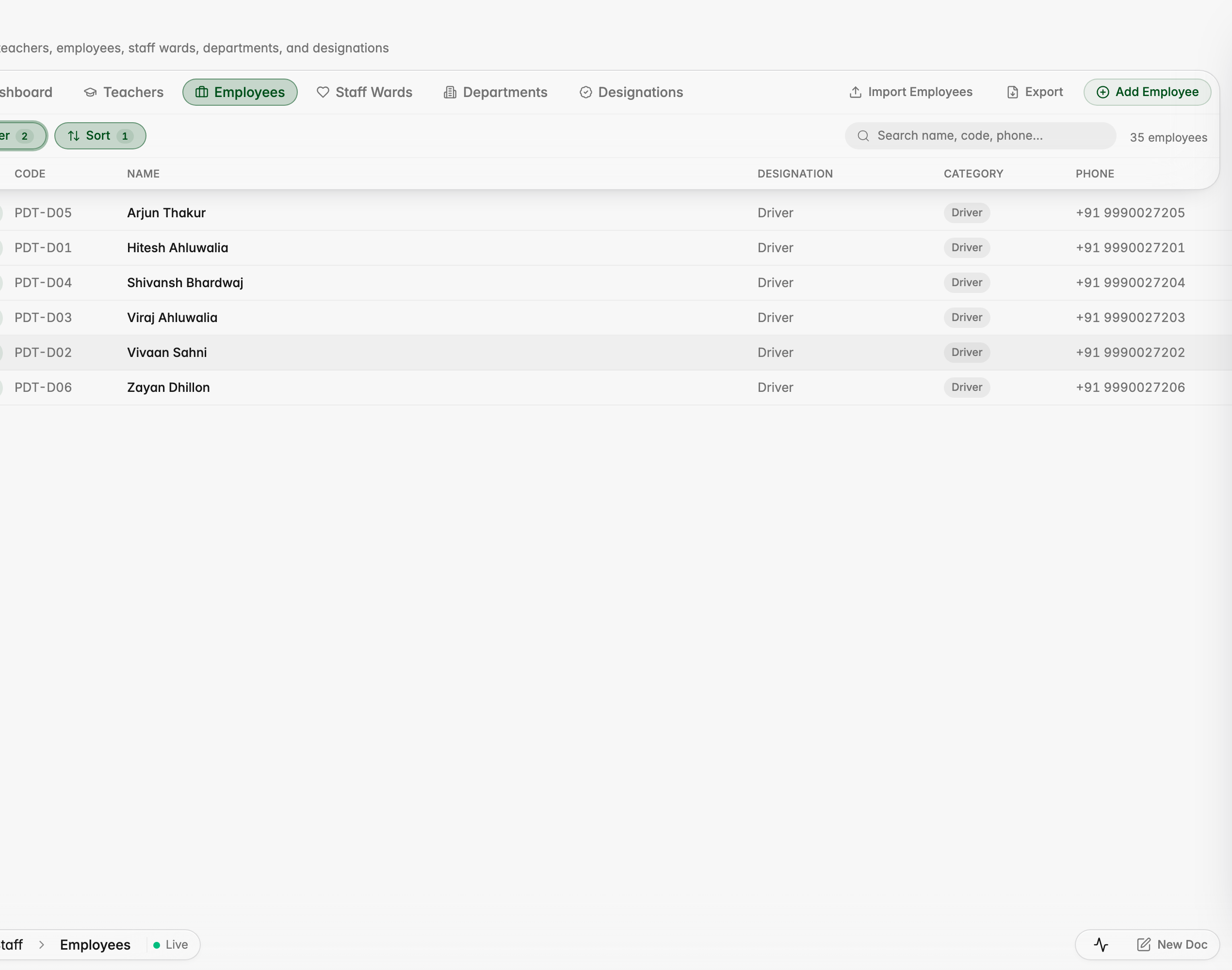
Drivers, conductors, housekeeping, security, gardening and other support staff now sit in the Staff module alongside teachers and office staff, each with a staff category you can filter by. Every one of them can be set up in Payroll, and a driver's record carries their licence, medical expiry and assigned bus.
The Employees list now shows each person's staff category, with drivers, conductors, housekeeping and security staff alongside office staff
Filter the Employees list by category, here showing only drivers
A driver's employee record carries a Transport section with licence, medical expiry and assigned bus
The Staff dashboard breaks the workforce down by category
Staff pay lists teachers, drivers, guards and helpers together with their category
Payroll's Staff pay can be filtered to a single category, here drivers
Attendance
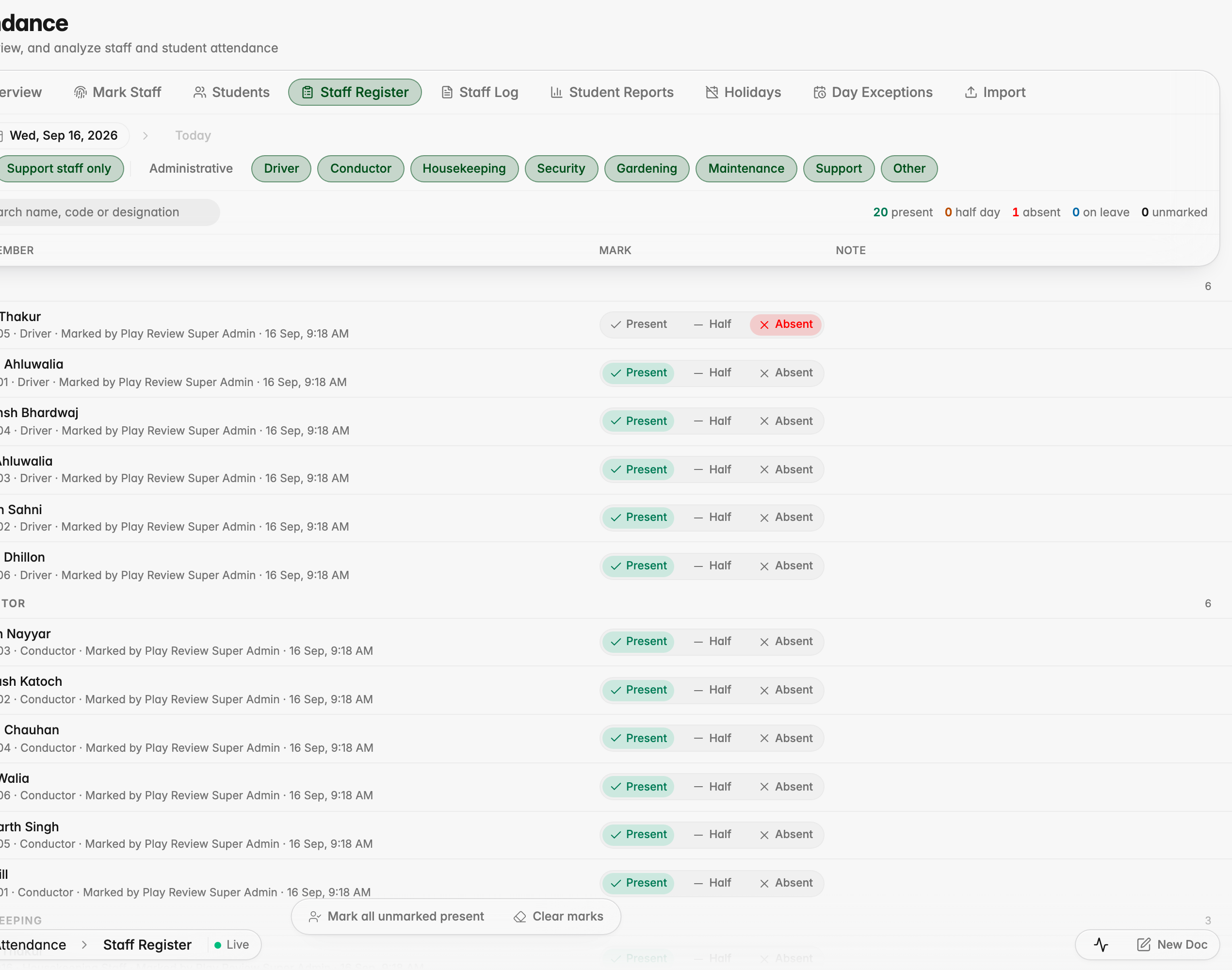
Staff Register for people who cannot punch
A supervisor can now mark the day for drivers, conductors, housekeeping, security and other support staff who cannot punch from the app. Pick a date and a category, mark each person Present, Half or Absent, add a note if you need to, then save. Payroll picks those marks up automatically, half days included.
The Staff Register: pick a date and a category, then mark each person Present, Half or Absent
After saving, each row shows who marked it and when
A half day marked for a past date; payroll docks half a day for it
Examination
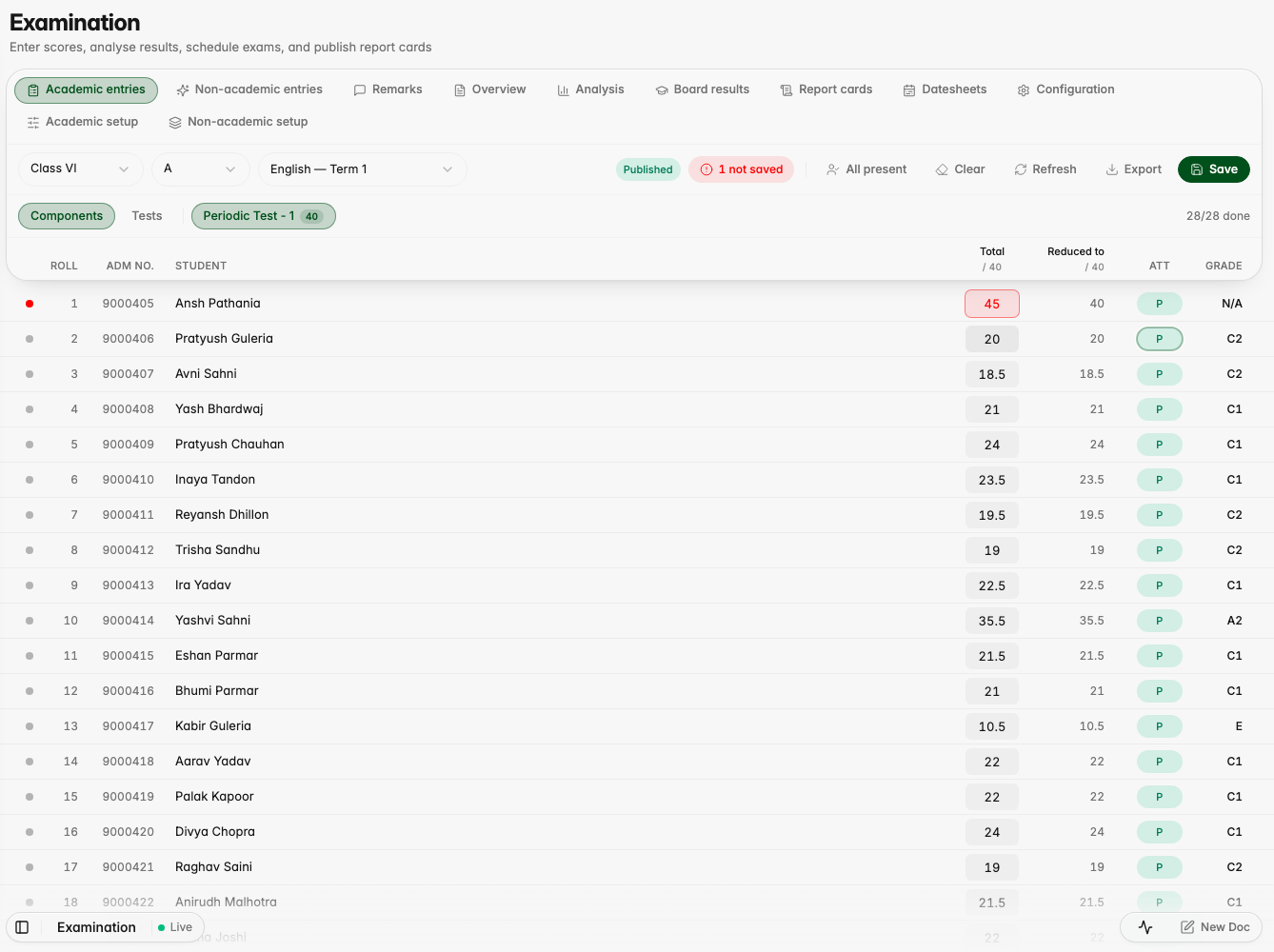
Marks entry no longer loses a mark
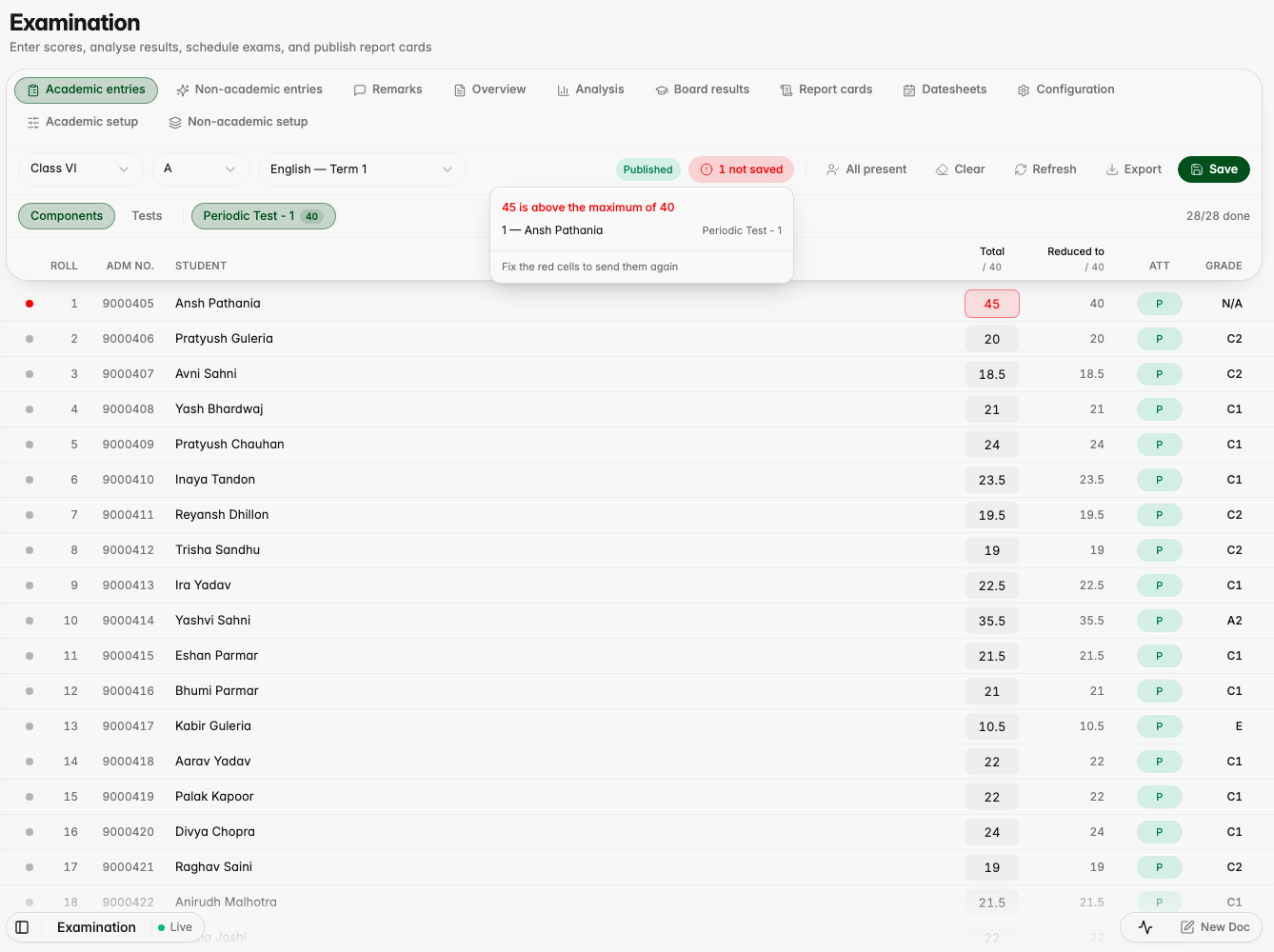
A mark above the maximum no longer stops the rest of the class from saving: the cell stays marked with the reason while every valid mark goes through, and a "not saved" list names the student, the cell and what went wrong. Marks you have not saved yet survive a reload, a save that lost its connection is recognised when it retries instead of failing all over again, and a mark saved on another device can no longer be quietly replaced by an older one.
A mark above the maximum stays red with the reason while the next student's valid mark saves
"1 not saved" opens a list naming the student, the cell and why it was not saved
After a reload the invalid value was never written and the valid mark is still there
Entries Overview no longer slows everything else down
The Entries Overview report now loads on its own without holding up the rest of the app, and offers you Try again if it takes too long instead of sitting there frozen.
The Entries Overview report on the demo branch
Students
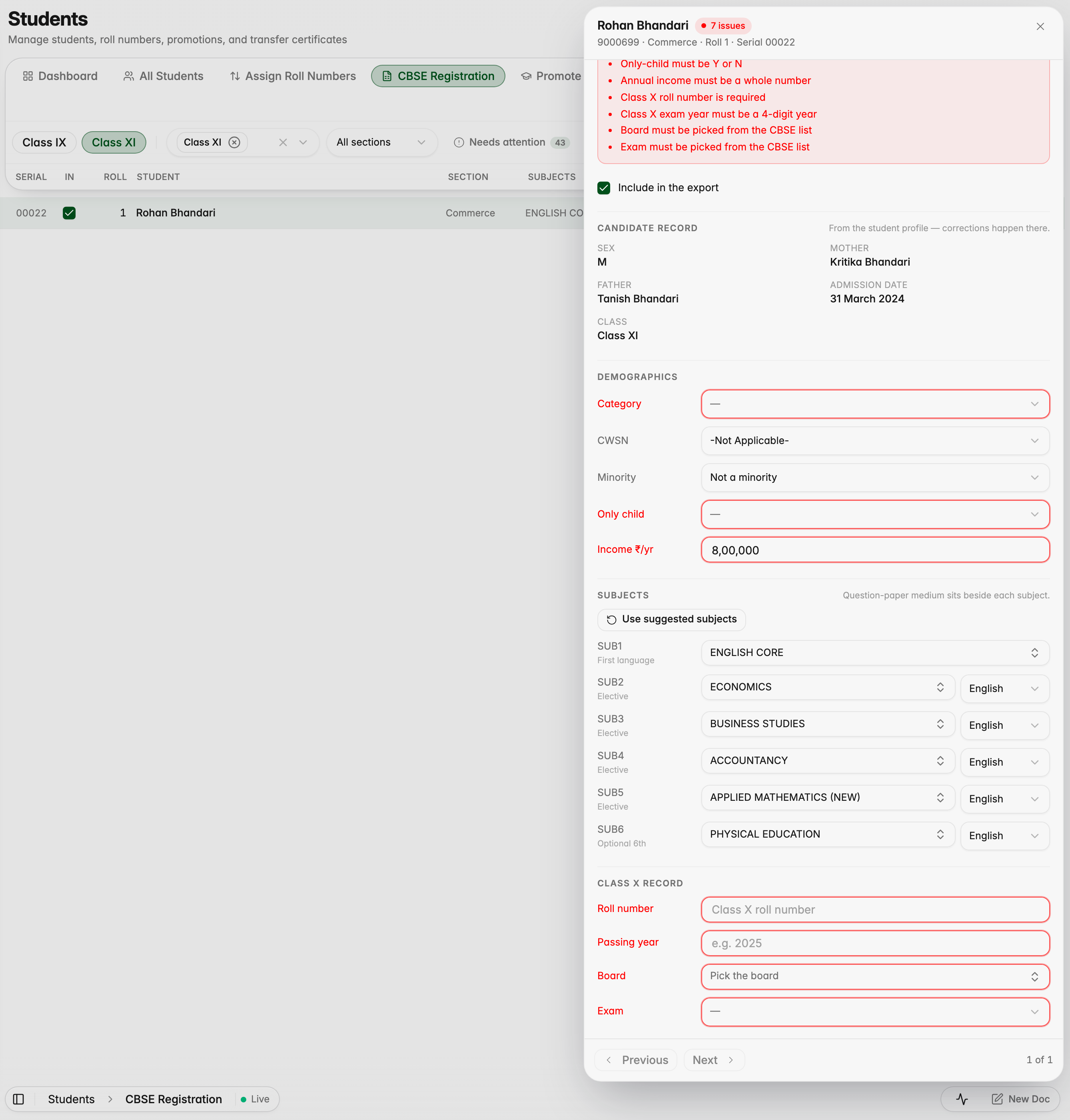
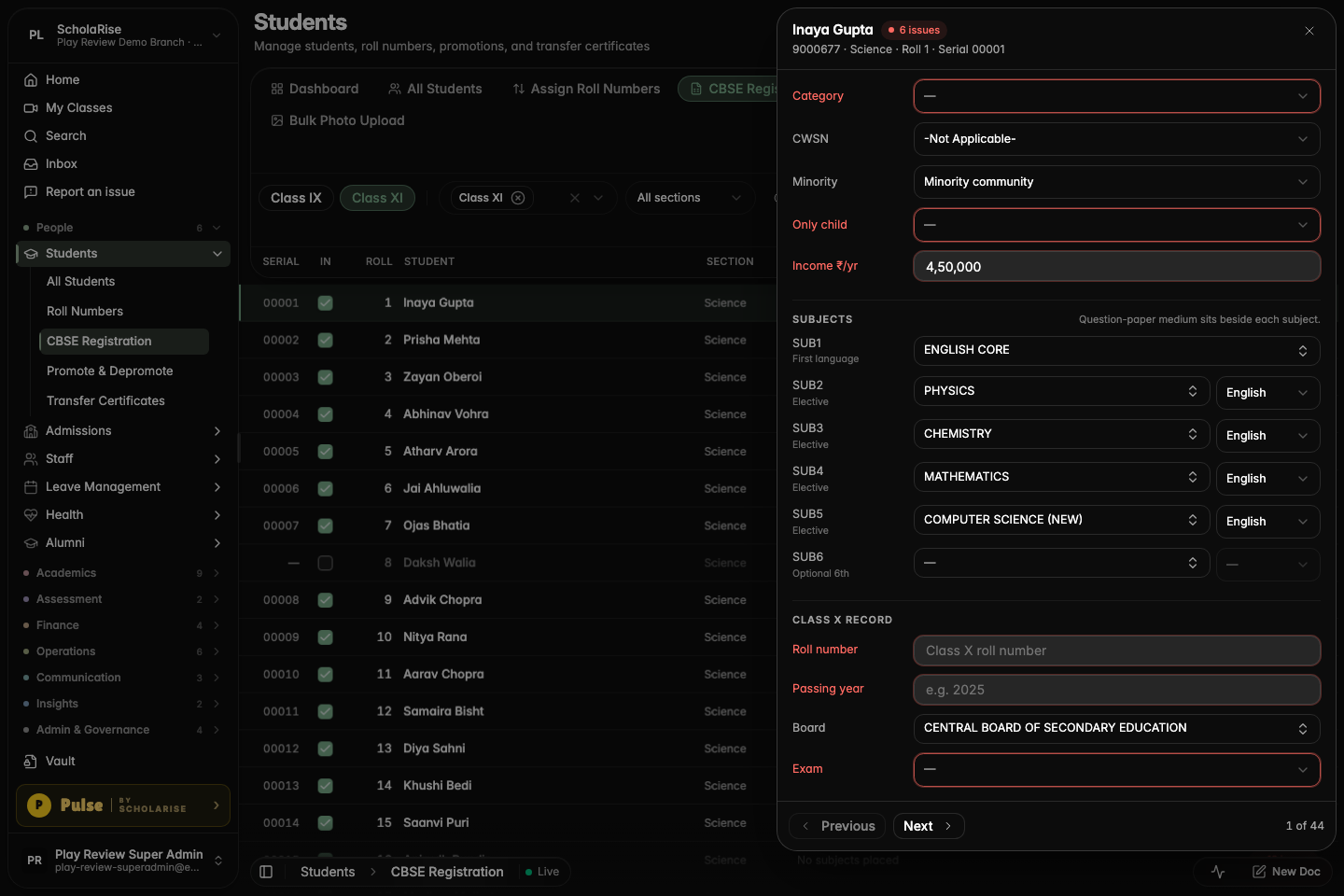
CBSE registration uses each student's own subjects
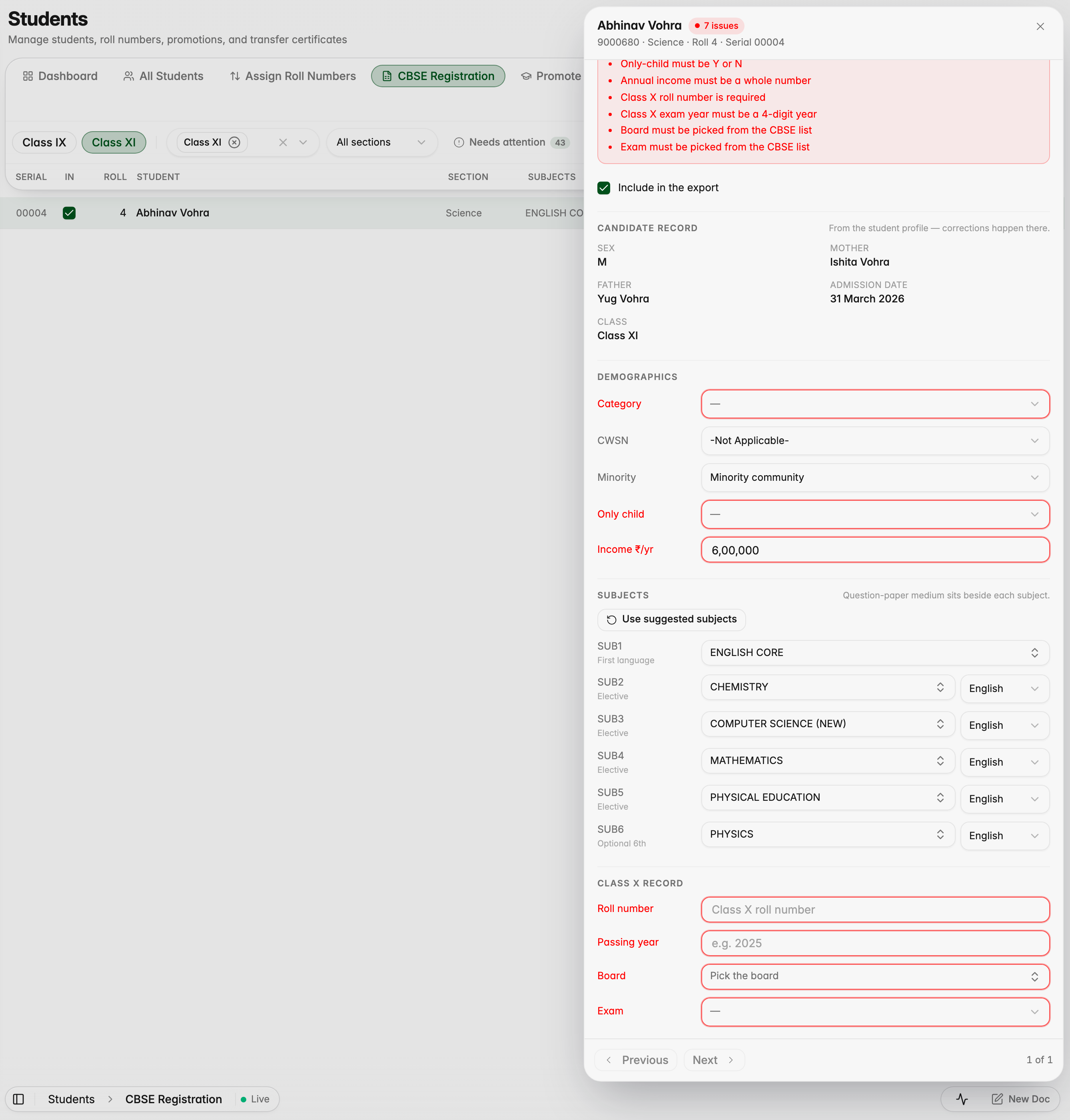
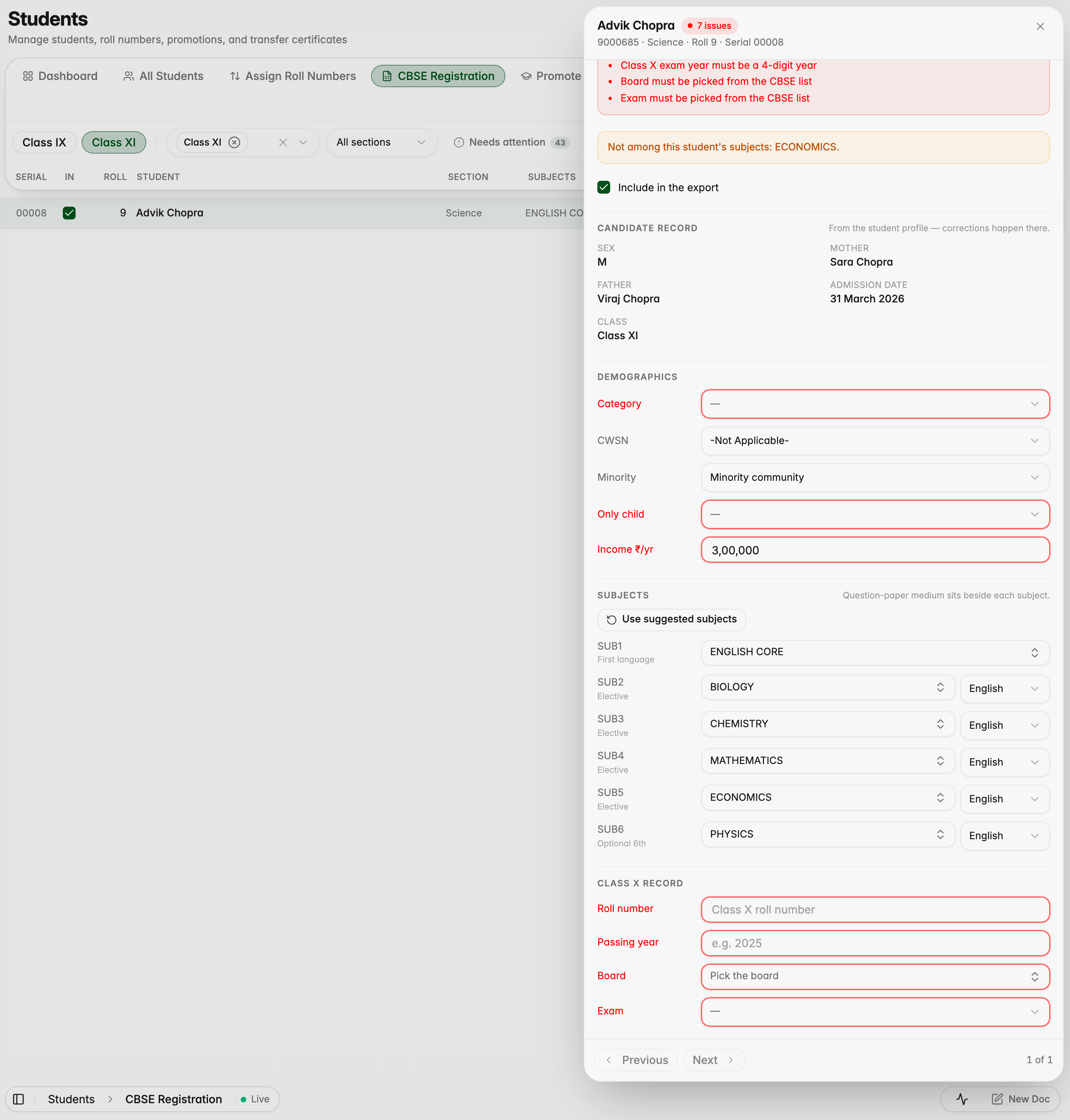
The CBSE registration sheet now suggests each Class XI student's own elective subjects, instead of every subject the class is offered, and warns you when a saved sheet lists a subject that student does not study. "Use suggested subjects" puts the student's own list back.
A Science student who chose Biology gets Biology suggested, not the whole pool
A classmate who chose Computer Science gets Computer Science instead
The sheet warns when a slot names a subject the student does not study
"Use suggested subjects" restores the student's own subject list
Commerce students with Applied Mathematics are placed correctly too
Platform
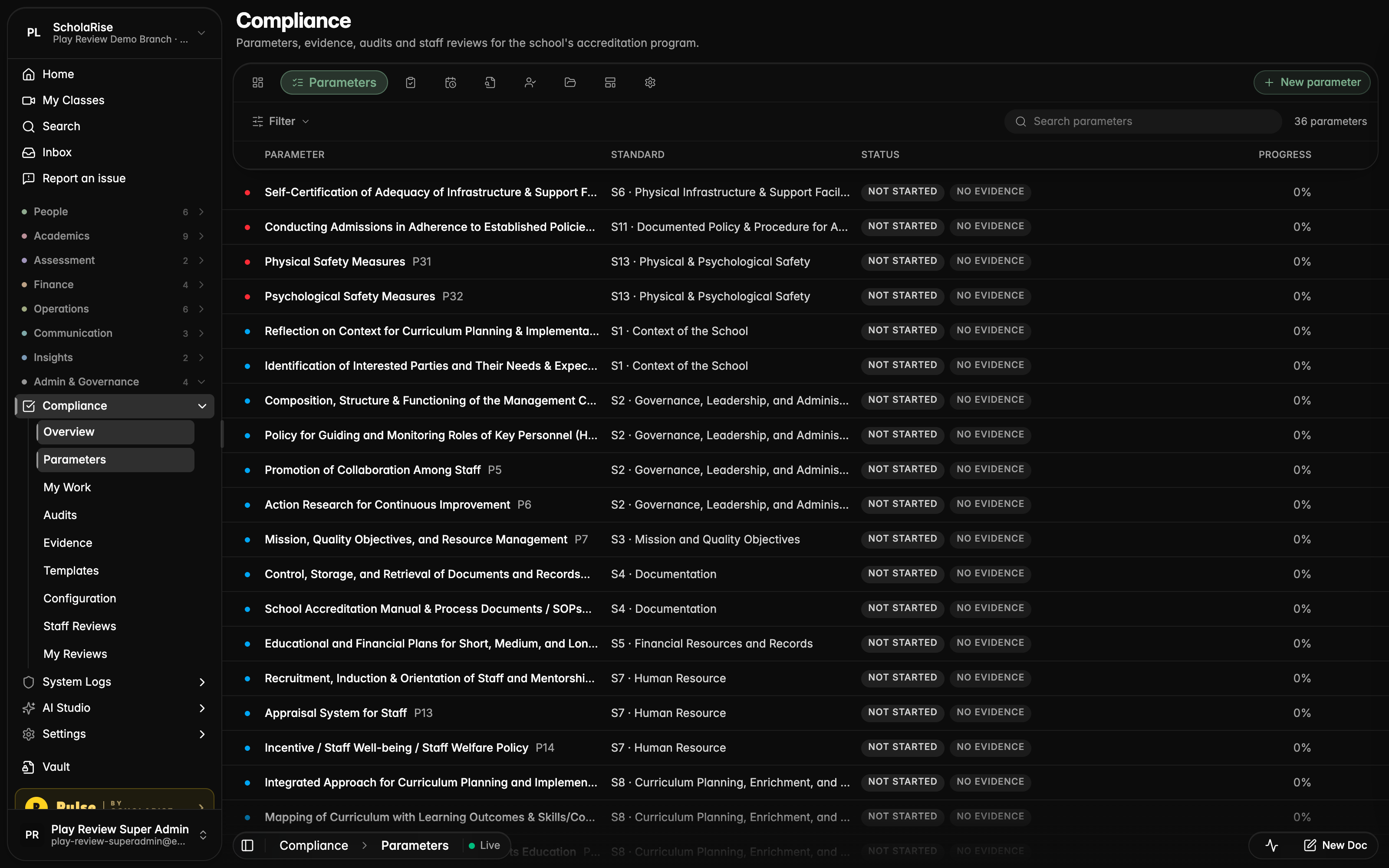
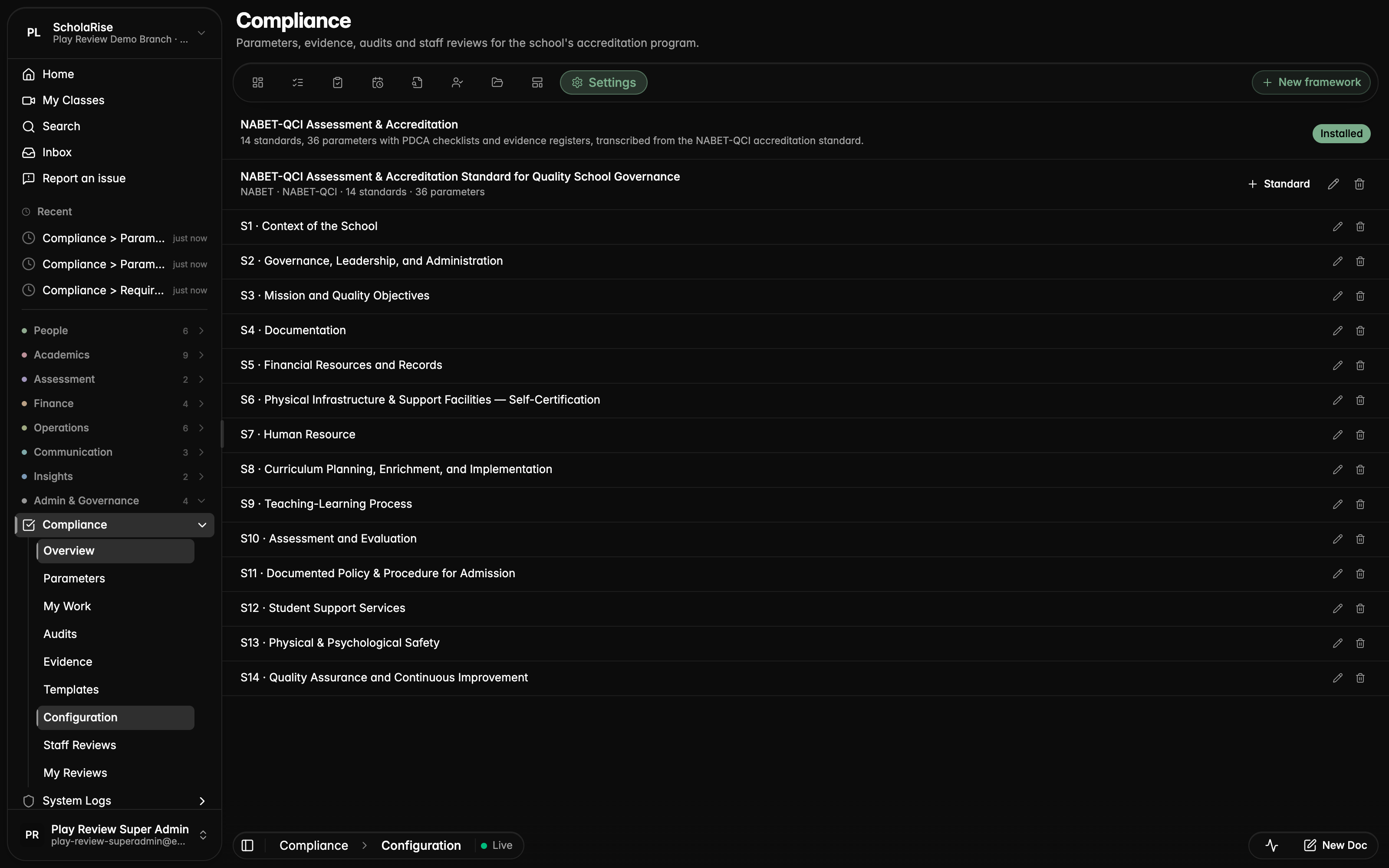
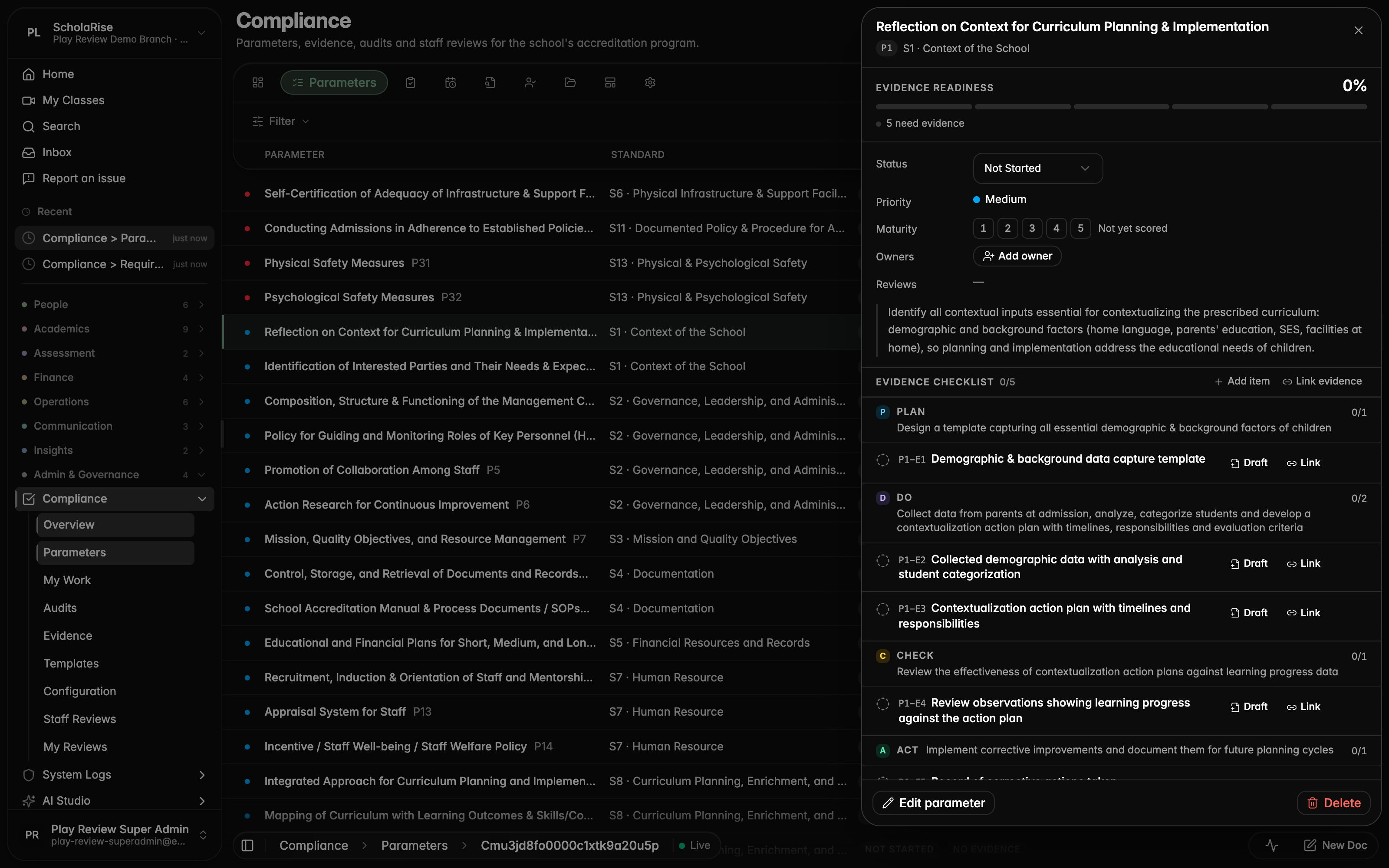
Compliance speaks the assessor's language
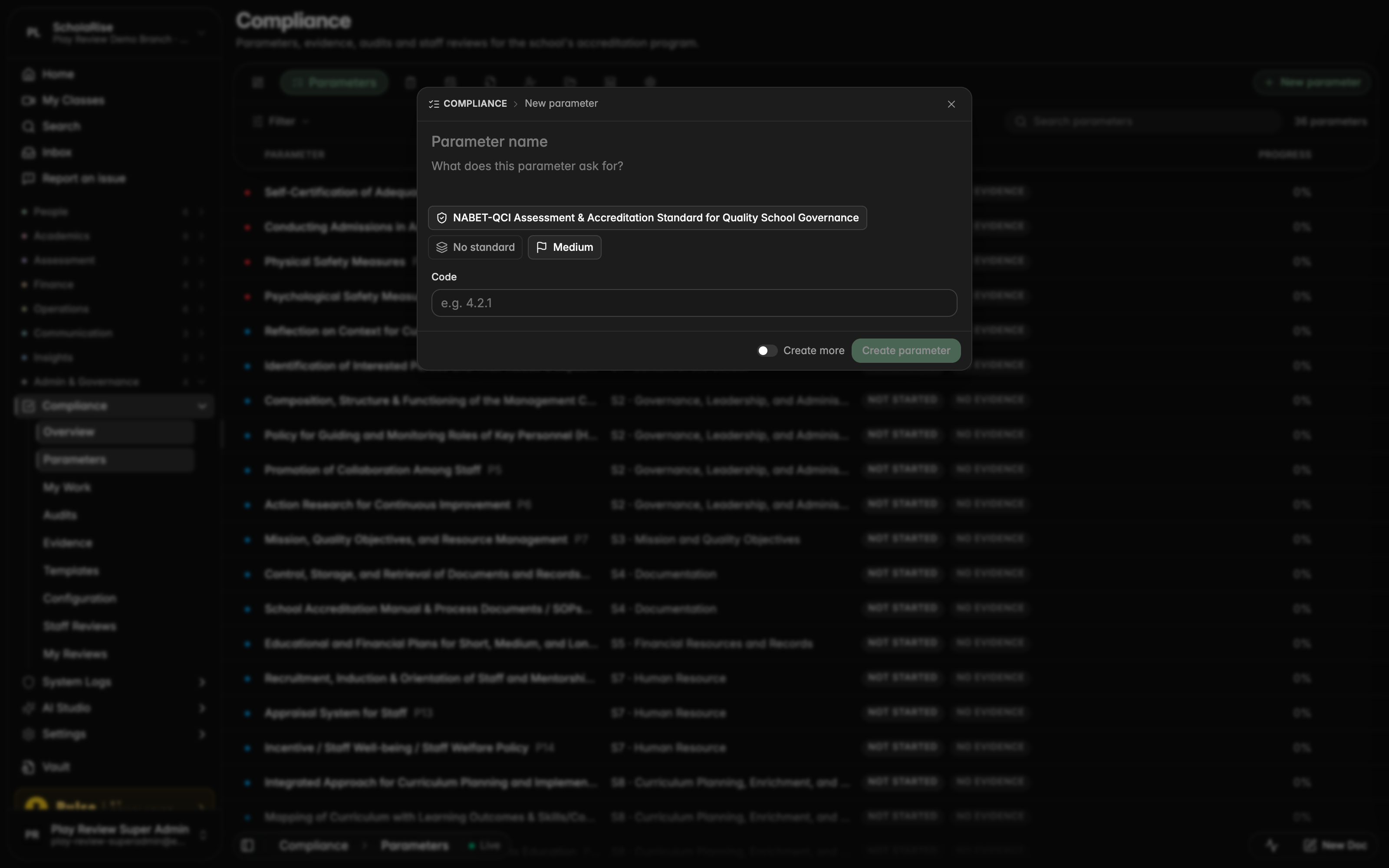
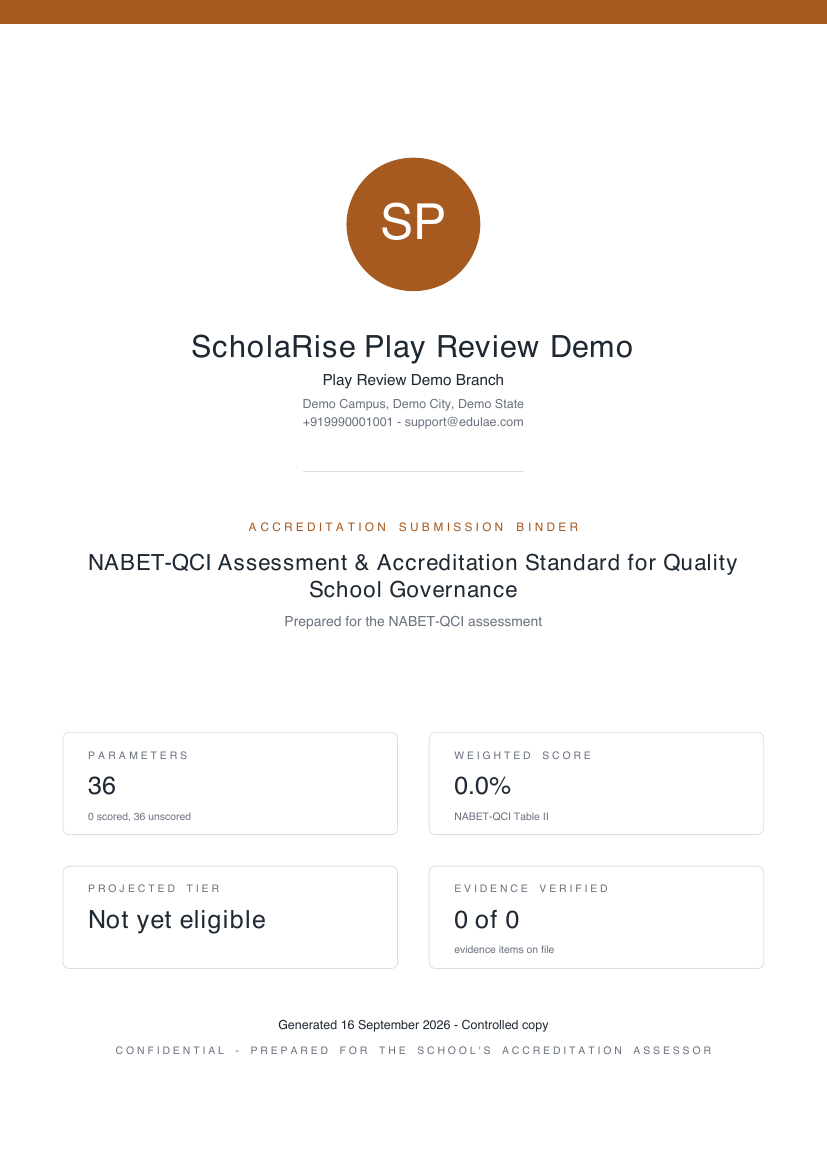
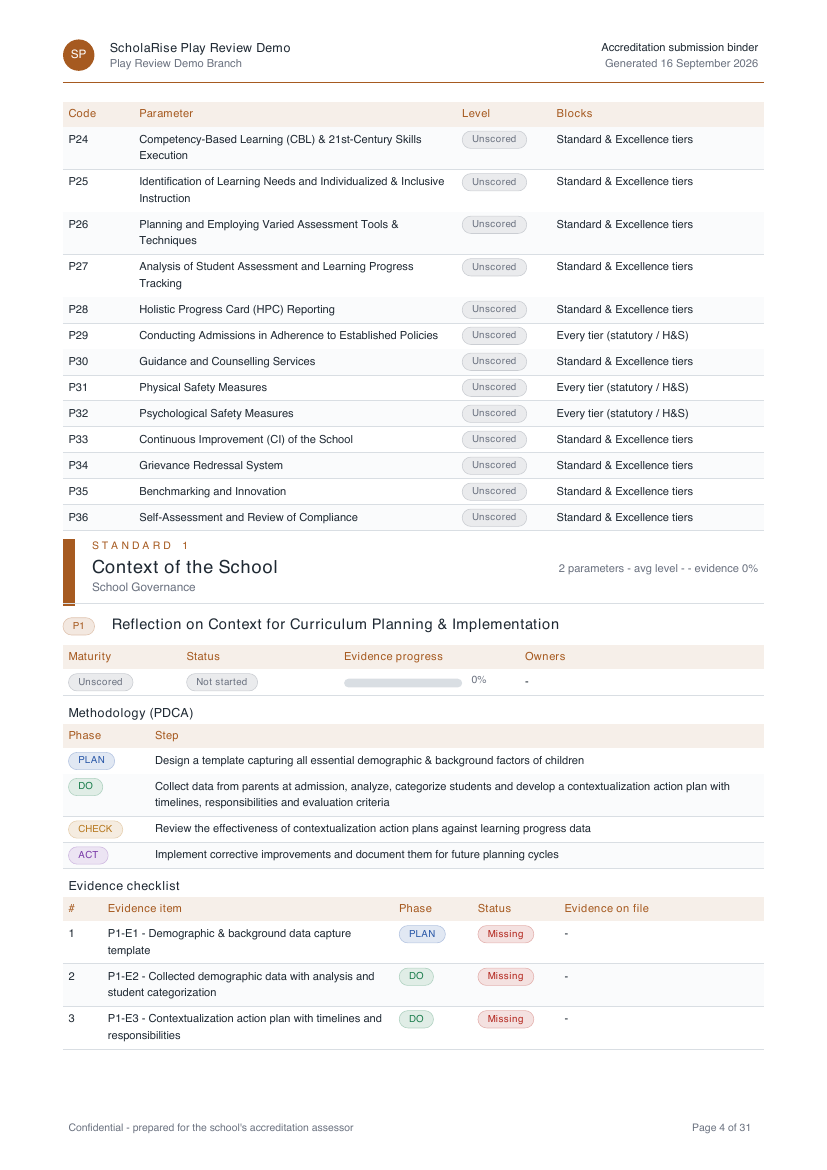
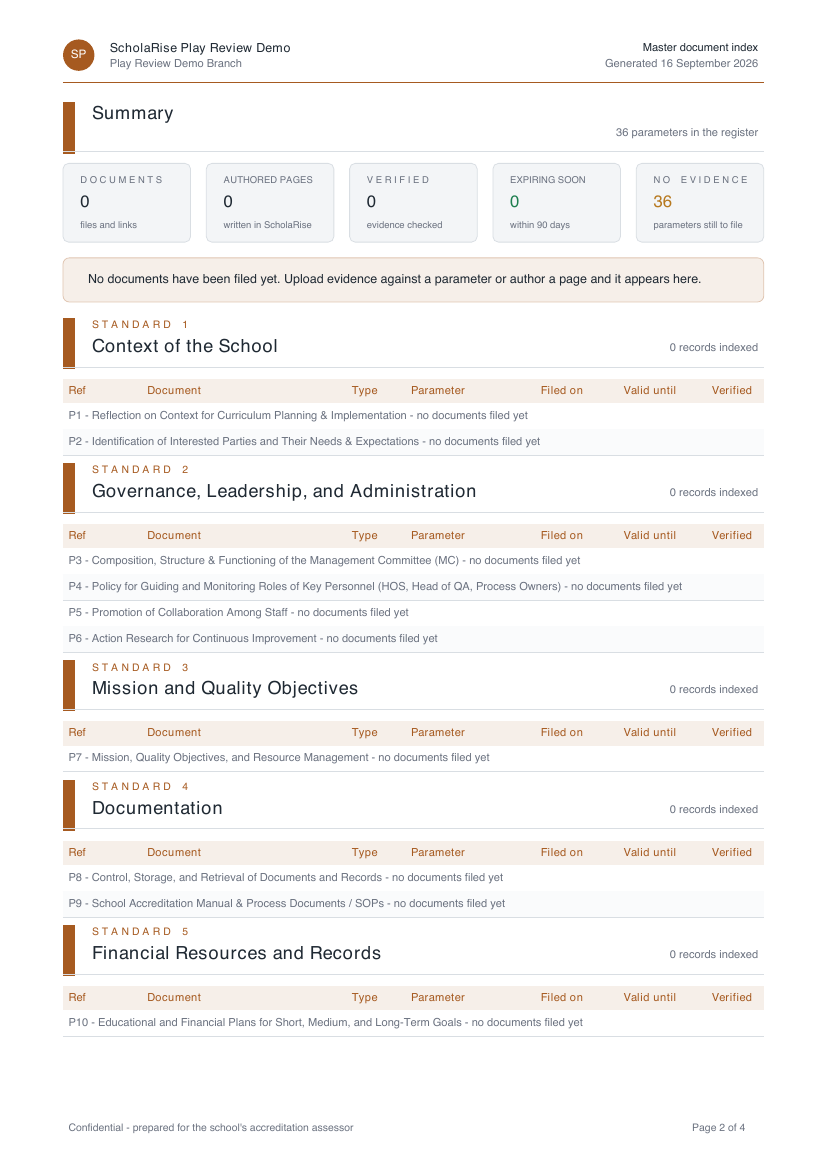
Compliance now uses the accreditation framework's own words — standards and parameters — and every parameter shows the standard it belongs to. The submission binder and the master document index come out as branded documents carrying your school's logo, a cover page, contents and page numbers, ready to hand to an assessor.
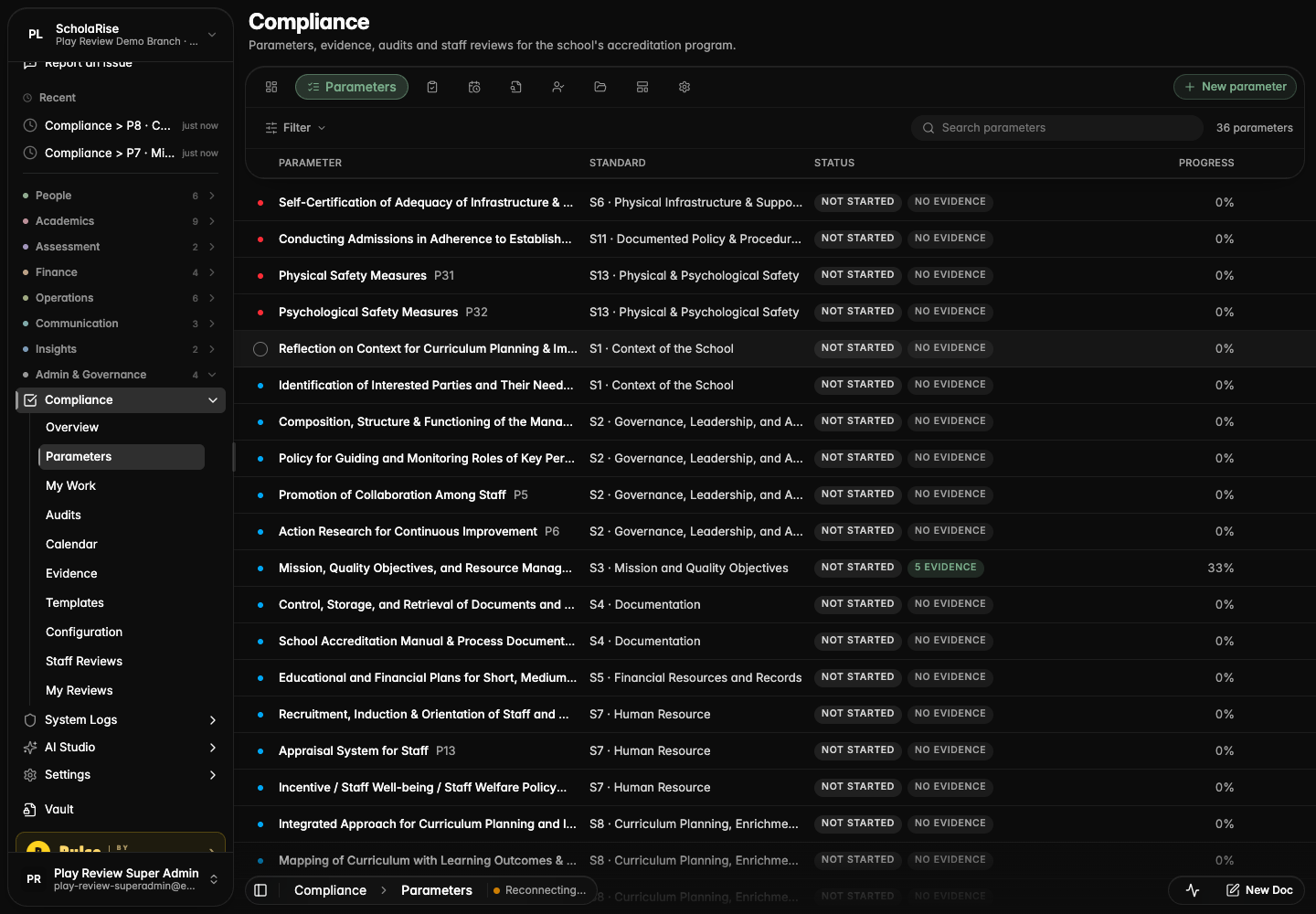
Parameters list with the Standard column
Settings: framework with its standards
Parameter detail with its standard in the identity row
New parameter form with Framework and Standard chips
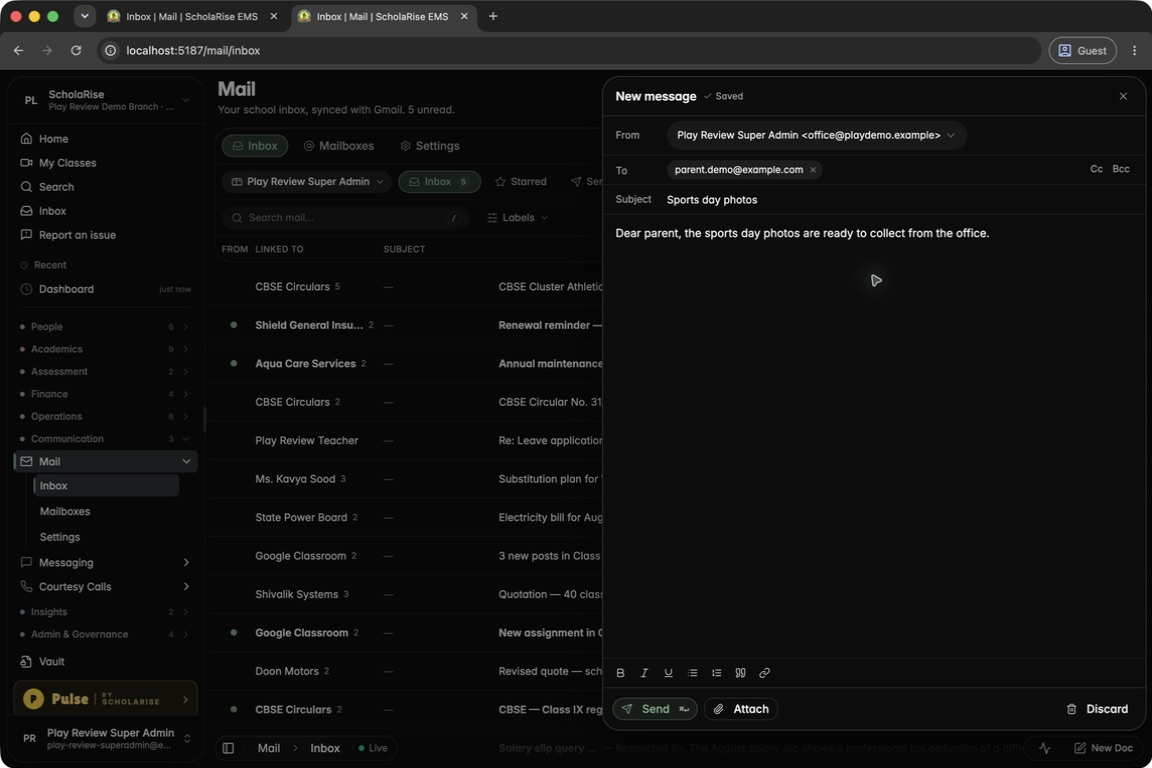
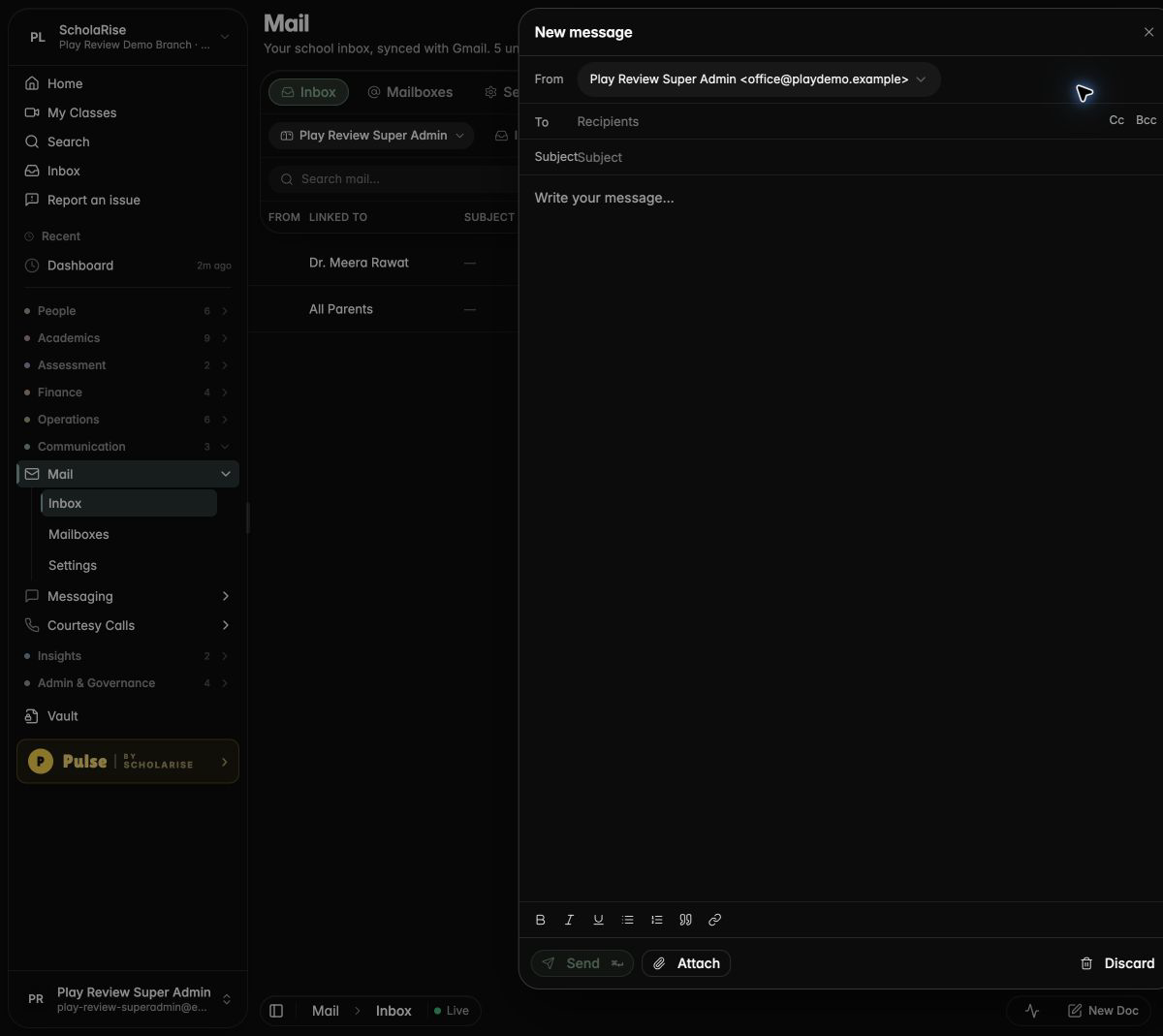
Writing a new message, saved as a draft automatically
Communication
Write and send email from Mail
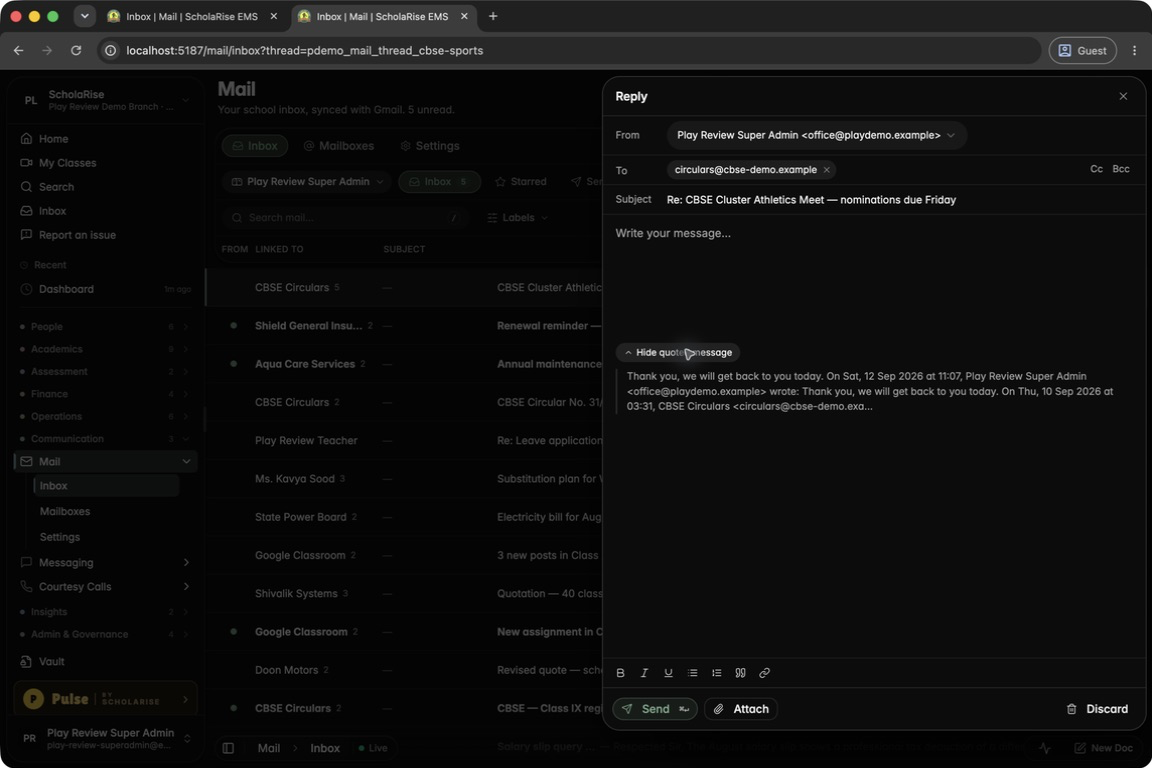
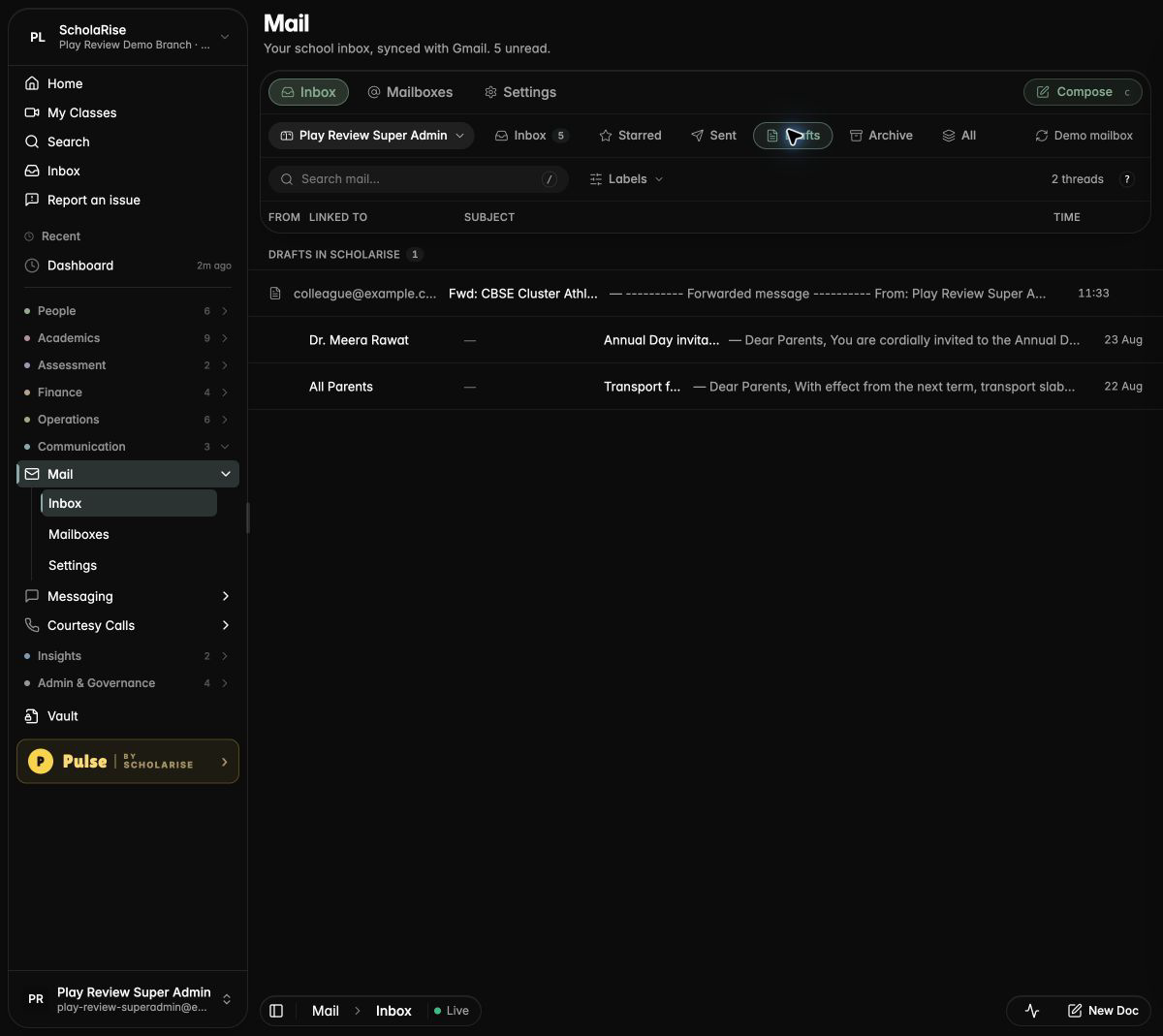
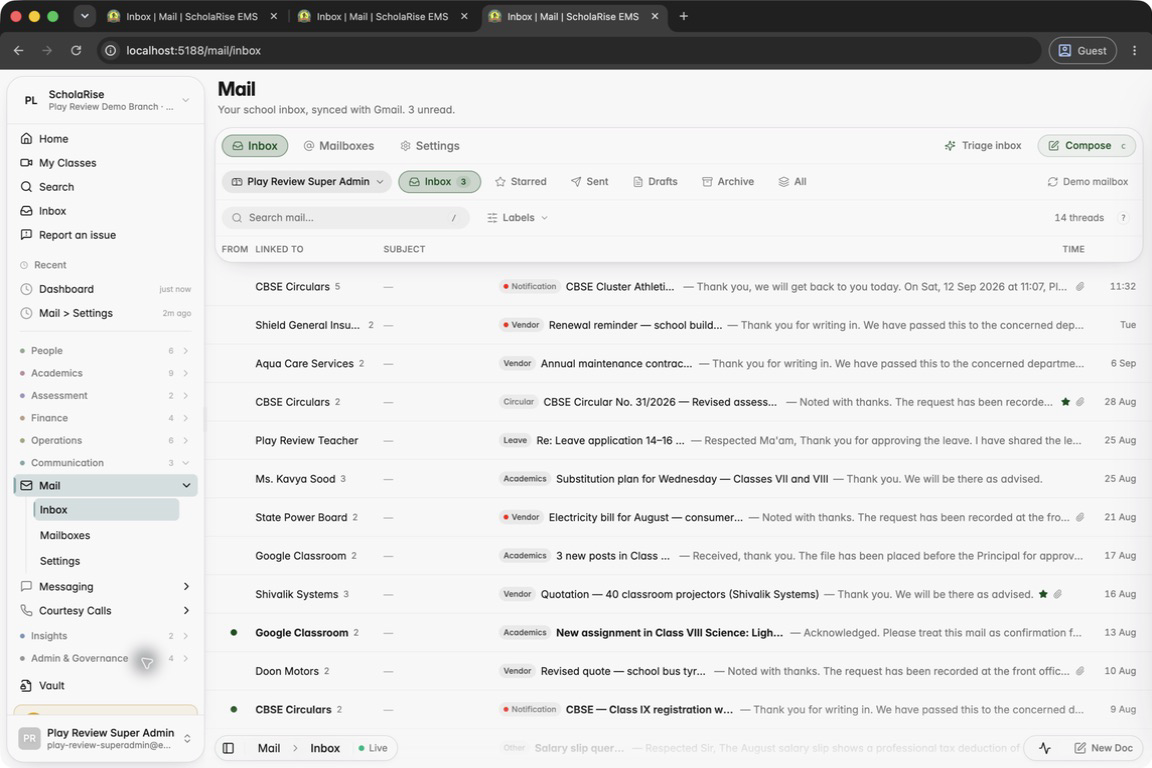
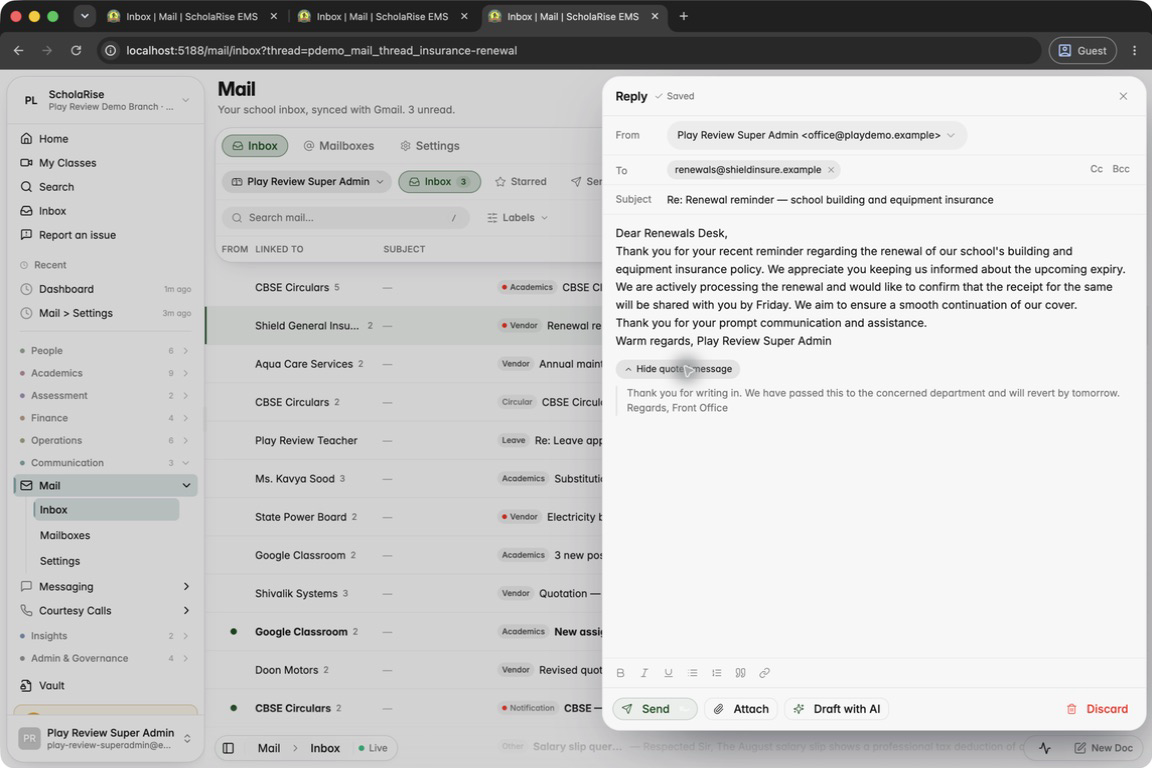
You can now write new emails, reply, reply all and forward, with attachments, straight from the school inbox. Drafts save themselves as you type and wait in the Drafts folder until you send them. Click Compose in the Mail toolbar to start.
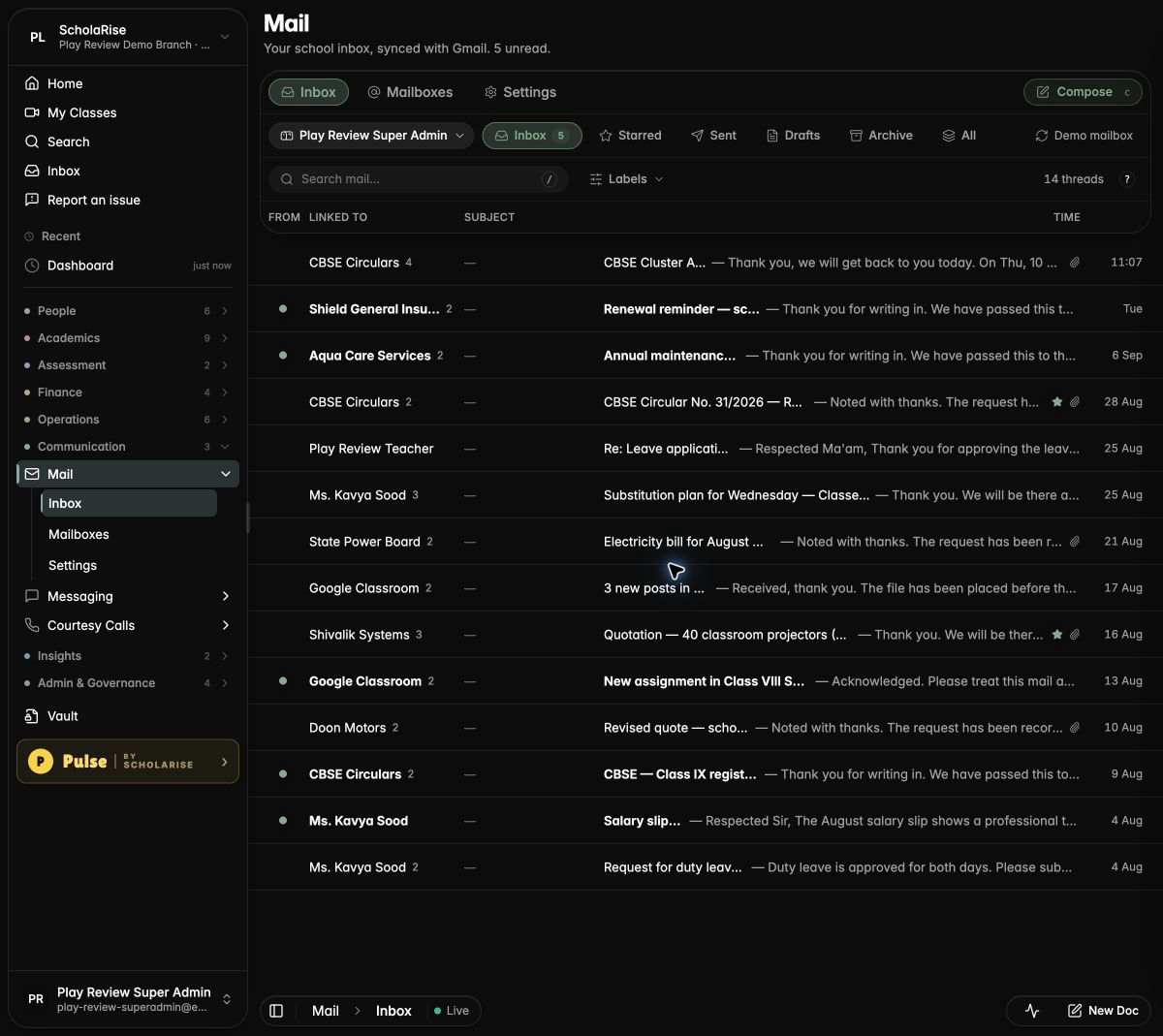
The new Compose button in the Mail toolbar
Replying to a parent with the original message quoted
Unsent drafts wait in the Drafts folder
The composer in dark mode
Composing on a phone
AI help with your inbox
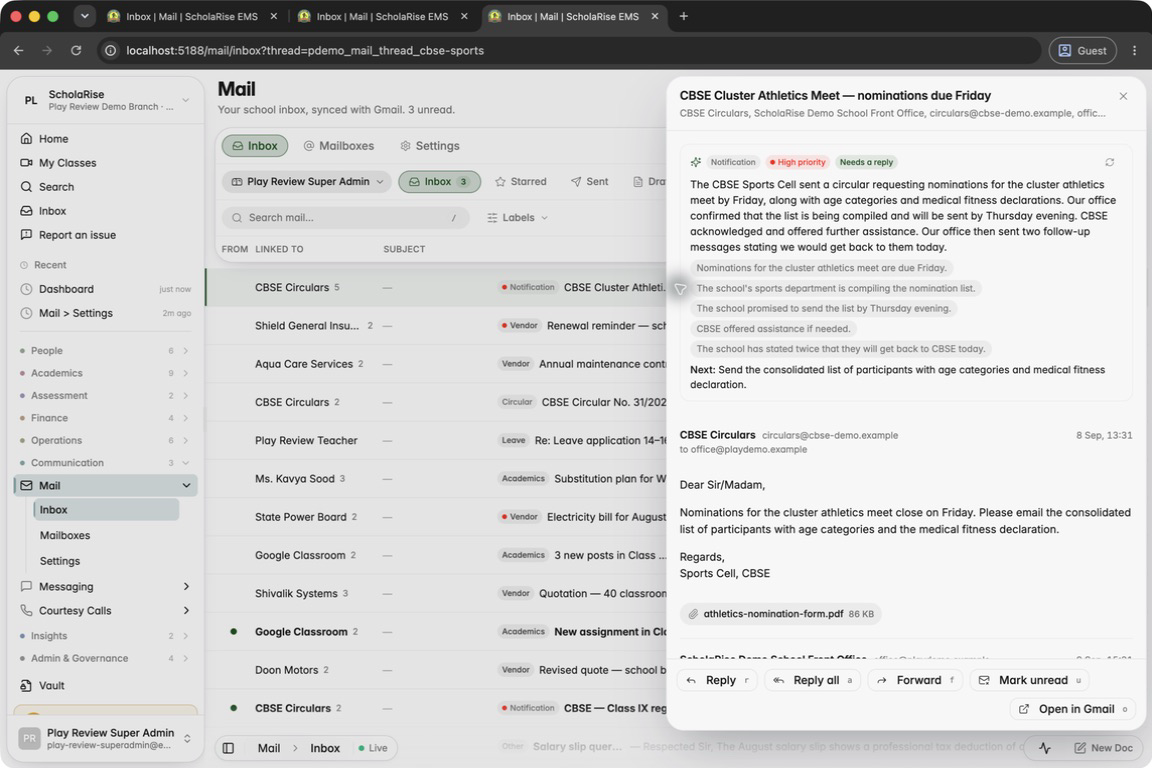
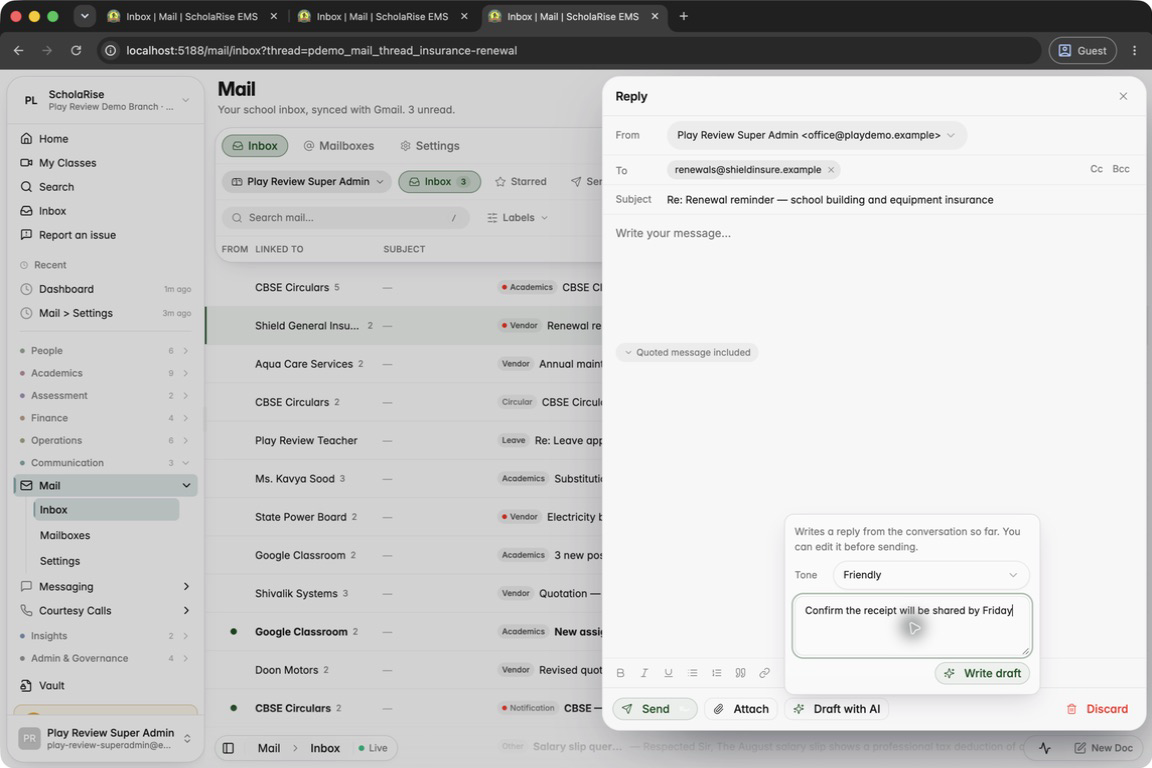
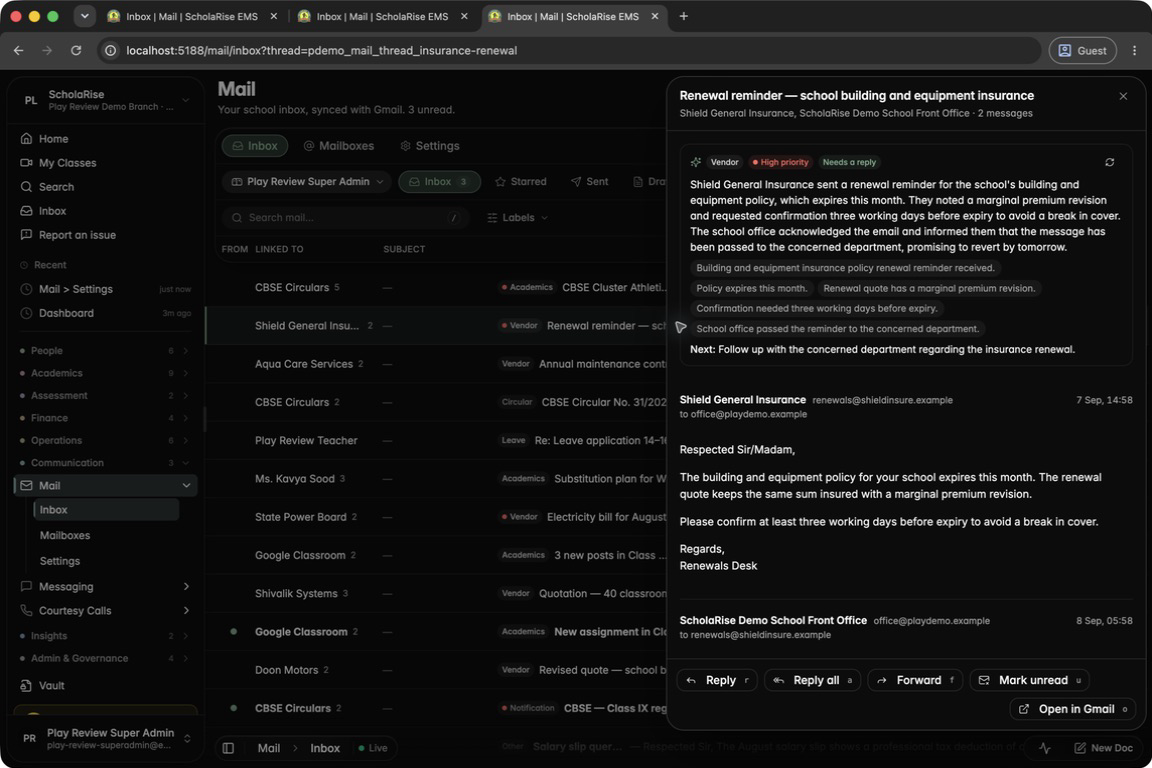
Mail can summarise any conversation, sort your inbox by topic and priority in one click, and draft a reply in the tone you choose for you to edit before sending. Admins can switch AI help on or off for each branch in Mail settings.
The new Triage inbox action next to Compose
A conversation summarised: topic, priority, key facts and the next step
After triage, every row shows its topic and urgent ones a red dot
Draft with AI: pick a tone and add a note
The drafted reply, ready to edit before sending
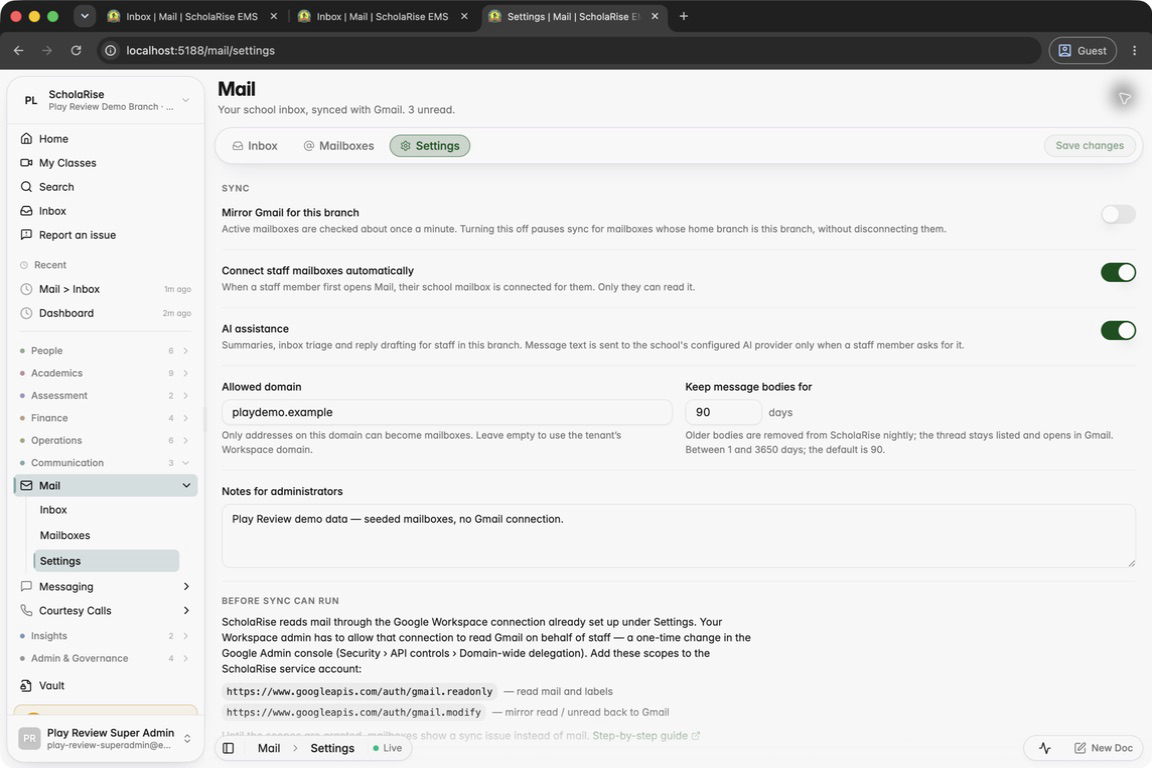
Admins switch AI assistance on or off per branch
The summary card in dark mode
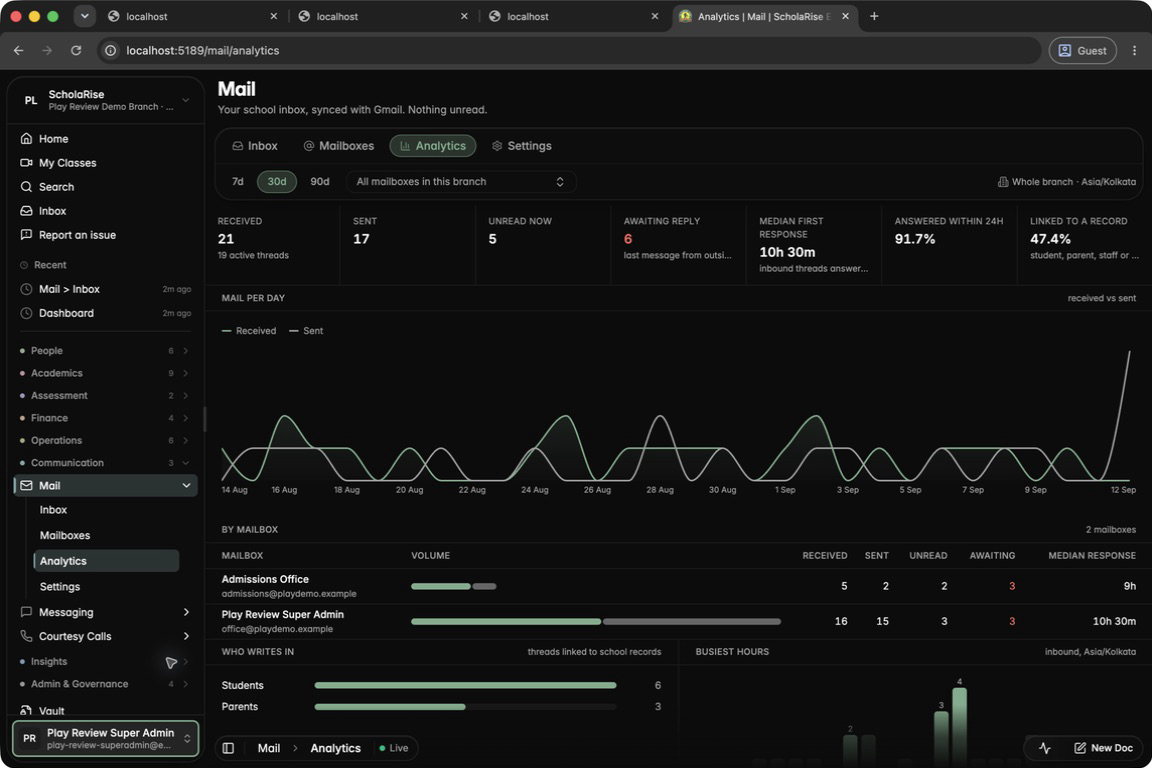
Mail analytics
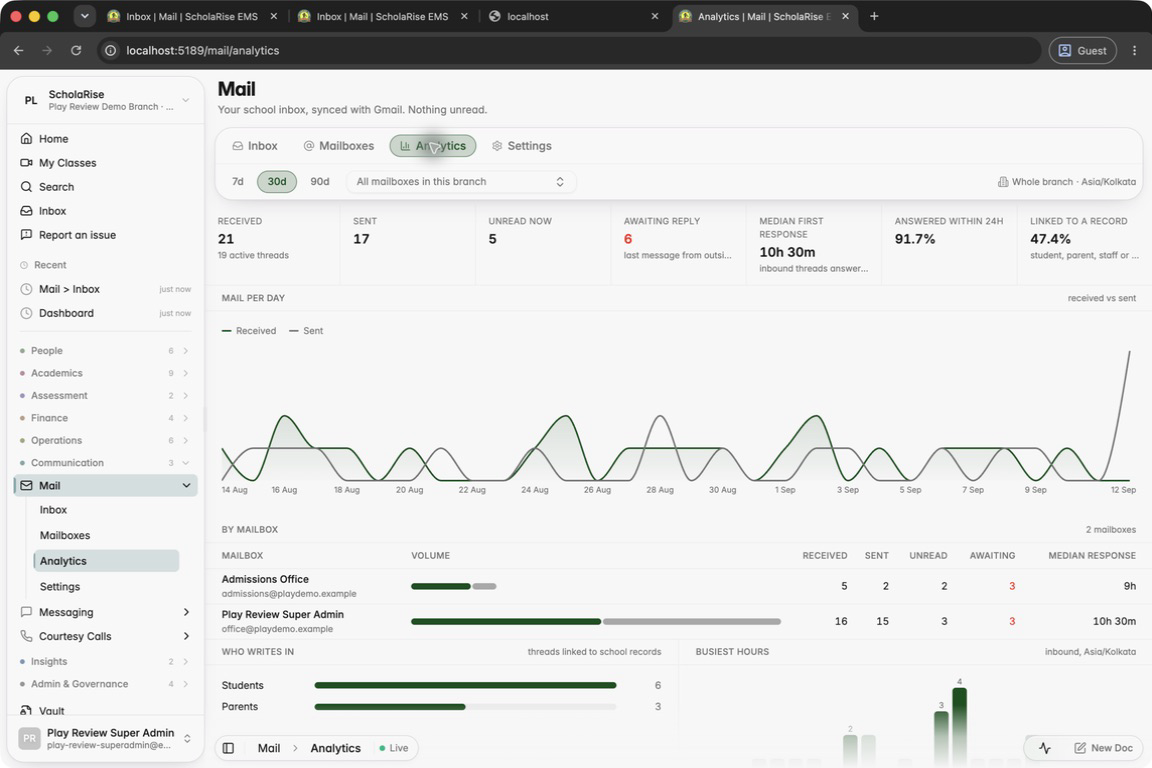
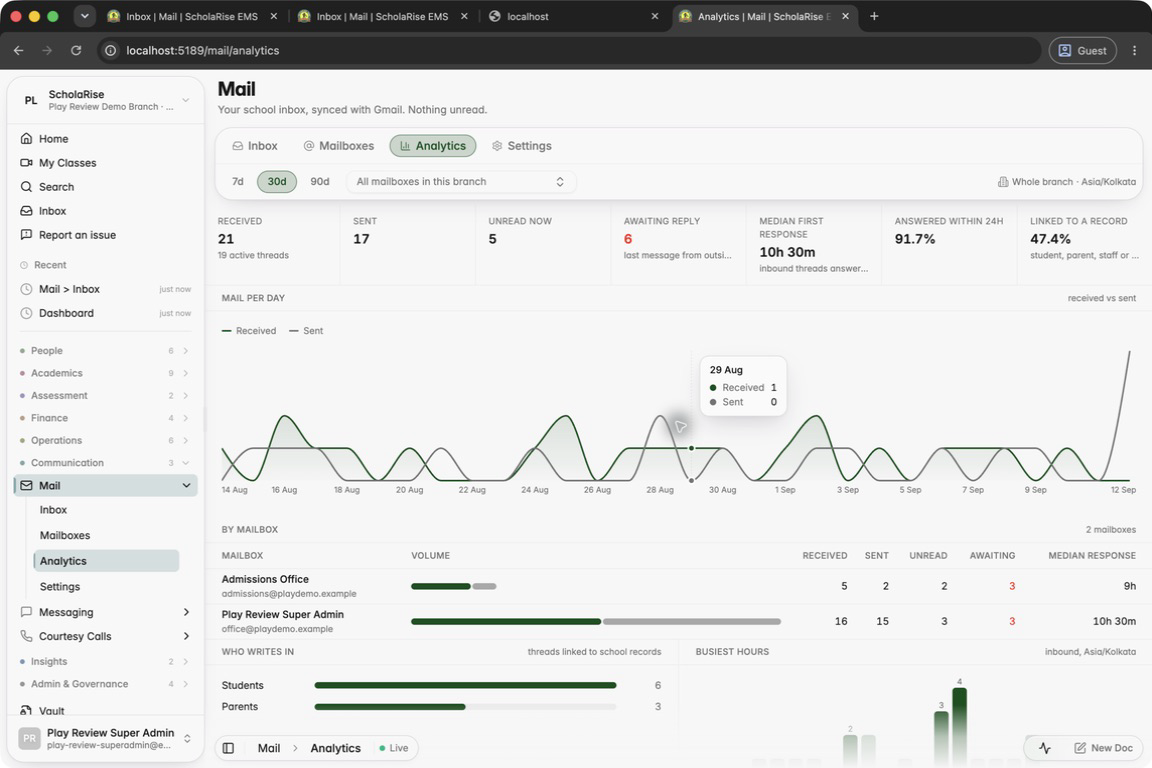
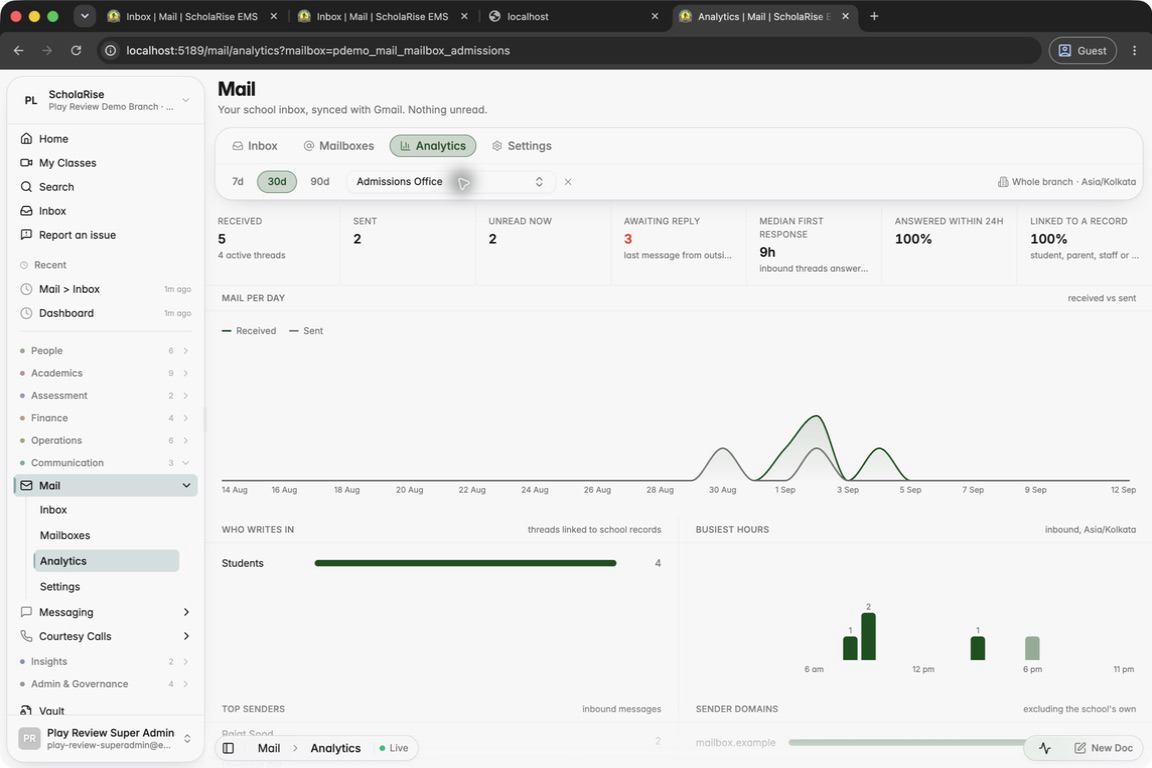
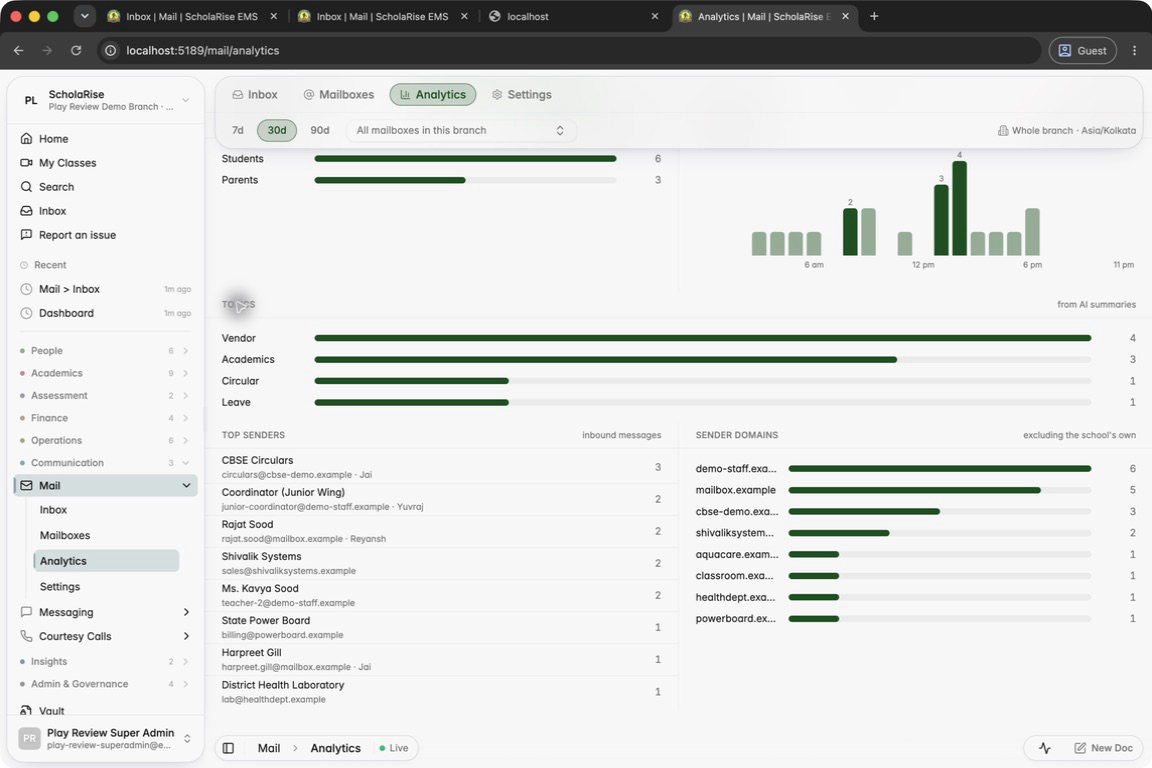
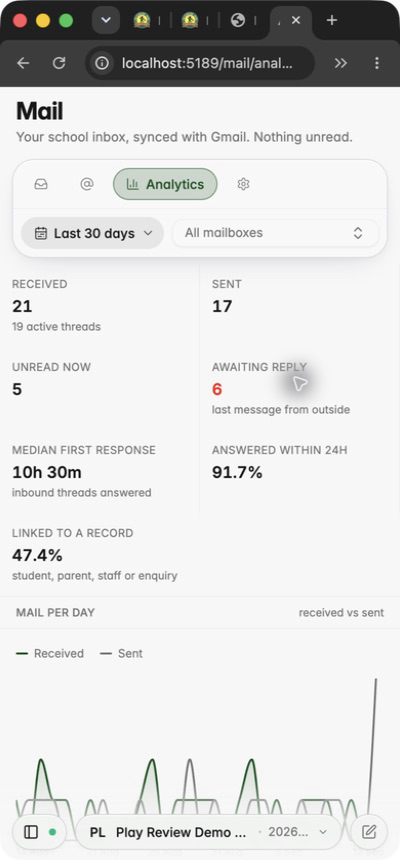
A new Analytics tab in Mail shows how much email comes in and goes out, how quickly your team replies and what is still waiting for an answer. See who writes in and at what times, for the last week, month or quarter, across all mailboxes or just one.
The new Analytics tab: last 30 days at a glance
Hover any day for received and sent counts
Filter to one mailbox
Who writes in, the busiest hours, top senders and domains
Analytics on a phone
Analytics in dark mode
Wide emails fit your screen
Wide emails now shrink to fit your screen on phones and computers instead of being cut off at the edge.
Examination
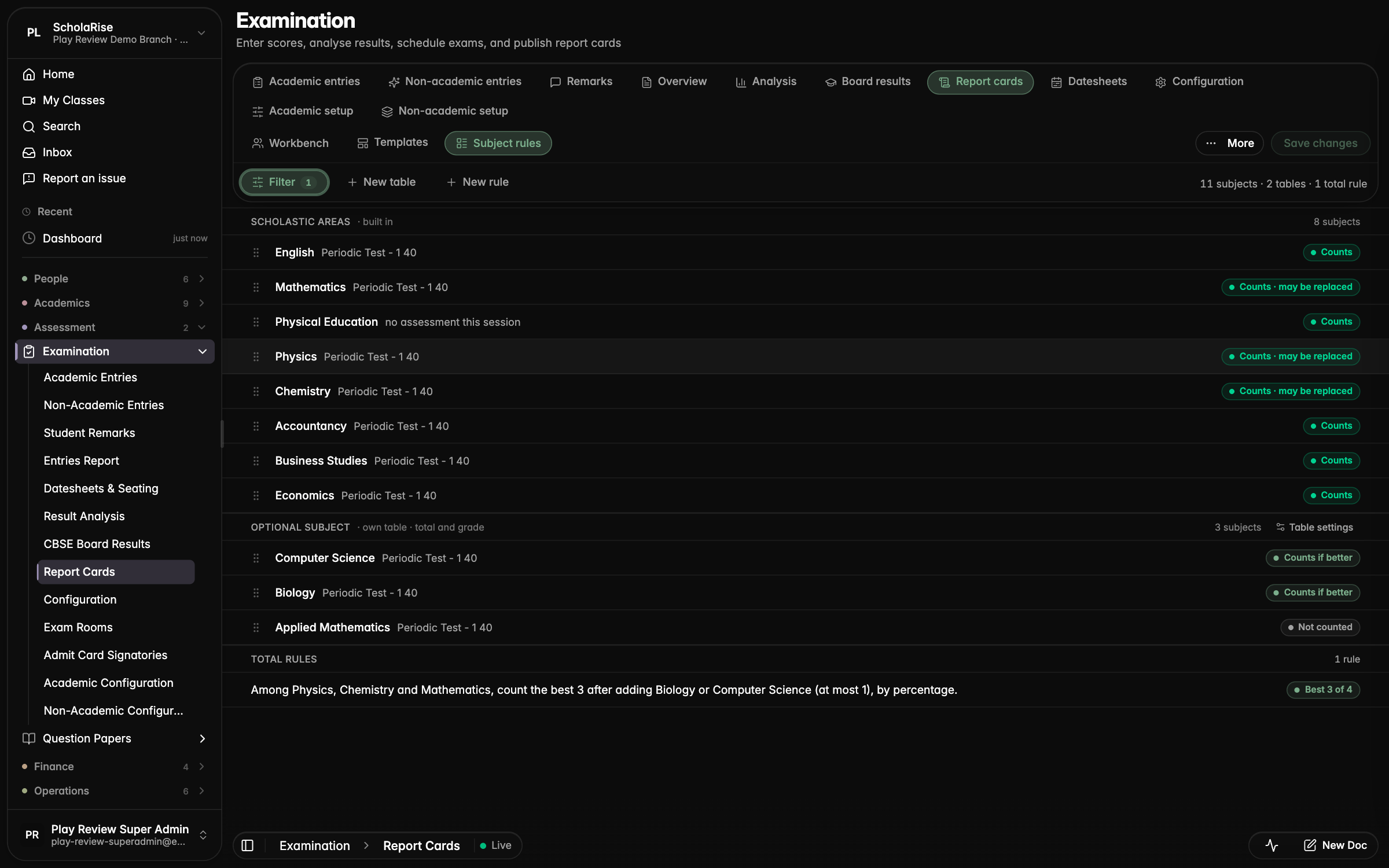
Optional subjects can count towards the total
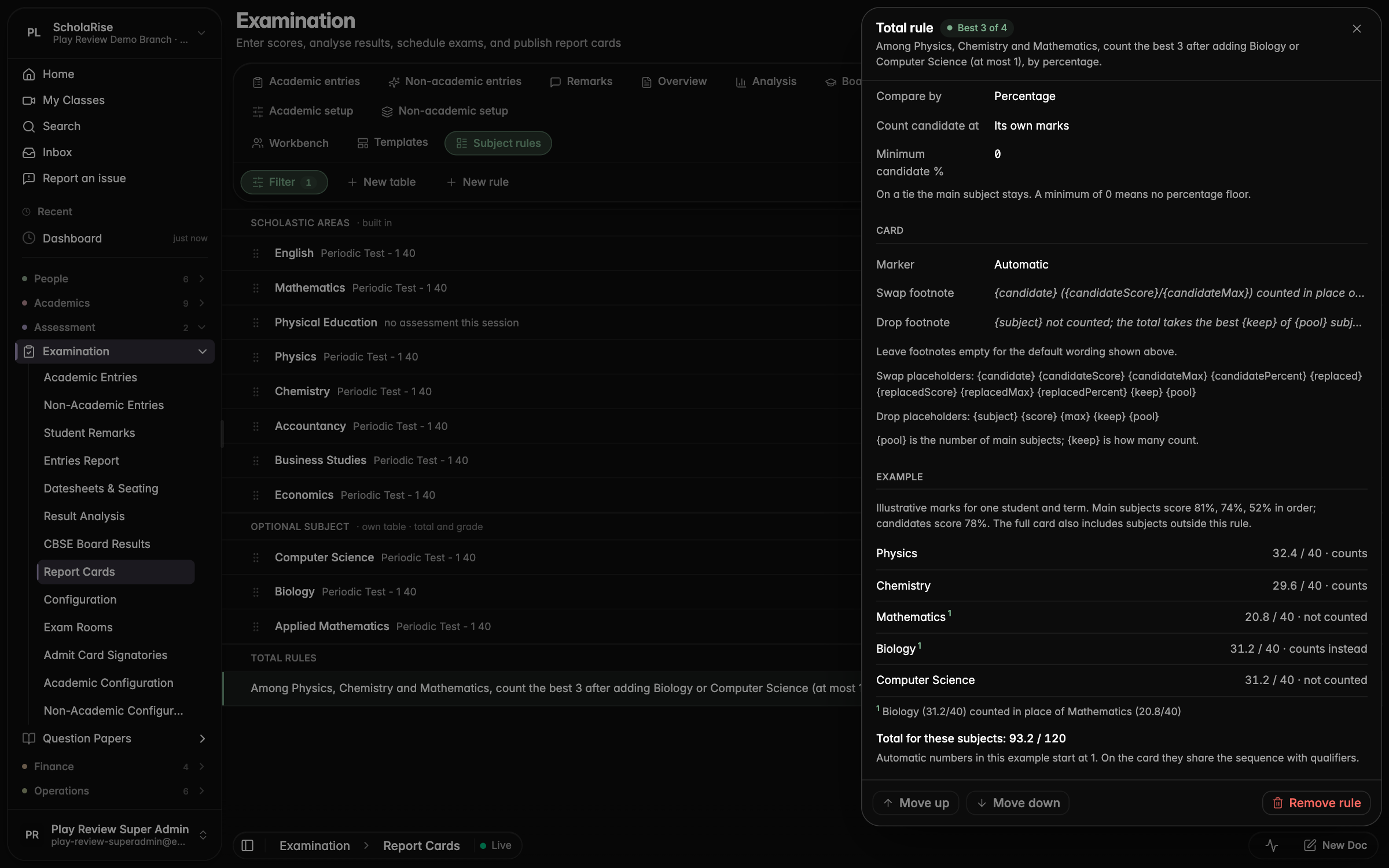
Report cards can now count an optional subject in the total when it scores higher than one of the main subjects. On the Subject rules page for a class, choose which subjects can swap, how many count, and how the swap is noted on the card.
The Subject rules page with main subjects that may be replaced and optional subjects that count if better
The rule's settings with a worked example showing which subject is replaced, the footnote and the resulting total
A report card where Biology counts in place of Mathematics, with a footnote explaining the swap
Report card preview stays steady
The report card preview beside a student no longer reloads again and again while teachers enter marks elsewhere. It refreshes when you change the student, term or template, or when you ask it to.
Board search on CBSE Registration
Searching in the Board picker on the CBSE Registration page for Class XI now finds boards as you type, instead of showing no matches.
Typing "central" in the Class XI Board picker now lists the matching boards
Searching "indian school" finds the Council for the Indian School Certificate Examinations
Picking a board from the search results fills the Board field
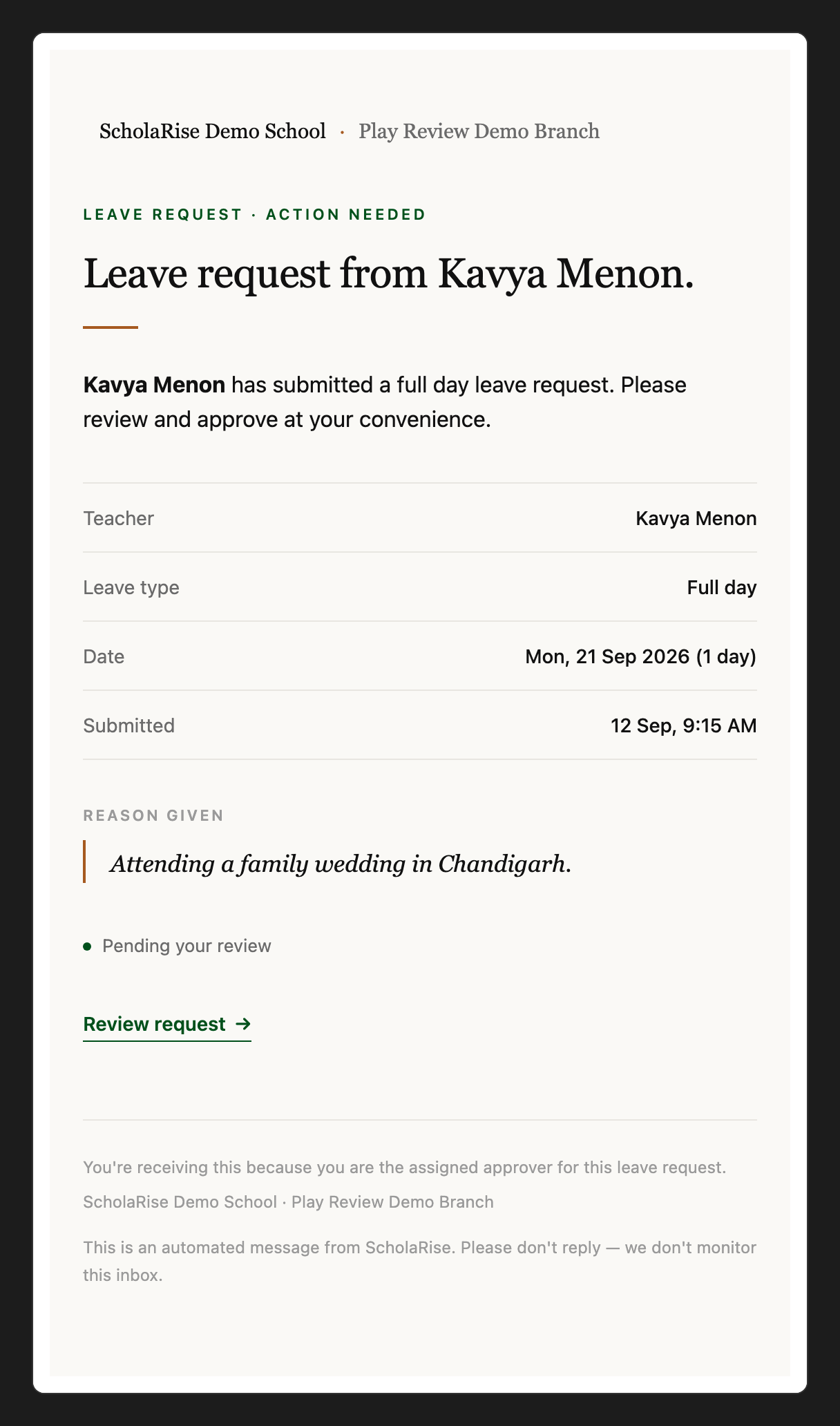
A ScholaRise leave-request email shown with its own layout, fonts and colours
Communication
Your mailbox connects on its own
The first time you open Mail, your school mailbox is connected for you and starts filling in, with no setup needed from an administrator. Sign in with your school Google account so ScholaRise can confirm the mailbox is yours. Admins can turn this off in Mail settings.
Every staff member can be connected
Admins can now connect any staff member's mailbox from the Mailboxes tab, including staff who also appear as a parent or on a virtual class. When an account can't be offered, the list says how many were left out and why.
Formatted emails keep their design
Newsletters and formatted emails now show with their own layout, fonts and colours. Admins can download a mailbox again so older emails look right too.
The list stays put when you open an email
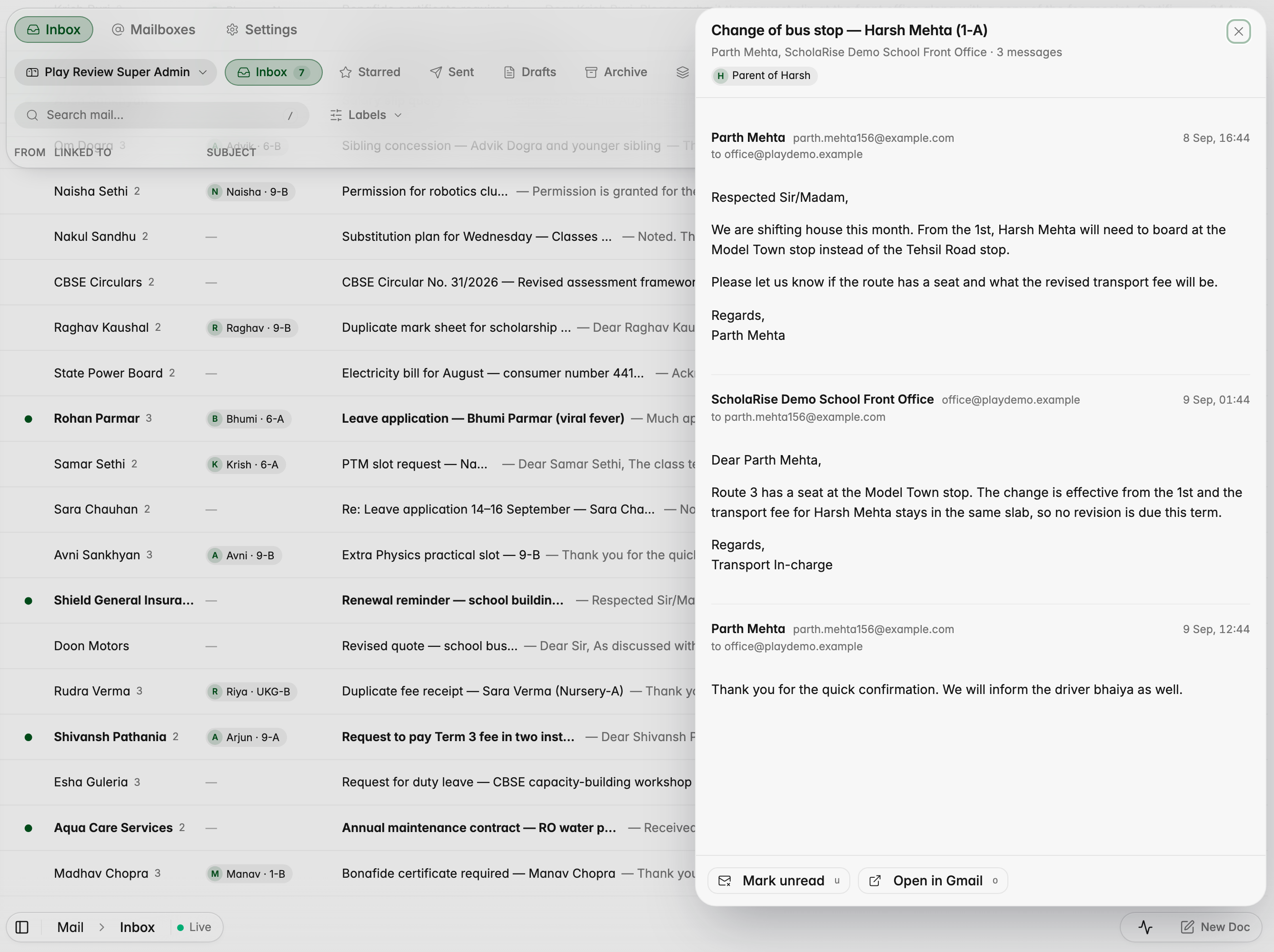
Opening an email no longer makes the message list jump, so you stay exactly where you were in your inbox.
Opening a message keeps the inbox list in place, with the opened email still highlighted
Platform
Module changes apply straight away
When a module is switched on for your school, it shows up for everyone straight away instead of after a few minutes.
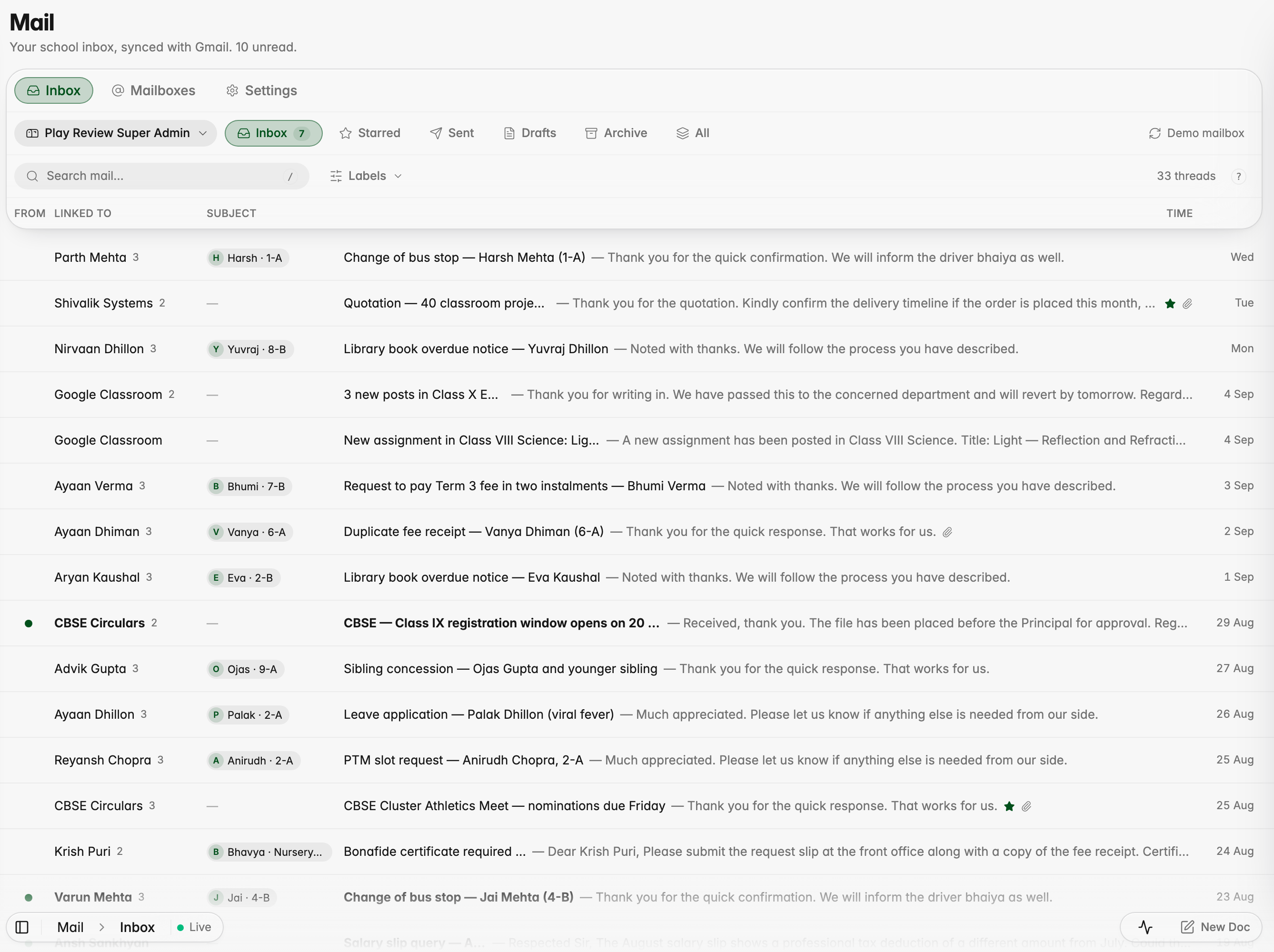
The Mail inbox, with each email linked to the student it is about
Communication
Mail for staff
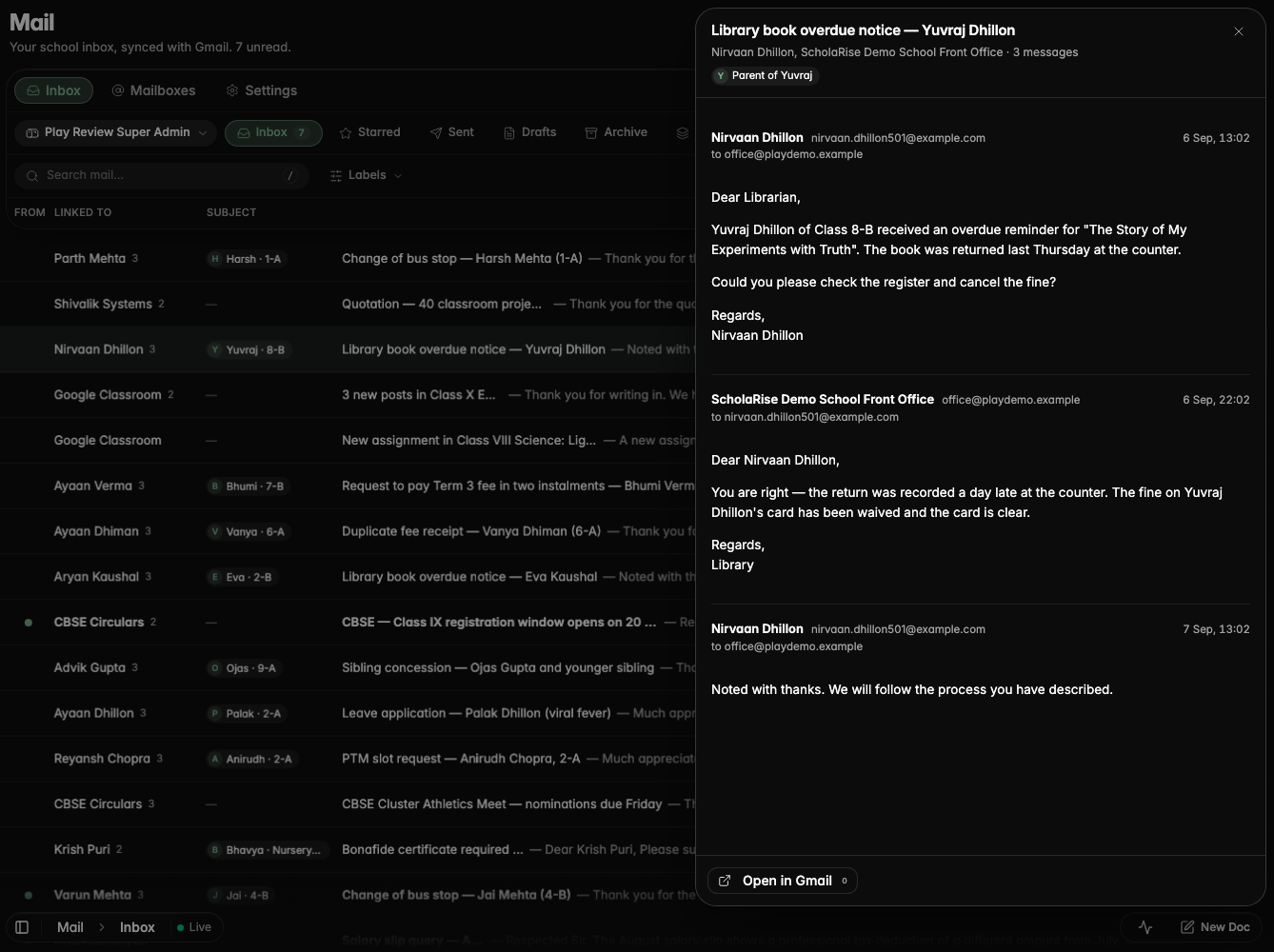
Read your school Gmail without leaving ScholaRise: open Communication and pick Mail. Every email shows the student, parent or enquiry it is about, so a parent's message reads "Harsh · 1-A" at a glance, and opening it shows the whole conversation. Search, folders, shared mailboxes such as admissions and keyboard shortcuts are all there; replies still go from Gmail for now.
Opening an email shows the whole conversation and who it is about
The inbox in dark mode
Mail on a phone
Connect staff and shared mailboxes
Admins connect each staff member's mailbox, and shared addresses such as admissions, from the Mailboxes tab in Mail, and choose who can read each one. Once your school's Google Workspace admin grants ScholaRise access, the last 90 days stay in step with Gmail every minute, and older emails open in Gmail.
Admins connect personal and shared school mailboxes
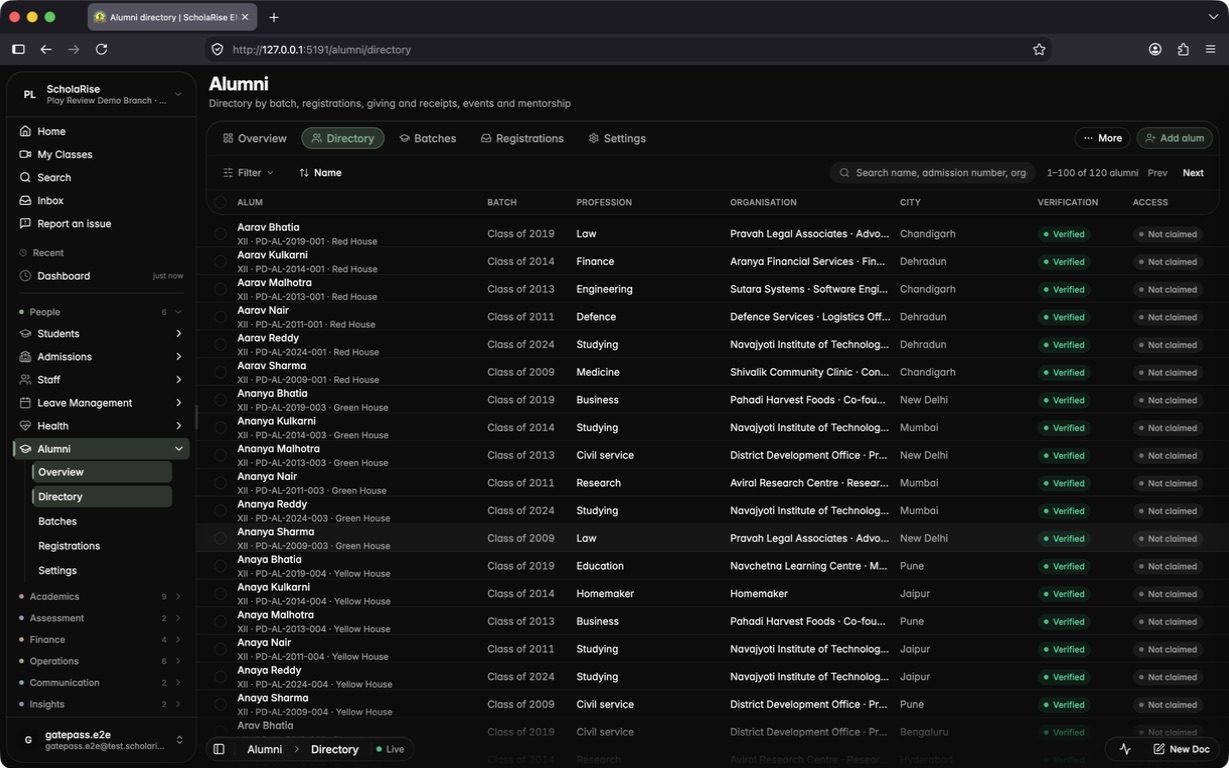
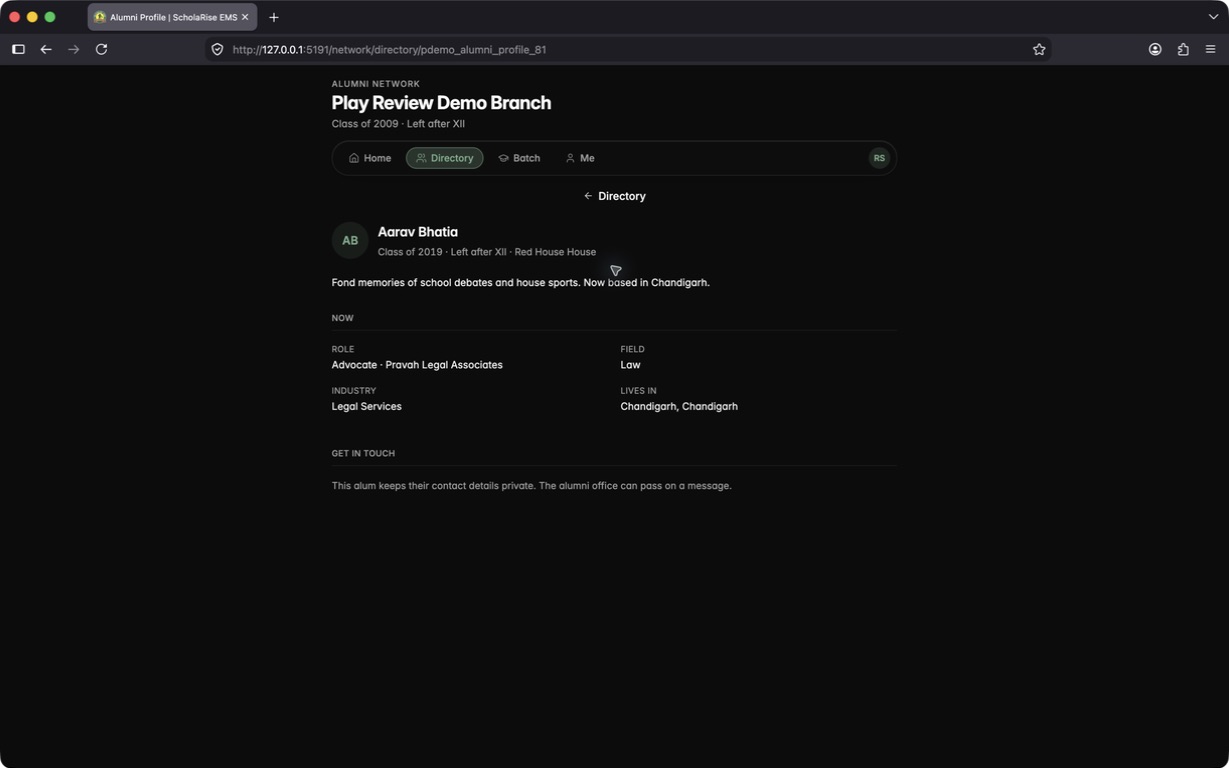
Keep a verified record of every former student, grouped by the year they graduated, with new graduates added on their own each night. Invite an alum to claim their own login, or let former students ask to join from a public page and approve each request against its likely match. Alumni then get a portal of their own, with a directory that shows only what each person chooses to share.
The alumni directory with batch, profession and city filters
An alum's record with verification, claim state and actions
Join requests waiting for review, with likely matches
A join request approved into its matching record
The public join page after a former student sends their details
Activating an alumni login from a claim link
A directory profile with contact details kept private
Giving campaigns and 80G receipts
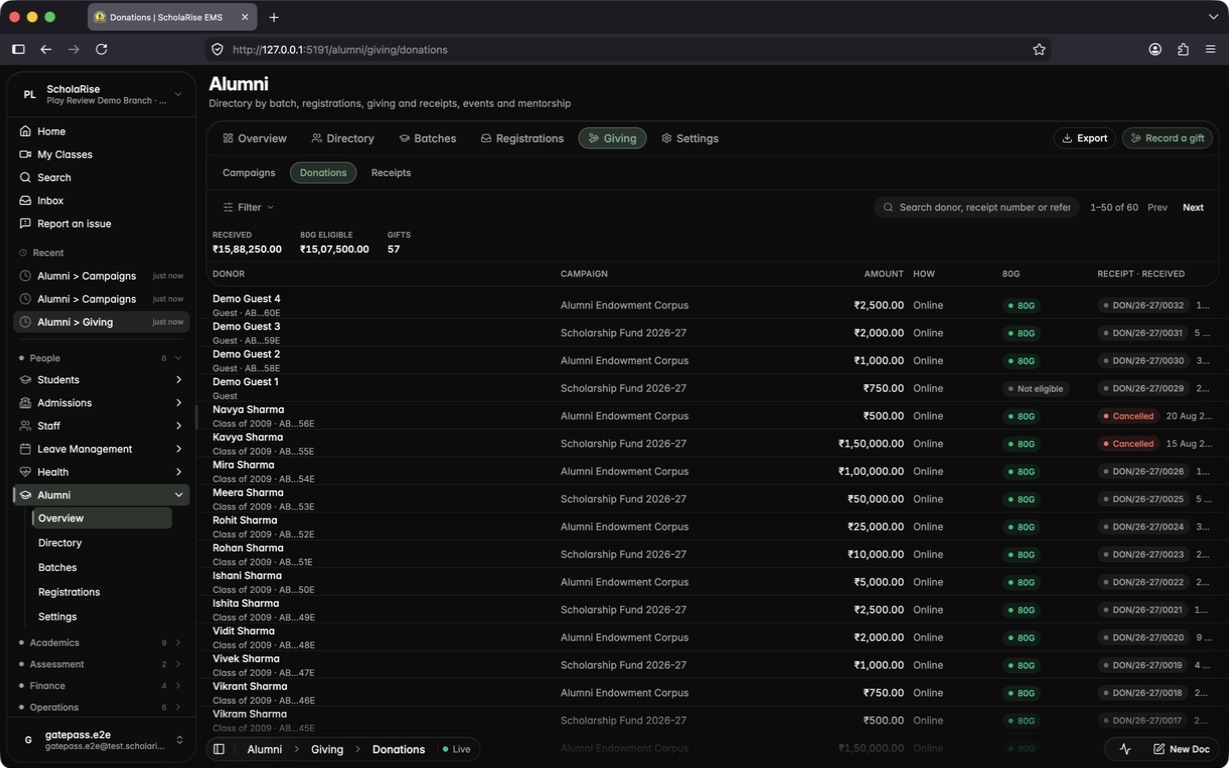
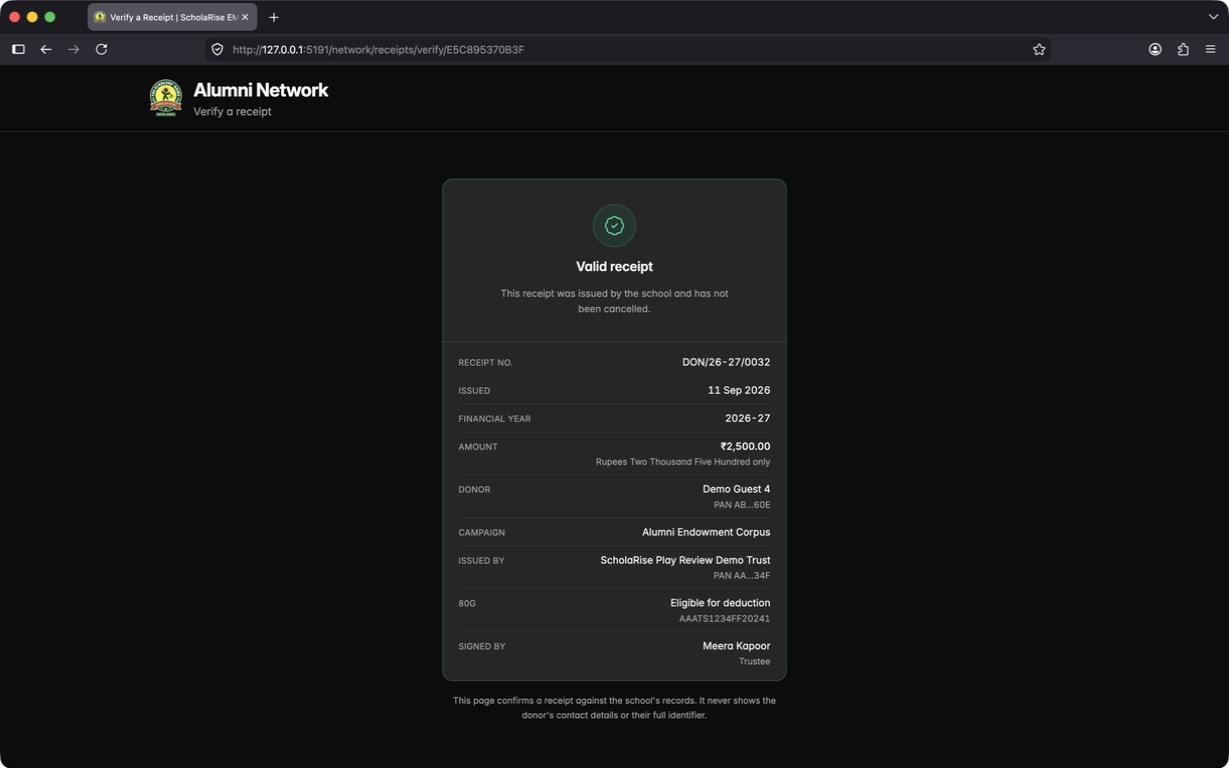
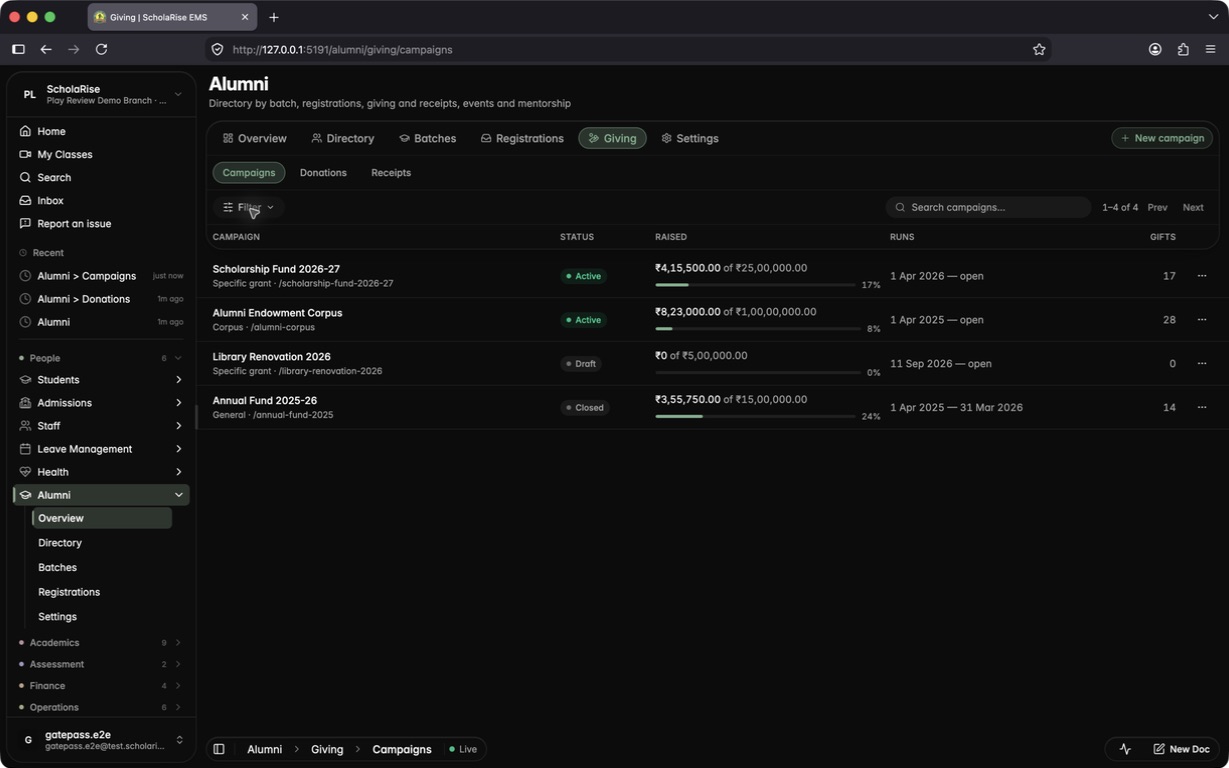
Run fundraising campaigns with a goal and a link you can share, and let alumni and guests give online, or record a gift you received in person. Every gift gets an official donation receipt that says whether it qualifies for an 80G deduction, and anyone can check that a receipt is genuine using the code printed on it.
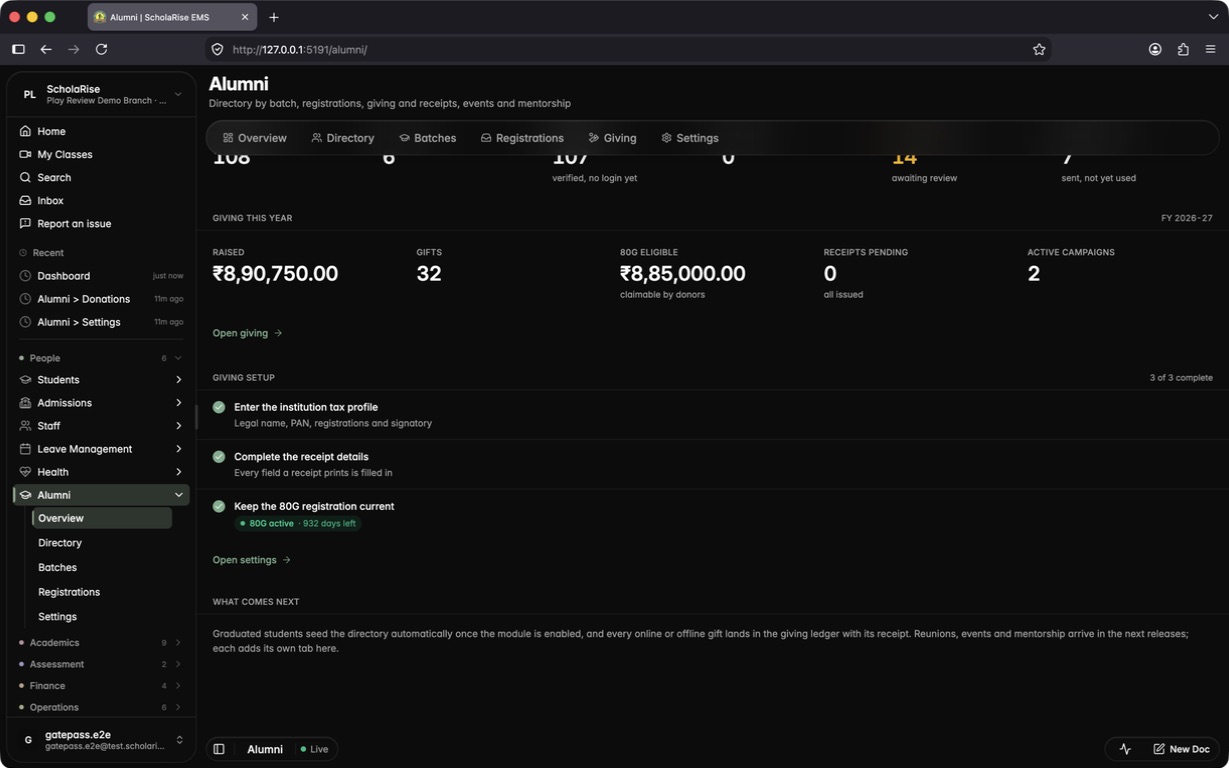
Alumni overview with this year's giving at a glance
Campaigns list with goals and progress
Campaign detail with share link and recent gifts
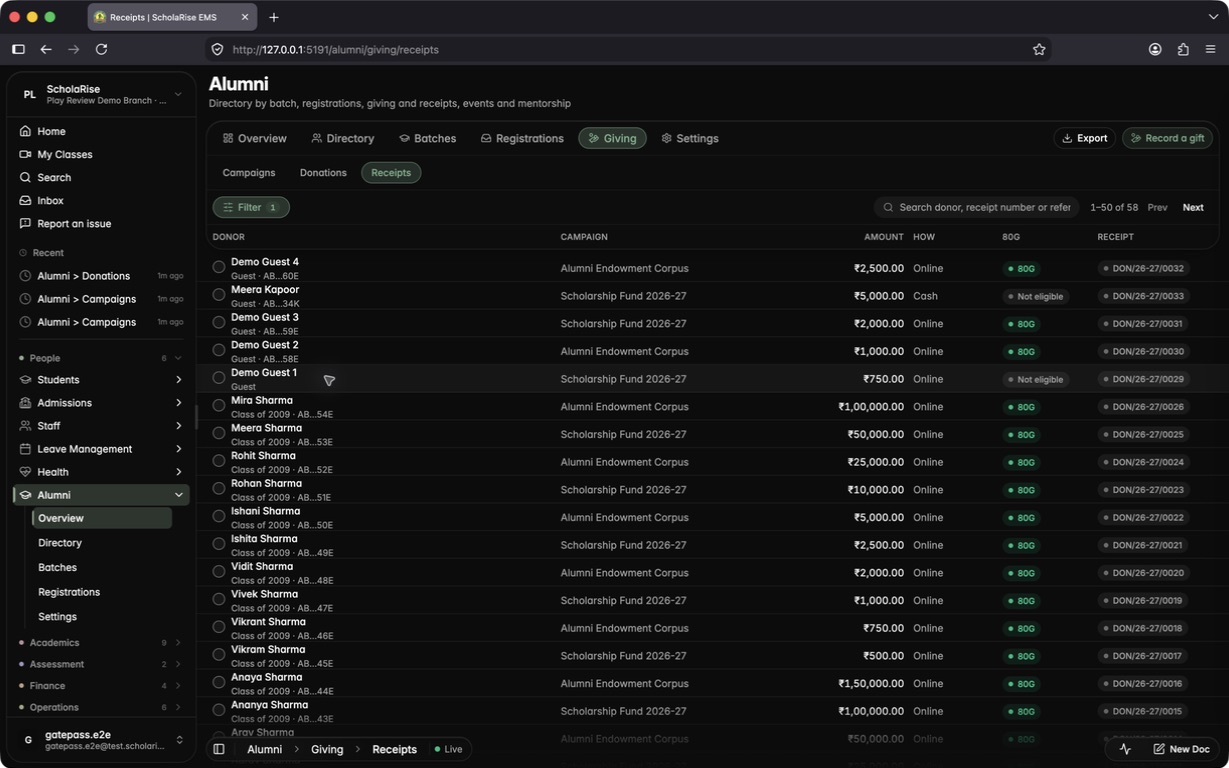
Donations ledger with totals and 80G status
Gift sheet with the receipt PDF inline
Recording a gift received offline
A cash gift over ₹2,000 marked not eligible for 80G
Issued receipts
80G registration and receipt series in settings
Public giving page for guests
Alumni portal home with Giving live
Open campaigns in the alumni portal
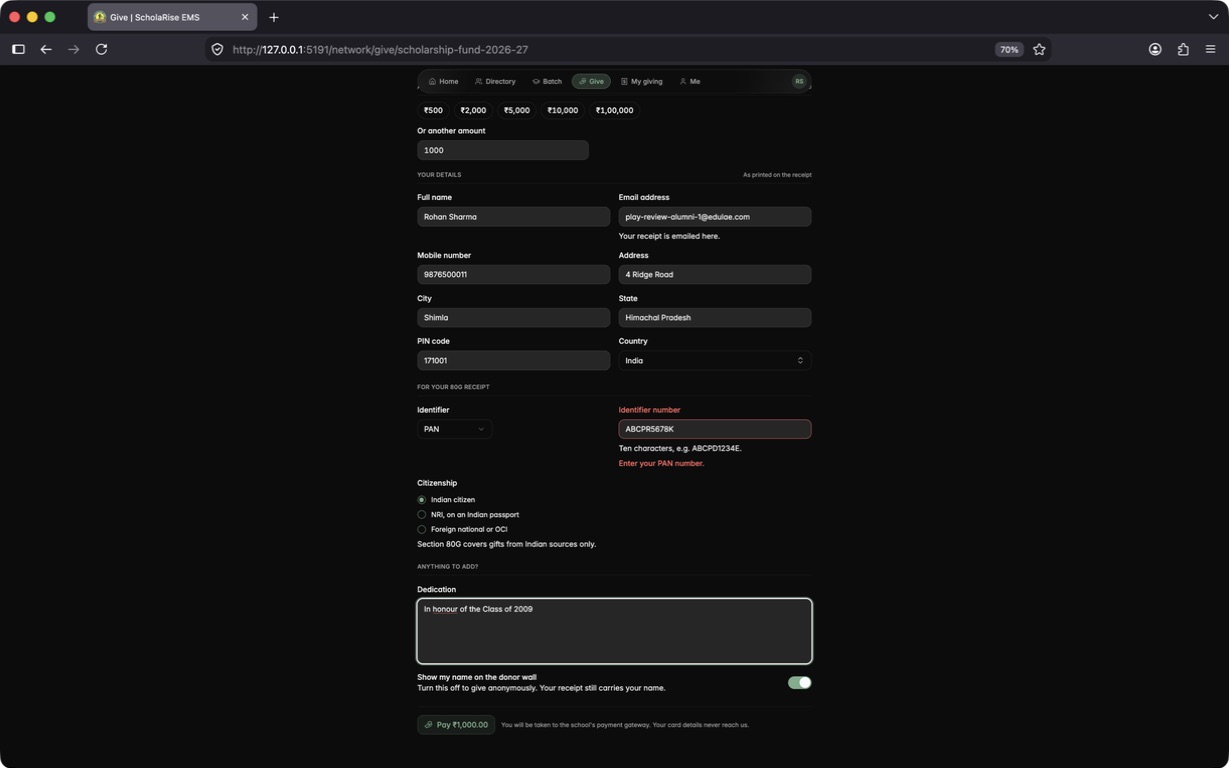
Gift form with donor details for the receipt
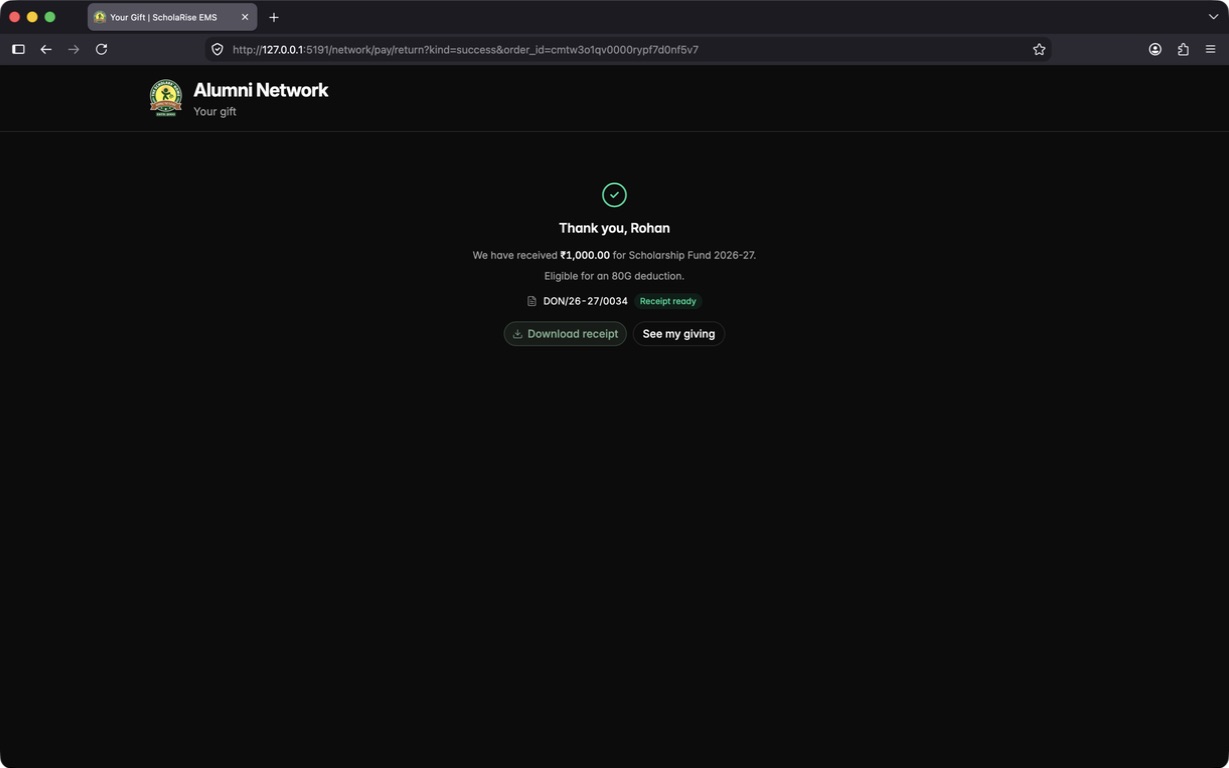
Thank-you page with the receipt ready
My giving with receipts and payment attempts
Public receipt verification
A new campaign created as a draft
A cancelled gift, with its receipt watermarked CANCELLED
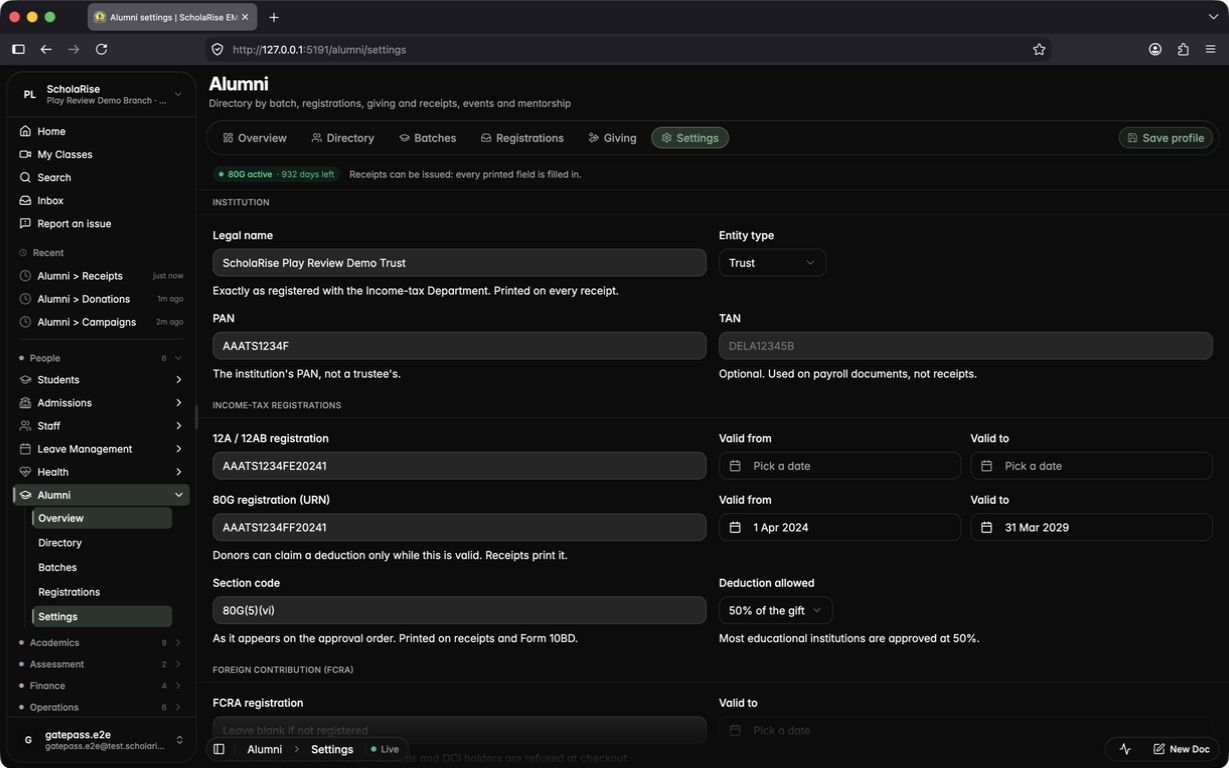
Alumni settings for 80G receipts
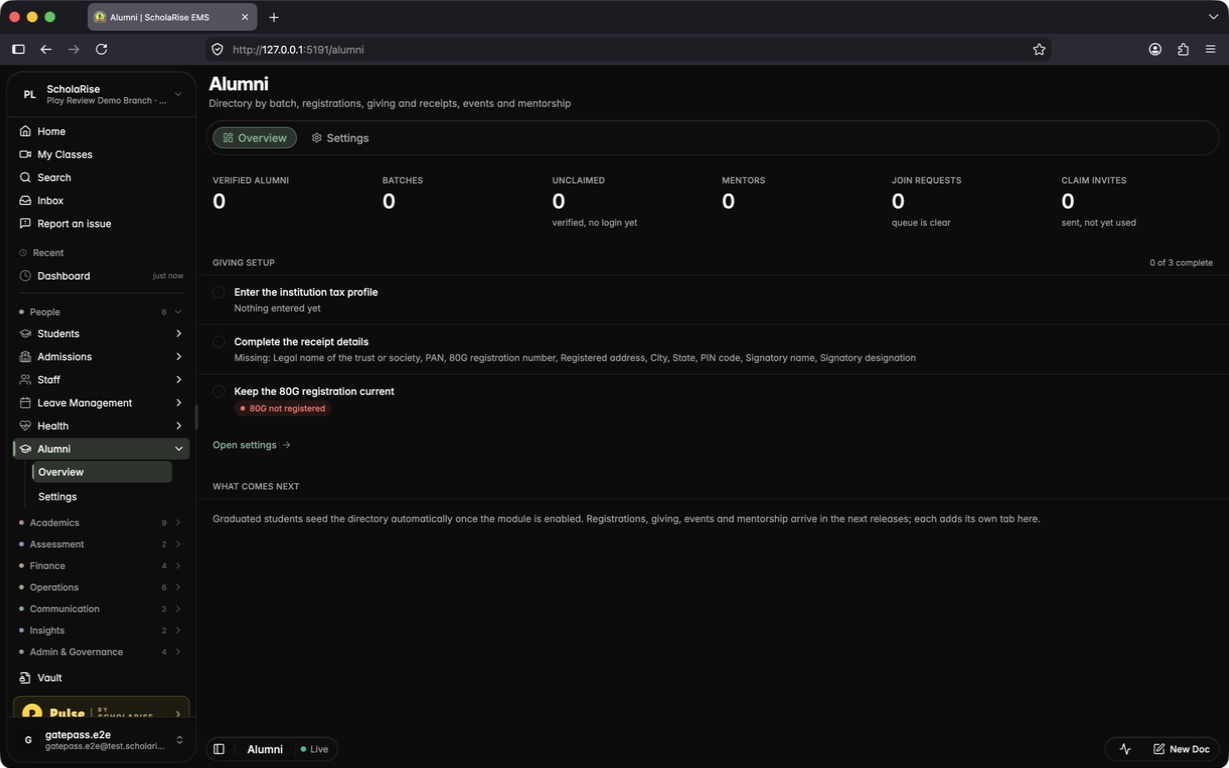
Switch on the new Alumni module for a school and fill in the details your accounts office needs before issuing 80G receipts: the trust's legal name, PAN, 12A and 80G registrations with their validity dates, registered address, signatory and receipt numbering. The Alumni overview keeps a checklist of anything still missing.
The new Alumni overview with the giving-setup checklist
Institution tax profile saved, with the 80G validity shown at the top
Overview once every receipt field is filled in
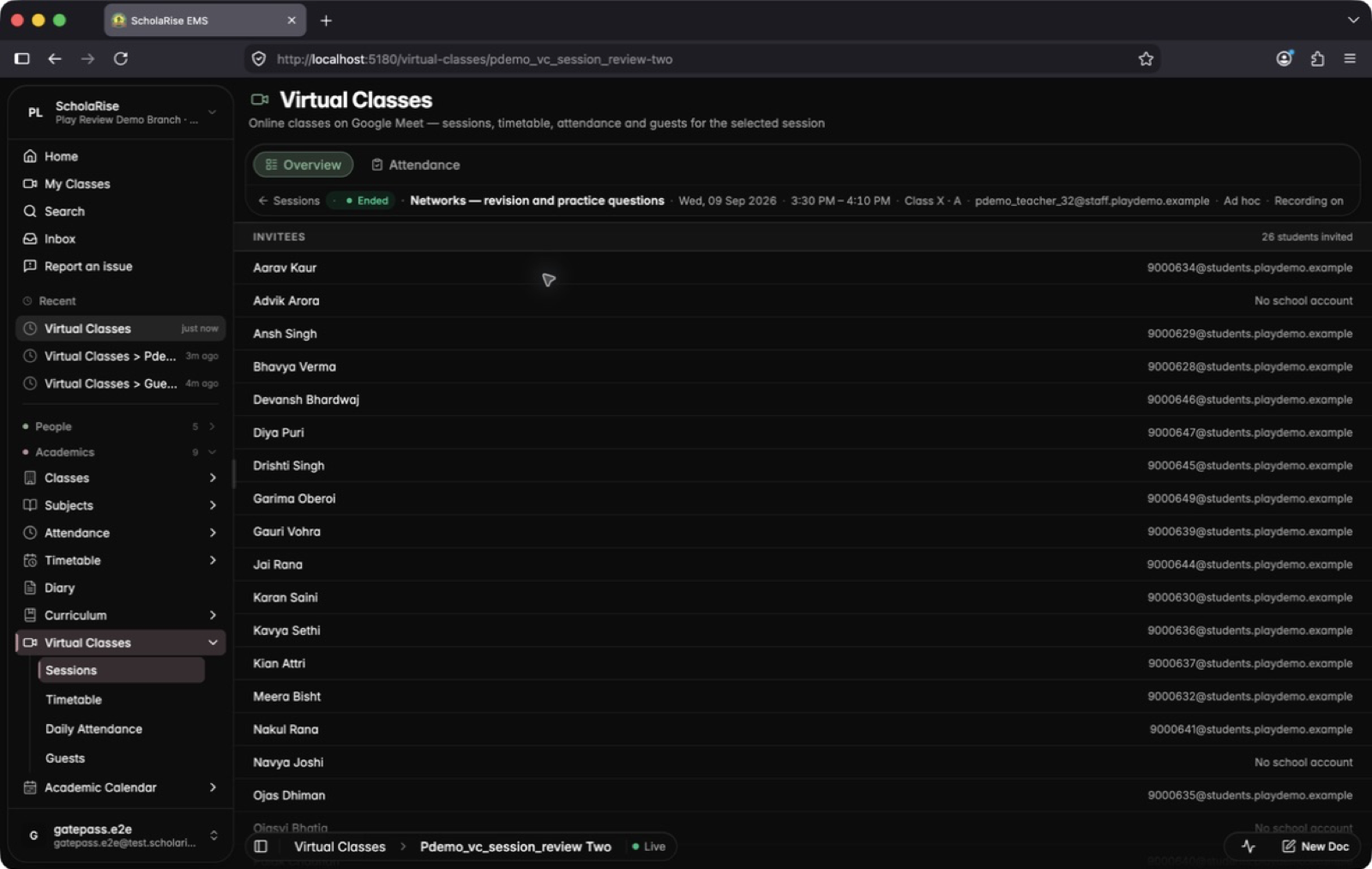
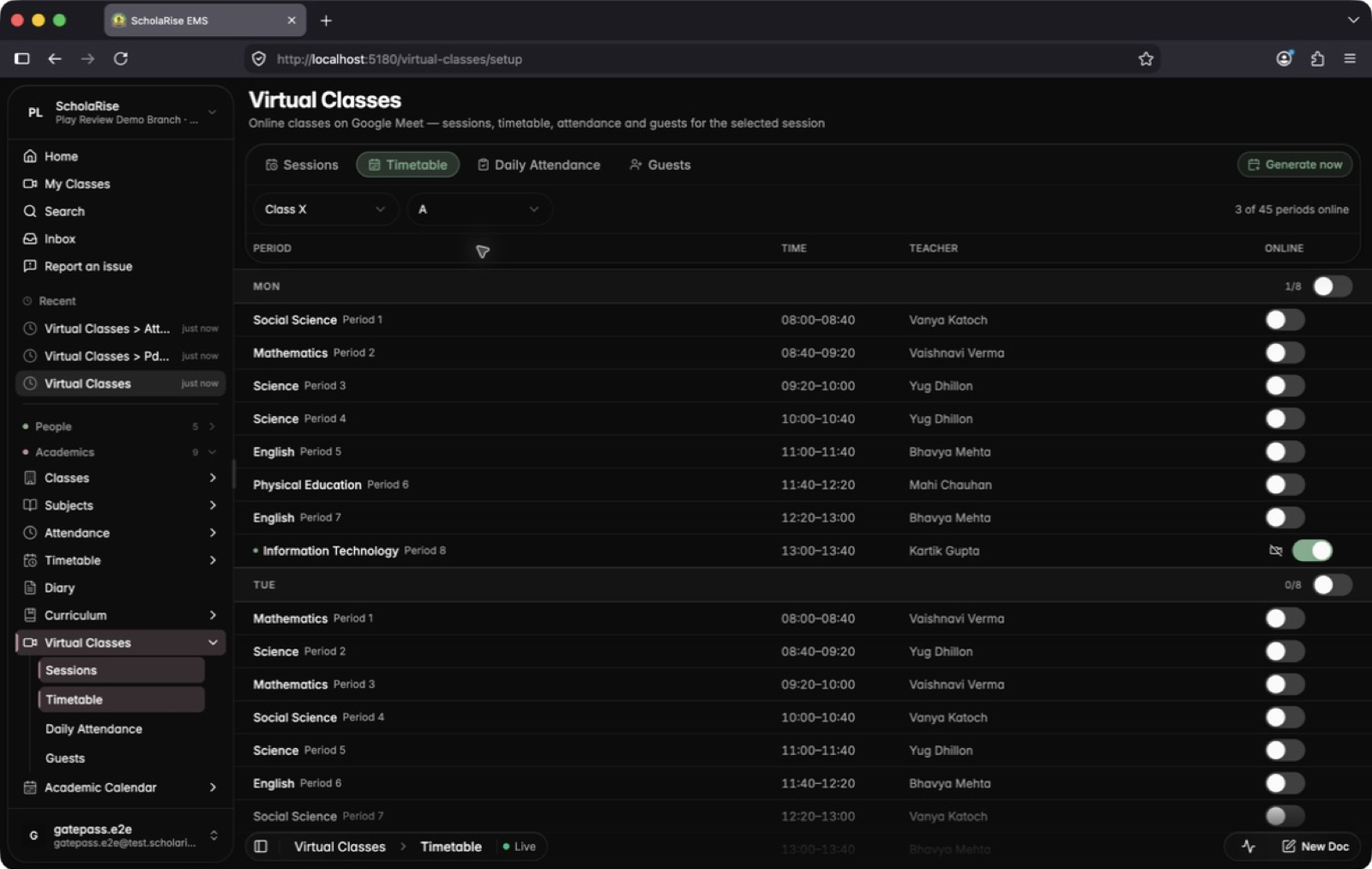
Virtual Classes has a new look
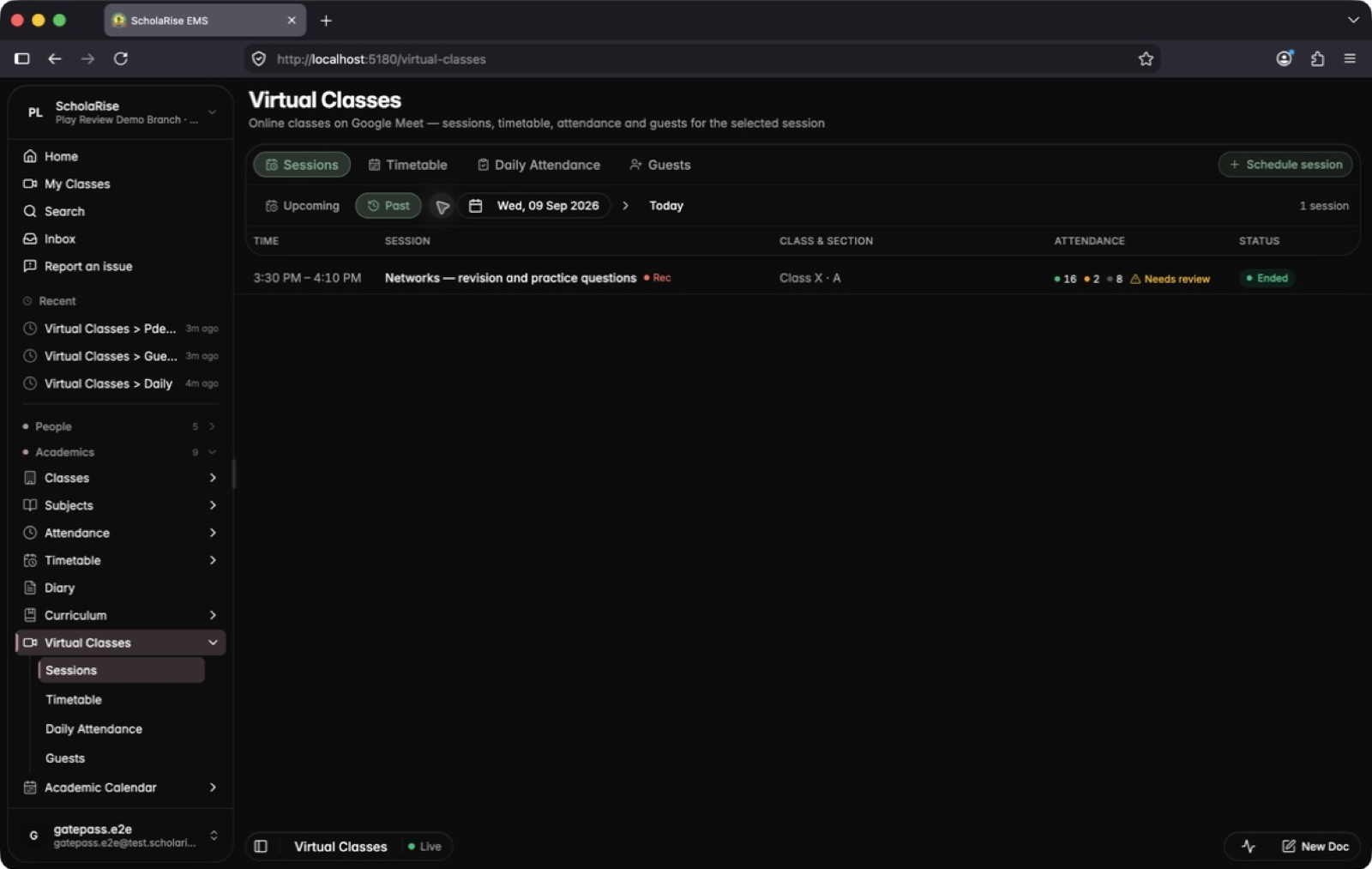
Sessions, the timetable, daily attendance and guests are easier to scan, and everything you need sits in one toolbar. Classes are listed one day at a time with each class's attendance in its row, and any timetable period can become an online class from a single list.
One day of online classes at a time, with each class's attendance summary in the row
A session's page: who was invited, its guests and its attendance at a glance
The attendance register for a finished class, ready to confirm student by student
A section's whole day of online classes, and what it means for the attendance register
Turn any timetable period into an online class from one list
A new look for Inventory
Every Inventory page now matches the rest of the app, with cleaner lists, a side panel for details and the app's own date and dropdown pickers. Deleting a draft purchase request now asks you to confirm first.
Inventory assets and check-outs show up again
The Assets page and the check-out and check-in history in Inventory were always empty, however much a school had recorded. Both now show your records.
Examination
See which co-scholastic grades are still missing
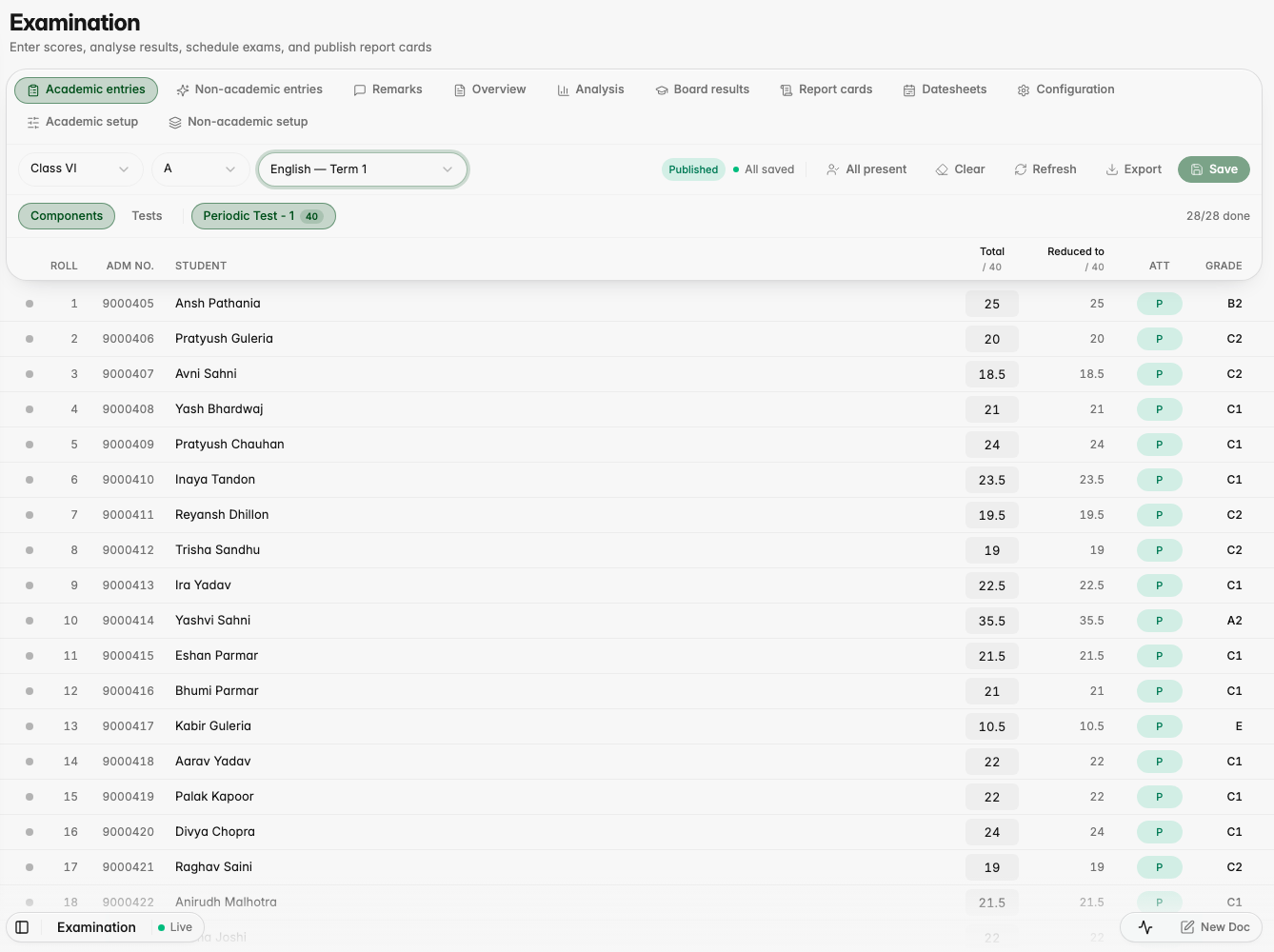
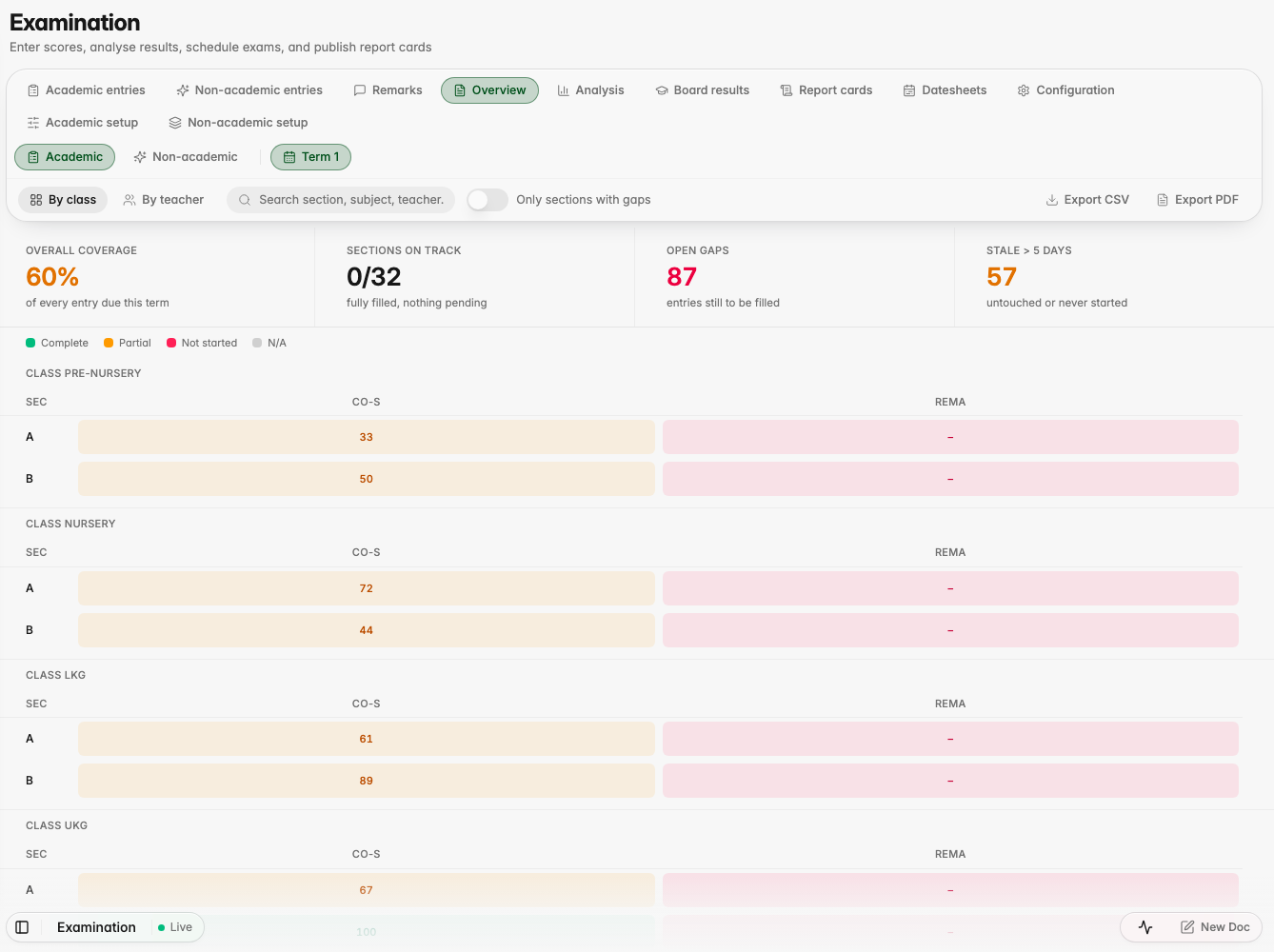
The Examination Overview now has a Non-academic view showing, for every class and section, which co-scholastic activities have been graded and which students are still waiting for a grade. Open entry takes you straight to the grading screen with the class, activity and term already chosen. The Co-scholastic column in the Academic view also now counts activities offered to only some classes.
The columns on a report card now appear in the order you arranged the assessment in. Earlier they followed a fixed order that had nothing to do with your setup, so a card could open with Half Yearly even though you had put Periodic Test - 1 first.
Co-scholastic activities show a grade, not a mark
An activity you grade rather than mark now prints its grade even when its students are scored through smaller parts underneath it. Health and Fitness, scored 14 out of 15 across its three parts, used to print "14.0" beside rows that correctly showed letters; it now prints the grade that score earns.
Class XI and XII term cards drop the annual columns
A Term 1 card for Class XI or XII no longer prints the annual exam layout it has no numbers for. Those cards used to show a weightage group full of zeros and unfilled labels. Height and Weight also print their full labels again instead of being cut short.
Subjects a student does not take no longer print
A card no longer repeats a subject because marks were once entered against another class's assessment, and no longer prints an elective the student has since swapped out of. Both used to leave a stray row on the card, sometimes under the same name as a real subject.
The marks tables line up, and the small ones share a table
Every marks table on a card now uses the same column widths, so a two-column table sits squarely under a five-column one and the totals run down the page in a straight line. Small tables such as Third Language, Skill Subject and Optional Subject are now folded into one compact table instead of taking a full section each, which leaves far more room on the first page.
Platform
The app stops turning away page loads during the school day
Since early September some page loads and refreshes were being refused for no good reason during school hours, which showed up as a slow or stalled screen for parents and staff. That has been fixed at the source; the app now only holds requests back when it is genuinely under strain.
Fee and payroll detail panels match the rest of the app
The panel that opens beside a list in Fees and Payroll now uses the same background shade as every other module. In dark mode it used to read as a differently coloured panel.
Every column title in the marks table now sits on one line with the maximum marks in a quieter line beneath it, so long titles like "Periodic Test - 1" stay readable and never break in the wrong place. The student details at the top take about half the space they used to, and the attendance ring is lighter. Subject and assessment names print exactly as you typed them.
Subjects stay on the card while they wait for marks
A report card now keeps a row for a subject whose marks are not in yet instead of dropping that subject altogether, and it does this for every class. The waiting row prints with dashes and is left out of the overall total, and optional subjects a student has not taken are still left off.
A grade for each part of an assessment
On subjects you grade rather than mark, a report card can now print the grade each part of the assessment earned instead of the marks entered for it. Open the Assessments tab under Examination and switch the option on for an assessment whose scoring is set to Grade. It is off by default, so cards you already print stay exactly as they are.
Finance
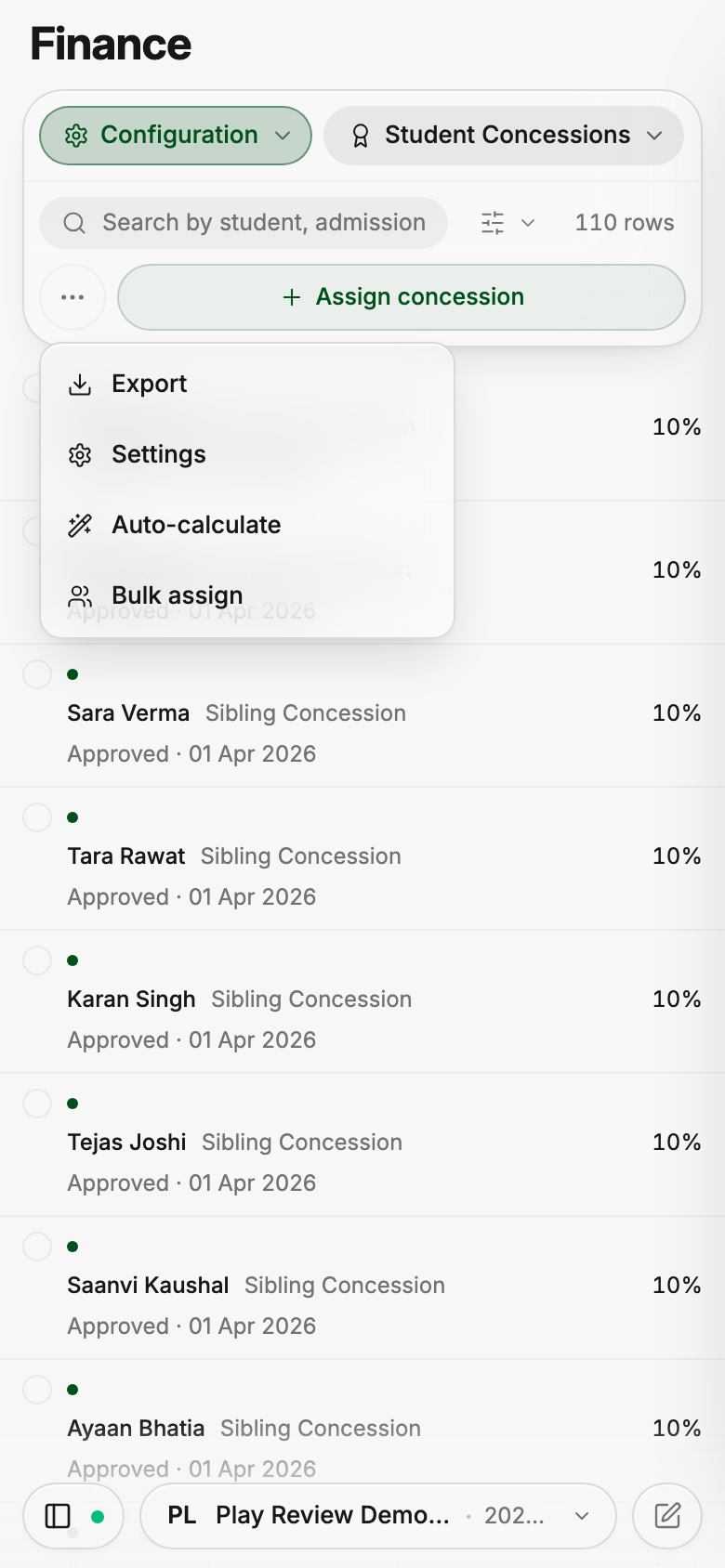
Collection Risk rows are named after the parent
Each row in Collection Risk is now titled with the father's or mother's name on record — the person your accounts team actually calls — with the children still listed underneath. The column heading, the sort option and the search box now say Parent.
Days late per term separates one year from the next
The days-late chart deliberately reaches back into the previous academic session so unpaid fees carried forward are part of the picture, but nothing on screen said so. The bars are now grouped by session with the year written above each group, so last year's fee terms no longer read as part of this year's. An existing branch shows both changes after the nightly refresh or a Recompute scores click.
Offer a monthly, quarterly, half-yearly or yearly plan for a session and let each parent pick the one that suits them. You set a single monthly rate per class and the instalments for every plan are worked out from it, so a family only ever sees the dates and amounts that apply to their own choice.
Collection Risk
A new Collection Risk tab scores every family on how it has actually paid, sorts them into tiers and shows the accounts team who to call today, with every point explained and a short plain-language summary of each case. You can set an automatic reminder ladder for each tier — a nudge before the due date, a follow-up after it, a call task for a named staff member, then an escalation — with guard rails that stop the moment a payment lands, keep to your sending hours and cap how often one family is contacted. Staff can see and log the calls assigned to them from the mobile app, and the Finance overview now shows what each upcoming fee term is expected to bring in.
Sibling and staff-ward concessions no longer stack
When a child qualifies for both the staff-ward concession and the sibling concession, only the staff-ward one is applied. Earlier both came off the same bill, which discounted those families twice.
One late fee per term, however many fee heads are unpaid
A late-fee rule that covers any unpaid fee head now charges once per fee term on the combined outstanding amount, instead of once for every unpaid head. A parent with several unpaid heads in one term is no longer fined several times over for the same delay. If you prefer the earlier behaviour, choose "Each unpaid fee head" when editing the rule.
A late-fee start date for each fee term
You can now set the exact day a late fee starts counting for a term, separately from its due date, so an announced date such as "late fee from 20 July" is honoured wherever fines are calculated: fee collection, defaulters, reports and reminders. Set it in the "Late fee starts from" field when you add or edit a fee term, from "Late fee from" in the term's details, or for all terms at once from the Term start dates view on the Late Fee Rules page. Leave it blank and the due date plus grace days apply as before.
Student late-fee waivers listed by name
Waivers granted to individual students from the Collect page now appear in a Student waivers view on the Late Fee Rules page, with the student's name, admission number, class and section, the reason, and who granted it. Granting a waiver now asks for a reason, and you can search, revoke, reinstate or delete waivers from that list.
A clearer late-fee rule editor
Rules are now grouped by how they take precedence, from a single student down to the branch default, with a plain-language summary of what each one charges and a search box. The editor asks who the rule applies to first, lets you pick a student by name, shows only the fields for the charge type you choose, and previews the fine on a real fee term as you type.
Automatic sibling concession calculation now recognises brothers and sisters who were admitted separately under their own parent record, so they appear in Auto-calculate and are ranked by birth order as one family. The Assign concession dialog also offers the sibling concession type, so you can grant it by hand when needed; the next automatic recalculation still checks that grant.
Report cards have a new, cleaner look: the school and board logos sit in a tinted header, the student's name leads the page, subject tables use alternating rows and grade pills, and the total, percentage, grade and attendance appear together in one at-a-glance card. A new Performance Insights block draws charts from the student's own marks: a bar for each subject against their overall percentage, the change since the previous term, marks by assessment type, where the overall grade sits on the grade scale, and an attendance ring. Charts that have no data for a student are left out, and you can switch each one on or off in the report card template.
A faster report card workbench
Open Examination, then Report cards. Pick the class, section and terms from the top bar, and the whole roster fills the page with a readiness signal on every row showing whose marks are still missing. Open any student's card in a large side panel and step to the next or previous student, then generate or download cards for the students you have selected in one step.
Every placed subject prints on the card
A subject on a class's report card no longer disappears for a student whose marks have not been entered yet. It prints with dashes instead, so the gap is easy to spot before the cards go out.
Students
CBSE registration details on the student record
Category, special-needs status, minority status, only-child status and annual family income can now be entered while adding or editing a student, and they appear on the student's profile. The CBSE registration sheet fills in from those same details automatically, so nothing has to be typed twice.
Communication
Courtesy Calls follow the selected academic session
Courtesy Calls now lists only the students enrolled in the academic session you have selected, so last year's leavers no longer appear in rosters, coverage numbers or campaign progress. Campaign email notifications also work again: the campaign-started email and the daily progress digest save correctly and are sent once, at the time you set.
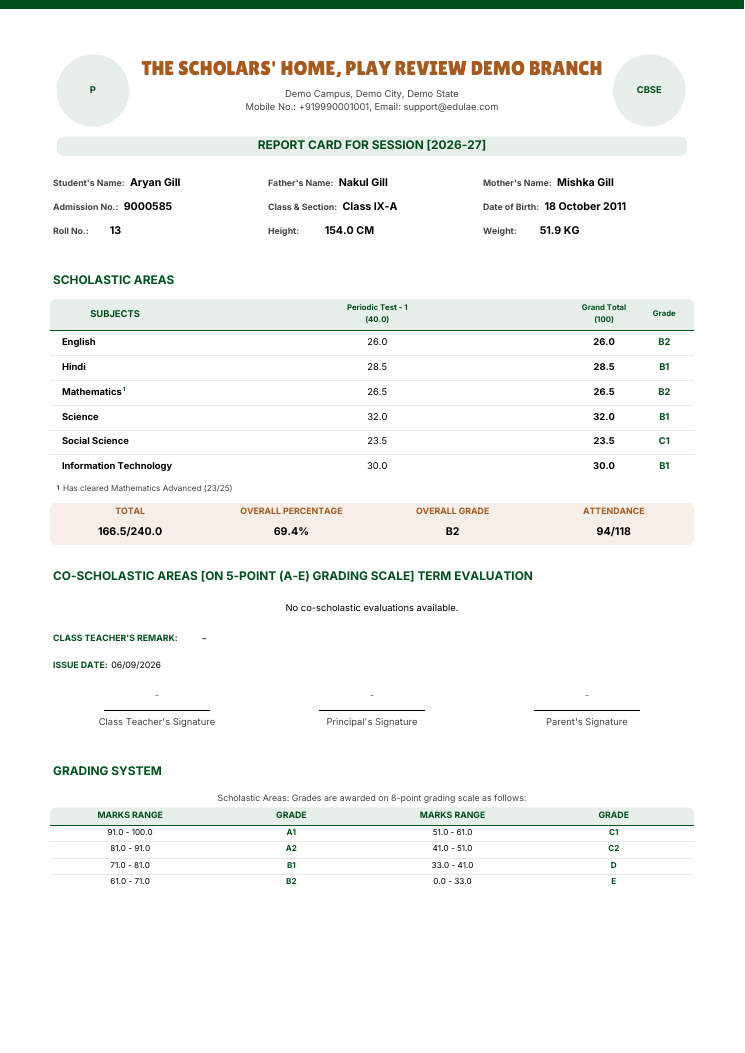
Class IX report card with Mathematics marked and a footnote for Mathematics Advanced
Examination
Report card layout rules for each class
You can now decide, class by class, where each subject prints on the report card, whether it counts toward the total and percentage, and which add-on papers such as Mathematics Advanced earn a small number next to their parent subject once a student clears them. Give a subject its own block on the card, keep an optional subject out of the total, or copy a finished setup to another class or session. Open Examination, then Report cards, then Subject rules.
Close-up of the marked subject row and its footnote under Scholastic Areas.
The same class for a student below the bar: no marker, no footnote, same total out of 240.
Add-on numbers follow each student
When a student clears more than one add-on paper, the small numbers on their card run 1, 2 in subject order. A student who cleared only one add-on always sees 1.
Co-scholastic activities stay with their class
Report cards now show only the co-scholastic activities set up for the student's class, instead of every activity in the school.
Marks or grades on assessment schemas
When setting up an assessment schema, you can once again choose whether it is scored in marks or grades and pick the grade scale used to show grades in mark entry and on report cards.
Platform
Accreditation evidence for every step of Plan, Do, Check, Act
Every accreditation parameter now lists what to prepare under all four steps of the Plan, Do, Check, Act cycle, so no step is left empty in the requirement checklist. When you link a document, you pick the real standard (S1 to S14) and parameter, and compliance documents open in a cleaner side panel on the Evidence page.
A cleaner Compliance section
The Compliance section now matches the rest of ScholaRise: one floating toolbar with the section tabs, search and filters, flat lists that scroll beneath it, and the same detail panels and phone layout you see in Students and Library.
Toolbars that stay clear while you scroll
The toolbar on the Teachers, Employees and Admission Inquiries pages now stays readable as you scroll, and the Filter and Sort buttons no longer disappear when switching between Teachers and Employees.
Finance
Fee due dates for parents
Parents can now see the due date for every fee term, with overdue terms clearly flagged.
Since the previous update, adding any picture or file to ScholaRise failed. Sending WhatsApp template media, updating student photos in bulk, attaching homework files, sports certificates, salary papers, profile pictures and school logos all work again.
Attendance
Today's teacher alerts open again
The list of today's teacher attendance alerts stopped loading as soon as a teacher checked in for the day. It now opens normally through the whole day.
A conversation with Sol now survives a dropped connection or a page reload — the answer continues from where it stopped instead of starting again. You can watch the steps Sol is working through as it goes, and a long job shows a progress card with a button to stop it.
Country, state and city lists load faster
Address forms now download only the lists you are actually using, rather than one large file covering every country in the world. Choosing a country, state or city while adding an admission enquiry or filling a registration form is much quicker.
Photos and pages appear sooner
Student lists and cards now load small preview copies of photos instead of the full-size pictures, so a long list fills in faster. The app also downloads less the first time you open it and loads its fonts from ScholaRise itself instead of an outside site.
Faster and steadier when the school is busy
Most of this release is behind-the-scenes work to keep ScholaRise quick when many people are signed in at once: lighter live updates, fewer repeated requests, and a students list that loads in pages as you scroll. Nothing else changes in how you use it.
You can again take a payment for one term on its own. Collecting fees for a term brings in that term's late fine at its full amount and leaves the fines on other terms outstanding, to be collected when you settle those terms. A fine still cannot be reduced or unticked while you collect — only an authorized waiver removes it.
Platform
Browsing the Photo Library
Folders have moved out of the left column into a panel you open from the toolbar, so photos now use the full width of the page. The day you are looking at stays visible in the toolbar as you scroll through months. The toolbar also stays readable when photos pass underneath it.
A refreshed Dynamic Forms workspace
Inbox, People, Briefs and Forms now share one set of controls at the top of the page, and a report opens in a panel beside the list. The Inbox moves through long response lists with Newer and Older buttons, so even a large archive stays quick to page through. Who has filed and who has not is shown a full calendar month at a time, and you can step back to earlier months.
Parents can download, open or share a prepared admit card from the parent dashboard, with sharing available on supported phones. When a messaging app's browser restricts downloads, the dashboard provides a copyable link and guidance for continuing in Safari or Chrome.
Finance
Full late fines in fee collection
Outstanding late fines stay selected at their full amount when staff collect fees. Removing a fine requires an explicit waiver by authorized staff.
Sports
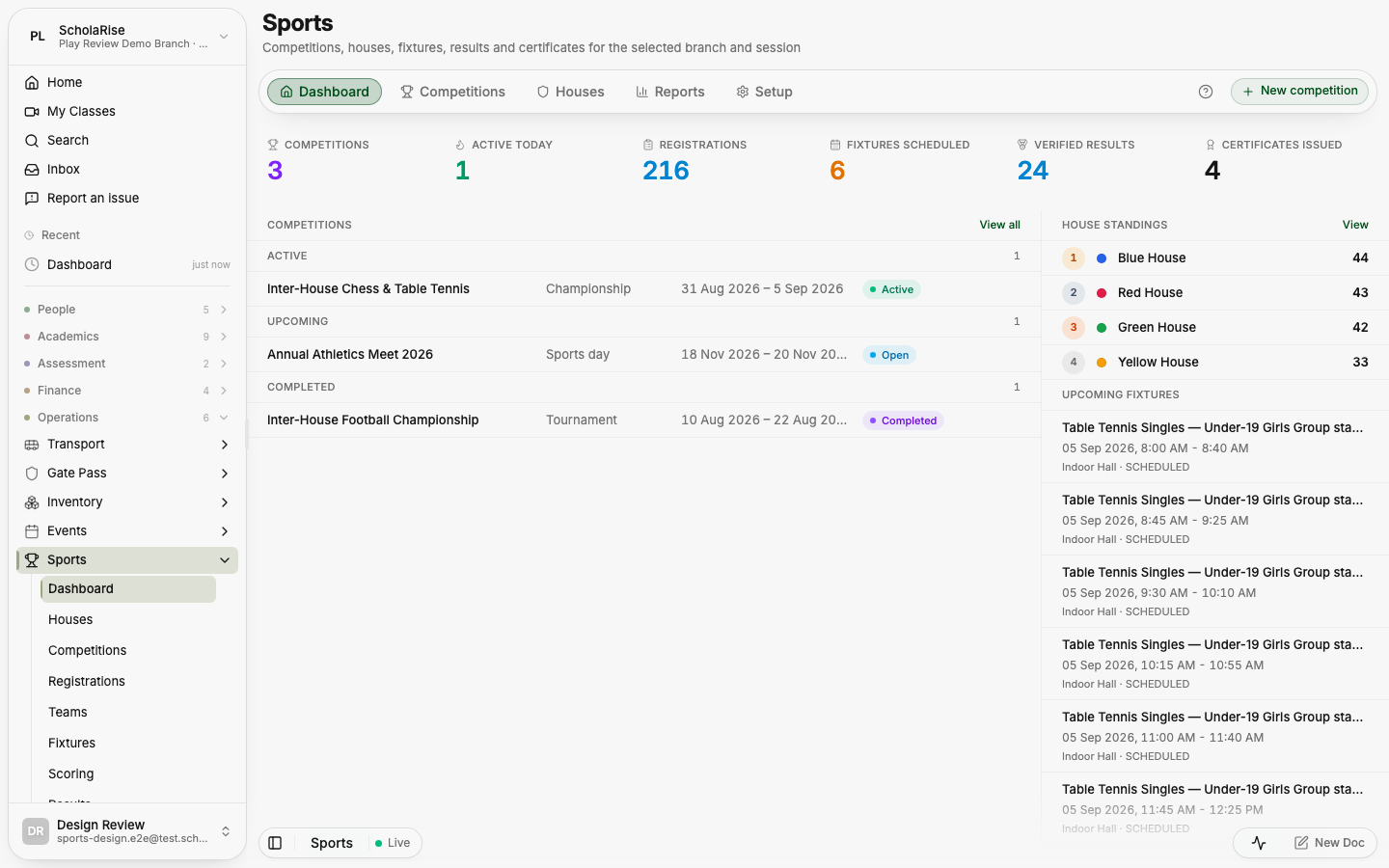
A clearer sports workspace
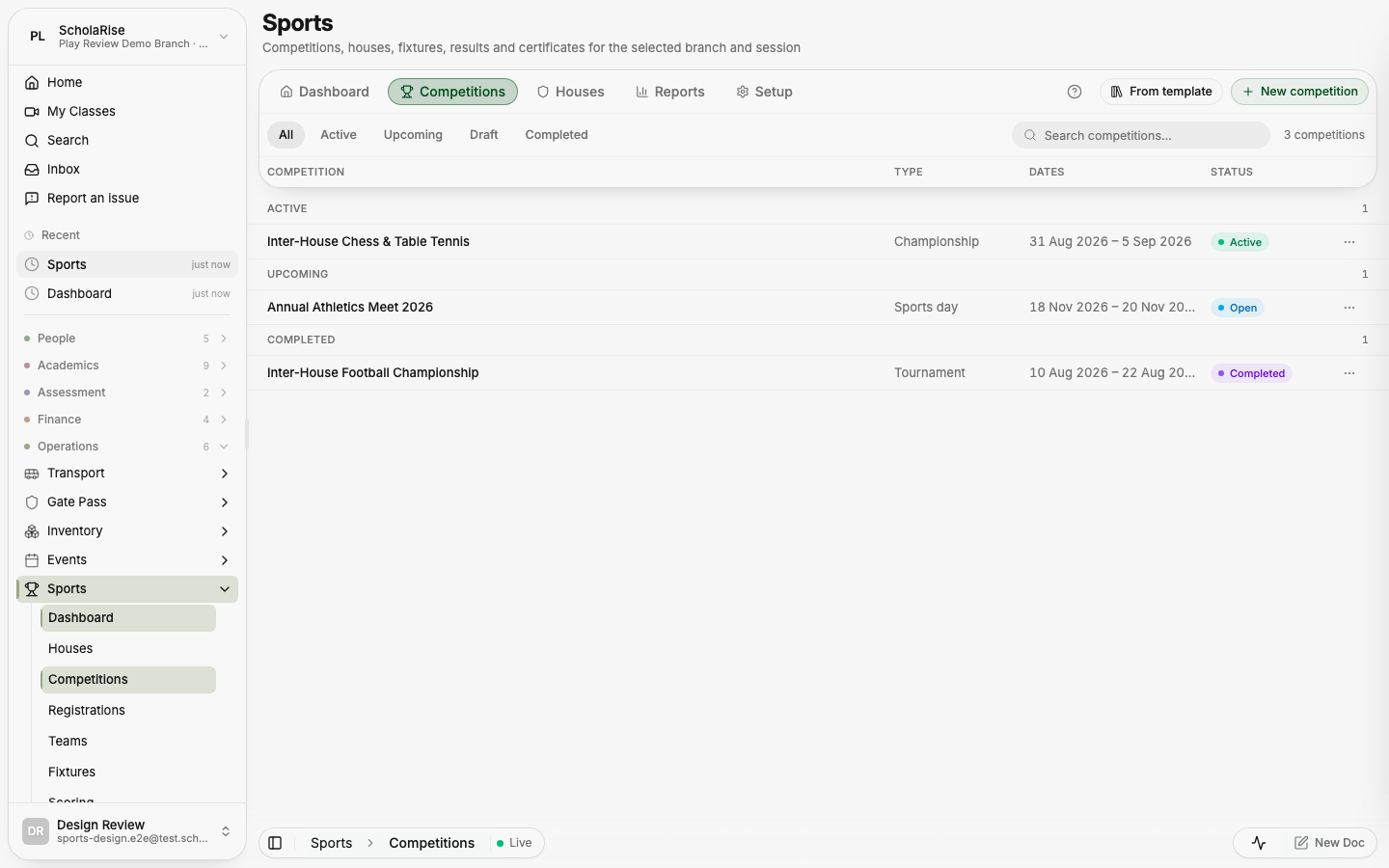
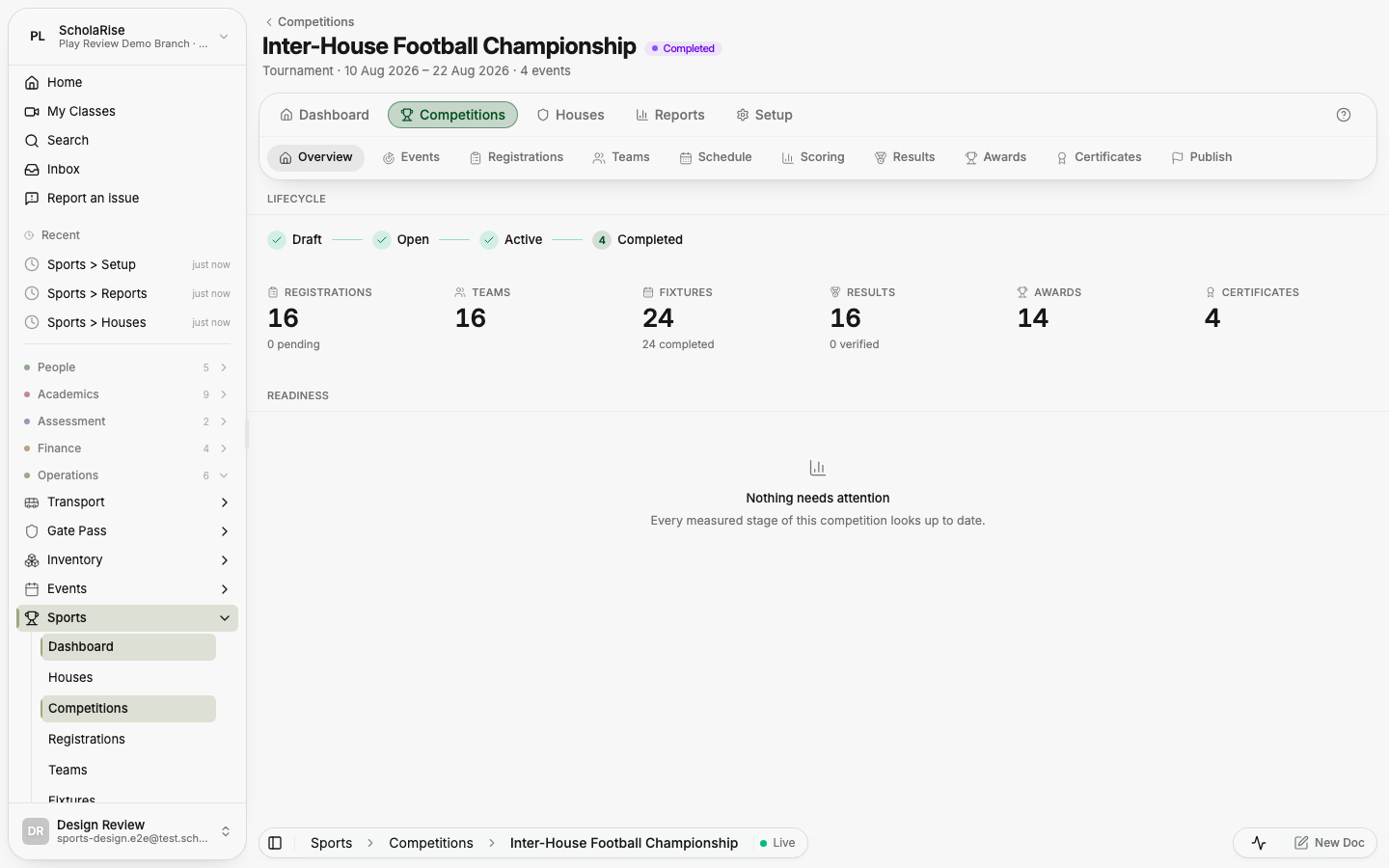
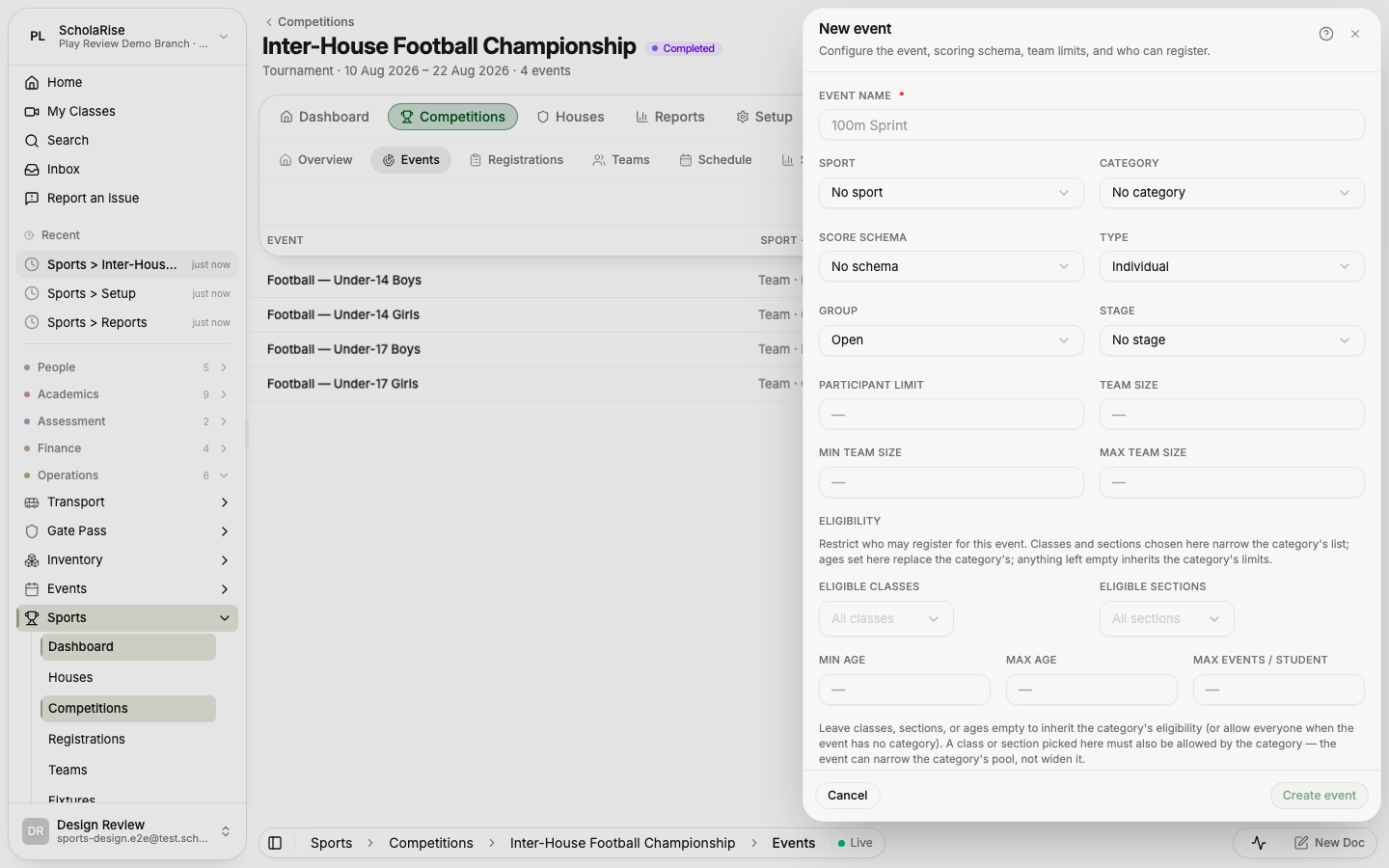
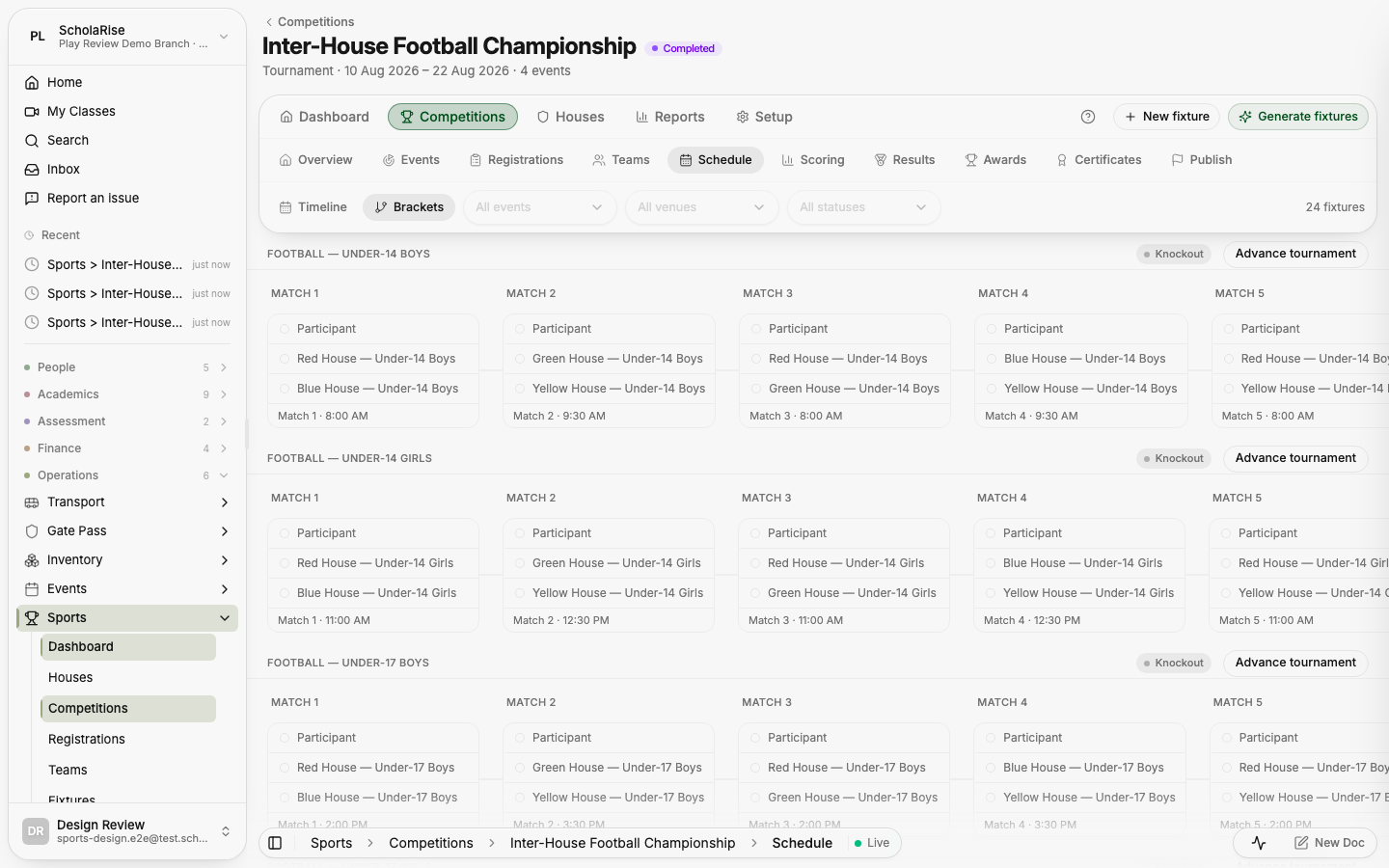
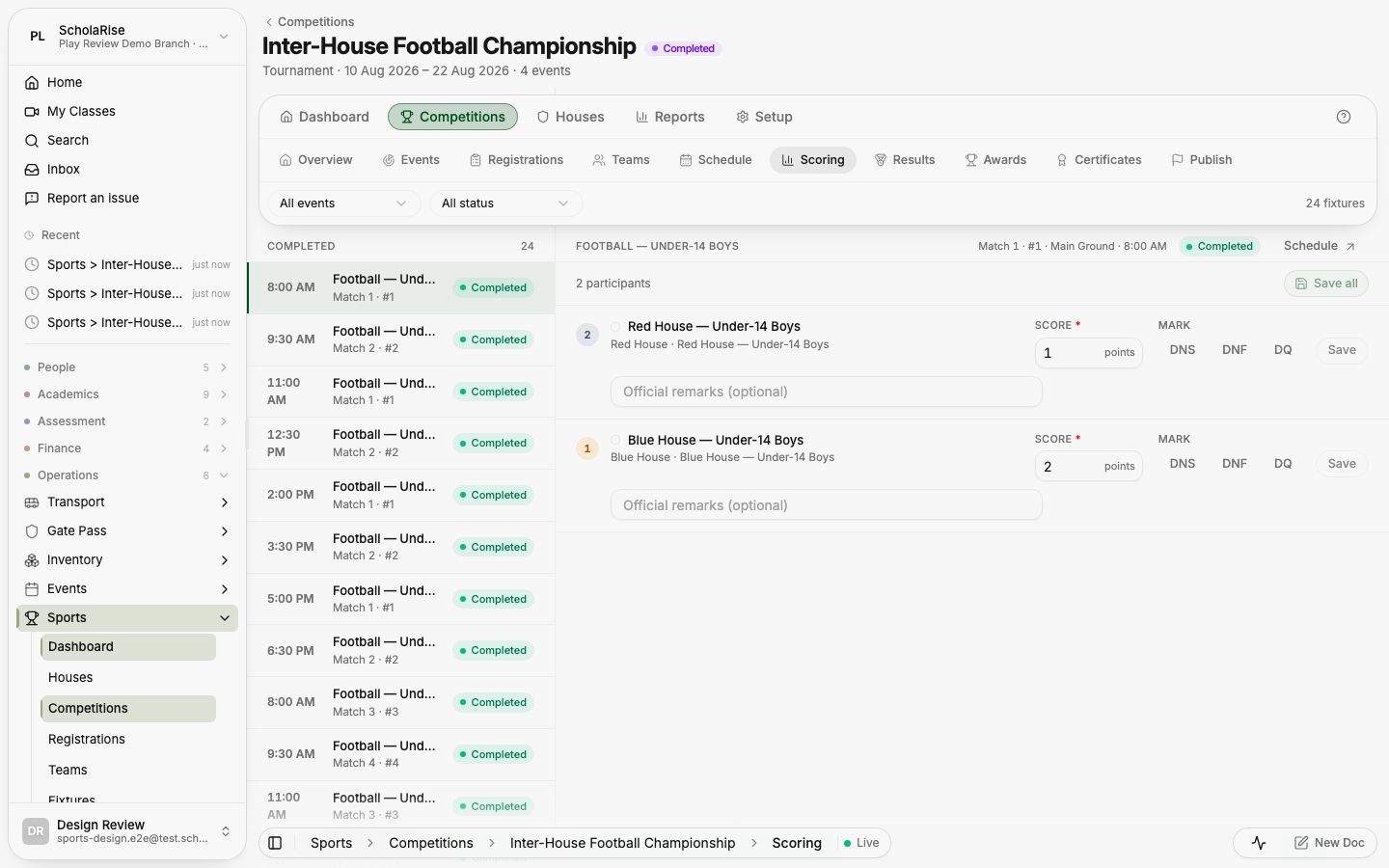
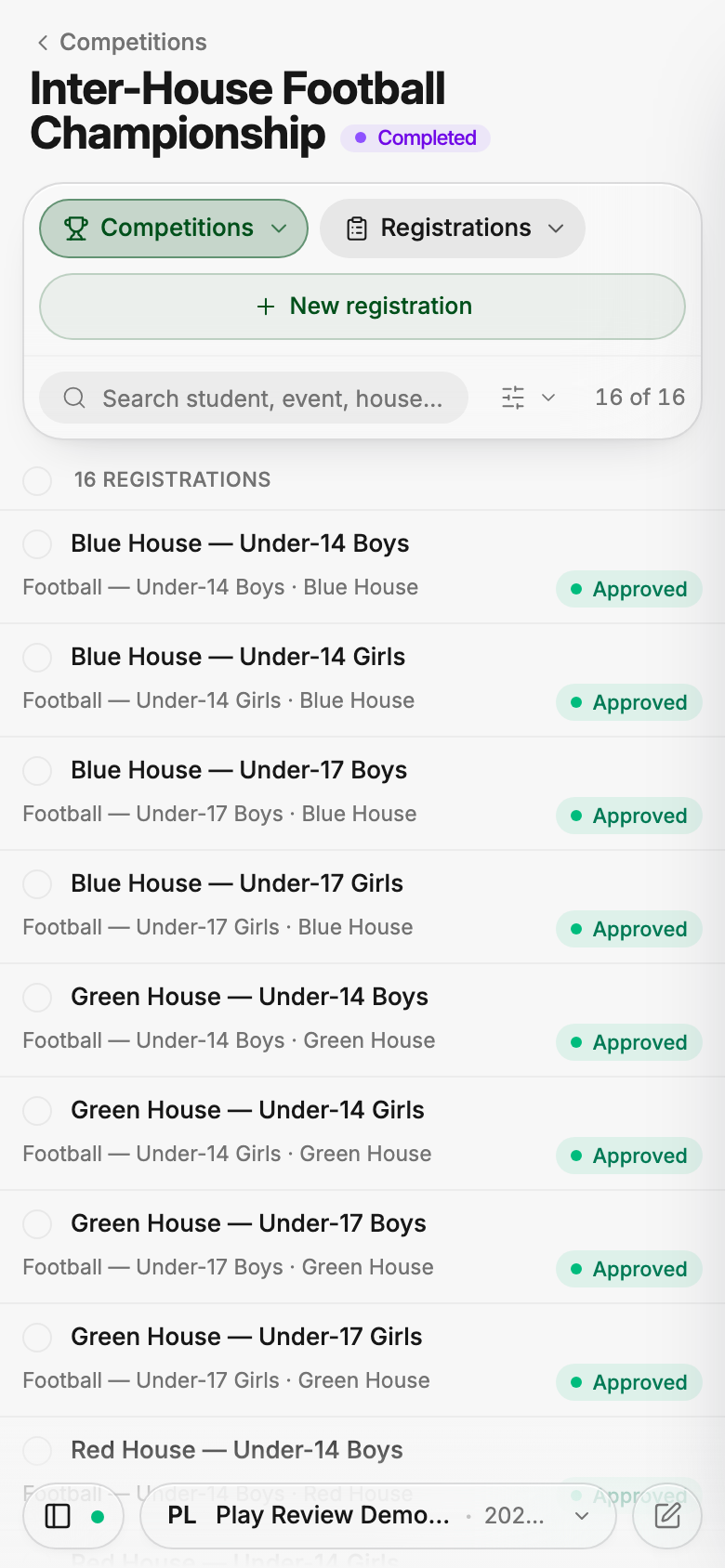
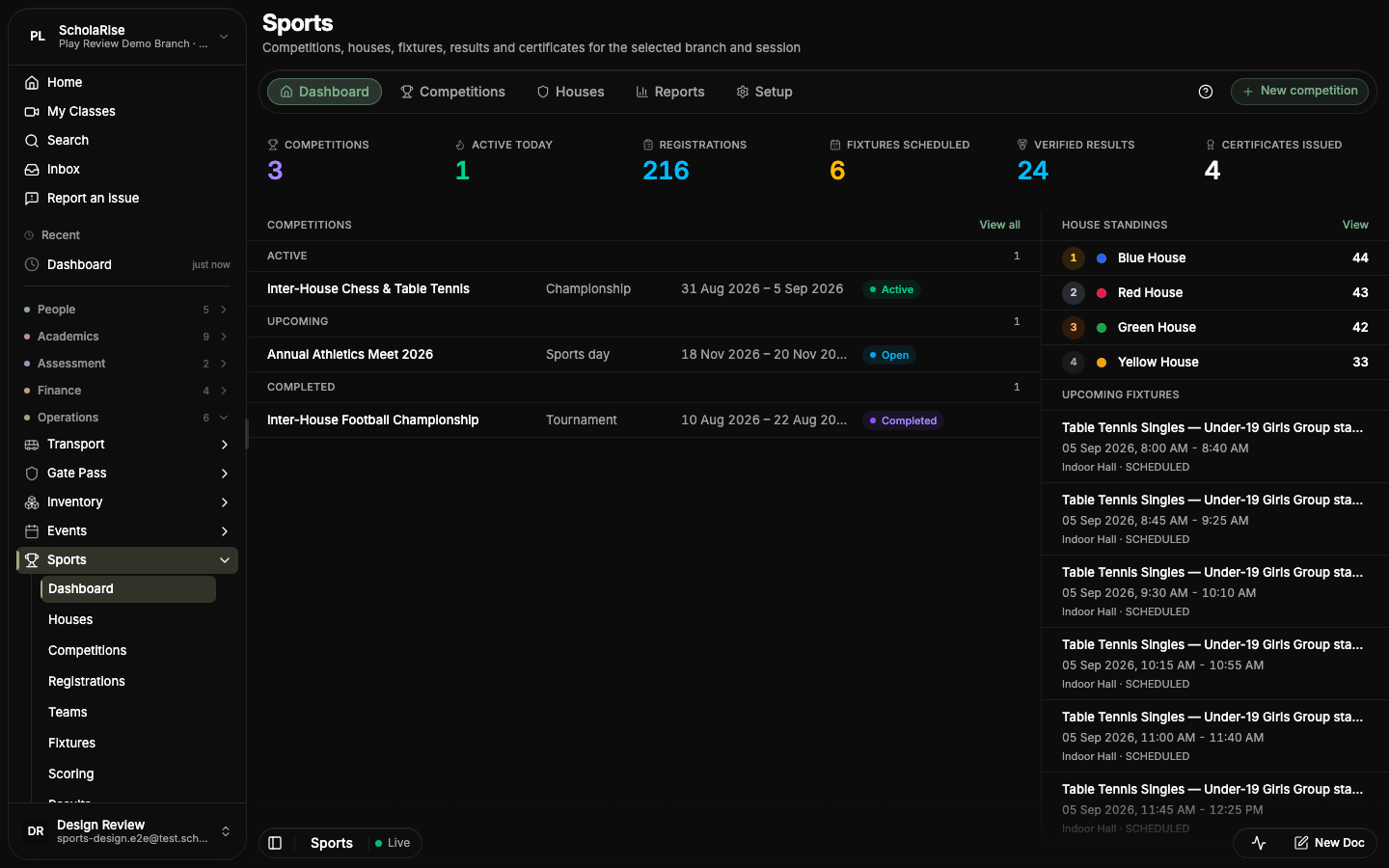
The Sports module brings page controls together in a floating toolbar and gives each competition its own workspace with tabs. Detail panels open on both phones and desktops, keeping competition details close to the list.
Sports dashboard: season counters, competitions by stage, house standings and upcoming fixtures
Competitions list with stage pills and search in the floating toolbar
Competition workspace: the competition's own title with its tabs in the glass bar
Adding an event in the floating detail sheet
Schedule in brackets view
Scoring console: fixture queue beside the score entry rows
Results with rank chips, per-event standings and the medal table
Registrations on a phone: a three-row toolbar with folded filters
Dashboard in the dark theme
My Sports for parents and students
Platform
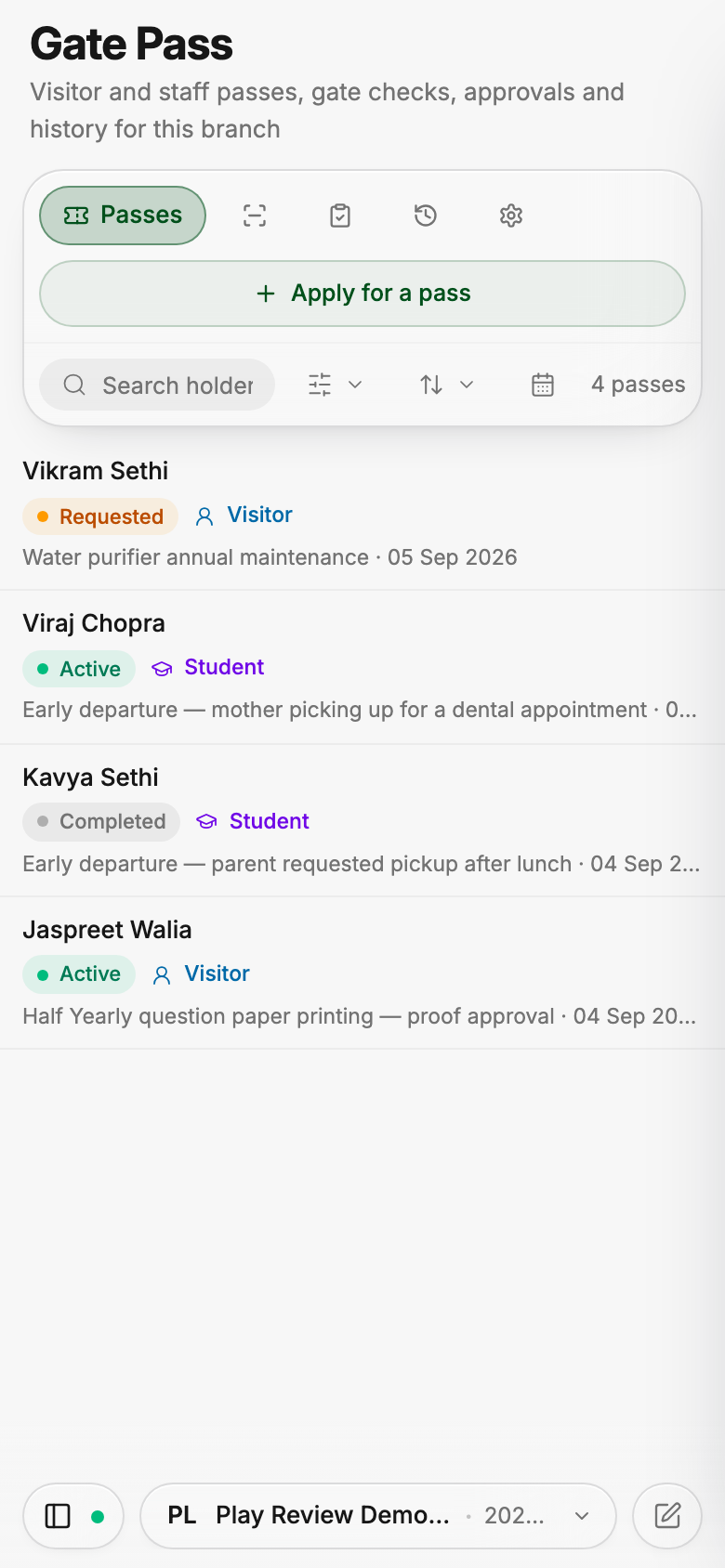
Gate passes on phones and desktops
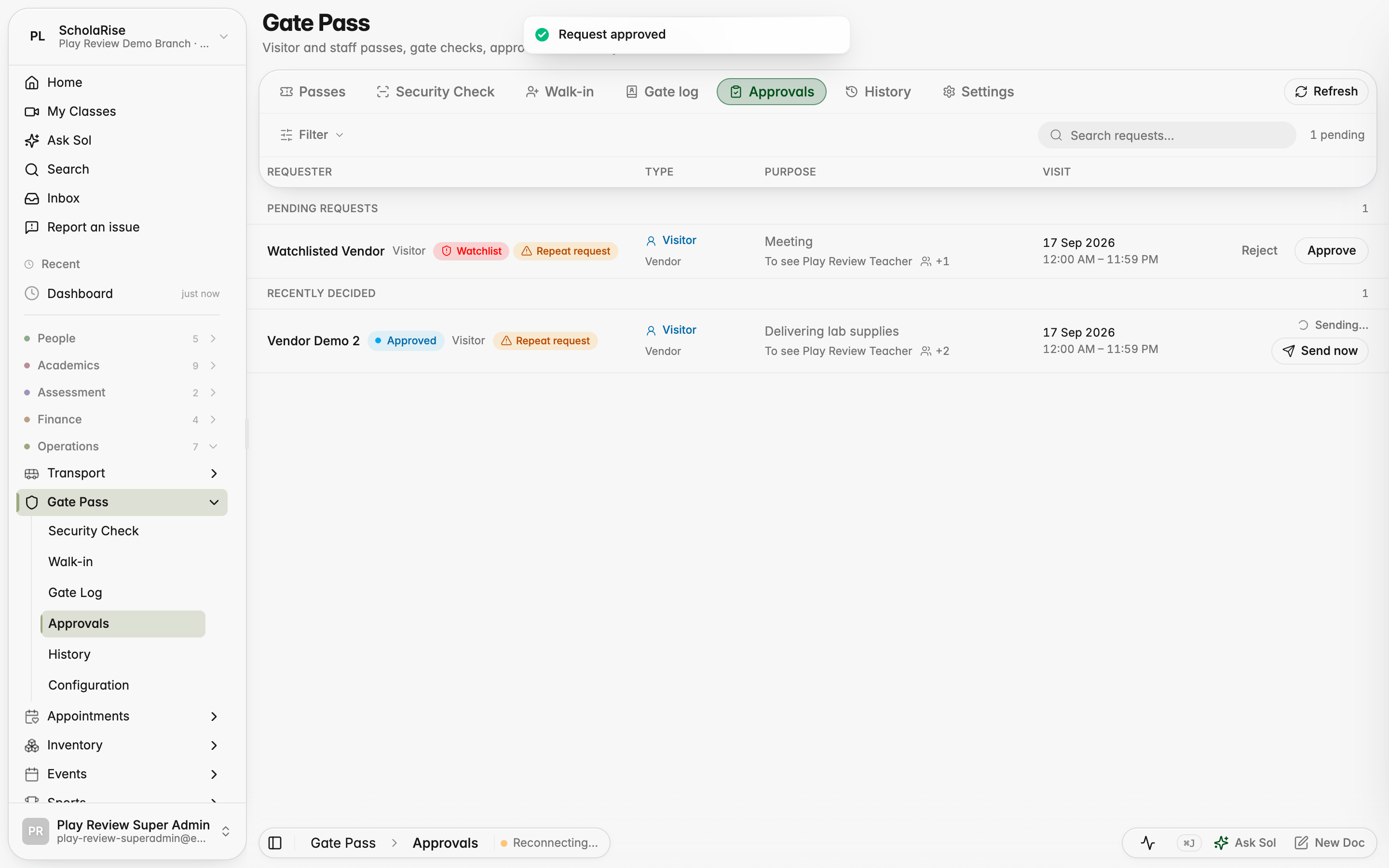
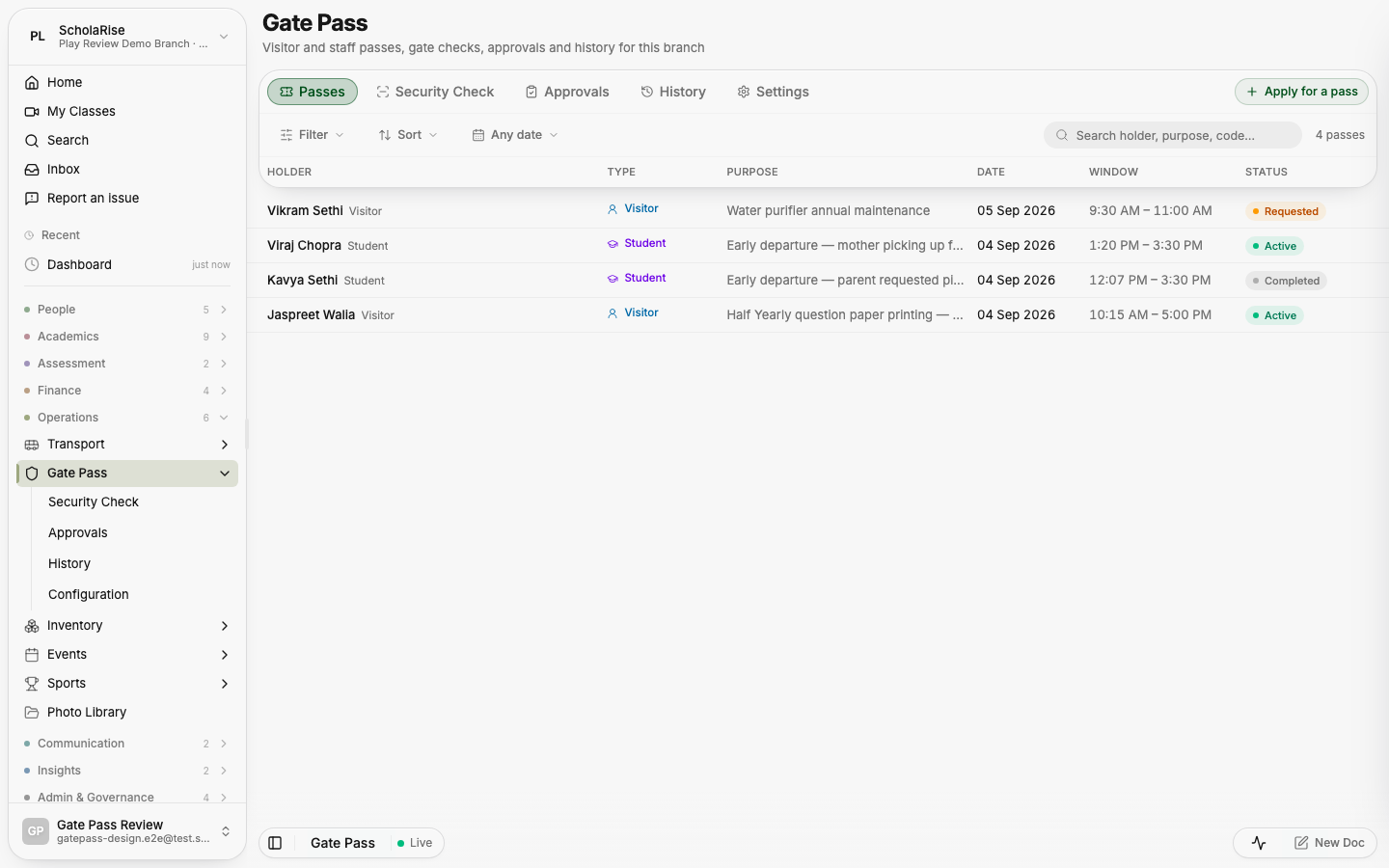
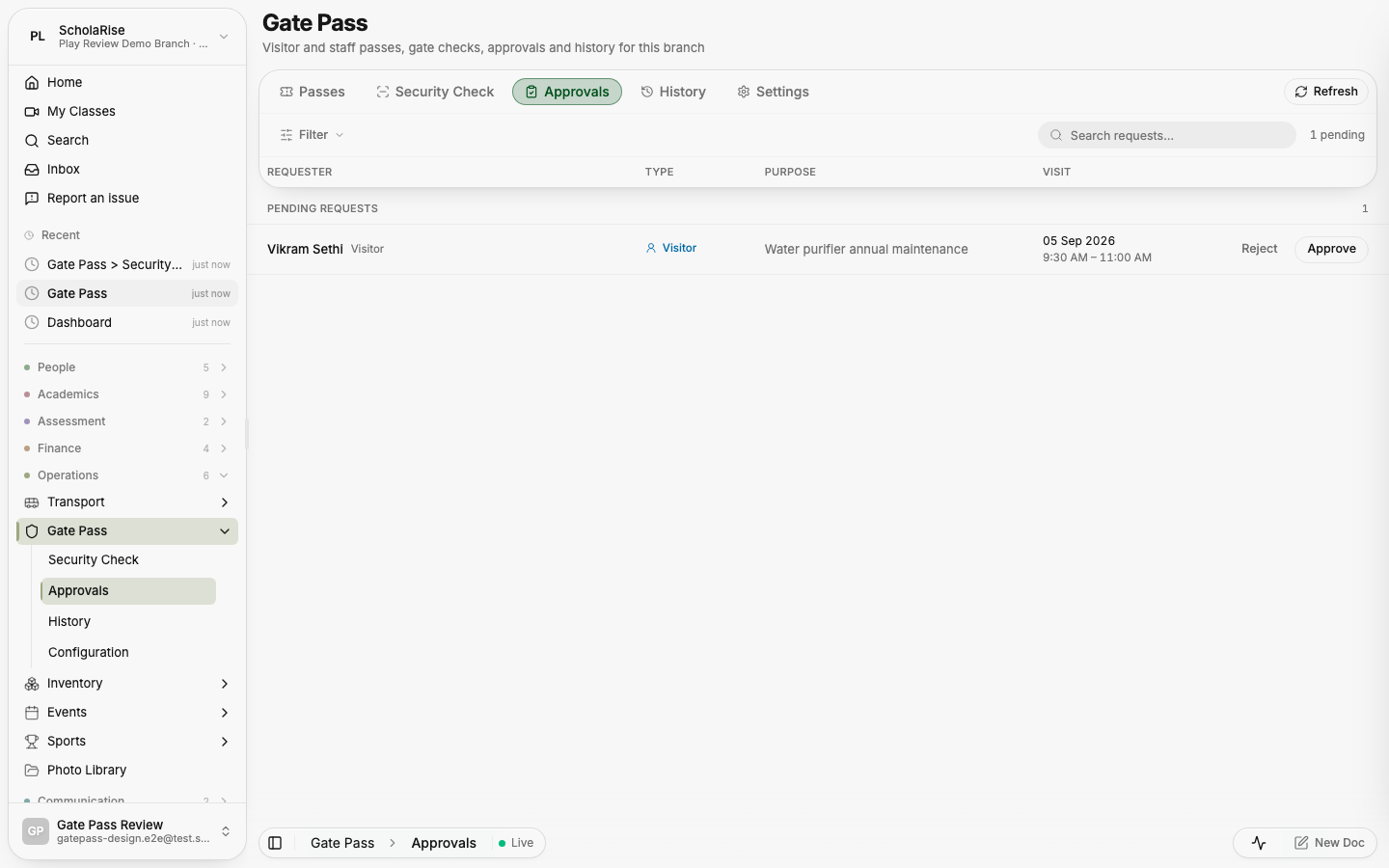
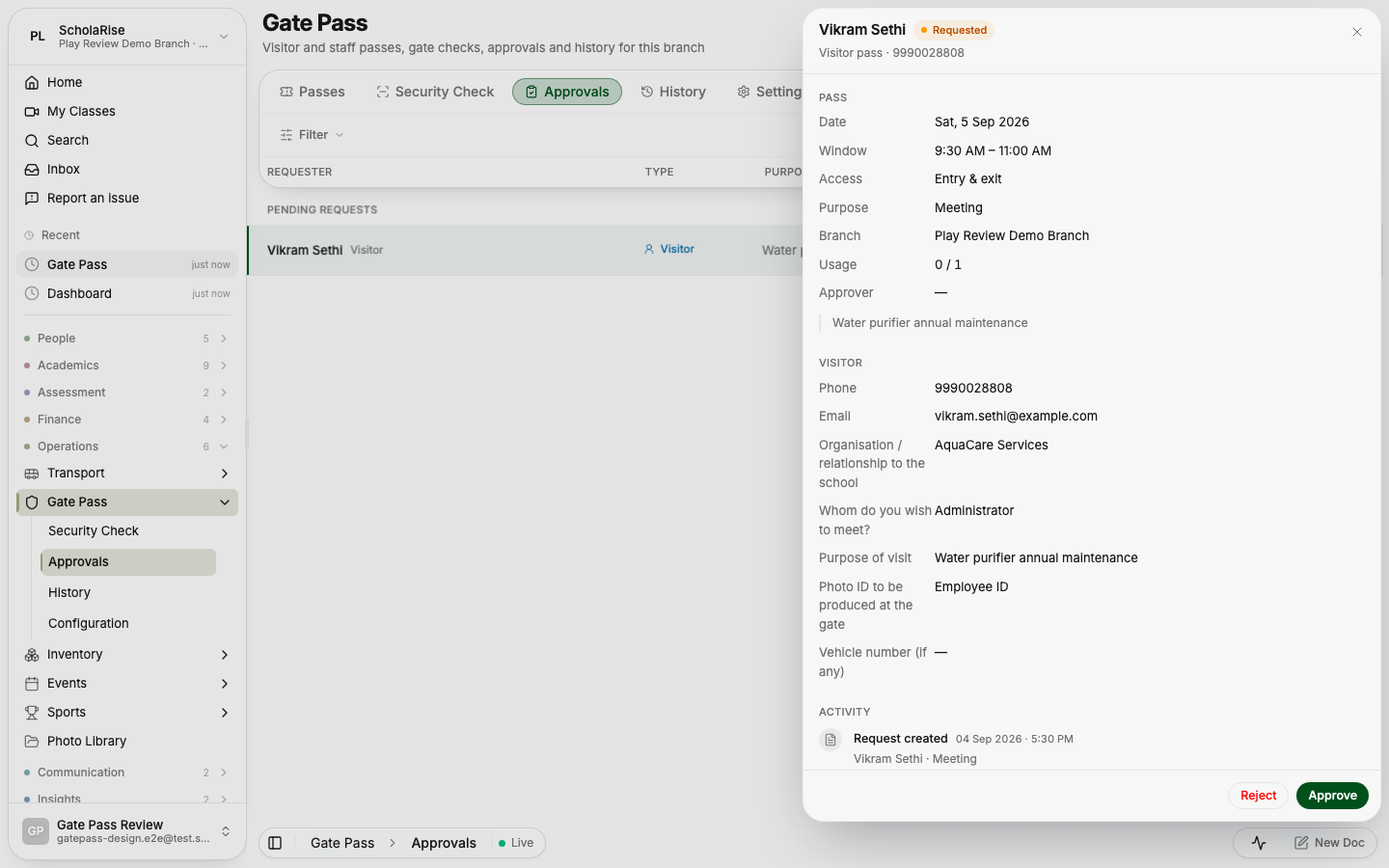
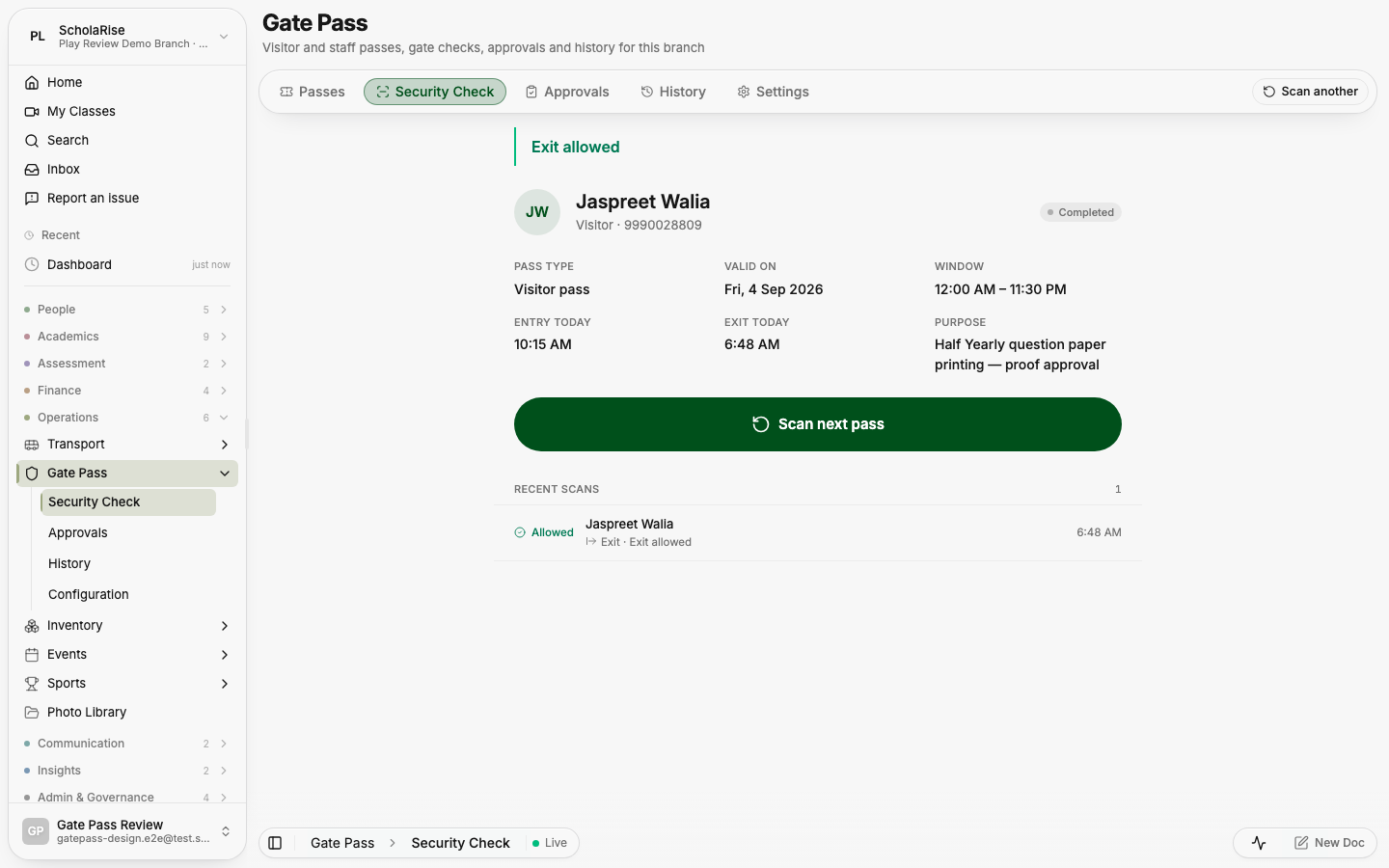
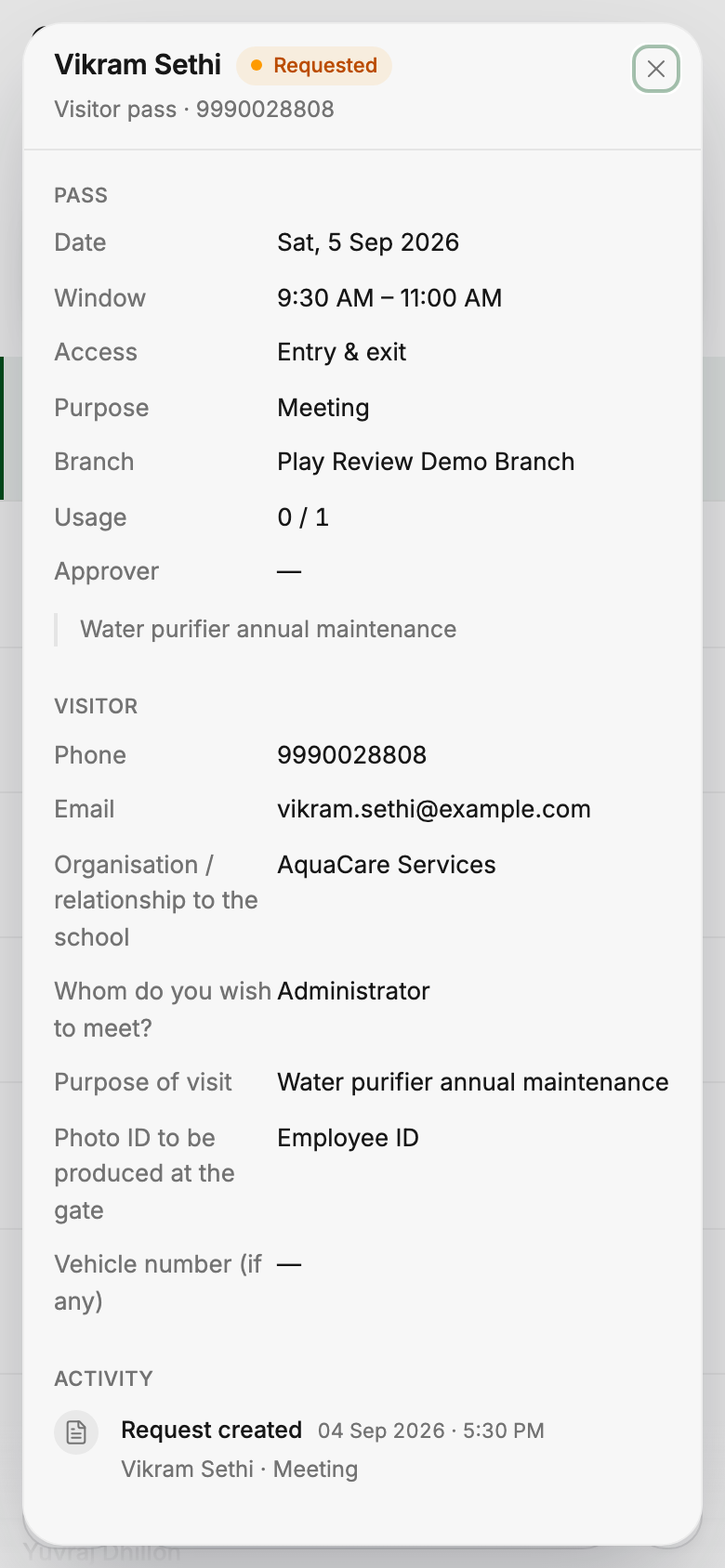
Gate Pass brings tabs, filters, dates and search into one toolbar, with pass details and activity in a slide-in panel. The security console has larger Allow entry and Allow exit buttons, and staff can approve or reject requests from the detail panel on a phone.
The Passes list: one floating toolbar with tabs, filter, sort, date and search; rows slide beneath it
A pass opens in a slide-in panel with its details, visitor answers and activity
Approvals: pending requests with Approve / Reject on every row
A visitor request in the panel, with Approve and Reject in the footer
The guard console after allowing an exit, with recent scans below
History with date, holder, type, purpose, window, status, entry / exit and approver
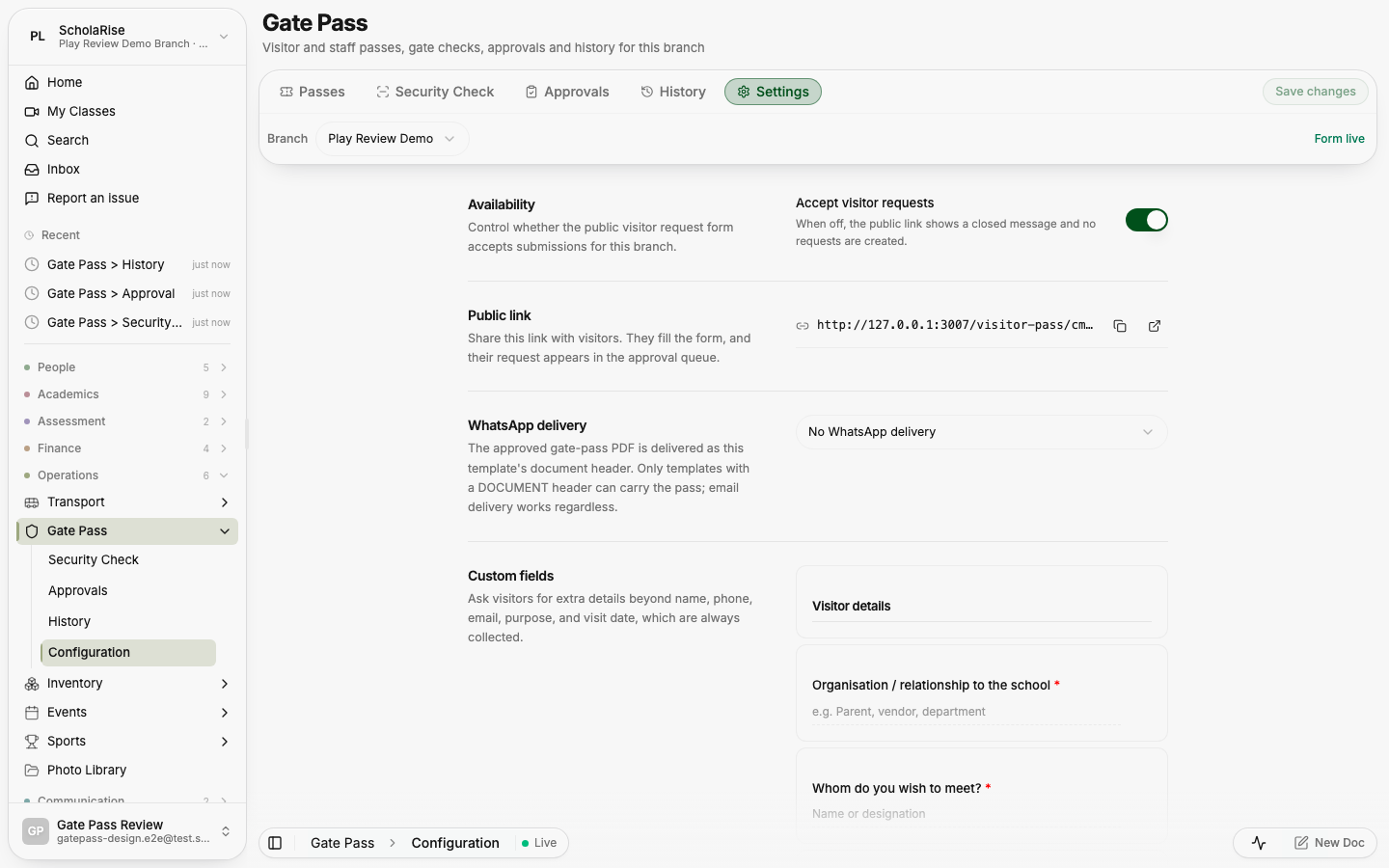
Visitor form settings with the branch picker in the toolbar and Save on the tab row
Passes on a phone: the tab bar folds, the toolbar stays on one row
A pass panel full-screen on a phone
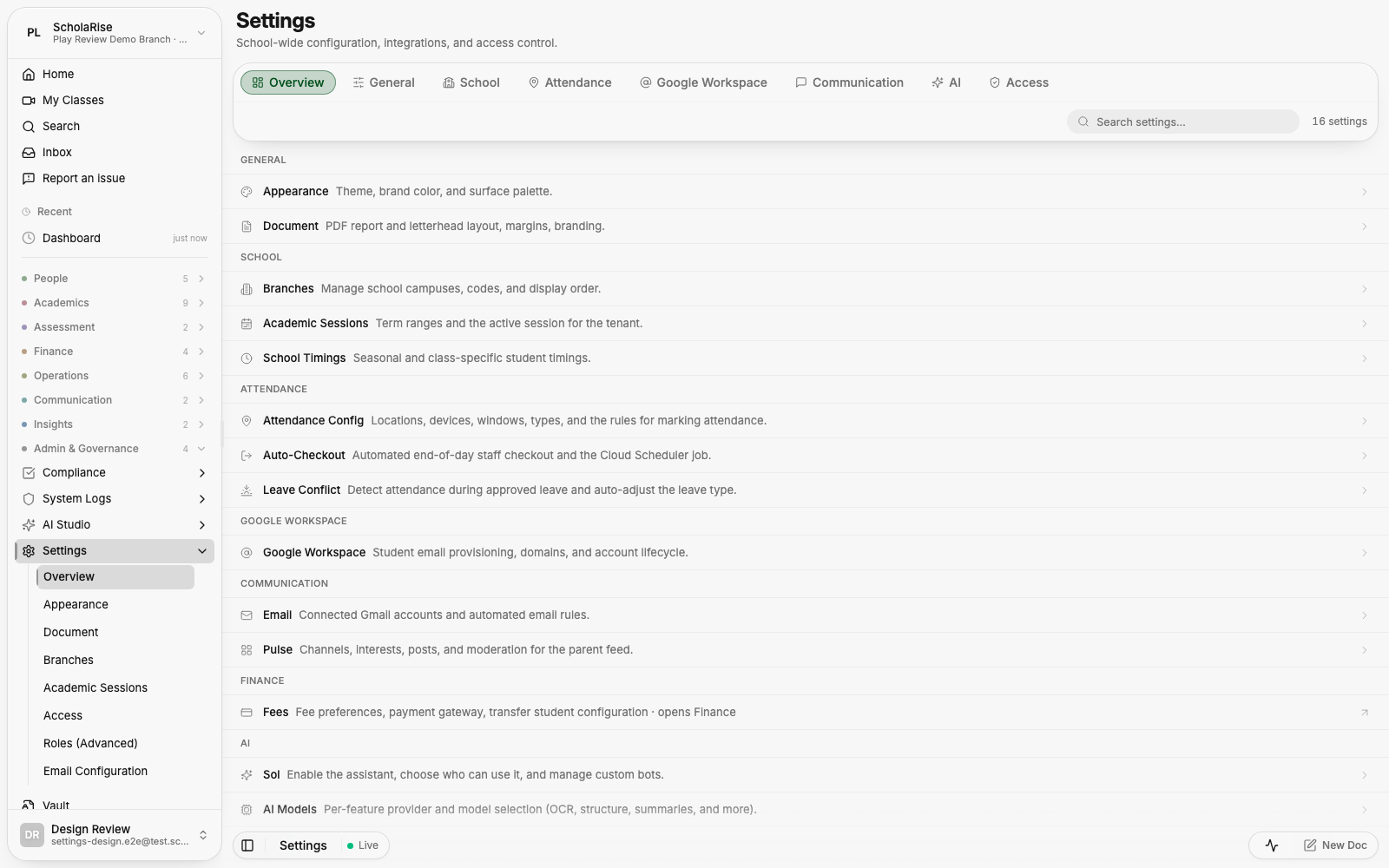
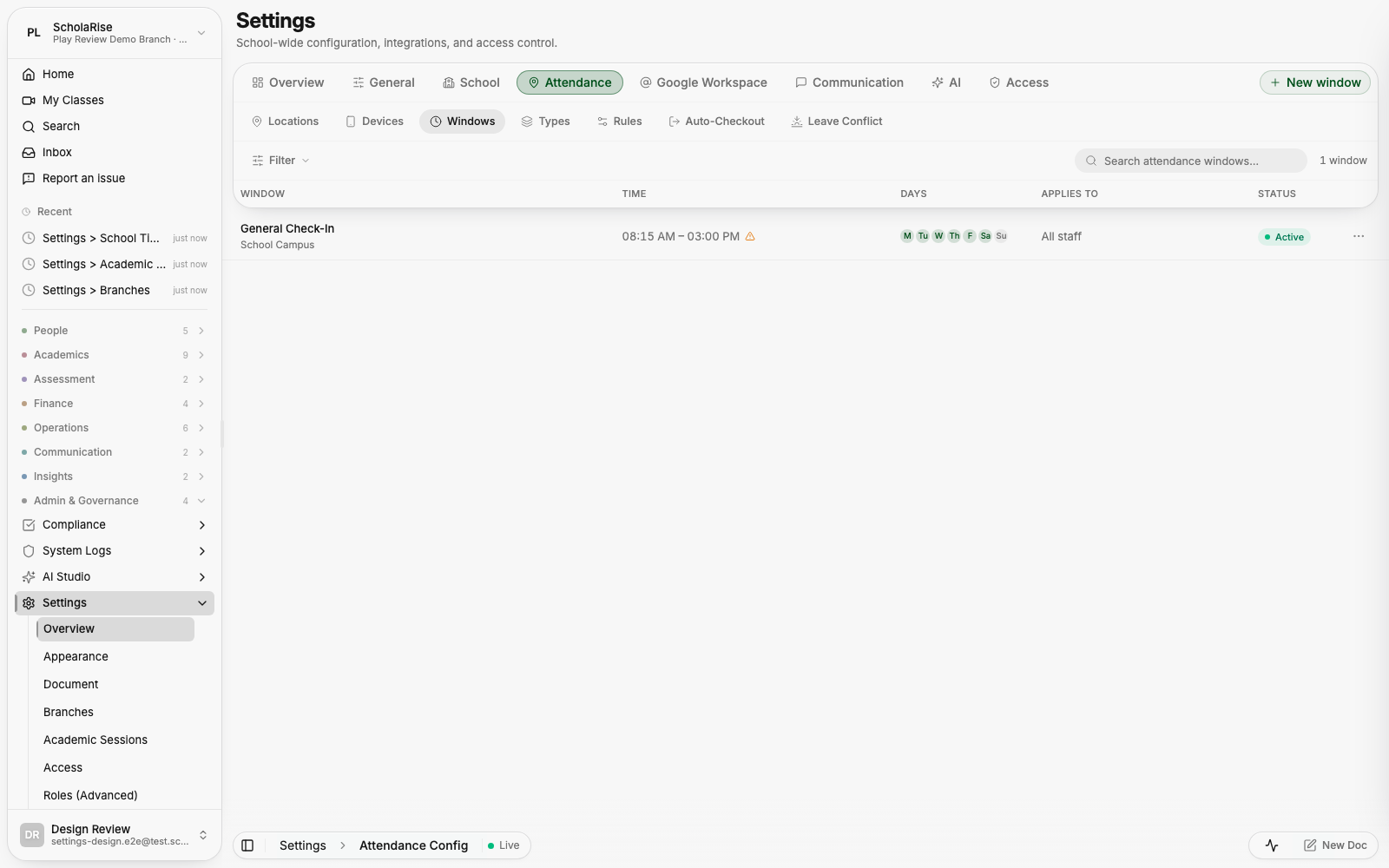
Searchable settings
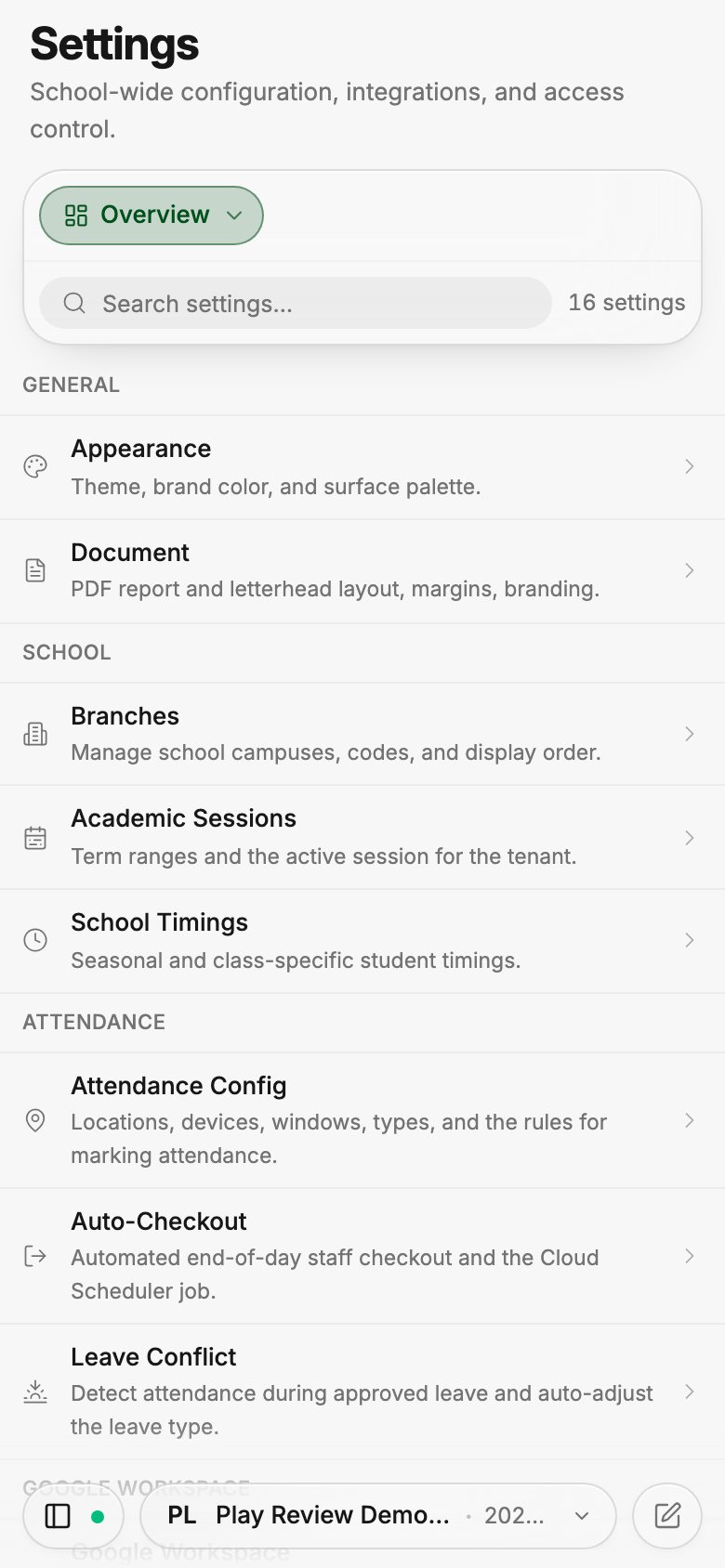
Settings organizes pages into eight groups and adds a searchable overview. Updated layouts make branch details, staff access and attendance setup easier to navigate on phones and desktops.
The new Settings overview: grouped tabs and a searchable index of every settings page
Branch details open in a side sheet with inline editing
Attendance windows under the Attendance group
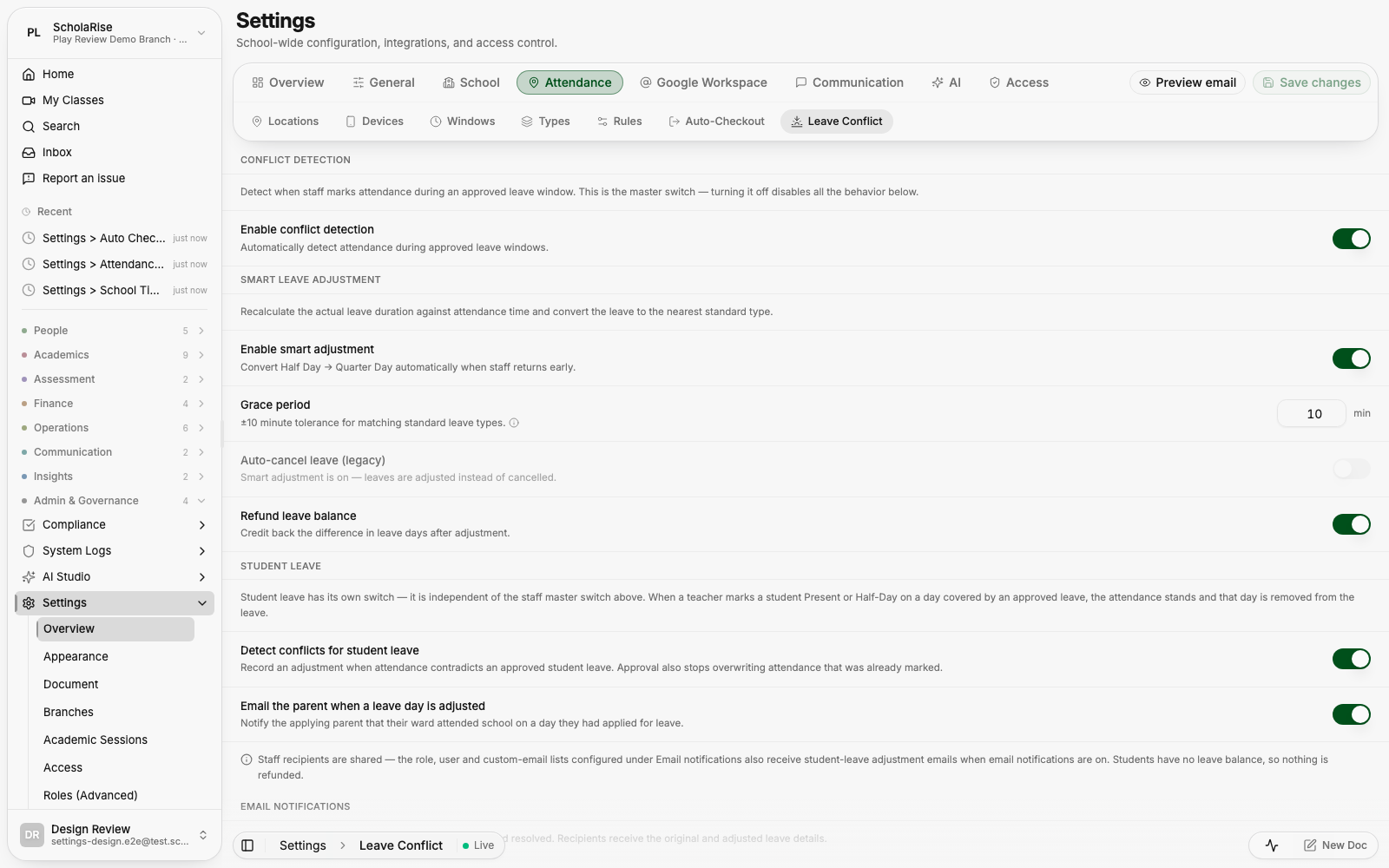
Leave-conflict rules as plain toggle rows
Per-feature AI model selection
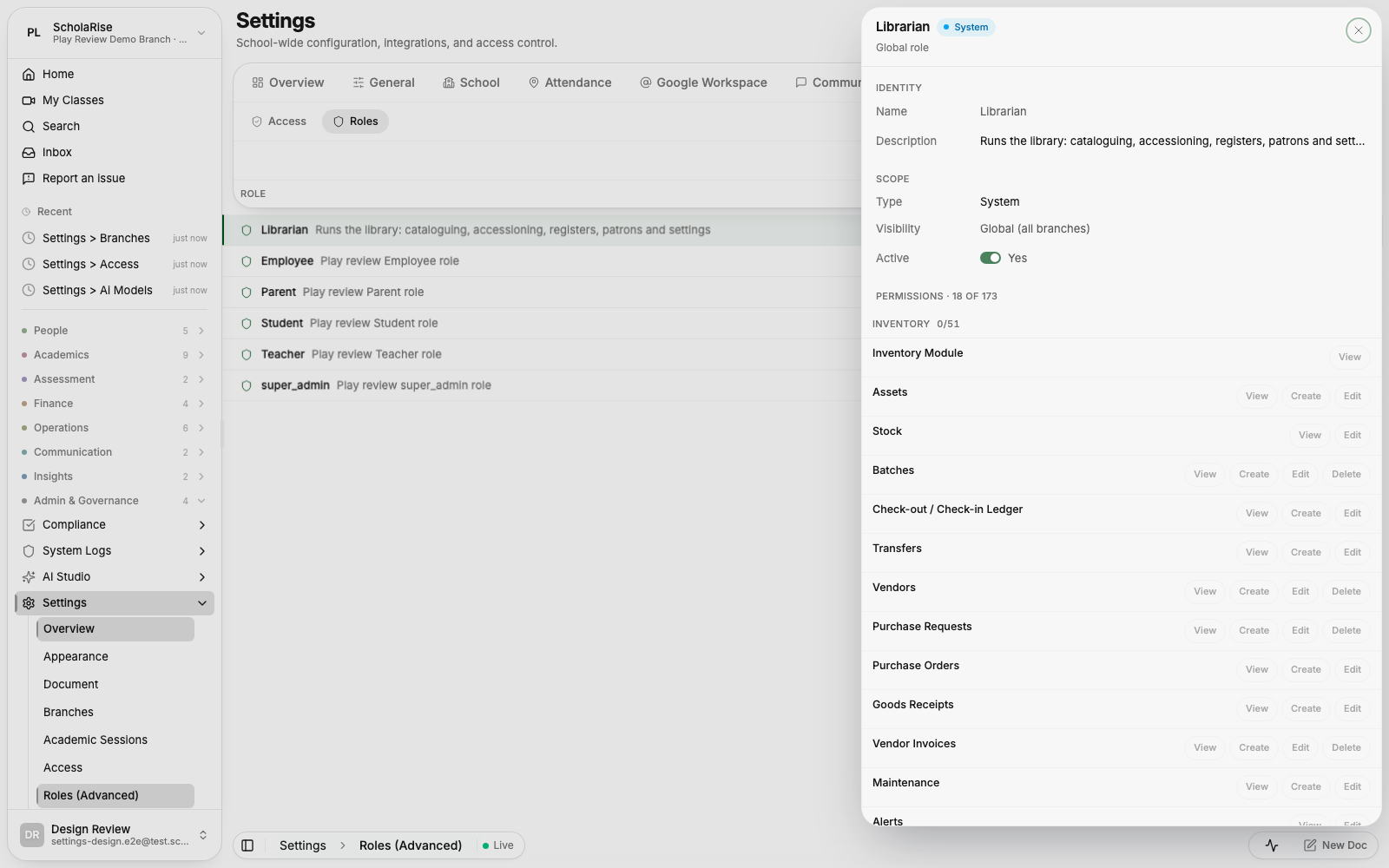
A role's permissions in the detail sheet
The Settings overview on a phone
Attendance windows on a phone, with the folded group navigation
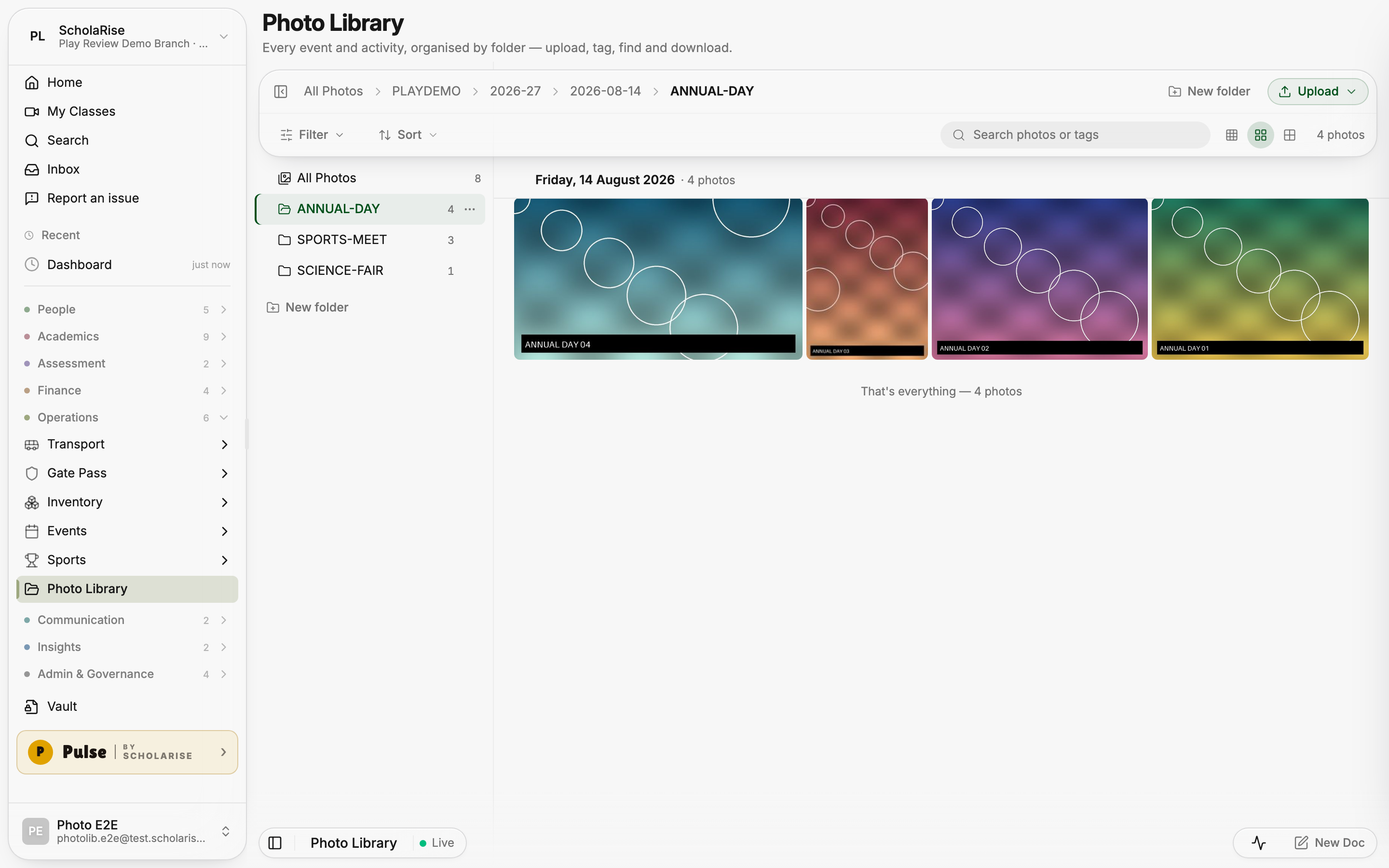
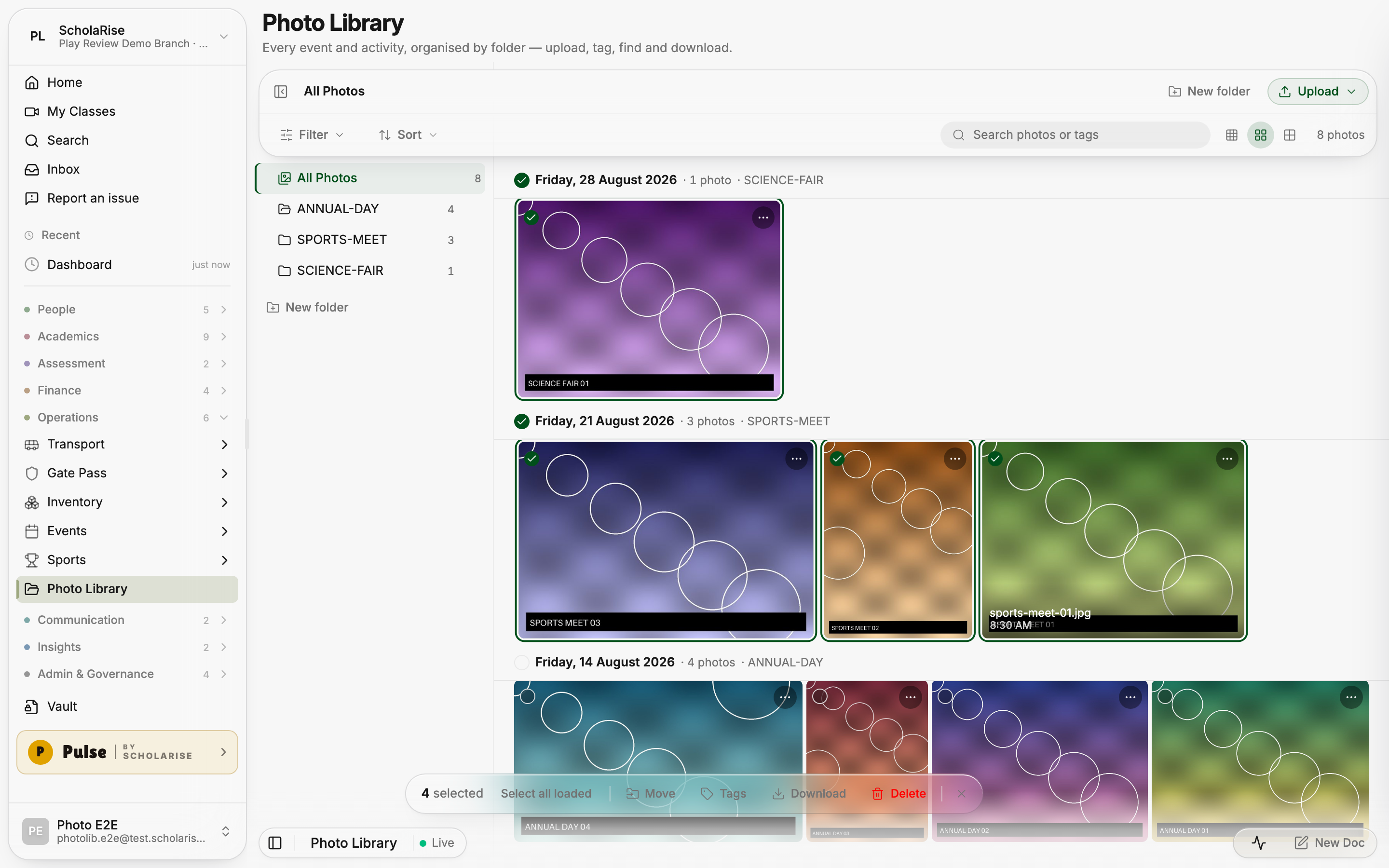
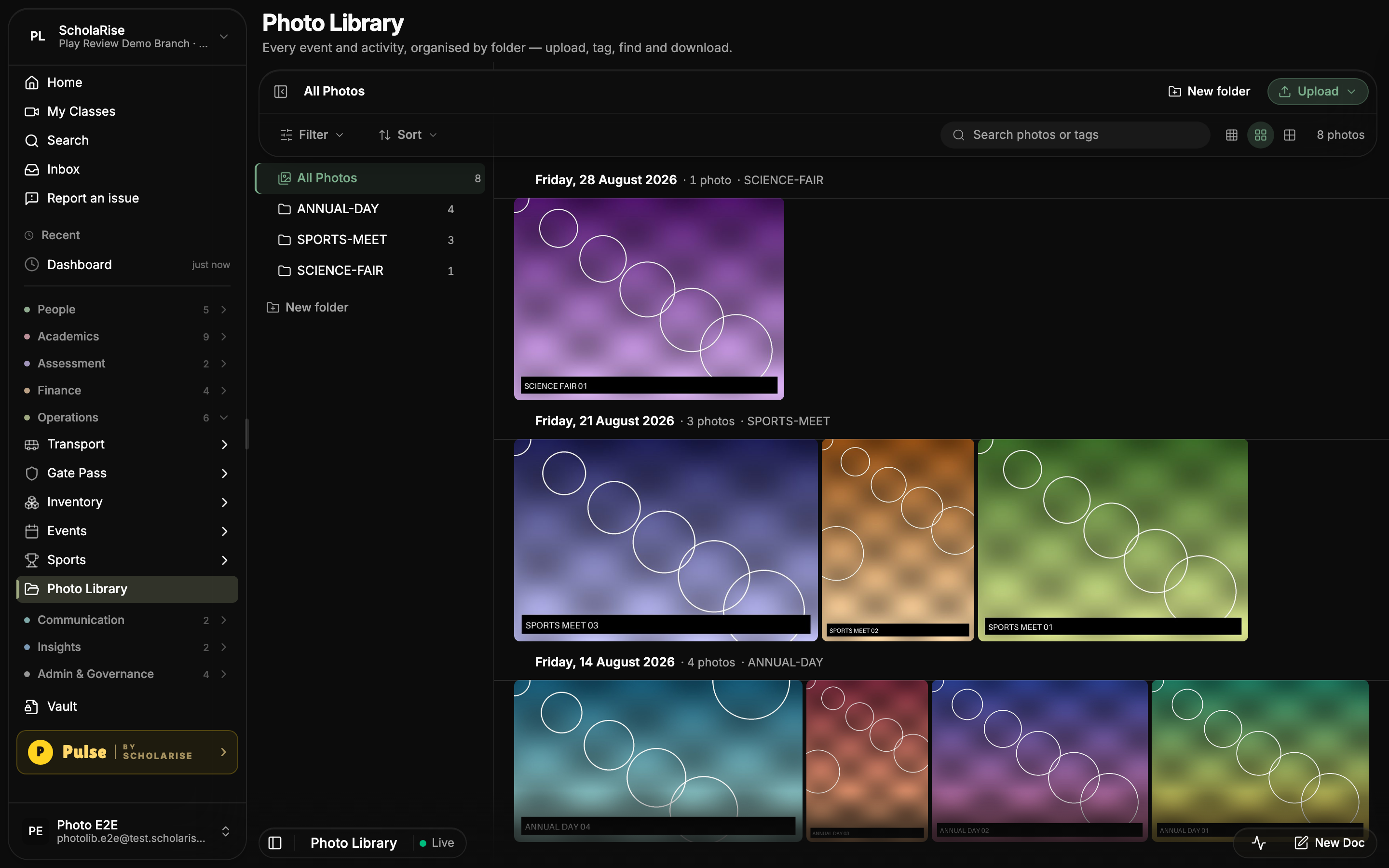
A more complete photo library
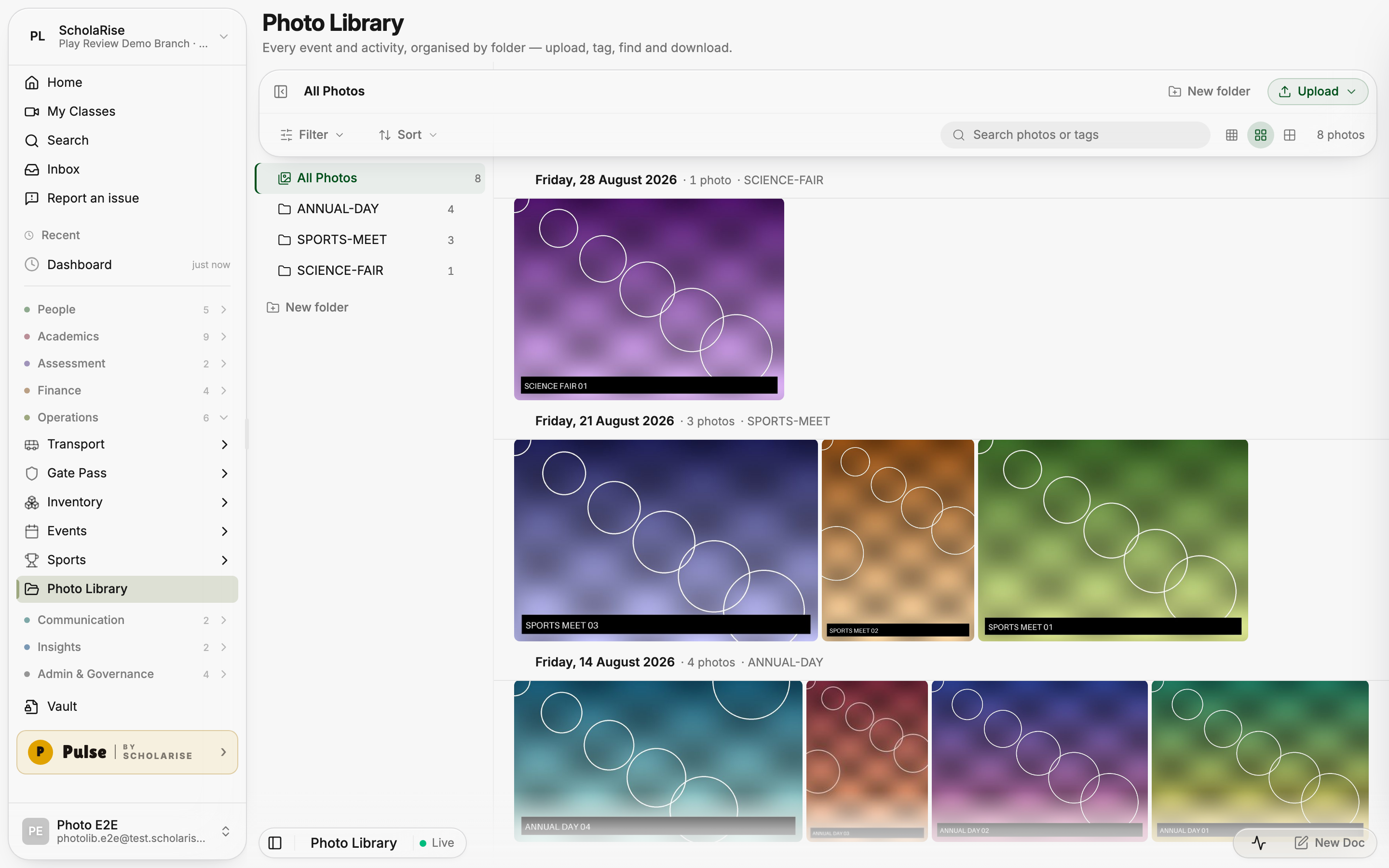
Photo Library loads photos as you browse and recovers photos that were stuck processing. Folders, day grouping, search, tags and bulk actions help you find and organize school photos in the refreshed layout.
Photo Library with folders, day grouping and the new toolbar
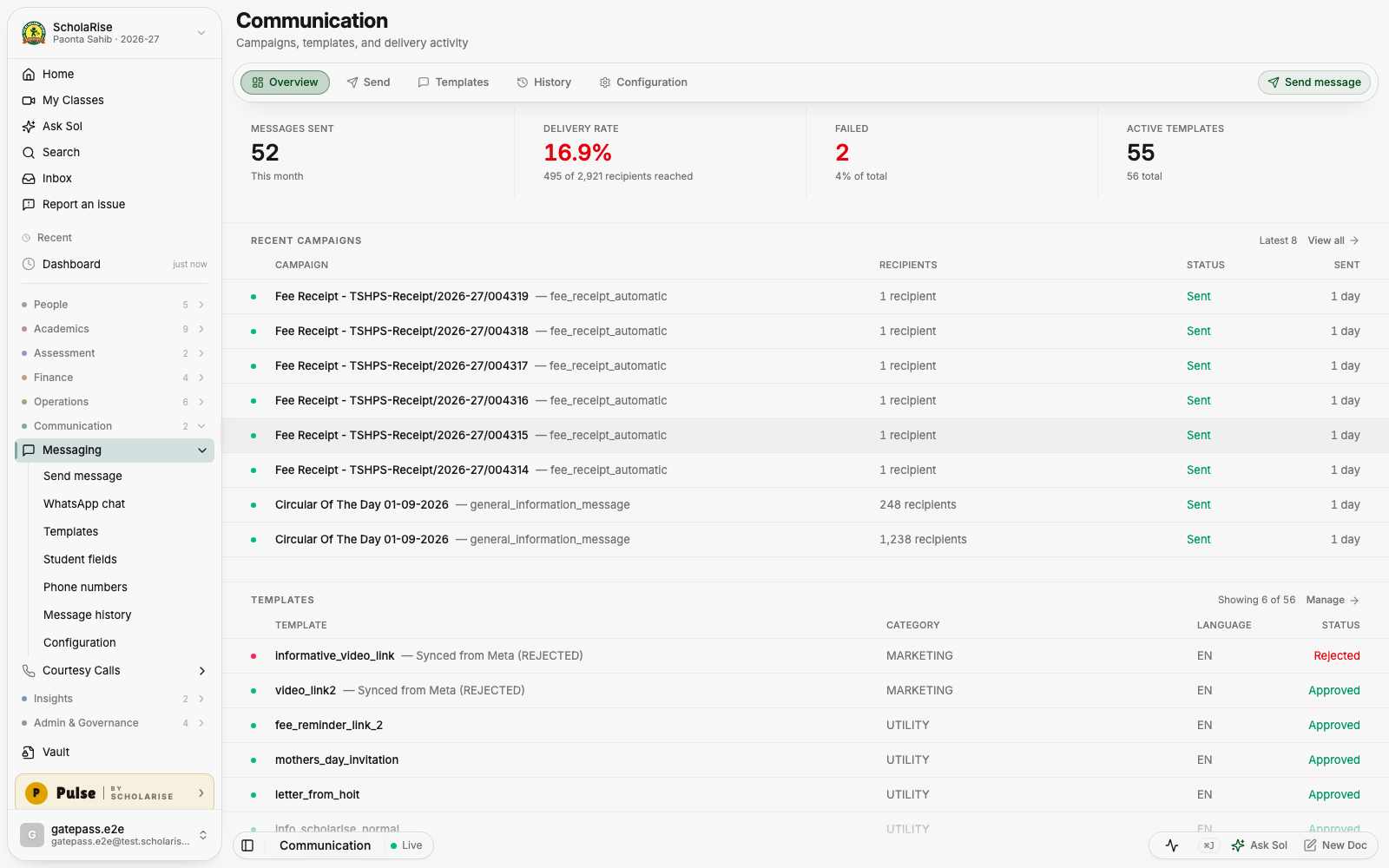
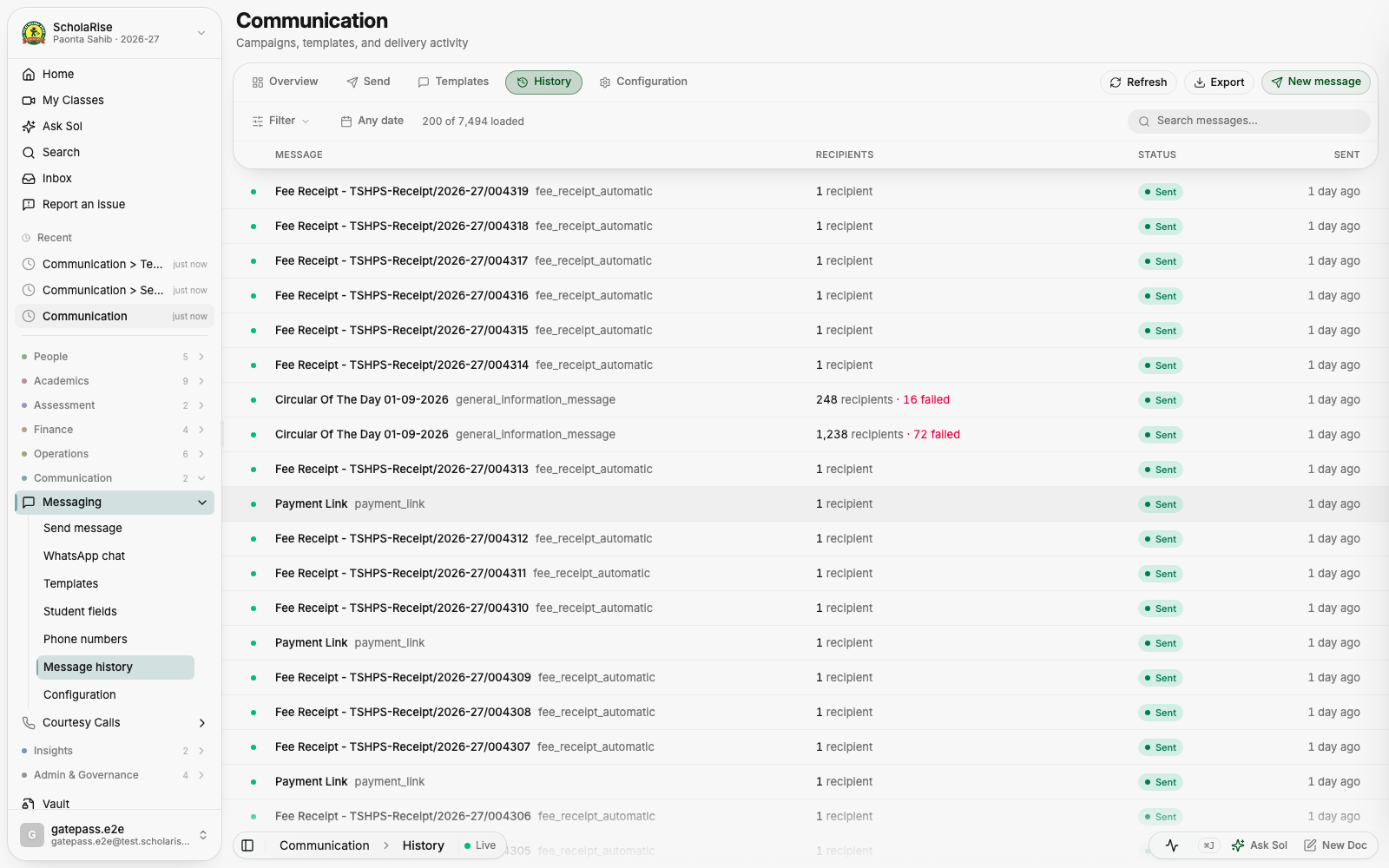
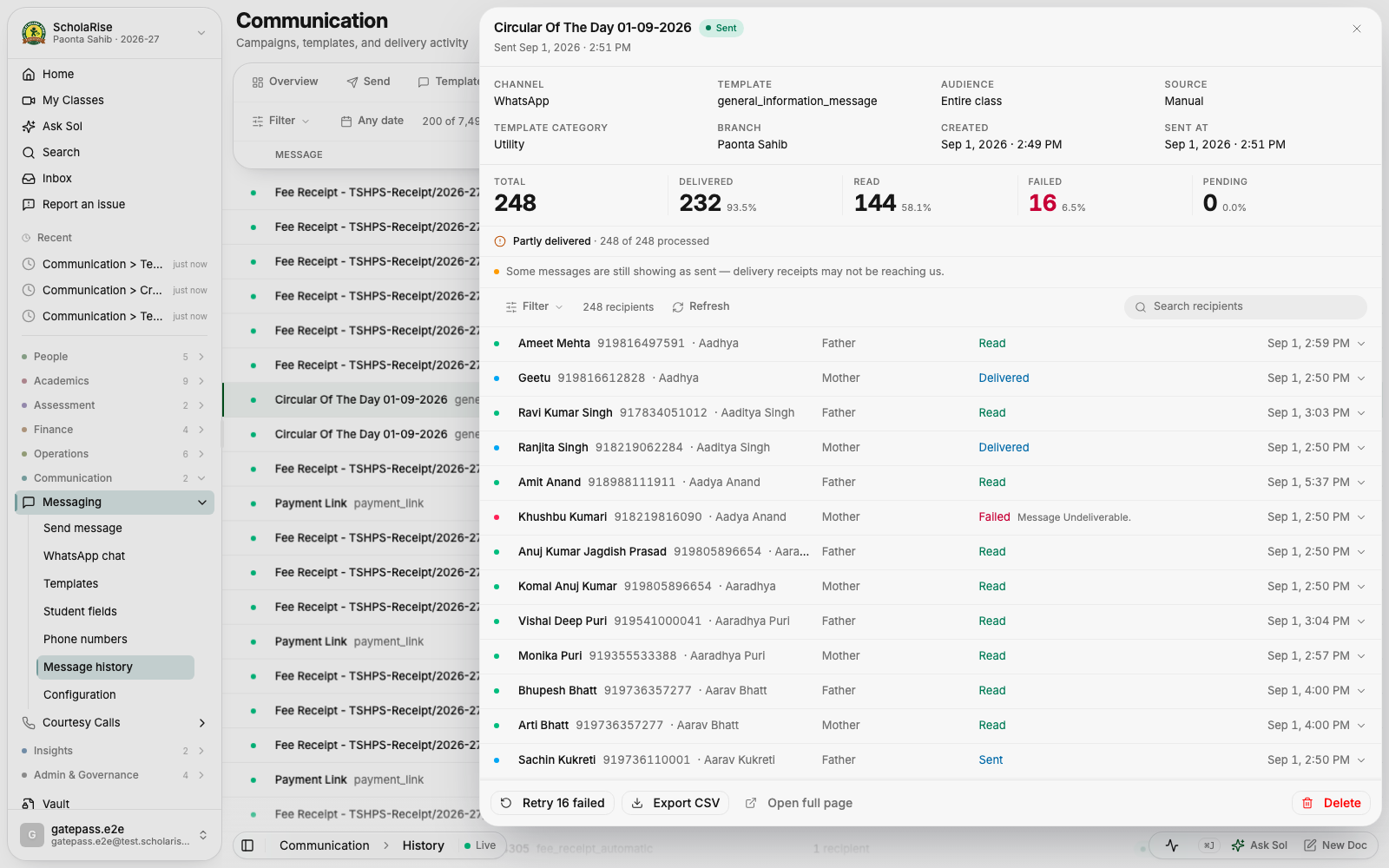
Every page in Communication now shares one floating toolbar, the lists are easier to scan, and a message opens in a slide-in panel instead of taking you away from where you were. Delivery details read the same whether you open them in the panel or on their own page.
Message history
Message details in a slide-in panel
Message history on a phone
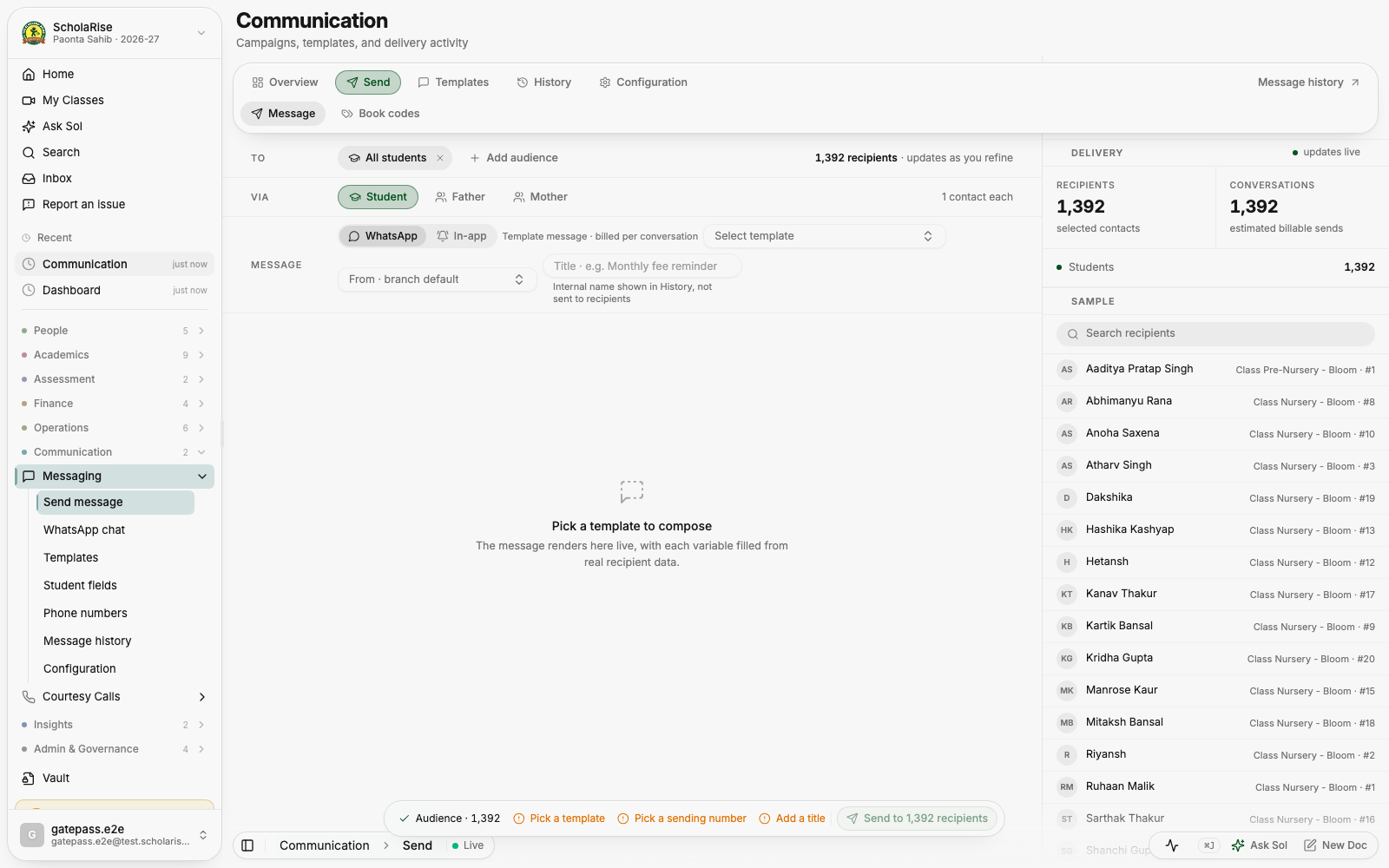
See your WhatsApp message before you send it
The composer shows your message exactly as a parent will receive it, updating as you write. You also get a notification once a campaign has finished going out, so you no longer have to keep checking.
Composing a WhatsApp message with a live preview
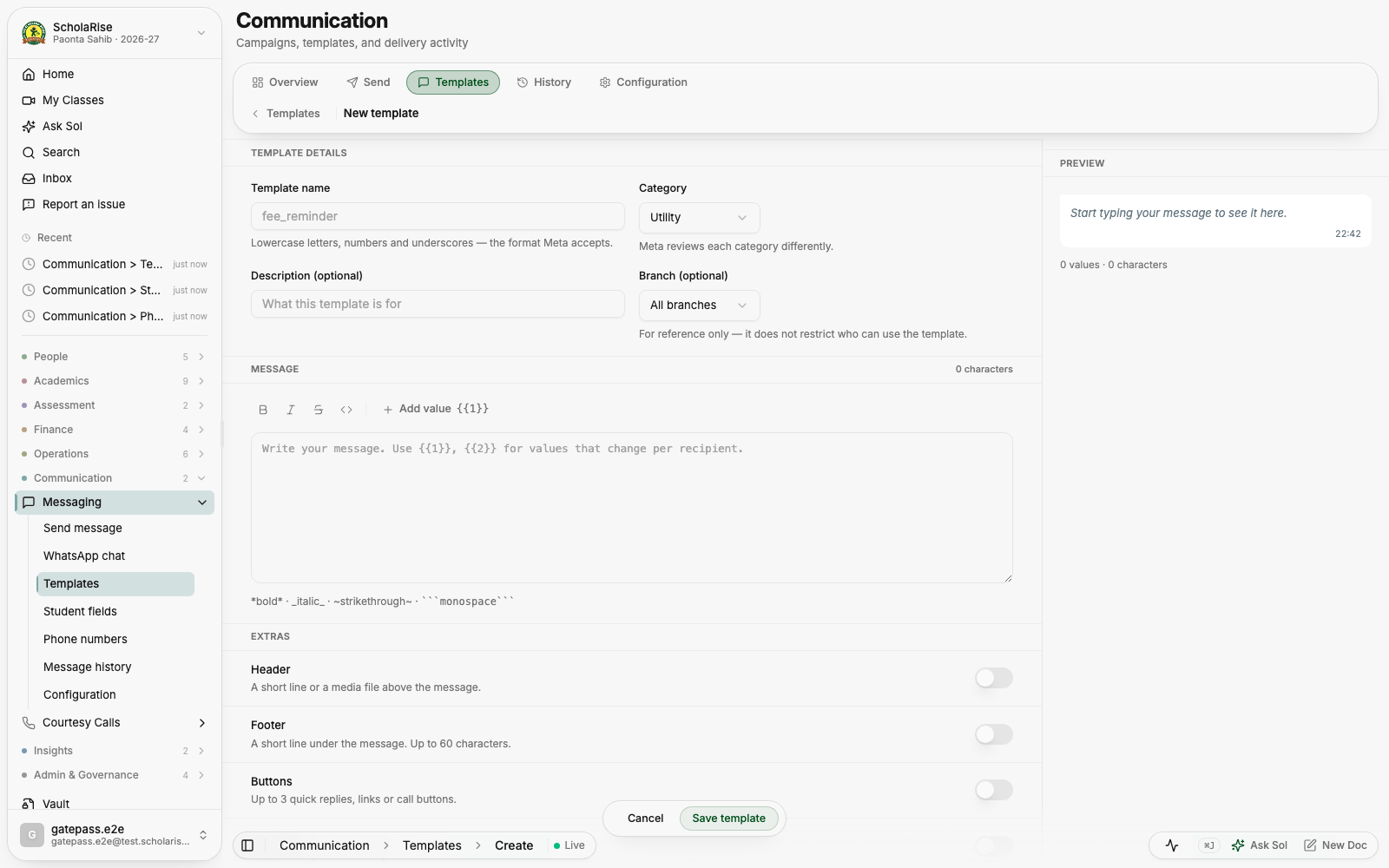
Building a template
Transport
A cleaner Transport section
Transport now shares the same floating toolbar across its pages, and details open in a side panel beside the list you were reading. The whole section works properly on a phone.
Examination
Admit cards show a subject your stream takes
When a subject is compulsory for one stream and an optional extra for another, students who take it as part of their own stream had it quietly dropped from their admit card and datesheet. Those papers are back, and students who chose the subject as an extra keep theirs.
One invigilator per room
Automatic invigilator allocation no longer puts the same teacher in two halls at the same time. It now also prefers teachers whose own classes are sitting that paper, since their periods are cancelled anyway.
Finance
Fee waivers work again
You can search for a student and record a waiver from a quick composer that shows exactly what is being waived and how much, before you save it. A waiver that includes transport now records the transport amount too.
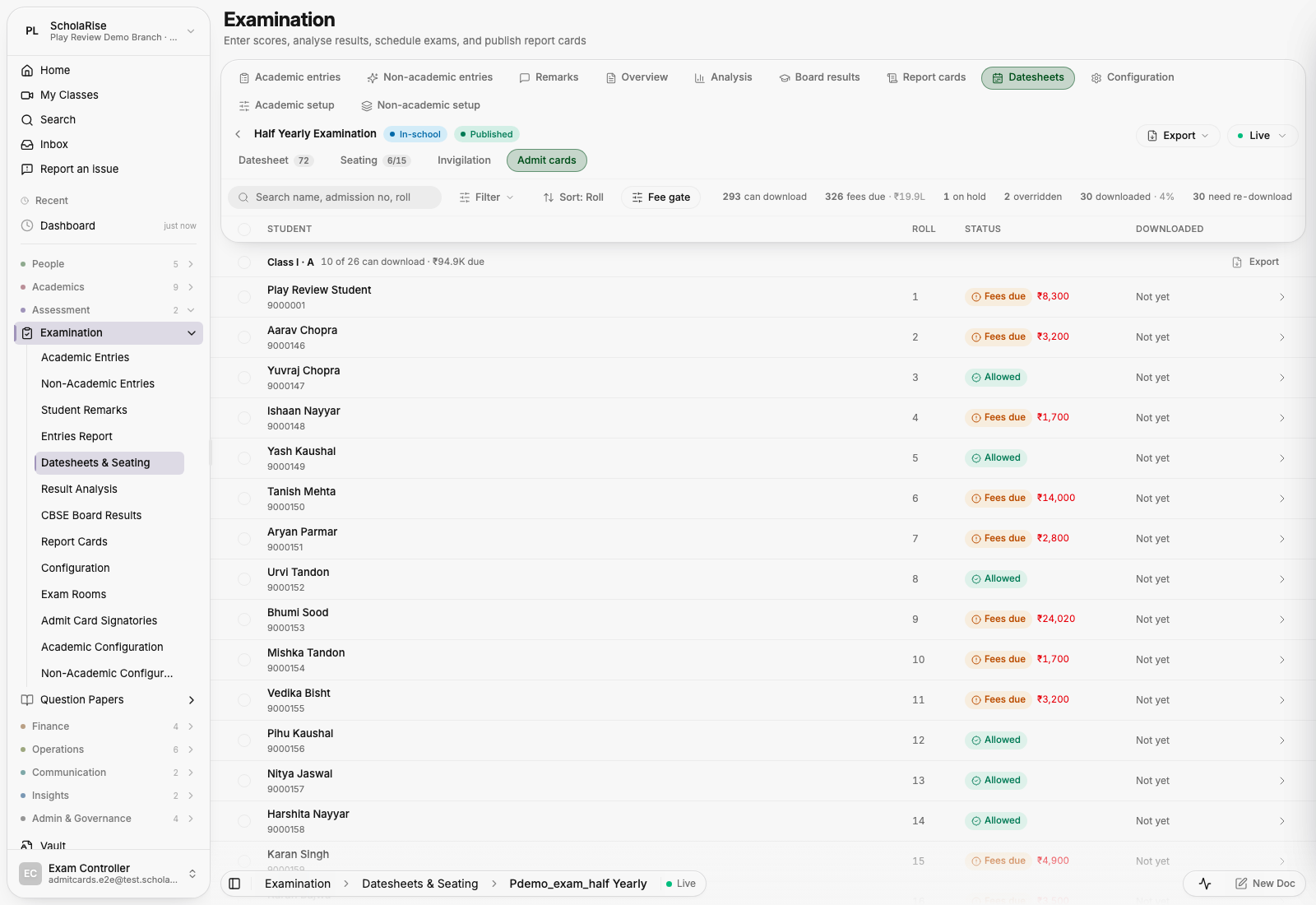
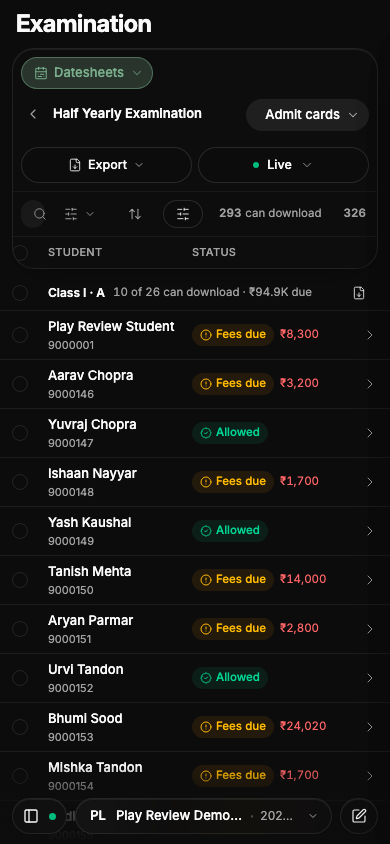
The admit cards list, with the counts of who can download beside the search and filters
Examination
Admit cards, rebuilt around the fee term
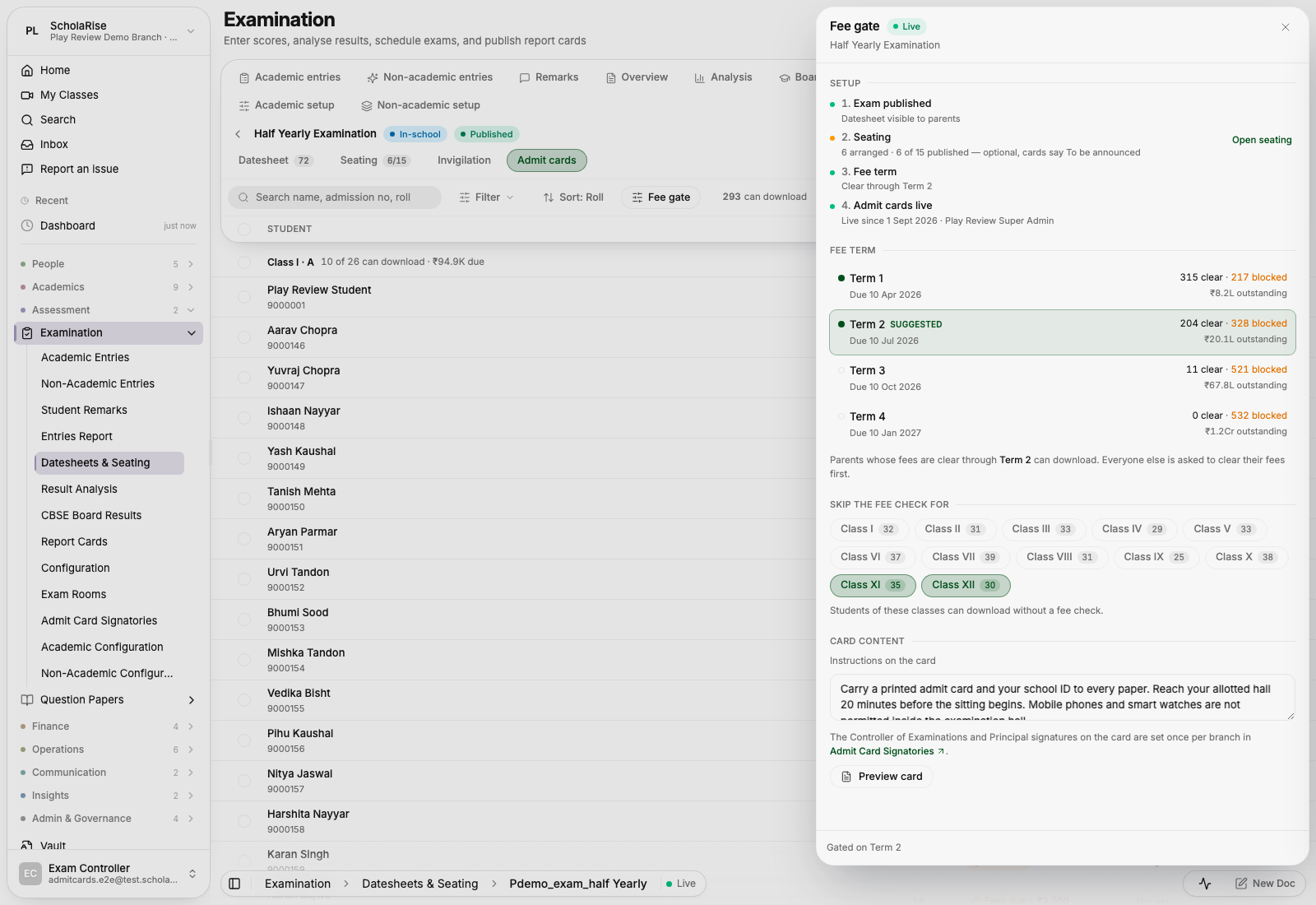
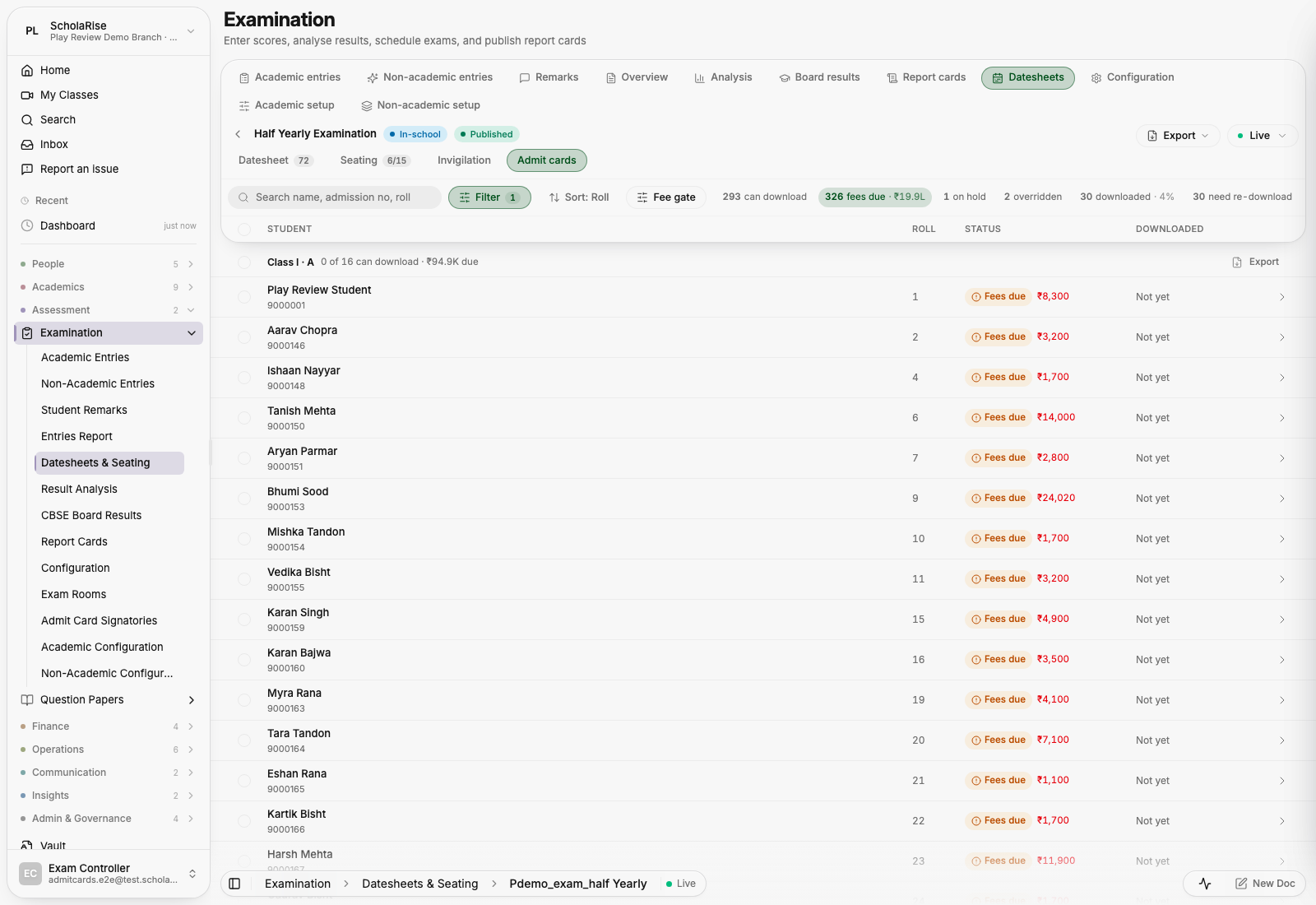
Admit cards are now one clean list of students, with the counts of who can download sitting beside the search as filters: tap a count to see just those students. All the setup, the fee term that decides who can download, the class exemptions and what the card says, lives in a panel you open when you need it. Open Examination and pick Admit Cards.
The fee gate panel: each term shows how many students it clears or blocks before you pick one
Tapping a count filters the list to those students
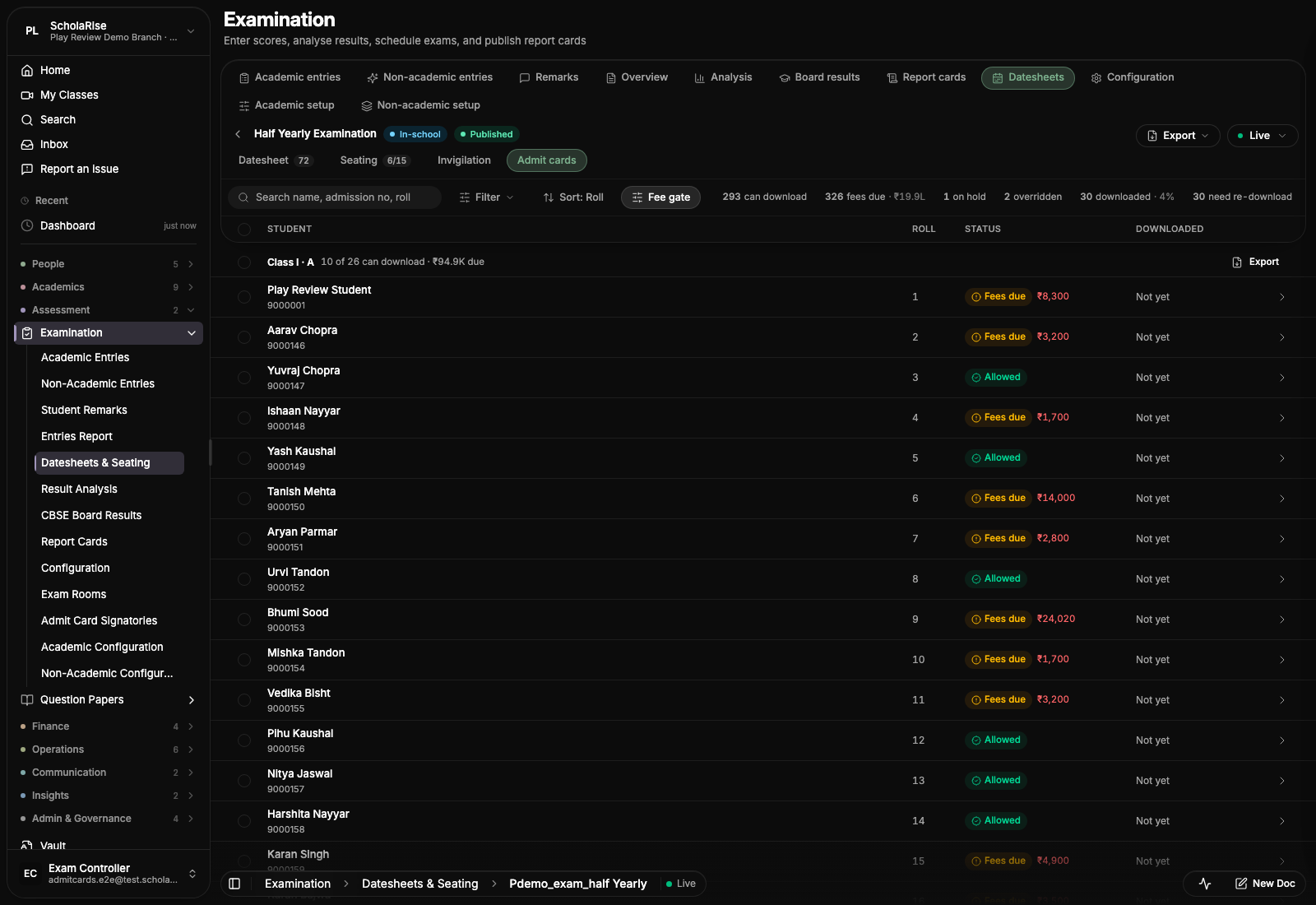
The same page in dark mode
The same page on a phone
Platform
The phone bar folds only once your list is under it
On a phone, the bar at the top of a module used to fold as soon as you started scrolling, which left an empty band above the first row on pages with a taller bar, such as Fee Collection. It now waits until the rows have slid underneath it, and it opens again as they slide back out. Each module also shows its one-line description under the title again.
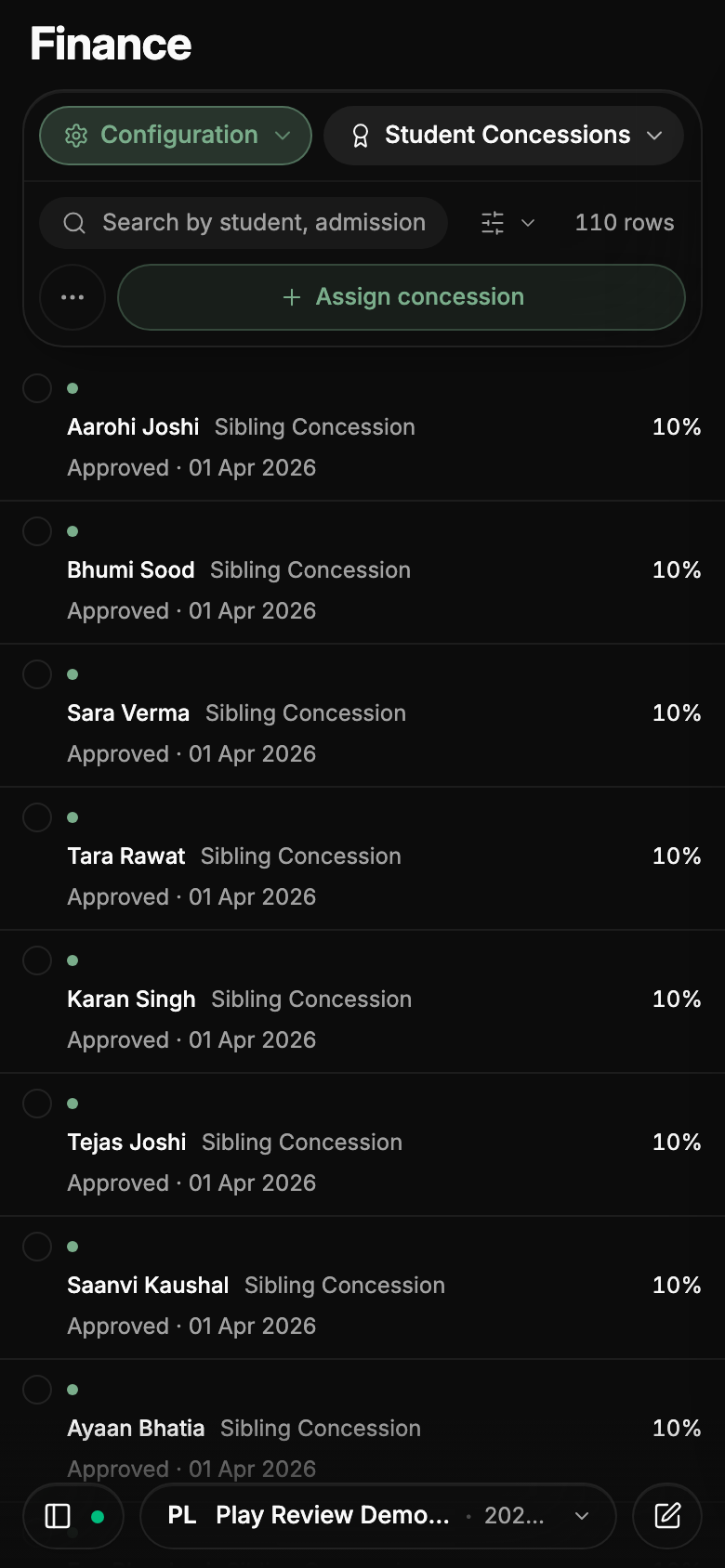
Fee Collection on a phone with the toolbar open: the student card and actions sit in the glass bar above the fee list.
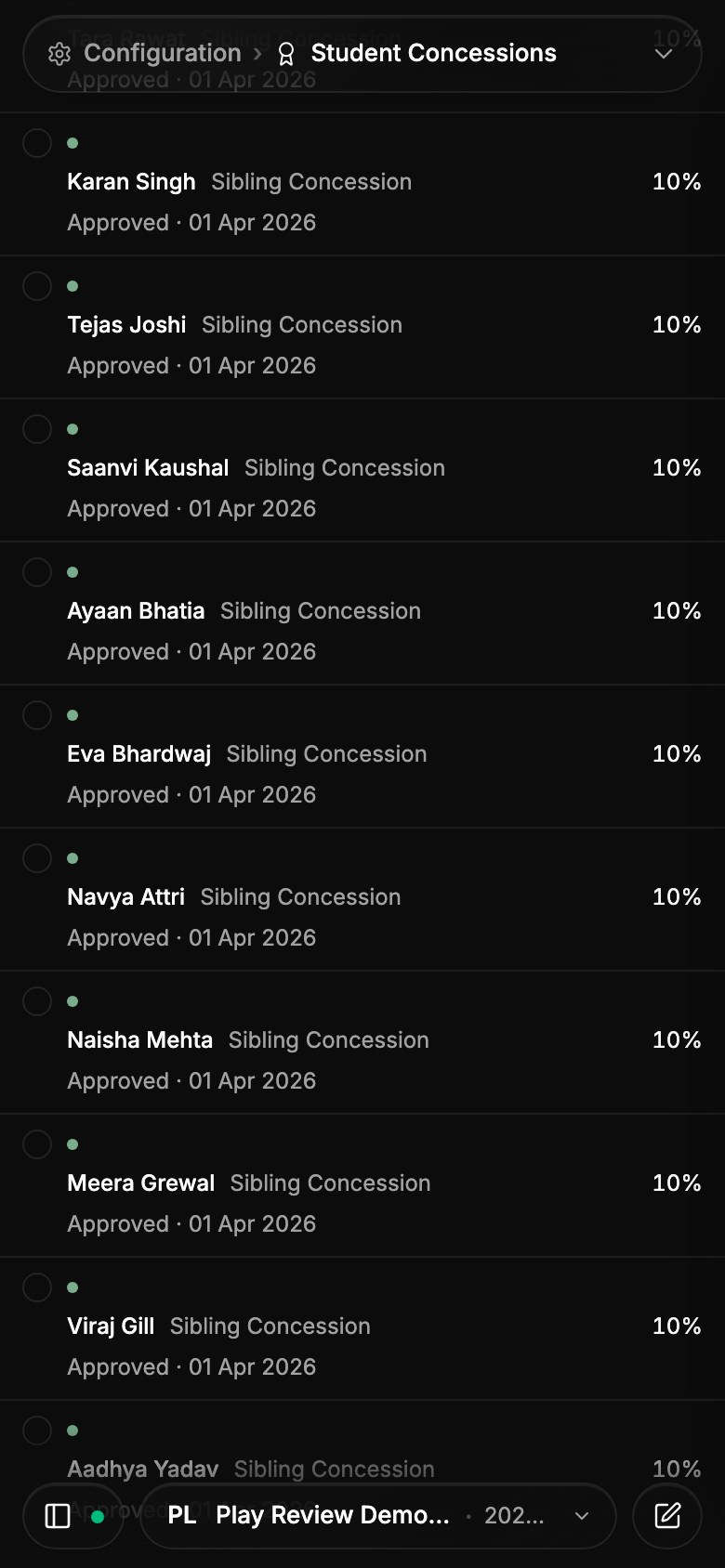
Scroll down and the bar folds to one row with the fee rows directly beneath it, no empty band.
The same fold on Student Concessions: the first row sits right under the folded bar.
Every module shows its one-line description under the title on phones again; it tucks away with the title as you scroll.
Courtesy Calls fits the phone bar
Courtesy Calls now folds its toolbar as you scroll like every other module, and a tap opens it again. The status and section switches sit in one dropdown beside the module tab, and search, filters and the count share a single row. The first section of the overview is now called Summary.
AI Review on a phone with the toolbar open: the module and status pills on one row, search with filters and the count on the next, sort below.
Scroll down and the bar folds to one breadcrumb row, AI Review › Open, with the flags directly beneath it.
The status switch is a dropdown beside the module tab: Open, Actioned, Dismissed, All.
The overview folds the same way, with the first figures sitting right under the folded row.
A new menu on phones
The menu on a phone is now a floating panel that slides in over the page, with larger rows that are easier to tap and quick links for Home, Search and Ask Sol. The bar at the bottom stays visible, so you can switch branch or session without closing the menu.
The module bar on a phone in three rows - where you are, search and filters, and the main action
Platform
A shorter bar on your phone
On a phone, the bar at the top of every module now fits in three rows — where you are, search and filters, and the main action — instead of crowding out the list beneath it. While you scroll it folds into a single row; tap that row, or scroll back to the top, to open it again. Sections open from a menu that spells out their full names, and the less-used actions sit behind one button so the main action stays thumb-sized.
While you scroll, the bar folds into one row showing where you are. Tap it, or scroll back to the top, to open it again.
Module sections open from a single menu with full names instead of a wall of icons.
Secondary actions sit behind one overflow button so the main action stays thumb-sized.
Detail cards fill the screen on a phone
Opening a student, a clinic visit, a class, a staff member, a leave request, a receipt, a bus or a gate pass on a phone now shows the same detail card you get on a desktop, filling the screen with a neat border all around. Every list behaves this way now, instead of some jumping to a different layout and a few showing no detail at all. Tapping outside the card closes it.
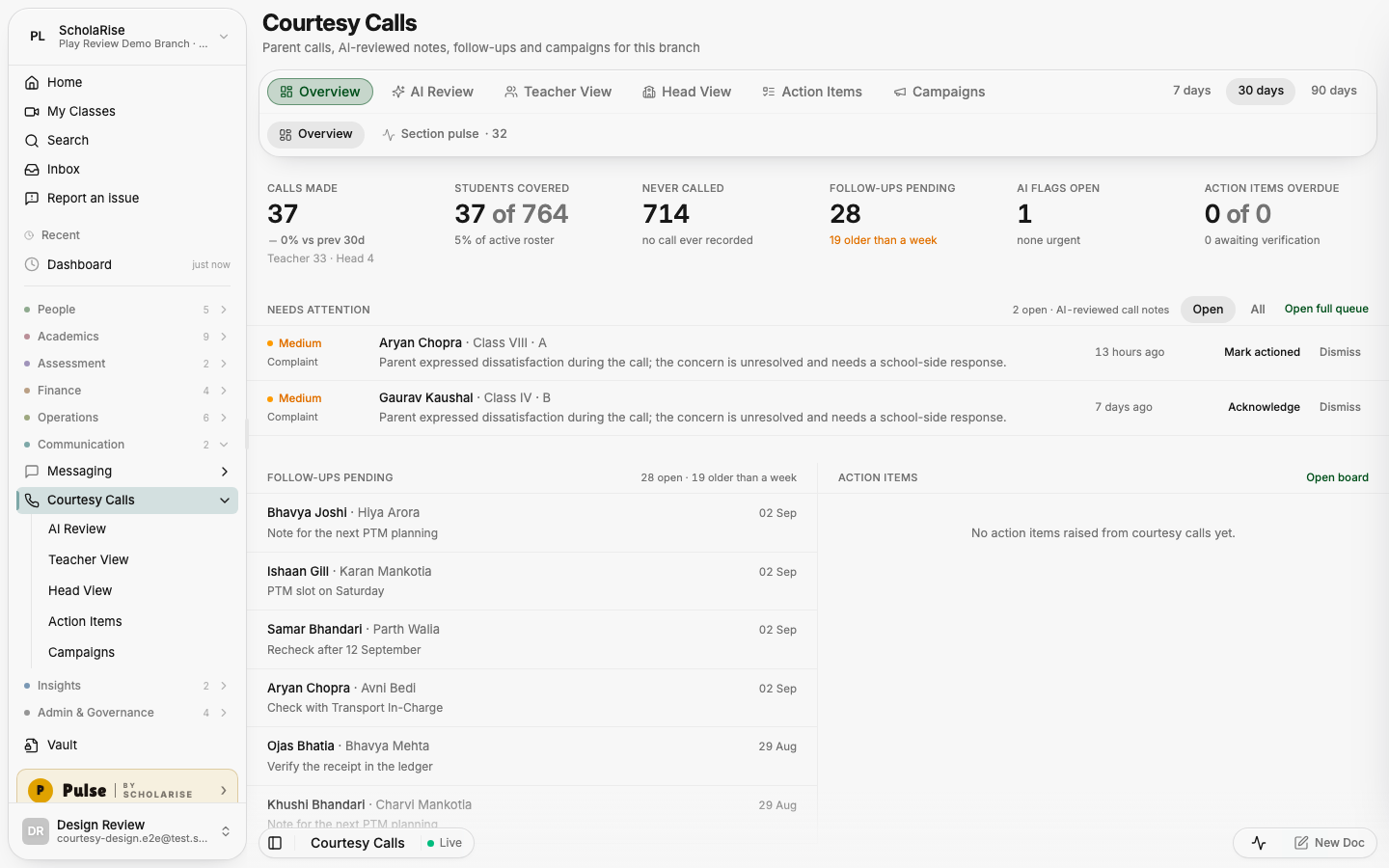
A new look for Courtesy Calls
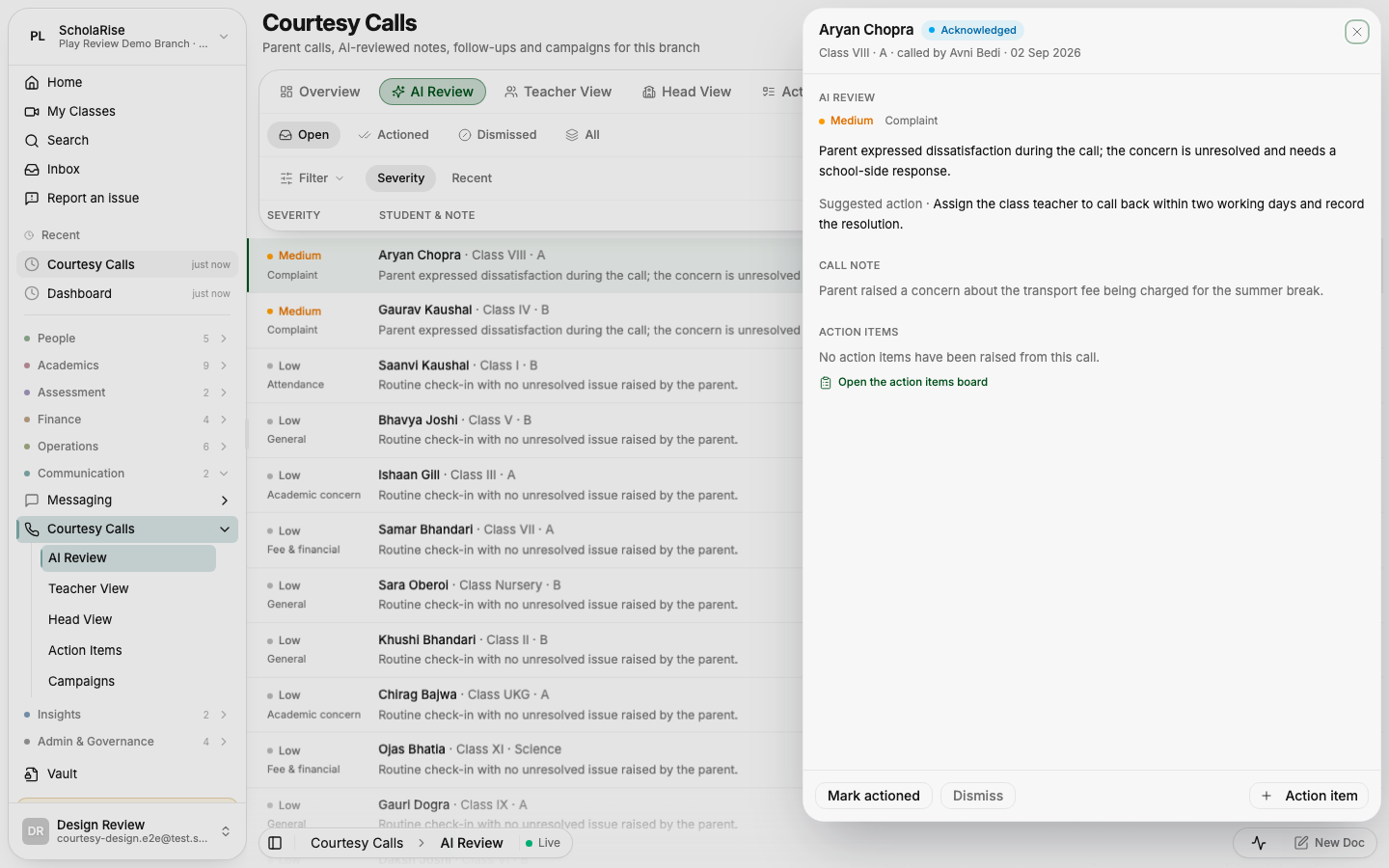
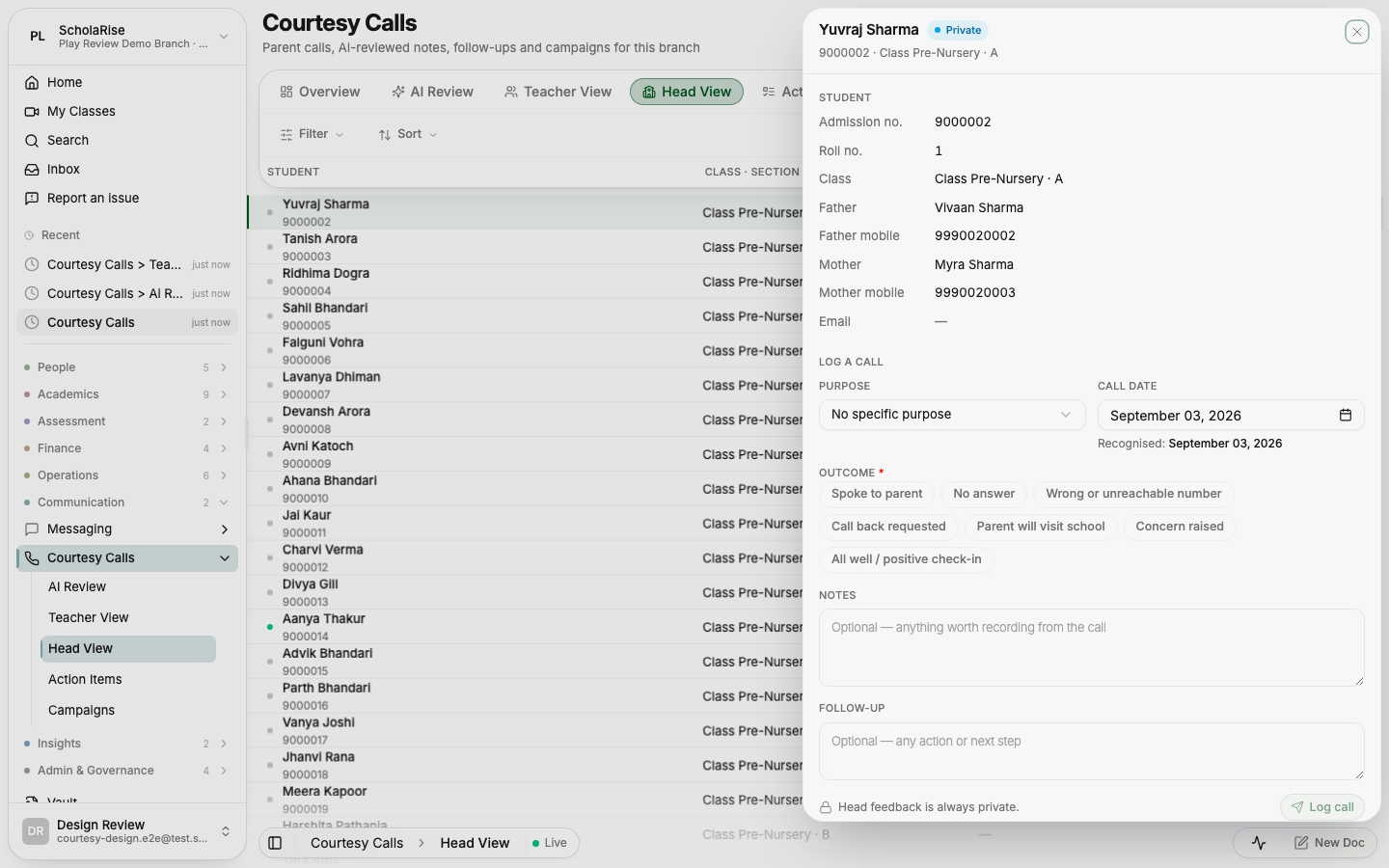
Courtesy Calls now uses the same floating toolbar as the rest of ScholaRise: the tabs, filters and search share one bar, the list slides underneath it as you scroll, and every student, flagged call, action item and campaign opens in a slide-in panel. It works the same way on a desktop and on a phone, where the panel fills the screen. The tab that used to be called Purpose Definition is now called Campaigns, matching what the page itself has always said.
The Courtesy Calls overview: one floating toolbar, six figures and the AI review queue
AI Review register with status tabs, filters, search and one-tap triage
A flagged call opens in a slide-in panel with triage and "raise an action item"
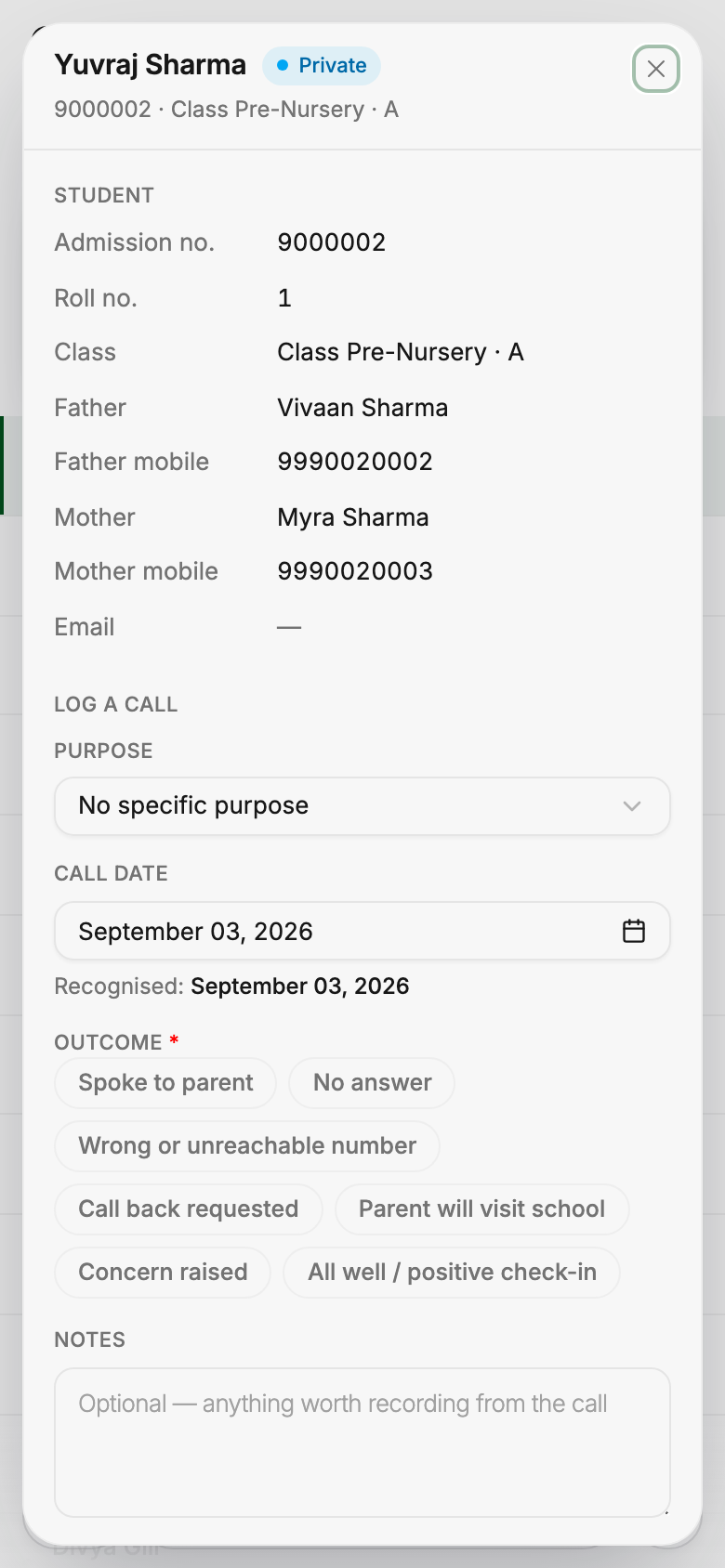
Logging a call from the student panel
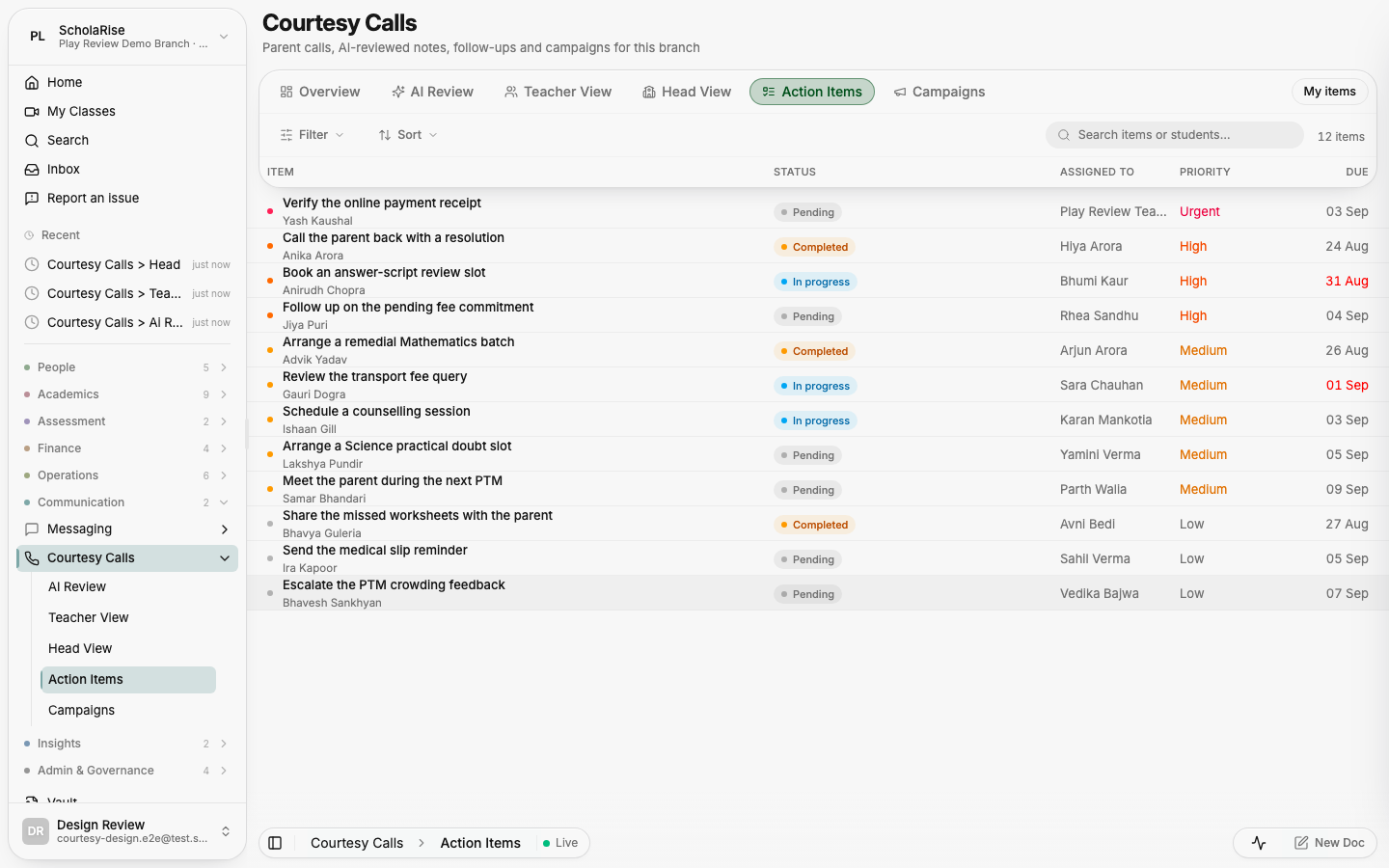
Action items register with status, assignee, priority and due date
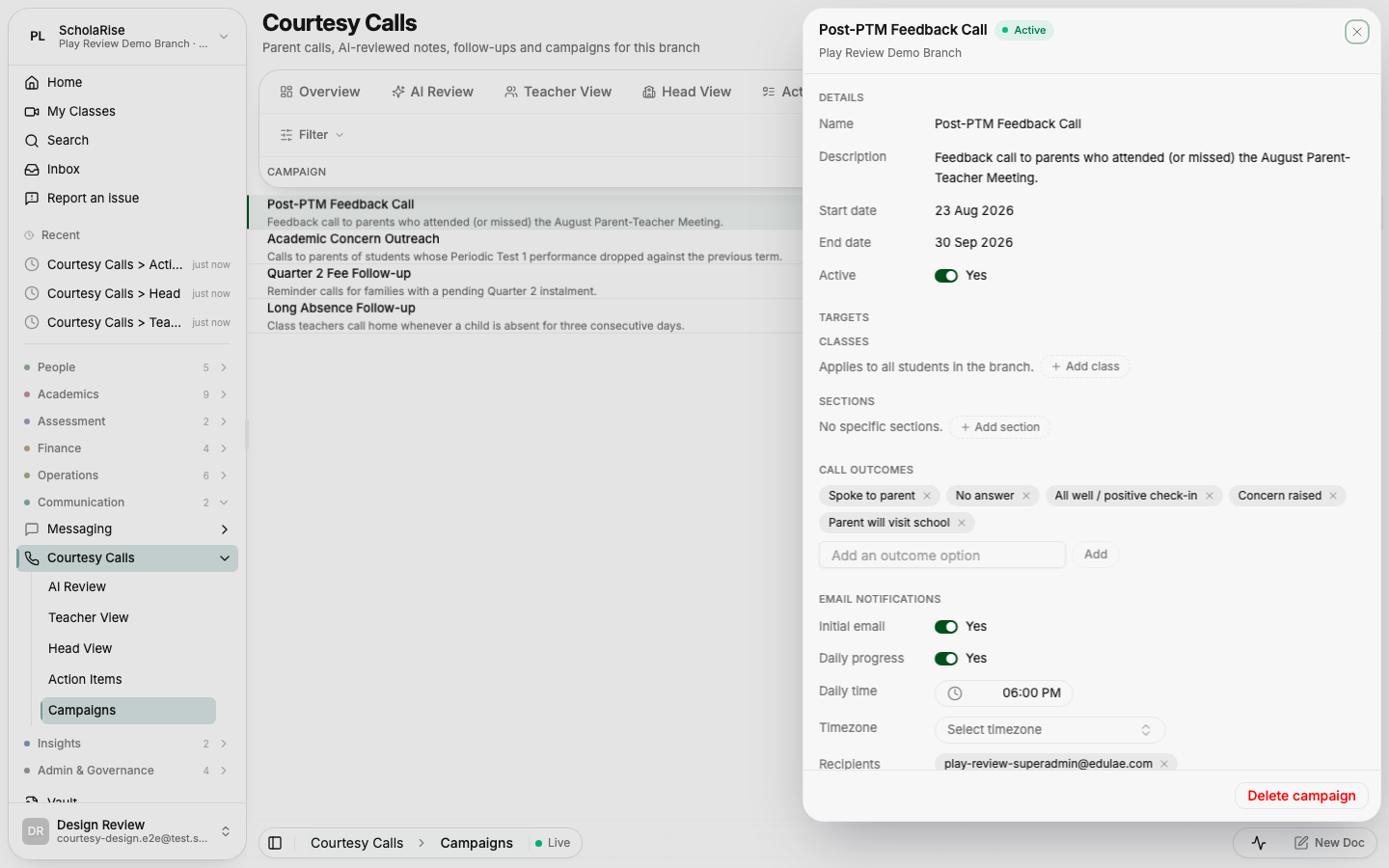
Editing a campaign in the slide-in panel
AI Review on a phone
The student panel full-screen on a phone
Examination
The shorter phone bar reaches Examination
Examination screens on a phone now use the same shorter bar: sections open from a labelled menu beside the module name, filters and toggles sit behind one button, and the bar folds away while you scroll. The column headings stay pinned right underneath it, so you always know what you are looking at.
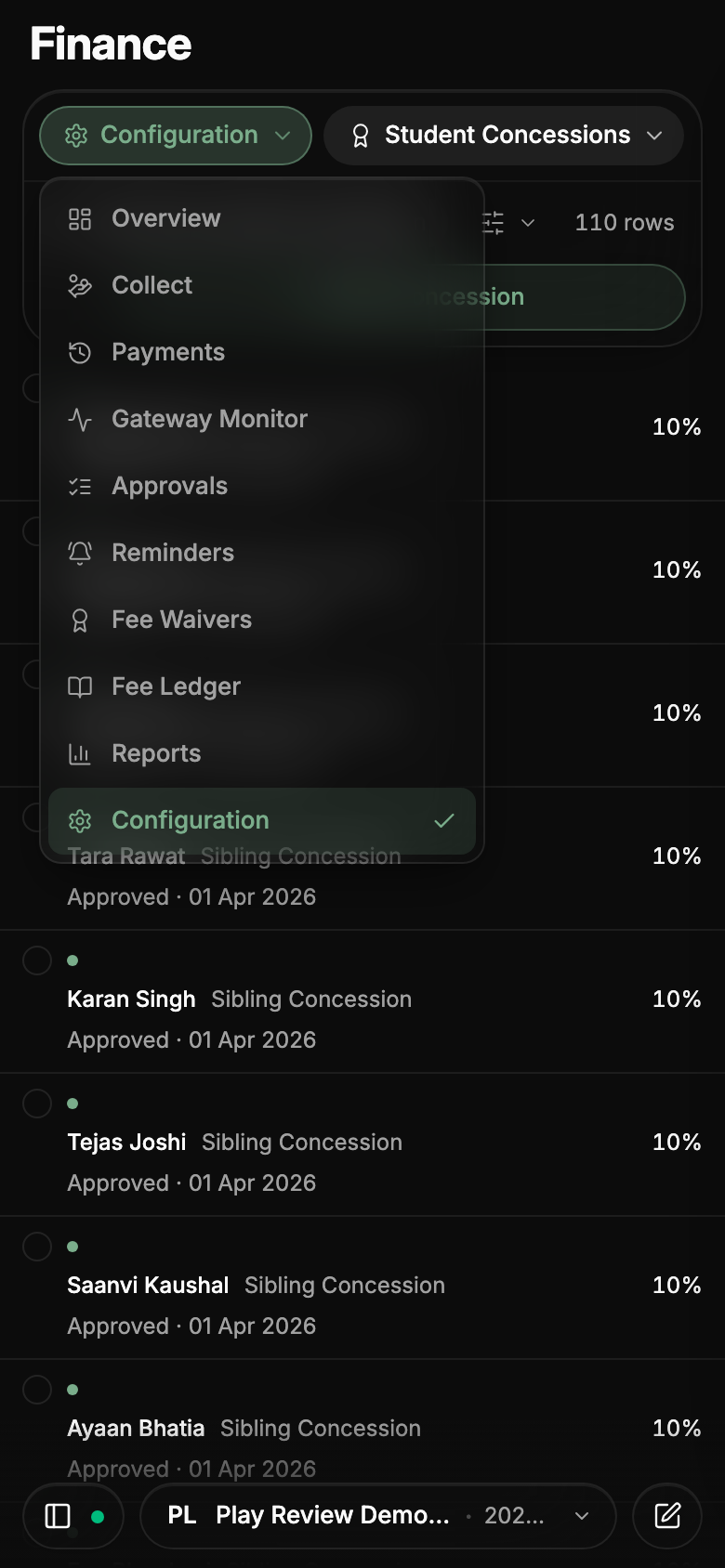
Examination configuration on a phone: the section opens from a labelled menu next to the module name, and search, filter and count share one row.
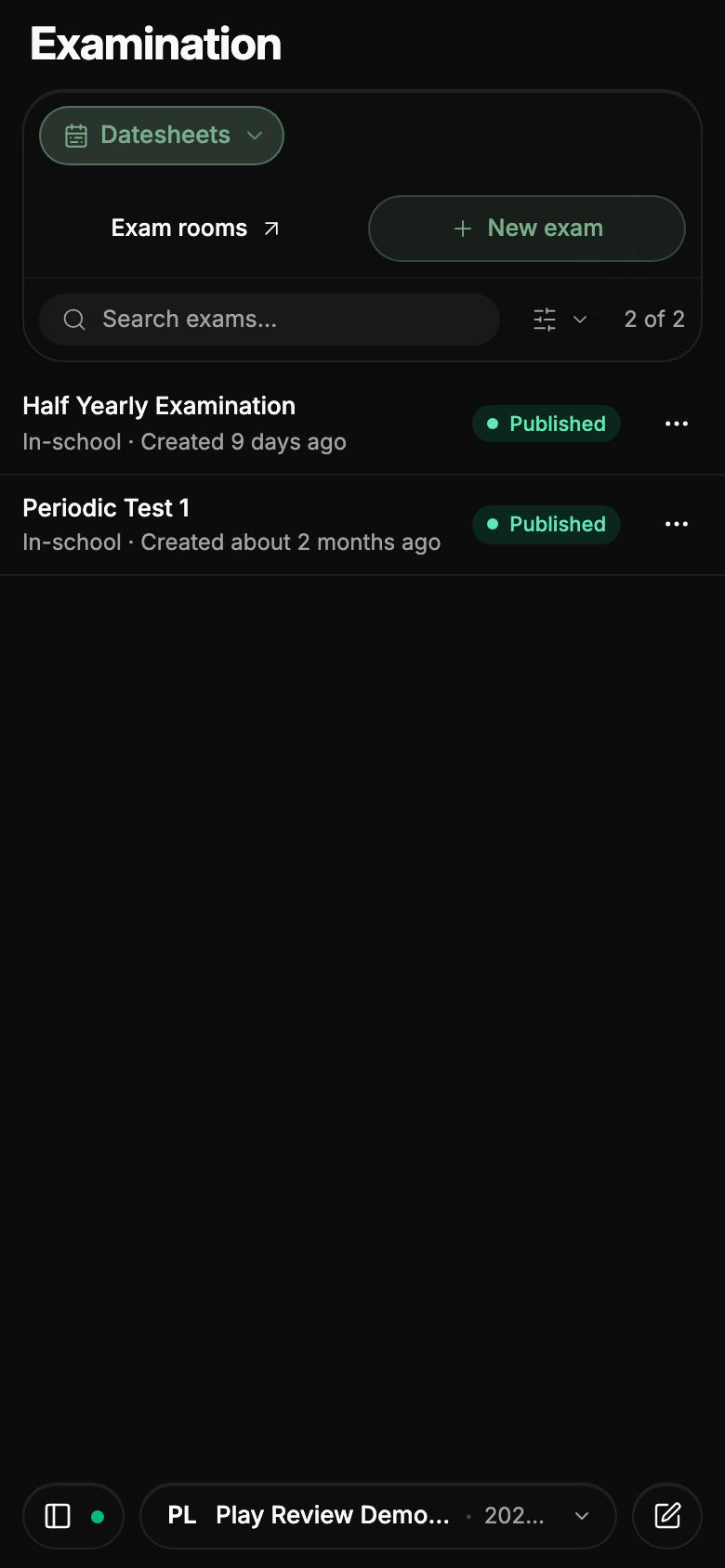
Exams and datesheets on a phone with the status filter behind one button.
While you scroll, the bar folds to a single row that shows where you are; the column headings stay pinned right under it.
Transport
Bus trips land on the right day and time
The transport operations board and the dashboard now show the morning's trips, scans, fuel entries and inspections on the day they actually happened instead of the day before. Trip times, service dates and vehicle document expiry dates also carry their time zone wherever they appear, so they always read in Indian Standard Time.
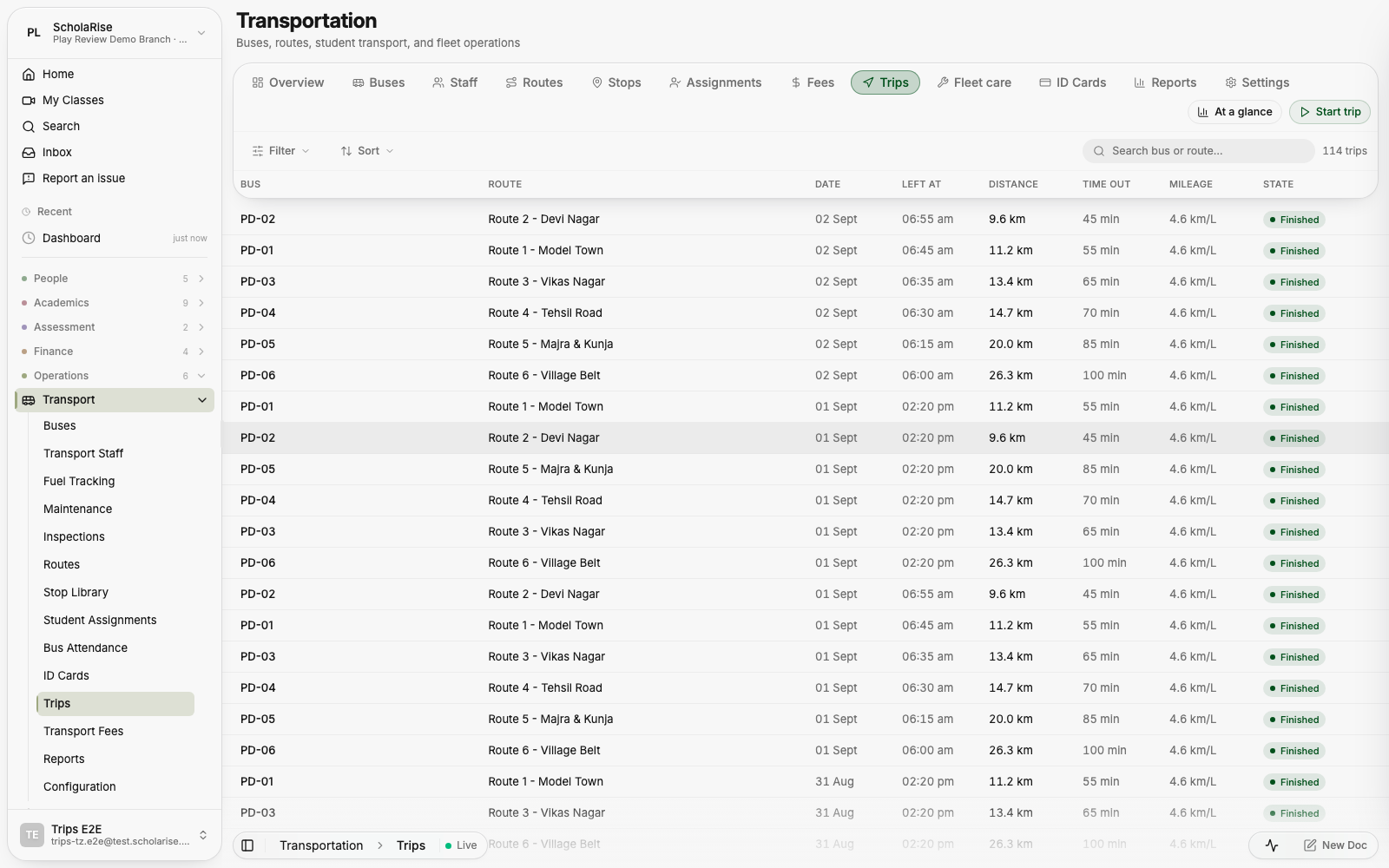
The trips list showing the morning runs leaving between 06:00 and 06:55.
Maintenance, inspections and transport settings keep what you enter
Maintenance and inspection records now save every detail you fill in, including the next service date and the next inspection date. Inspection checklists keep the answers you tick off, and the inspection summary reports real counts for the period you pick. Changes you make on the transport settings page are now saved instead of being quietly discarded.
Health
Choose exactly what goes into the measurements export
The physical measurements export now opens a full dialog where you pick the classes and sections, the term, which details to include, and how to sort and group them before downloading. Live counts show how many students already have height and weight recorded for what you have chosen. Download the register as CSV, Excel or PDF — leave the classes empty to export the whole branch.
Write down what happened and let ScholaRise file it
A Log button now sits at the top of every Health screen. Write what happened in plain words — "fell in the playground, small cut on her knee" — and it works out whether that is a clinic visit, an injury that also needs an incident report, or a wellbeing concern that calls for a counseling session. It always shows you what it is about to file, and you can change any part of it before saving.
Temperature is now in Fahrenheit
Body temperature is entered and shown in Fahrenheit everywhere in Health — the vitals field, the visit summary, the detail pane and the fever warnings, which now read 100.4 and 104.
In yesterday's new look, the floating toolbar, sidebar, menus and pop-ups were meant to blur whatever scrolls beneath them. On the live site they came through as plain see-through panels instead, which made text underneath them harder to read. That is fixed: every glass surface now blurs the page behind it, in light and dark, on every browser.
Every part of the web app now shares one calm layout: a floating toolbar that stays with you while the page slides beneath it, over a single flat page. Students, Staff, Admissions, Leave, Health, Classes, Subjects, Attendance, Timetable, Library, Fees, Examination, Transport, the homework diary and the owner dashboard all read and behave the same way, in light and in dark, on a desk and on a phone. Clicking outside a detail pane now closes it everywhere.
Your dashboard tells the whole session's story
Below the day's opening line, the owner dashboard now lays out the session — enrolment and seats, admissions, collections against last year, money still overdue, staff and attendance — as charts you can read at a glance. Every figure opens a detail pane that names the students, classes or staff behind it.
Examination
Clear the fees, then download the admit card
When an admit card is held back by pending fees, the Pay fees button now opens the payment screen with exactly the fee terms that unlock the card already selected. The first time a parent opens an admit card, a short one-time guide explains how admit cards work and what to do if one is not ready yet.
Choose which classes must clear fees first
Open Examination, go to Configuration and pick the Admit Cards tab. You can now let chosen classes download their admit cards without settling dues, and you can release admit cards before every seating plan is finished — ScholaRise asks you to confirm that first.
Your school's signatures on every admit card
Upload the Controller of Examinations and Principal signatures once for your branch, together with the names and titles printed beneath them, and they appear on every admit card and datesheet you generate. Find the Signatories page under Examination configuration.
Health
Download the physical measurements register
A class's height, weight and BMI readings can now be saved as a PDF, Excel or CSV file straight from the physical measurements page. Use the Export menu above the table; the PDF carries your school's name and logo.
Timetable
Timetable in the new look
Class schedules, cover arrangements for absent teachers, bell schedules, buildings and rooms, teacher loads and non-academic periods now all sit on one page under a single floating toolbar, so every screen reads the same way. On a phone, buildings become one drill-down instead of three squeezed columns.
Attendance
Attendance shows on the day it was marked
Attendance summaries, reports and the figures on your dashboard now follow the school day in Indian Standard Time. Attendance marked for a day no longer goes missing or turns up under the wrong date.
Filter staff attendance history like everywhere else
Staff History and Backdate now uses the same Filter button as the rest of ScholaRise, with a count of how many filters are on. Filters can now hold a date range, so choosing a from and to date takes two clicks.
Students
Undo a wrong elective choice
An elective subject chosen by mistake can now be removed, putting the student back to having made no choice at all. Class Overview also gains the same sorting menu as Student Mapping, keeping each section together and ordering students by roll number within it.
Parents & Students app
Homework subject by subject
Parents and students can now read the diary one subject at a time, with the number of pending items beside each subject and the whole session's homework listed newest first. Open Diary and pick the Subjects tab; tapping any entry jumps to the day it was set.
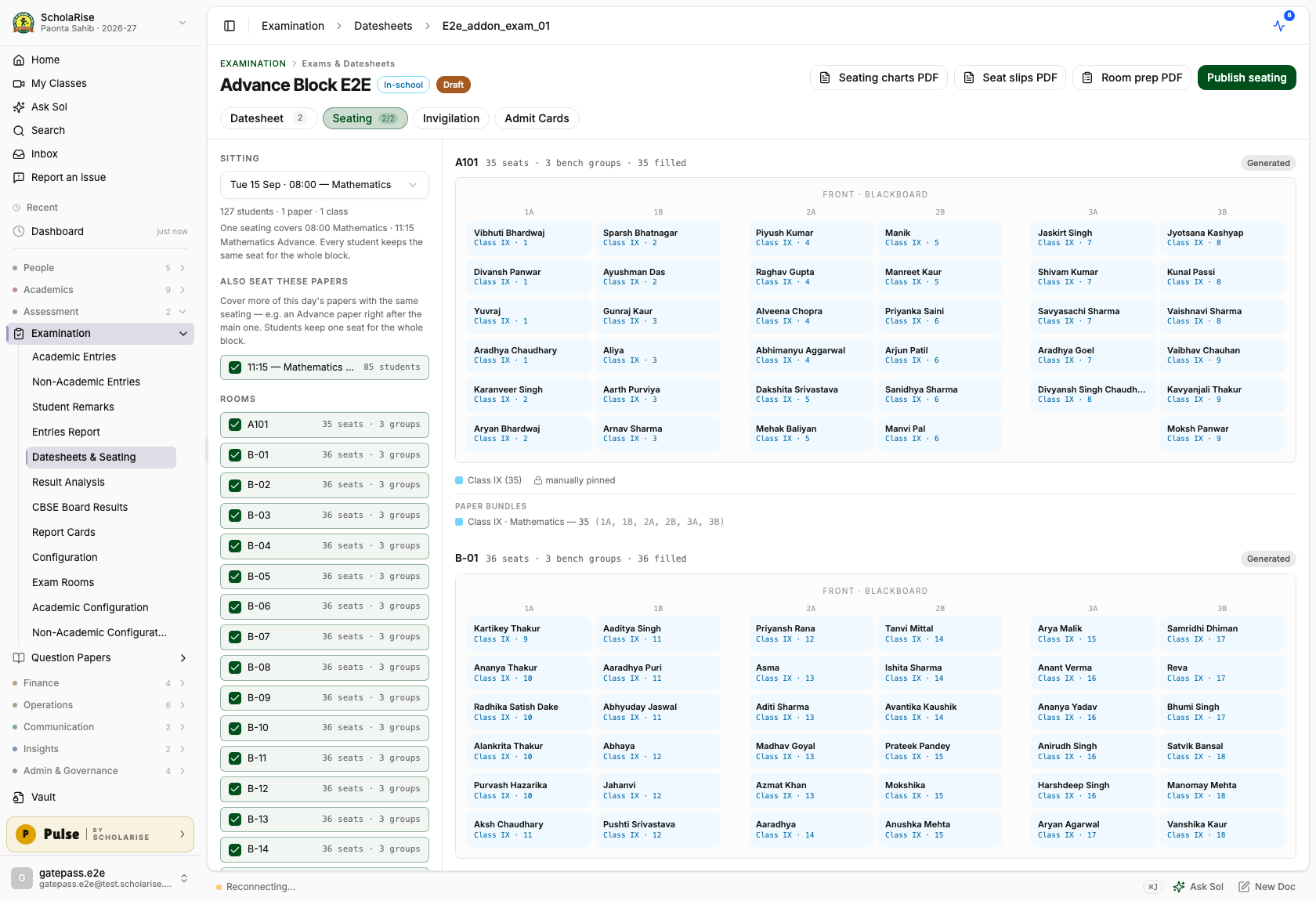
A combined seating plan covering the main paper and the add-on paper with one seat per student
Examination
One seating plan for the whole morning
When papers run back to back on the same day — the main Mathematics paper and the Mathematics Advance paper right after it, or Computer Science followed by General Knowledge — you no longer make a separate seating plan for each. Open the seating tab, tick the day's later papers under Also seat these papers, and generate once: every student keeps the same seat for the whole block.
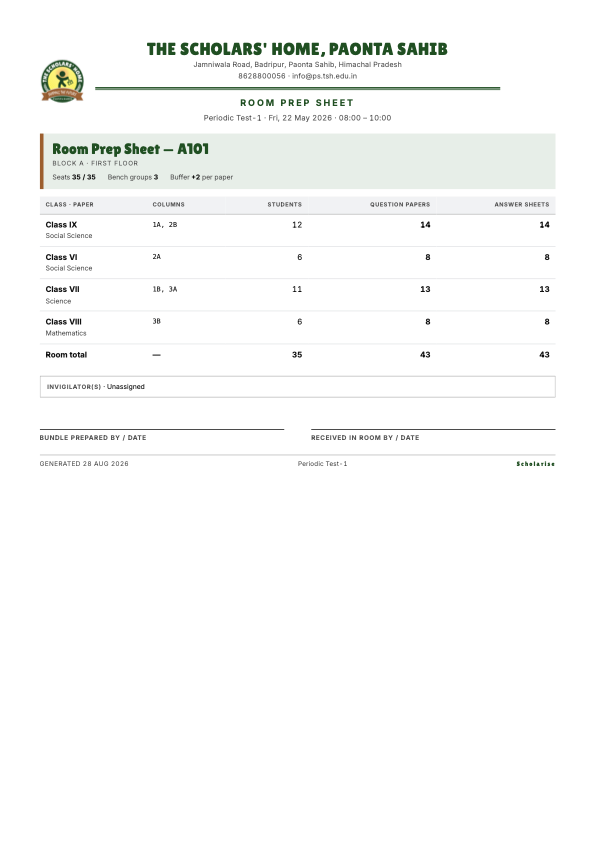
Everything downstream follows the combined plan. Admit cards print the same seat for every covered paper, the room prep sheet counts each paper's question papers and answer sheets separately — including an add-on paper that only some students sit — and invigilation duties run for the whole block. A paper that is already covered by another plan says so, so two plans can never claim the same paper.
Tick "Also seat these papers" to cover the day's later papers with the same seating.
A cleaner Room Prep Sheet
The Room Prep Sheet now prints in landscape — wider rows, still one page per room — and lists the exact number of question papers and answer sheets for each paper, without the automatic two-copy buffer. If you do want spare copies in a bundle, you can still ask for them when generating the sheet.
The datesheet's subject picker offering Mathematics Advance alongside Mathematics
Examination
Add-on subjects sit their own paper
An advance-style subject that students take on top of a regular one — Mathematics Advance alongside Mathematics, for example — can now be given its own exam paper, its own teacher and its own marks pattern. Everyone sits the main paper, and only the students who chose the add-on sit the extra one. Pick the add-on subject in the datesheet the same way you pick any other.
Timetable
Retired timetables stop showing up
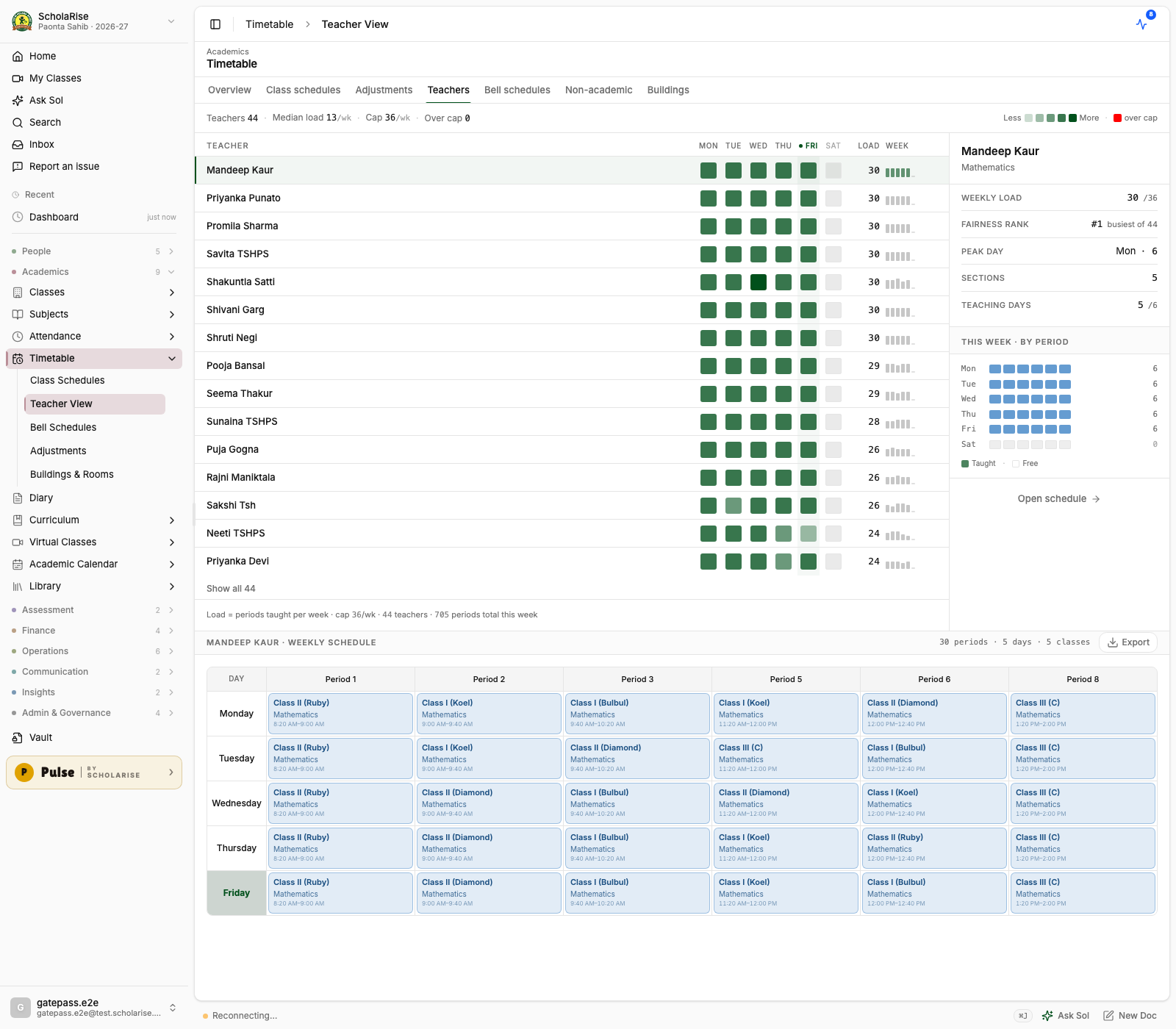
Parent, student and teacher timetables now show only the timetable that is actually in use, instead of stacking an older retired one on top of it. Teacher workload counts, stand-in suggestions and printed timetables follow the same rule, so they match what you see on screen.
Before: a retired schedule rendered on top of the live one — every period doubled and a duplicate column.
After: one clean weekly timetable, and workload counts that match it.
Set up an exam room by painting its benches onto a canvas — aisles, gaps and uneven rows exactly as the room is furnished — instead of typing a plain number of rows and desks. Presets lay out the usual paired-bench rooms in two clicks, and seat numbers follow from what you paint. Open Examination, go to Exam Rooms and edit a room's seating.
Benchmates never sit the same paper
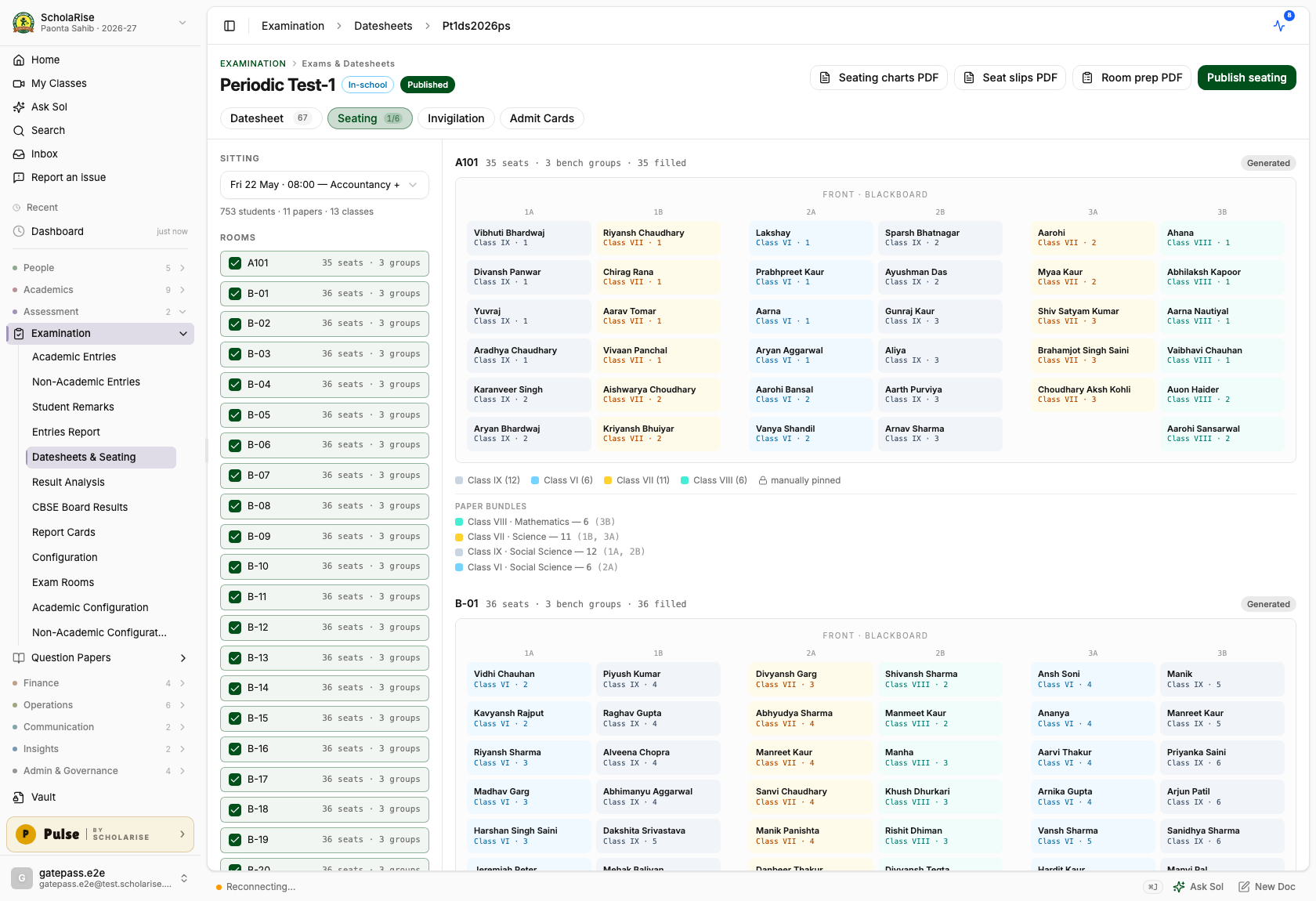
Generated seating now gives each run of benches a single class, front to back in roll order, and alternates within a bench so two students sitting together are never on the same paper. This holds even where two streams sit one shared paper, such as the science streams writing a common mathematics exam. Seats are numbered the way invigilators call them out, so 2B-04 on the chart is 2B-04 in the room.
Generated seating on the real room geometry: one class per column, benchmates always on different papers.
Room prep sheets with exact paper counts
Print a one-page sheet for every room that lists, class by class, how many students sit there, how many question papers and answer sheets to carry — with a few spare copies included — which benches each class occupies, and who is invigilating, with signature lines for handing the bundle over. A print-order summary totals it all up for the room the papers are packed in, and the seating screen shows the same bundle counts per room.
The Room Prep Sheet: exact question-paper and answer-sheet counts per room, ready to staple onto the bundle.
The datesheet screen now lays every exam out as a grid with dates down the side and classes across the top, so you can see at a glance what each class sits on each day. Click an empty cell to add a paper with that date and class already filled in, or click a paper to edit it. Each paper still shows its time, marks, sections, elective group and any clash, and papers shared by several classes appear once under every class they belong to.
A published exam on the new class-by-date grid
Reschedule a paper by dragging it
Drag a paper to another date to move it, instead of opening it and changing the date by hand. Papers shared by several classes move together, and dragging is switched off once an exam is published so a live datesheet cannot be changed by accident.
The datesheet can build itself
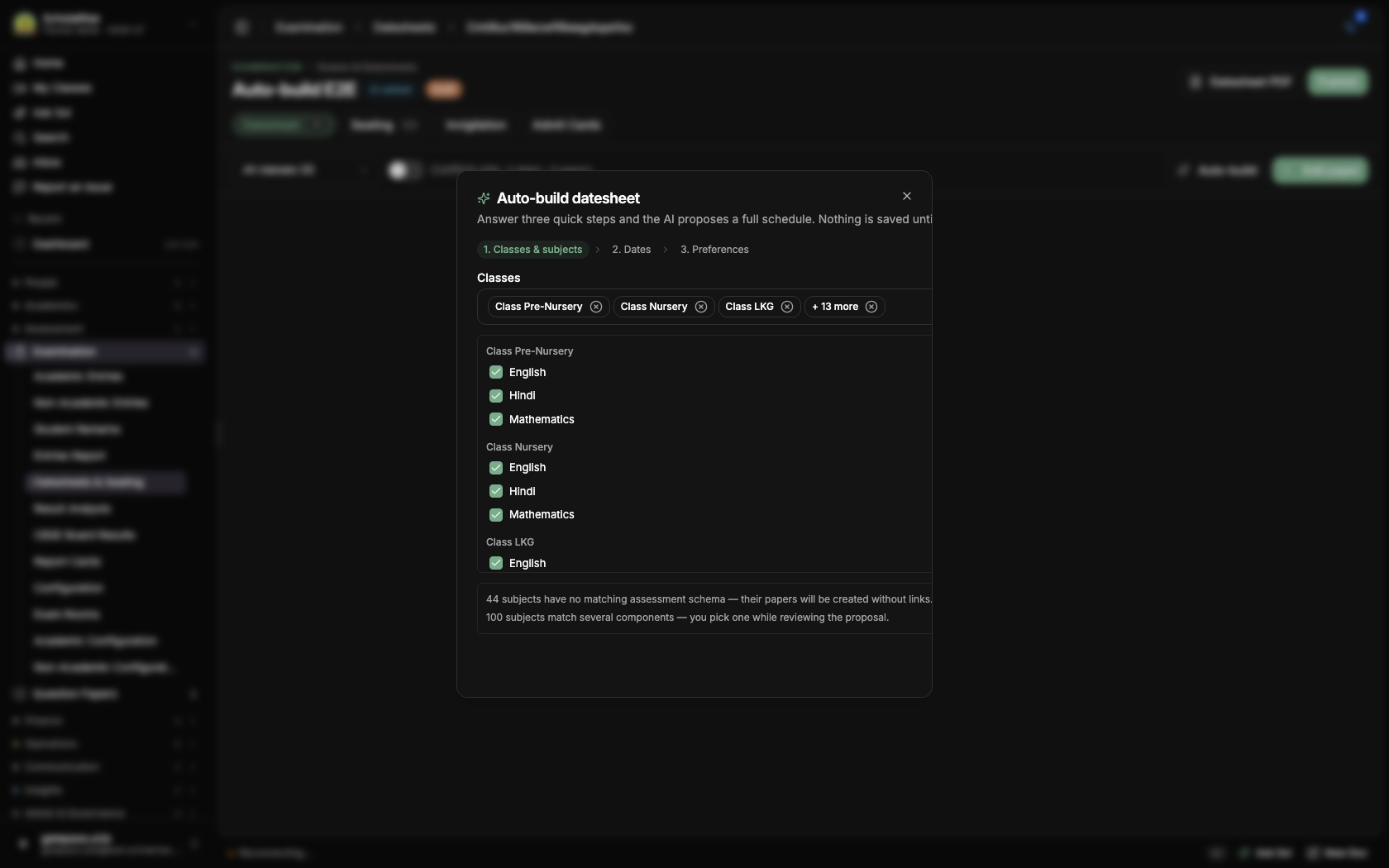
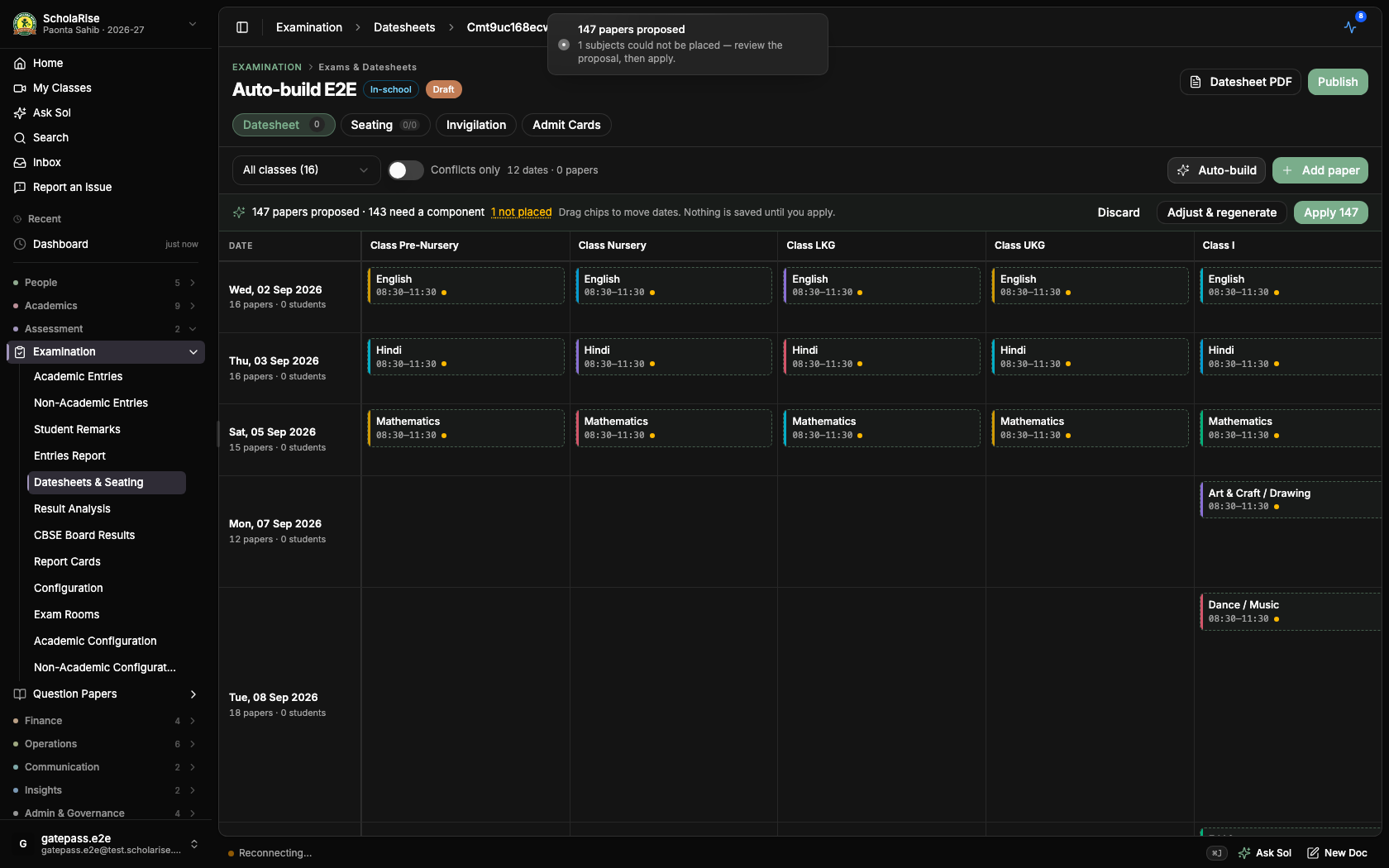
Press Auto-build on any datesheet and answer three short steps: which classes and subjects sit the exam, the dates to use — weekly offs and holidays are skipped for you — and anything else that matters, like keeping two hard papers a few days apart. A full draft schedule then appears in seconds: every subject gets a date, classes sharing a subject sit it on the same day, and each paper is already connected to the right marks column so results flow to report cards without extra setup.
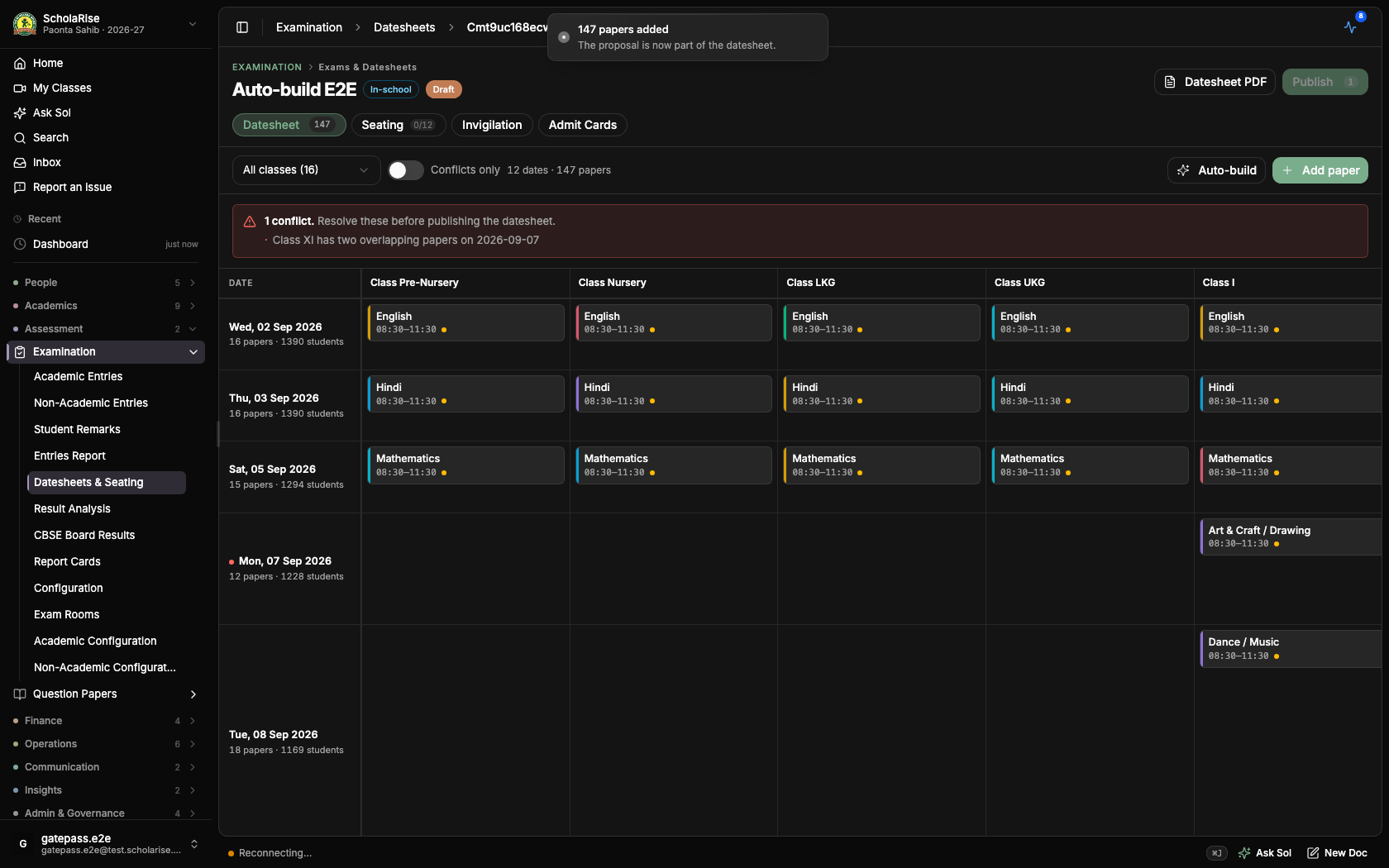
The draft lands on the grid for you to check first: drag papers between dates, remove any you do not want, or pick the marks column yourself where more than one fits. Nothing is saved until you press Apply, and clash checking still guards publishing as usual.
Auto-build step one — pick classes and subjects
The drafted datesheet, ready to review on the grid
One click applies the whole draft, with clash checking still in charge
Elective clashes are always caught
Fixed a rare gap in clash checking: when a subject is offered in more than one elective slot, two overlapping papers for the same class could sometimes slip past unnoticed — whether the clash was flagged came down to chance. The overlap is now always flagged, so a datesheet with a hidden student double-booking can no longer be published.
A subject can now be offered in two elective slots at the same time — Applied Mathematics as both an Optional Subject and an Additional Subject, for example — so you no longer have to create a second "(Optional)" copy of it. The electives screen tells you when a subject is also offered elsewhere, and Student Mapping greys it out for a student who has already taken it in the other slot. The duplicate copies your school created as a workaround are merged back into the real subject, so marks, teachers and report cards line up on one subject again.
A faster ScholaRise on a phone
Long lists now scroll smoothly on a phone, including admission inquiries, staff attendance reports, employees, teachers, students and transfer certificates. Pages also open sooner, because ScholaRise starts fetching the next screen as soon as you reach for a link, and moving between pages shows a brief loading indicator so you can tell something is happening.
Examination
Admit cards no longer show dues as nil when no fee term is set
If no fee term has been saved for the exam, the admit cards screen now says so and stops, instead of listing every student as having nothing left to pay. Save the fee term first, then load the list of students and print.
Finance
Better student search when adding a fee waiver
Searching for a student while adding a fee waiver now looks through everyone in the branch for the current session, not only the students already loaded on screen. It tells you while it is still looking and when nothing matches, and you can pick a result with the keyboard.
A staff member can now hold several responsibilities at the same time, each one tied to a branch and, if you want, an end date after which it lapses. You give and take them away from the staff member's own page. Class teacher, house in-charge and head of department duties now follow by themselves from what your school already records, so nobody has to be added twice.
A new Access page in Settings
Settings now has an Access page that lists every standard responsibility, spells out in plain words what someone holding it can do, shows who holds it today, and keeps a dated record of every change so you can see who was given what and when.
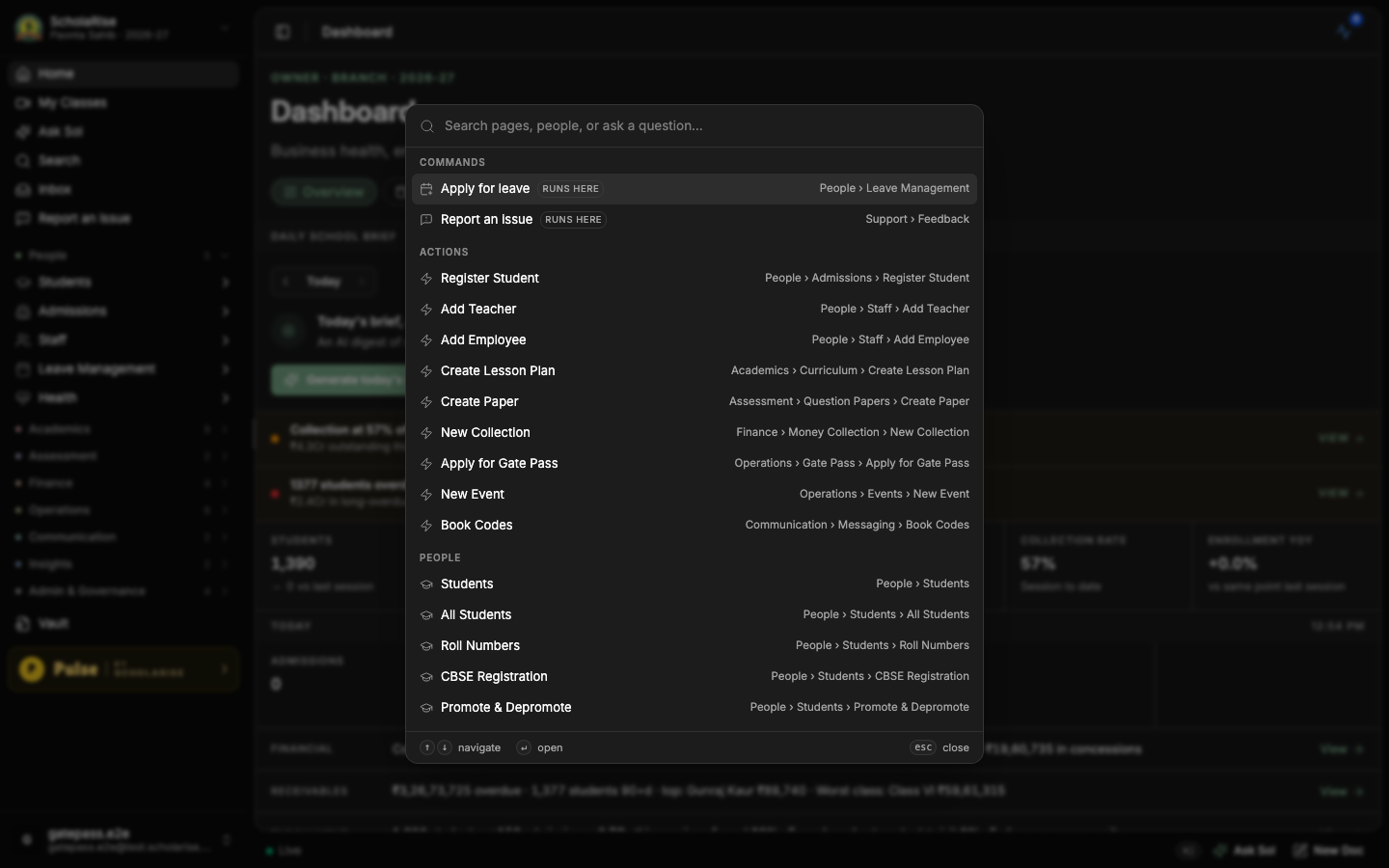
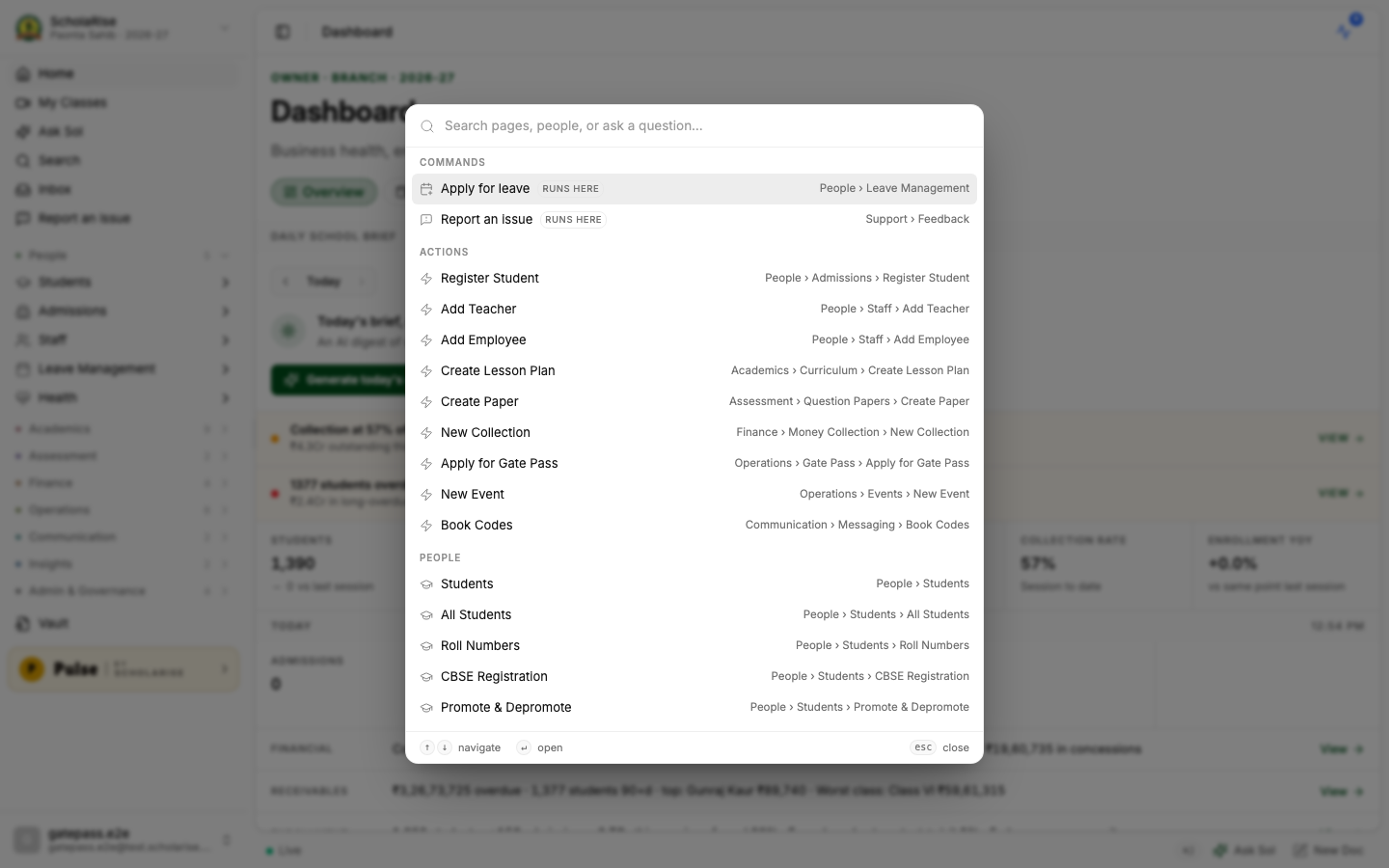
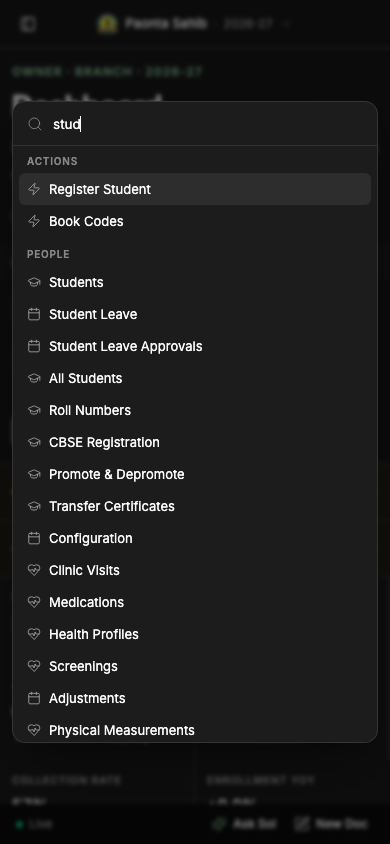
A tidier quick search
The quick search you open with Command-K is now a smaller, neater panel that fits about twice as many results on screen, and the page behind it dims so it is easier to read. Searching for a student, a parent or a staff member by name works exactly as before.
The redesigned quick search panel
Finding a student by name
The same panel in the light theme
Quick search on a phone
Library
One look across every Library form
Adding a book, editing or withdrawing a copy, correcting a register line and the Library settings screens now all open in the same tidy layout used elsewhere in ScholaRise, with a clear heading, titled sections and the buttons always in the same place. Nothing about how these steps work has changed.
Catalogue every title you hold, add the copies of each one, and print spine labels and barcodes from one place. Adding a book takes three steps — look it up by its number, check the details that come back, then add your copies. Students and staff appear as members without you entering them again, and you can print their cards.
Accession and withdrawal registers
Your accession and withdrawal registers are written as books arrive and leave, and you can print them for an inspection. A line is never overwritten: a mistake is fixed by adding a correction, so the original entry stays on the record.
Sports
Guided tutorials on every sports page
Every page and every form in Sports now has a walkthrough. Each step says what a field is, how to fill it, why it matters and where it links to elsewhere in the module, written for teachers and office staff rather than for us. A page's tour opens by itself the first time you visit; after that, use Show tutorial in the header whenever you want it again.
A ready-made sports library
Sports now ships with thirty sports, age-group and class-band categories, scoring rules, house point rules and certificate templates that you can add to your branch and then edit like anything you set up yourself. Build a competition from a template such as Annual Sports Day, create events for several categories at once, or duplicate last year's competition into this session. A Finish setting up strip on the sports dashboard tells you what is still missing.
Class and age limits on an event
The classes, sections and age limits you set on an event are now saved and are applied when students register. An event can narrow what its category allows but never widen it, and leaving the fields empty inherits the category's limits.
Score fields in Setup
The fields you add to a score schema under Setup are now saved with it and are still there when you reopen it — earlier the field builder came back empty every time.
Examination
Assigning staff to a non-academic activity
Clicking Assign staff on a non-academic activity used to take the whole page down. The dialog now opens as it should, with the activity's classes already ticked, and saves the teachers you choose.
Platform
Your Google profile picture
Sign in with Google once and your Google picture is saved to your ScholaRise account. It then shows wherever your picture appears — in the web app and in the mobile apps — even when you next sign in with your email and password.
One layout for Gate Pass
The five Gate Pass pages — passes, security check, approvals, history and settings — now share one heading and one row of tabs, instead of looking like five unrelated screens.
Standard staff responsibilities
Standard responsibilities such as Principal, School Admin, Teacher, Class Teacher, Exam Coordinator, House In-Charge, Sports Head, Front Office and Finance Officer now come with the right access built in, and are topped up with each release so a newly released part of ScholaRise is never invisible to the people who need it. Roles your school created itself are left exactly as they are. This is turned on school by school, so tell us when you would like it.
Cleaner screenshots in Report an issue
Capture screenshot in Report an issue used to hand us a picture of the report window itself. It now captures the page behind it — the one you were trying to show us.
A public changelog
You can now see what is new in ScholaRise, release by release, at edulae.com/changelog — in plain language, with pictures. There is a feed you can subscribe to if you would rather be told than check.
Finance → Reports gains a Class-wise tab: what each class has been billed, what it has paid and what is still due, with a chart per class, the largest outstanding balances, concessions by class, and a sortable table you can open down to individual students. Filter by class, fee term and fee head, and export to CSV, Excel or PDF. At head office it sweeps every branch and adds a Branch column.
Concession report
A Concession tab shows every concession given over a period: totals with a real change against the previous period, a trend, breakdowns by type and by class, and a sortable list. Filter by class, section, concession type and status, and export the same three ways. The date chip widens to your first concession if the default period is empty.
Examination
Category codes belong to one session
A non-academic category code used last year blocked the same code this year, and no screen could show you the category holding it. Codes are now kept per academic session, so each year can use the natural code again instead of the workarounds this forced.
Non-academic counts match what is on screen
The non-academic dashboard counted every year the branch had ever configured — fourteen categories where the screen listed three. Those counts, the entries overview and a student's non-academic report now cover only the session you are looking at, so a previous year's activities no longer appear as permanently unevaluated.
Creating a non-academic category with a code already in use failed with a bare "internal error". You now get a message that quotes the code and says which category holds it (an archived one, or one in another academic session), so you know whether to restore that category or pick a different code.
The background task popover is rebuilt with Live, History and Failed tabs, and the badge, the count and the list finally agree with each other. Rows stop shuffling while you watch them, waiting work is labelled Queued rather than Running, a run that partly failed reads "Done · 2 failed", and finish times are shown in your own clock as Today, Yesterday or a date.
An Activity page for everything that has run
"View all activity" opens a full page: how many runs are going, waiting, finished today and failed today, filters for status, module and date window, a search box, and a day-by-day feed that keeps loading as you scroll. Row actions — cancel, delete, download, export — behave exactly as they do in the popover.
History clears itself
Finished runs older than sixty days are now removed automatically each night, so the list stops being everything since the school joined. "Clear history" empties the popover's History and Failed tabs straight away, while the Activity page keeps those runs as the record until the nightly sweep removes them.
Report a problem without leaving the app
A new Report an issue option — in the sidebar, in the command palette, in the user menu and on any error screen — takes a picture of what you were looking at, sends it with your description, and gives you a Feedback page to follow what happened next. Reports are written up for our team automatically, and the status you see follows the real one.
Every school starts with the full list of access settings
A school created after a feature shipped could be missing the access settings that feature needs, so nobody outside a super admin could be given those screens. New schools now start with the complete list, and existing ones can be brought up to date from the admin console in one click.
Pickers inside a dialog scroll again
A picker opened inside a dialog — the clinic visit's complaint and student pickers, and every other one like them — refused to scroll its list. They scroll now, while the page behind the dialog stays put.
One subject where a school had two
A school could end up with two subjects of the same name and code, one nested under the other, splitting homework, timetable entries, diary posts, teachers and entered marks between them. The duplicate is folded into the one everybody uses, so all of that history sits under a single subject.
Examination
Datesheet papers for one section of a class
A paper can now be set for a single section instead of the whole class, so a class split into streams — Medical, Commerce, Humanities — can sit different papers at the same hour without a false clash. Clash checking, seating, admit cards, the parent exam list and the printed datesheet all follow the same rule.
Papers for an elective group
A paper can now name an elective group — "Punjabi / French / Sanskrit" — instead of a single subject. Each student's admit card and exam list show the subject they actually chose, while the datesheet keeps the class-level view. A paper for one elective subject includes only the students who take it, and two elective subjects at the same hour no longer read as a clash.
Papers are ordered by class
Within a date, papers now follow the order your classes are arranged in rather than alphabetical subject names, so Class VI comes before Class XII. A paper covering several classes sits with the earliest of them, and papers still break ties by subject name.
The daily clinic log now offers sixty ready-made complaints, with the spellings and the Hindi and Punjabi words people actually type, plus how severe it was, what was done about it and how long the child rested. Whatever the nurse writes in her own words is kept forever — it is what finds the right complaint, and it is never blocked. Temperature, pulse and the rest are finally recorded against the visit.
A blocking allergy warning before you give medicine
Allergies, long-term conditions and current medicines appear the moment a student is chosen. Giving a medicine that clashes with a recorded allergy is stopped, and can only go ahead with a written reason from someone allowed to override it. Matching uses a curated brand and generic list, so penicillin flags amoxicillin while lookalike words do not raise a false alarm. If the allergy record cannot be read, the save is stopped rather than allowed with a warning.
Medicines come off the shelf as you dispense them
Medicine given during a visit is now taken out of clinic stock, and counted once per dose — two genuine doses in one visit are two, and editing a visit afterwards does not double-count what was already taken.
A clinic dashboard, and a rail beside the visit list
Health opens on a dashboard that reports rather than a bare list, and the clinic-visit page carries a side rail with "In clinic now" above "Needs follow-up", which is the order a nurse asks them in. The rail folds away when you open a visit so the visit gets the width, and on a phone it collapses to a one-line summary such as "3 in clinic · 2 follow-ups".
Examination
Non-Academic Configuration lists load again
Creating an item under Examination → Non-Academic Configuration reported success and then showed "No items yet". Four of these lists were failing to load, so a hard failure looked exactly like an empty table. They load correctly now, and what you created appears.
"Remind everyone missing" on Reports → Forms → People, and the reminder on a single person, can now send by email as well as in-app. Anyone with no email address on file is reported back to you so you can nudge them another way, and the four-hour gap between reminders applies to both channels.
The daily brief opens instantly
The Briefs page said "Generating the brief" on almost every visit, even when the brief was already written. A finished day's brief is now shown exactly as it was written, and a day still in progress refreshes quietly behind what you are reading. The day it covers is the Indian calendar day, edge to edge.
Staff & Leave
Leave lists really do show the range you picked
The leave lists said "Date range · Last 30 days" and showed nothing older than about a week: only the newest fifty applications were ever fetched, and the filter then ran inside those fifty. The range is now applied to the whole list, and the list keeps loading more as you scroll.
Examination
Grading scales accept new grade ranges
Adding a grade range failed with "Create failed — internal error" and the scale stayed at "0 configured ranges". Creating and editing grade ranges works now.
Coverage chips show subject names
In the assessment setup screens, a coverage chip could show a long code instead of a subject name, and the edit pane offered every subject in the branch rather than the ones the covered classes study. Both now behave like the create dialogs.
Reports → Forms was desktop-only in practice: the daily brief was crushed into a sliver, the People stats overlapped the buttons on top of them, and row actions and tooltips only appeared on hover. The module now uses the same header and tab strip as the rest of ScholaRise, the brief opens full width with a back arrow, stats stack in a grid, and every row action is reachable by touch.
The register grid reads on a small screen
The filing register has tighter day columns on a phone, its legend above the grid, filled dots for a missed day, and a label on every day cell so a tap tells you what it is. Opening a person shows a labelled week-by-week grid instead of an unbroken run of dots.
A file attached to a staff leave application was accepted when it was sent and then lost, so approvers never saw it — the Inbox and Leave Applications panes showed no Document section at all. Attachments are now stored and appear as "Document → View attachment" on the application. Applications filed before this release have no stored file, because it was never kept.
A day that no working timing covers is now shown as a weekly off instead of an absence — on your own attendance chart, on the employee and teacher dashboards, and on the school-wide view. Attendance percentages count only the days a person was actually expected in, using that person's own working days rather than a branch-wide figure.
Half-day holidays count as half days
Holiday Management has always let you mark a holiday as a half day; staff attendance now honours it. Expected hours shrink to the working half, and someone who attends that half is shown as a half day rather than an absence. Holidays can also be applied to all staff, and the holiday ribbon that never appeared for staff now works.
One-off timing changes for a single day
A new Attendance → Exceptions page lets you say "everyone leaves at noon on Friday" or "teachers report at 10 on Wednesday" without touching the regular timings. Reports, dashboards, late detection and the automatic evening check-out all follow the exception, and the editor tells you how many people it affects before you save.
Attendance charts explain themselves
Hovering a day now shows the timings that were expected next to what was actually recorded, so a late mark explains itself. Absent days also carry a small centre dot, because red and green alone are hard to tell apart for many readers.
A student who turns up keeps their attendance
When a student with approved leave is marked present, the mark stands, that day is taken out of the leave, and the parent plus your chosen recipients are told by email. Approving leave now fills only the days that have no attendance yet, so a teacher's earlier marks are never overwritten.
Delete a day's attendance for one section
On Attendance → Students you can now remove every attendance record for one section on one date, after a confirmation that shows the exact count. It is the fix for a day marked against the wrong section or the wrong date.
Examination
Report cards name sub-subjects correctly
Sub-subjects printed as "Social Science → Social Science", with the parent name in front and a stray double space. They print their own name now, and they sit where you placed the subject in Manage Subjects instead of jumping to the top of the table.
Subject pickers only offer what the class studies
When you set coverage for an assessment, or add a paper to a datesheet, you now pick classes first and then see only the subjects those classes actually study. A split class offers its variants and an unsplit class offers the main subject, so a Class I template can no longer be pointed at a Class XI subject. Coverage is class-wide — every section of a chosen class is included — and the copy now says so.
Result Analysis finds results for split subjects
Picking a subject that is split into variants left the Growth tab empty, because the marks sit under the variants rather than the parent. Result Analysis now includes the variants of the subject you pick, and the subject list labels each variant with its parent so same-named ones stay apart.
Communication
Every detail fills in on the message parents receive
A WhatsApp message could preview correctly and still arrive with a dash where the branch name, school name, academic session, admission number, roll number, class or guardian name should be, and without the Mr./Ms. prefix. Sent messages now use exactly the same values the preview shows.
Staff & Leave
Staff dashboards fit on a phone
The employee and teacher dashboards no longer slide sideways on a phone: the attendance chart scrolls inside its own strip and opens on the current week. The employee dashboard also gains a quick links row for applying for leave, forms, the academic calendar and messages, with the leave balance and pending count on the tile.
Platform
Colours stay right in dark mode
Screens that mixed fixed colours with the theme could stay dark green on a dark background. Colours across the app now follow the theme everywhere, so dark mode reads correctly and a school's own colours reach every screen.
On a short or zoomed-in screen, the sending number, Title box and template picker on Communication → Send looked normal but would not accept a click. They respond at every size now, and the page scrolls instead of squashing the form.
Every list in ScholaRise — students, staff, admissions enquiries, classes, attendance reports, transport, health, inventory, subjects, leave and the rest — now opens its filters from a single Filter button instead of a row of drop-downs. Add only the filters you need, see at a glance how many are on, and clear them all in one click.
Sort by more than one thing at a time
The students, teachers and employees lists let you stack sorts — class first, then roll number — instead of choosing a single one. The default view is unchanged, so each class still reads in roll-number order until you say otherwise.
Book a demoA guided walkthroughWeb · iOS · AndroidAvailable across India
The next step
See ScholaRise in your school.
A real walkthrough with someone who actually runs a school — we'll map what fits your
campus today and what's worth phasing in over the next year.