Skip to content
All releases v2.2.0
v2.2.0

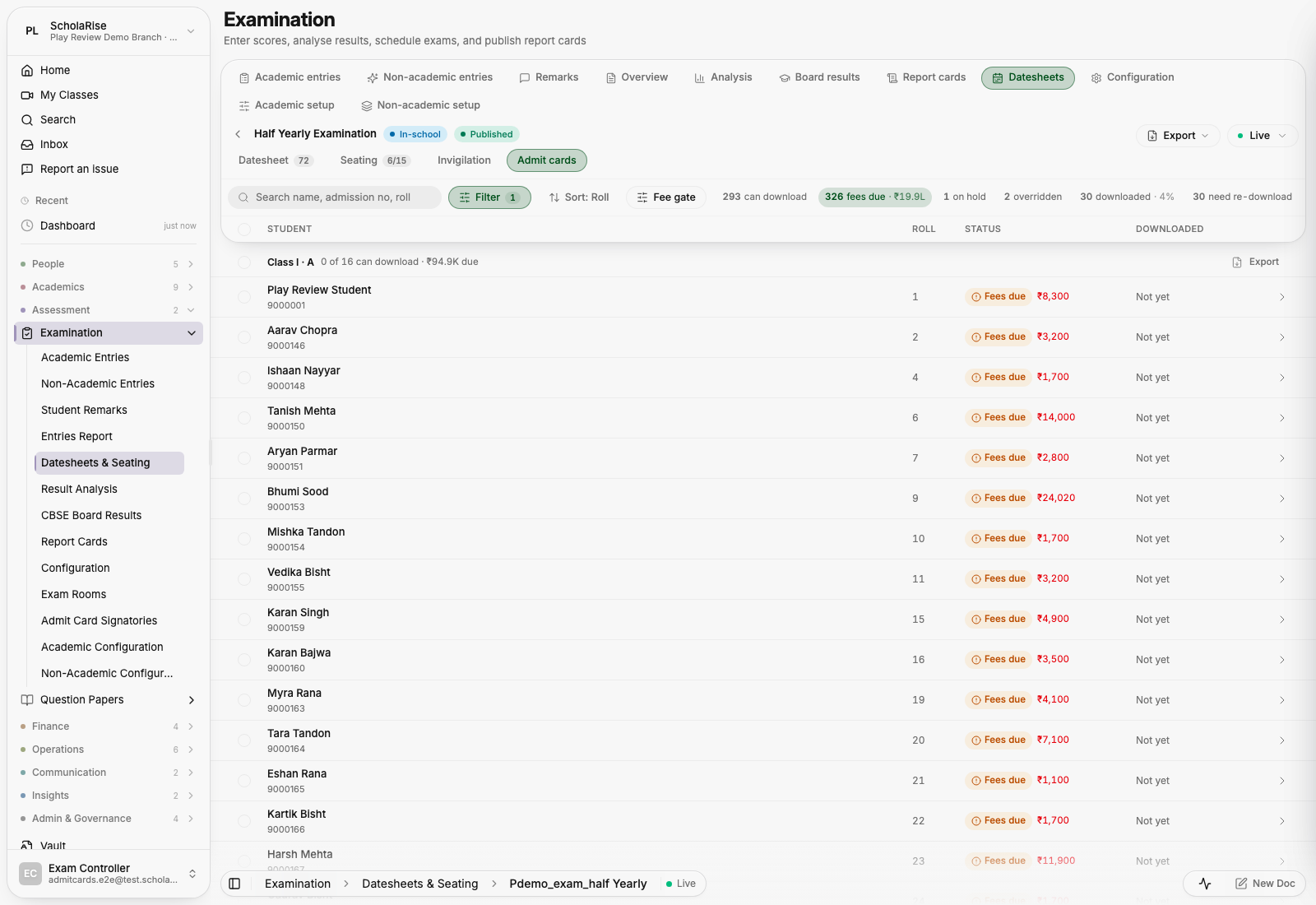
Admit cards become one clean list with who-can-download filters, and the phone bar folds neatly on every module.

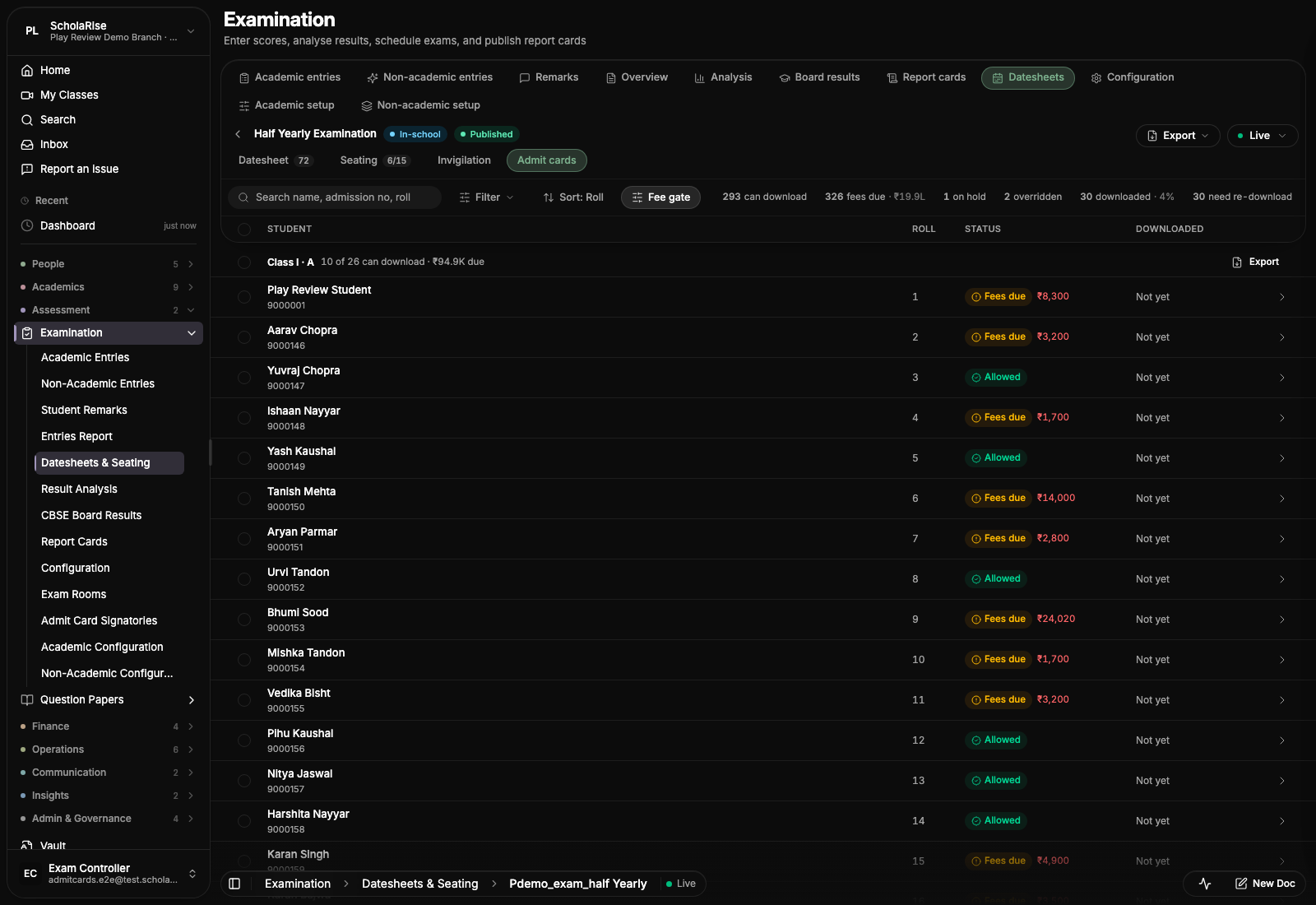
The admit cards list, with the counts of who can download beside the search and filters

Examination

Admit cards, rebuilt around the fee term

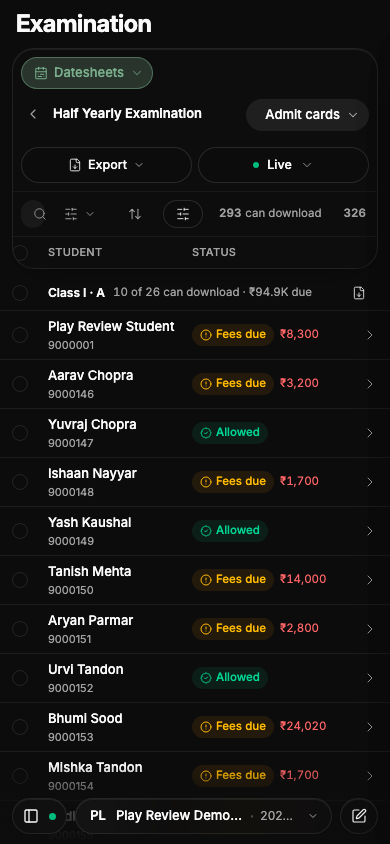
Admit cards are now one clean list of students, with the counts of who can download sitting beside the search as filters: tap a count to see just those students. All the setup, the fee term that decides who can download, the class exemptions and what the card says, lives in a panel you open when you need it. Open Examination and pick Admit Cards.
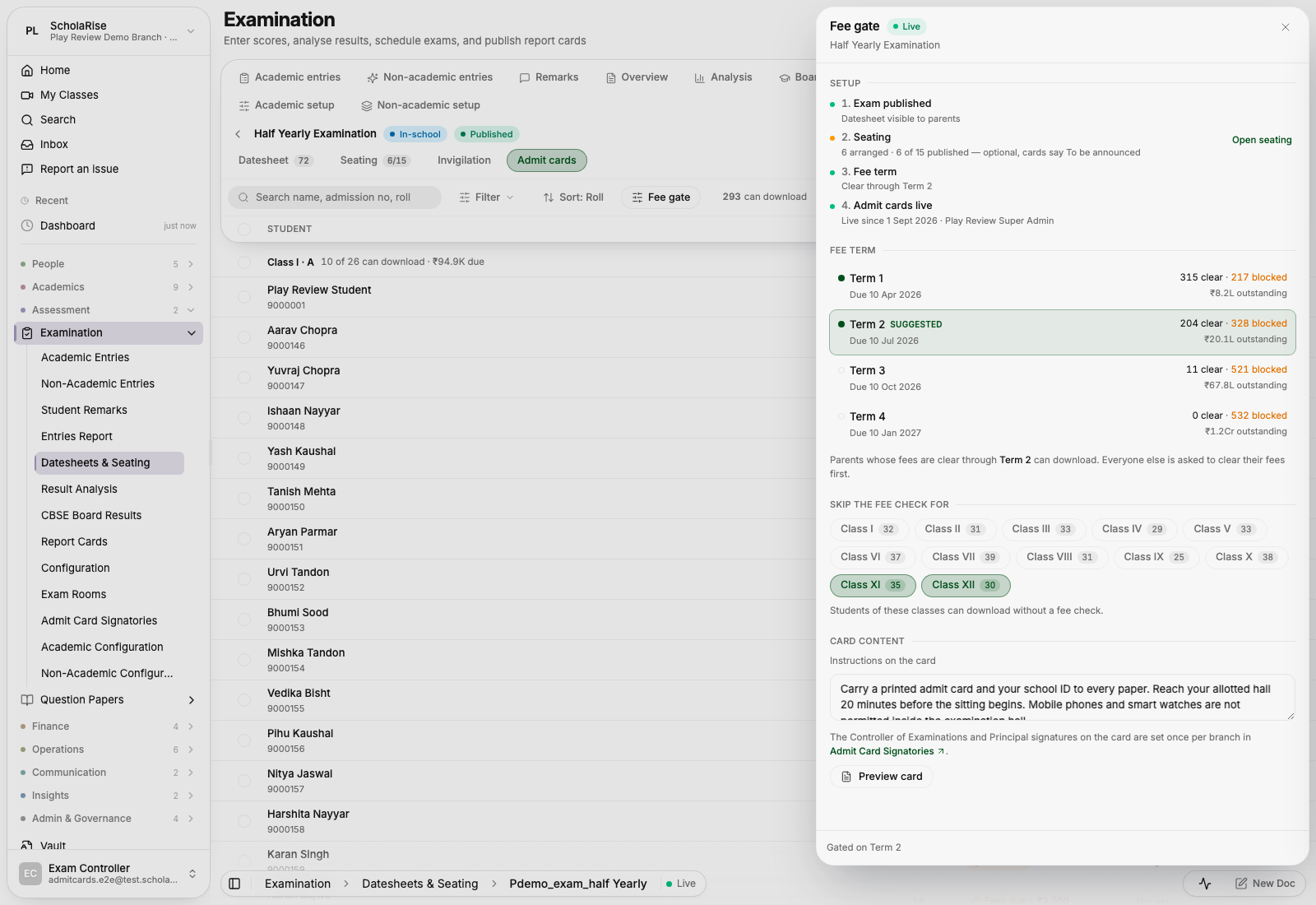
The fee gate panel: each term shows how many students it clears or blocks before you pick one
Tapping a count filters the list to those students
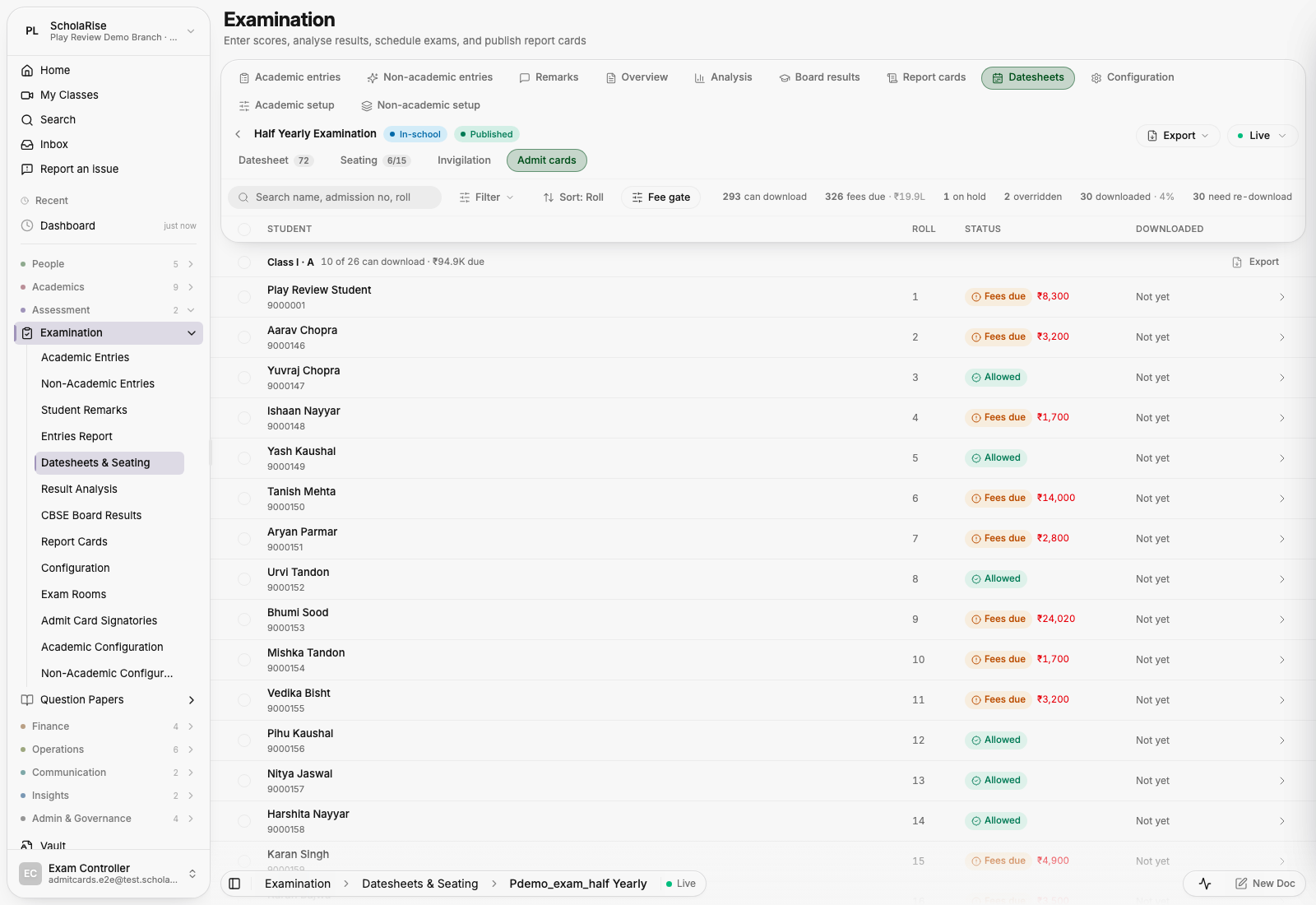
The same page in dark mode
The same page on a phone

Platform

The phone bar folds only once your list is under it

On a phone, the bar at the top of a module used to fold as soon as you started scrolling, which left an empty band above the first row on pages with a taller bar, such as Fee Collection. It now waits until the rows have slid underneath it, and it opens again as they slide back out. Each module also shows its one-line description under the title again.

Fee Collection on a phone with the toolbar open: the student card and actions sit in the glass bar above the fee list.
Scroll down and the bar folds to one row with the fee rows directly beneath it, no empty band.
The same fold on Student Concessions: the first row sits right under the folded bar.
Every module shows its one-line description under the title on phones again; it tucks away with the title as you scroll.

Courtesy Calls fits the phone bar

Courtesy Calls now folds its toolbar as you scroll like every other module, and a tap opens it again. The status and section switches sit in one dropdown beside the module tab, and search, filters and the count share a single row. The first section of the overview is now called Summary.

AI Review on a phone with the toolbar open: the module and status pills on one row, search with filters and the count on the next, sort below.
Scroll down and the bar folds to one breadcrumb row, AI Review › Open, with the flags directly beneath it.
The status switch is a dropdown beside the module tab: Open, Actioned, Dismissed, All.
The overview folds the same way, with the first figures sitting right under the folded row.

A new menu on phones

The menu on a phone is now a floating panel that slides in over the page, with larger rows that are easier to tap and quick links for Home, Search and Ask Sol. The bar at the bottom stays visible, so you can switch branch or session without closing the menu.

Book a demo Available across India
The next step

See ScholaRise in your school.

A real walkthrough with someone who actually runs a school — we'll map what fits your campus today and what's worth phasing in over the next year.

The walkthrough

Length
30 minutes, no slides
Run by
Someone who runs a school
Available
Across India · web, iOS & Android